
Before you start
- The client must be active or scheduled. In any other status, for example with coaching ended or archived, the tab shows “Client is not active” and “This client's coaching is closed. Reactivate them to make changes.”, and only the history, read-only.
- A client has only one of your supplement plans at a time. If they already have one, the Assign button does not appear: first remove the current plan (section “Remove the plan from the client”) or assign the new one from the plan itself, which replaces the previous one. See Assign a supplement plan to clients.
- In a team workspace, you need the Supplements > Edit permission to assign, change the dates, edit and remove the plan, and Supplements > Create to create a plan from the profile. Without Supplements > View, the tab shows “You do not have access to this area”. The workspace owner always has these permissions.
Steps
To assign a supplement plan to a client:
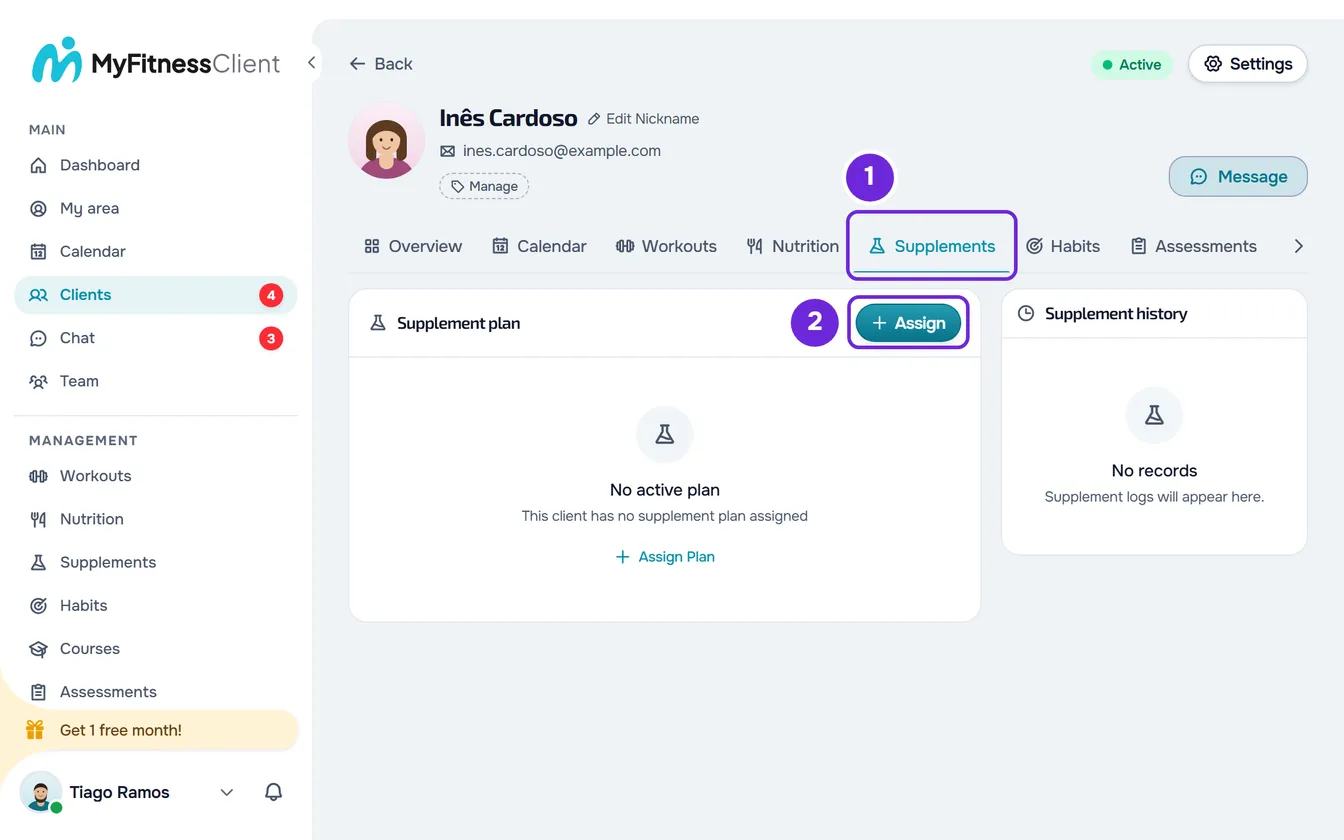
- In the side menu, select Clients and open the client's profile.
- Select the Supplements 1 tab. While the client has no plan, the card says “No active plan”.
- Select Assign 2 or Assign Plan. The Assign Plan window opens.
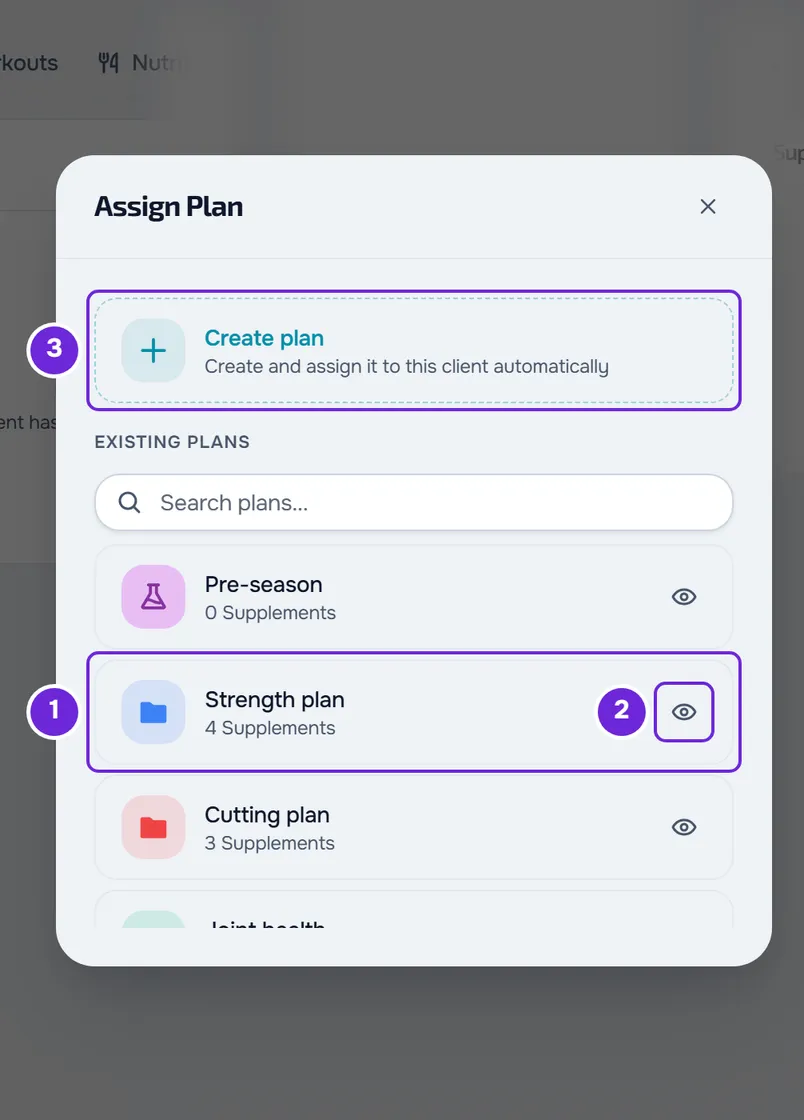
- In Existing plans, select the plan 1. The list starts with the most recently created plans and shows up to 50. With more than 5 plans, a search appears that looks for the name across all your plans. To look at a plan without choosing it, select the eye icon 2 on its row: the plan opens in another browser tab.
- In the next step, which shows the client's name and “Set access dates”, confirm the Start 1 in Access dates. It is set to today, or to the day access opens if the client is scheduled, and accepts past days. For a scheduled client, doses can only be logged once their access opens.
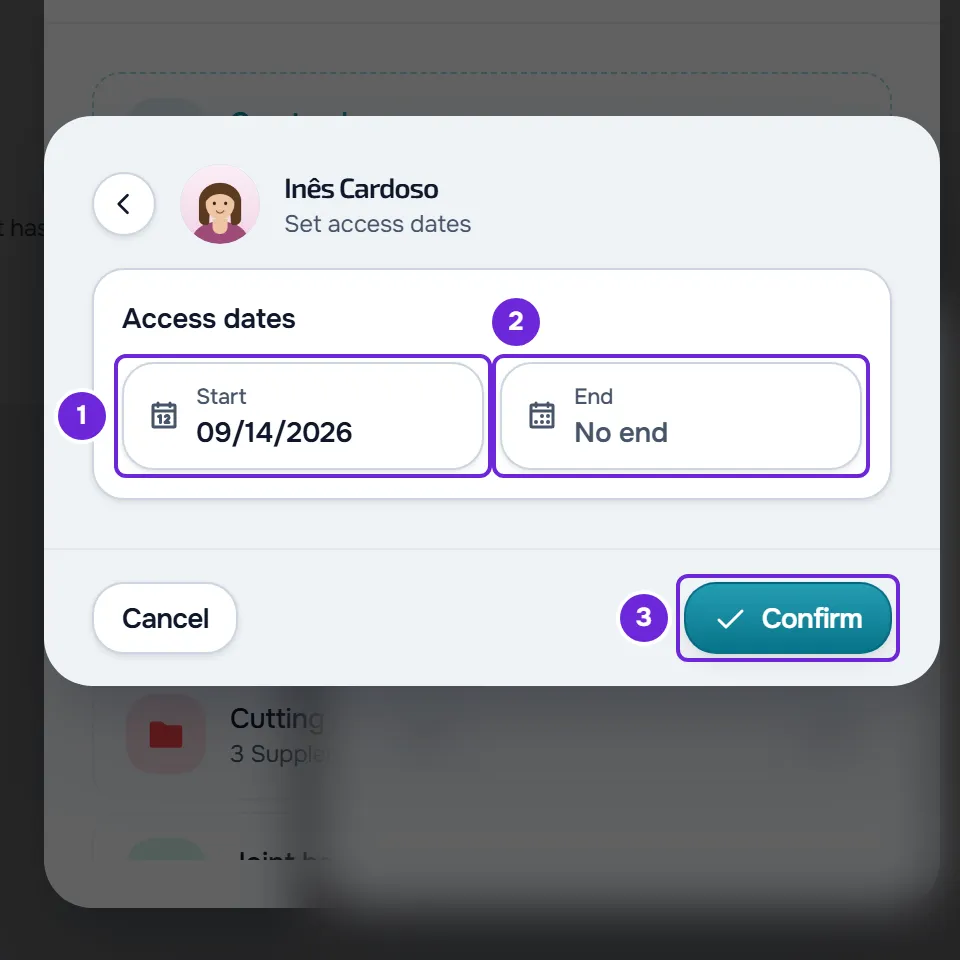
- Optional: choose the End 2. Without a date, the field says “No end” and the plan stays active until you remove it.
- Select Confirm 3.
“Changes saved!” appears and the Supplement plan card shows the plan's name, the plan week and the day's doses.
What the client receives
- An active client who did not have this plan yet receives the notification “New supplement plan”, with the plan's name.
- A scheduled client does not receive this notification. The plan never starts before the day access opens, even if you choose an earlier start.
- If the client's recurring plan or pack does not include Supplements, the plan stays assigned, but the client is not notified and does not see the plan in the app.
- Assigning the same plan again or changing the dates does not notify the client again.
- The client only has doses between the start and the end.
What the client marks each day, and how you mark it for them, is in Log a client's supplement doses and view the history.
Create a new plan for this client
If no plan fits, in the Assign Plan window select Create plan (“Create and assign it to this client automatically”). The creation screen opens: name the plan, add the supplements and select Create. The screen is described in Create a supplement plan for your clients.
Next, the new plan's page opens, already at this client's dates step. Confirm the Start, choose the End if you want and select Confirm. “1 assigned” appears and the Assign to clients window stays open, with the list of the other clients. Close it to see the plan's page.
The plan card
With a plan assigned, the Supplement plan card shows:
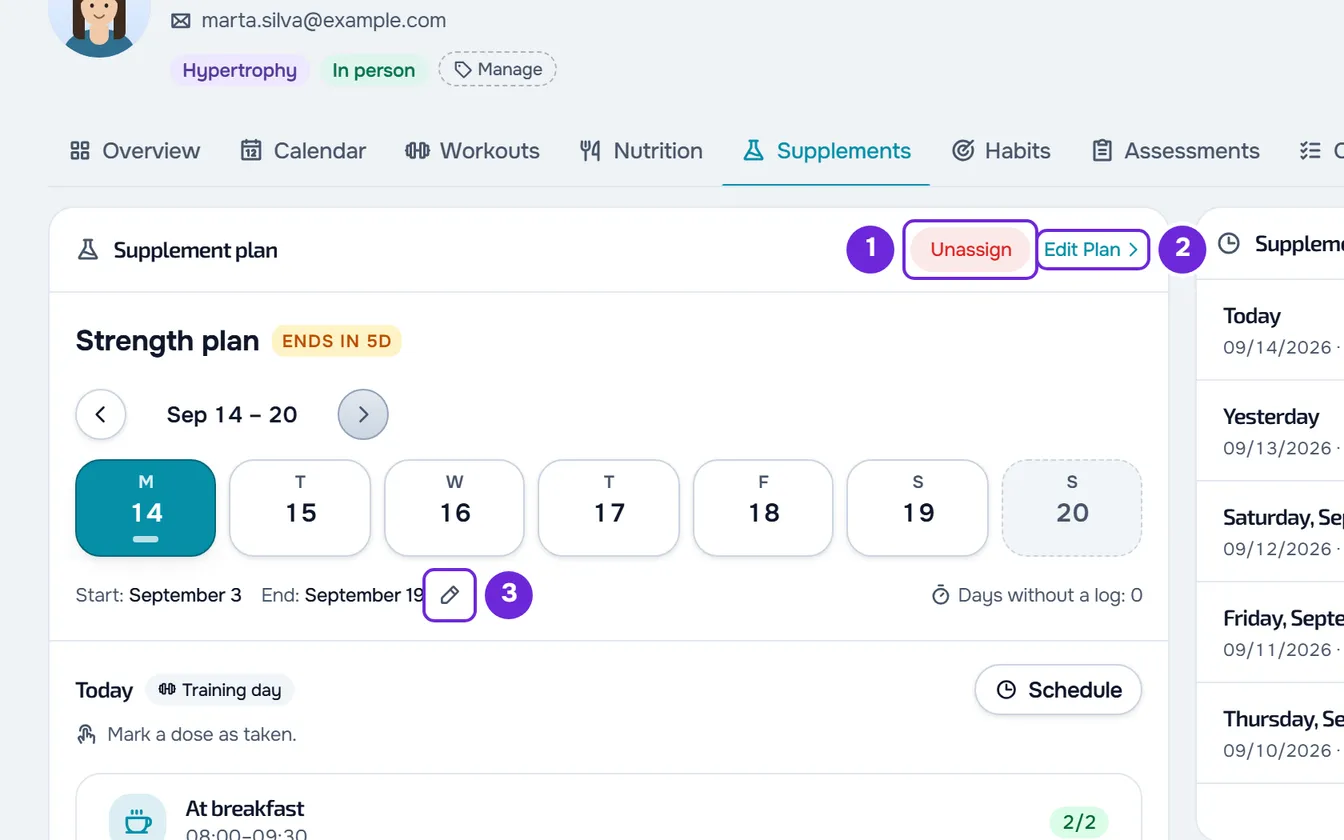
- Unassign and Edit Plan at the top (on a narrow screen, Edit).
- The plan's name. When 7 days or fewer are left until the end, a badge next to it shows the days left, for example “Ends in 5d”, in red with 2 days or fewer, and “Ends today” on the last day.
- The plan week, with the start, the end and the Days without a log, followed by the doses of the chosen day. Reading the week and marking doses is in Log a client's supplement doses and view the history.
- If, as an exception, the client has more than one of your plans active, the others appear on one row each, with the dates, Edit dates and View / Edit. A right-click on the row opens the same two actions.
After the end date, the client no longer has doses and the badge disappears, but the card keeps showing the plan. To extend it, change the end with the dates pencil. To give them another plan from the profile, remove this one first.
Change the dates for this client only
On the plan card, select the pencil next to the end date. The same dates step opens, with the current dates and “Edit dates”. Change the Start or the End and select Confirm: “Changes saved!” appears. The change applies only to this client, the plan and the other clients stay as they are, and the client is not notified.
Edit the client's plan
Edit Plan opens the plan's page. If the plan is active for more than one client, the Edit Plan window opens first, saying how many clients share the plan:
- Create personal copy creates a copy of the plan only for this client, with the same name, the same dates and the doses they have already logged, and opens that copy. The other clients stay on the shared plan.
- Edit for everyone opens the shared plan: the changes reach every client who has it.
Remove the plan from the client
At the top of the card, select Unassign. In the Remove window, confirm with Unassign. The tab goes back to “No active plan”.
Unassign only removes the plan from this client: the client stays on your list, the plan stays in your supplement plans and the doses the client already logged stay in the history. The client no longer sees the plan and is not notified.
Common problems
The Assign button does not appear
One of these causes:
- The client already has a plan: at the top of the card are Unassign and Edit Plan. Remove the current plan or assign the new one from the plan itself.
- The client's coaching is closed and the tab says “This client's coaching is closed. Reactivate them to make changes.”
- In a team workspace, you lack the Supplements > Edit permission. See “No permission to access” and menu items missing for a member.
“Enter the event date: some phases count from it.”
The plan has a period counted backwards from an event, such as a peak week, and the profile does not ask for the event date. Assign that plan from the plan itself: in Supplements, in the side menu, open the plan, select the clients chip (it says Assign to Client while the plan has none), choose the client, continue to the dates step and fill in the Event date. The card's dates pencil gives the same error on these plans: change the dates from the plan as well. See Assign a supplement plan to clients.
“You don't have permission to do this in this team.” when creating a personal copy
Create personal copy requires the Supplements > Create permission, in addition to Supplements > Edit. Ask the workspace owner for it or select Edit for everyone.
The client does not see the plan
The client only has doses between the plan's start and end. A scheduled client only has them once access opens, and a recurring plan or pack without Supplements leaves them without the plan in the app. Check the dates on the plan card and change them with the pencil, if needed.
If this did not solve it, contact support with the client's name, the plan's name and the exact message that appeared.