
Before you start
- The client must have one of your supplement plans. Without a plan, the card says “No active plan”: assign one as in Assign a supplement plan from a client's profile.
- To mark doses, change amounts and delete days, the client must be Active. For a Scheduled client you see the plan, the week and the day, and you can adjust their times, but you can only log from the day their access opens. For an Ended or Archived client, the tab shows “Client is not active” and the history, read-only.
- In a team workspace, the tab needs the Supplements > View permission; without it, it shows “You do not have access to this area”. Marking doses, changing amounts, adjusting the times and deleting days need Clients > Create: without it, the day is read-only and the Schedule button does not appear. The full history page needs Clients > View. The workspace owner always has these permissions.
Steps
To mark a client's doses on a given day:
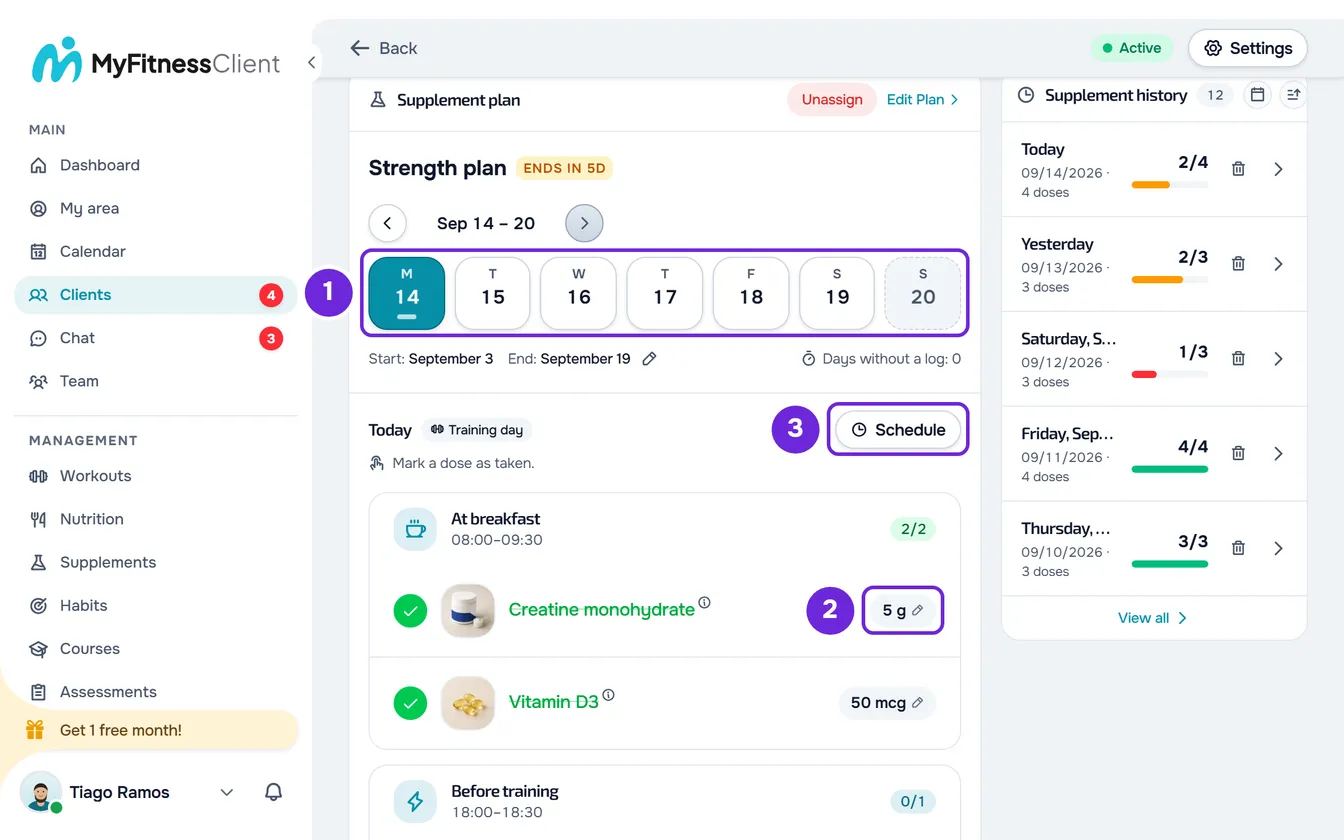
- In the side menu, select Clients and open the client's profile.
- Select the Supplements tab. The Supplement plan card shows the plan name, the week strip and, under it, the list for the client's current day.
- In the week strip, select the day 1. The arrows change the week and Today goes back to the current day.
- In the day's list, select the dose's row. The circle turns green, with a check mark, and the name is crossed out. To unmark it, select the row again.
- Optional: to change the amount for that day only, select the dose's amount 2, choose the value and select Done.
When all the daily doses for the day are marked, “All taken” appears. The client sees the same marks in their list, with no notification and nothing saying that you marked them. When all the doses for a time of day are marked, the reminder for that time of day no longer reaches them.
What the day shows
- The title is “Today”, “Yesterday”, “Tomorrow” or the date written out in full. When it is known whether it is a training day or a rest day, the label “Training day” or “Rest day” appears.
- Under the title is the line “Mark a dose as taken.” On a day that has not come yet, the line says “This day hasn't come yet.” and the list is read-only. For a scheduled client, until their access opens, the line says “The client's access hasn't started yet.” and the list is read-only too. On a day with no doses, “Nothing on this day.” appears instead of the list.
- Doses are grouped by time of day, for example “At breakfast”, with the time range, when the time of day has one, and the count of marked doses, for example 1/2. It is the same list the client sees.
- Selecting a dose's name opens the supplement details, and selecting the photo enlarges it. Neither one marks the dose.
- Doses under Weekly goal and under As needed (the latter in a collapsed section) can also be marked. They do not count toward “All taken” or the week strip. In the history, the ones you mark count as taken and the ones left unmarked do not count as missed.
- A dose with an amount per kg of body weight, for a client with no weight recorded, appears dimmed, with “The client's weight is needed to calculate the amount.”, and cannot be marked. To mark it on that day, give it a fixed amount for that day only (section “Change the amount for one day only”).
The week strip
The strip has seven cards, Monday to Sunday. Each day's small bar counts the daily doses: green when they are all marked, in the brand color when only some are marked, gray when none are marked. Days that have not come yet and days with no doses have no bar.
- The chosen day is filled in and the current day has an outline. The current day is the one in the client's time zone.
- Days outside the plan's period appear dashed and cannot be chosen.
- The keyboard arrow keys move from day to day and carry over from one week to the next.
- You can move between the plan's start week and end week. Without an end date, up to 4 weeks after the current week.
- Under the strip are the start, the end (or “no end”) and Days without a log: the days since the client's last log, in any plan, or “--” if they have never logged. For a scheduled client, it always shows “--”. The pencil next to the end changes the dates for this client only and needs Supplements > Edit.
Change the amount for one day only
Each dose's amount is a chip with a pencil. Selecting it opens a panel with the supplement's photo and name and the plan amount, for example “In the plan: 500 mg”.
- The minus and plus buttons change the value in steps of about one tenth of the plan amount, and 1 at a time for units you count, such as capsules. You can also type the value or choose one of the one-tap amounts, up to 4.
- Reset, when the amount has already been changed, goes back to the plan amount. Only Cancel closes without saving: closing the panel any other way, with Esc or outside it, also saves.
- The value must be greater than zero. Otherwise, “Enter an amount greater than zero.” appears and the panel does not close.
After Done, the chip turns amber on that day and the client sees the same amount. The plan and the other days do not change. A dose already marked on that day now stores the new amount, and that is the amount the history shows. Entering the plan amount removes the change.
Adjust the client's times
The times set when each time of day appears in the client's day. Select Schedule, next to the day's title (on a narrow screen, only the clock). The Client's schedule window opens:
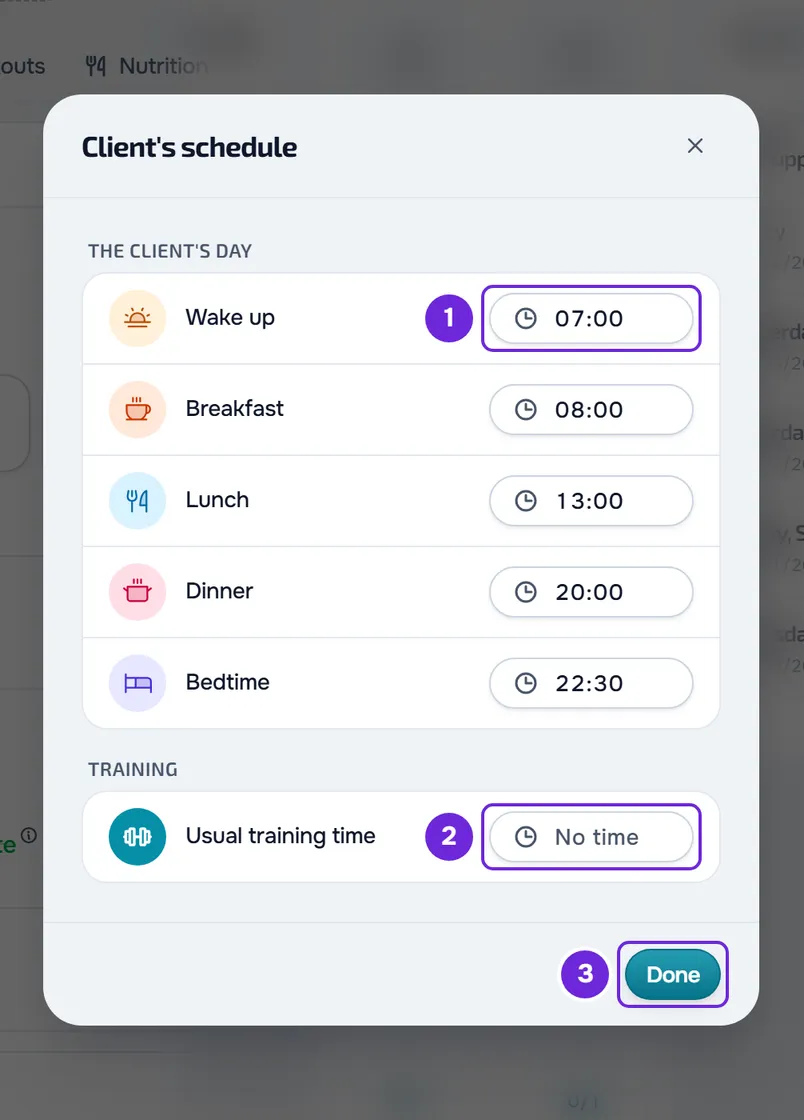
- The client's day: Wake up, Breakfast, Lunch, Dinner and Bedtime. Without their own times, 07:00, 08:00, 13:00, 20:00 and 23:00 apply. The other times of day, such as on an empty stomach, mid-morning, mid-afternoon and at night, are worked out from these five times.
- Training: Usual training time, which shows “No time” until it has a time and can be removed. It gives a time to the before, during and after training times of day when the day has no workout done or scheduled at a set time and is not a rest day.
Each change saves on its own, less than a second later. Done closes the window and sends anything still pending. The times belong to the client, not to the plan: they apply to all their plans, change the times of day on every day and the reminder times, and the client sees them in “My schedule”. If saving fails, a message that starts with “Unable to save.” appears and the times go back to the previous ones. This happens, for example, with a client you have scheduled who is active with another professional.
The supplement history
The Supplement history card is in the right-hand column, or under the plan on a narrow screen, with the number of days next to the title. It shows the 5 most recent days. Each day has the date, the number of doses, “X/Y taken” and a bar: green at 80% or more, amber from 50% to 79%, red under 50%.
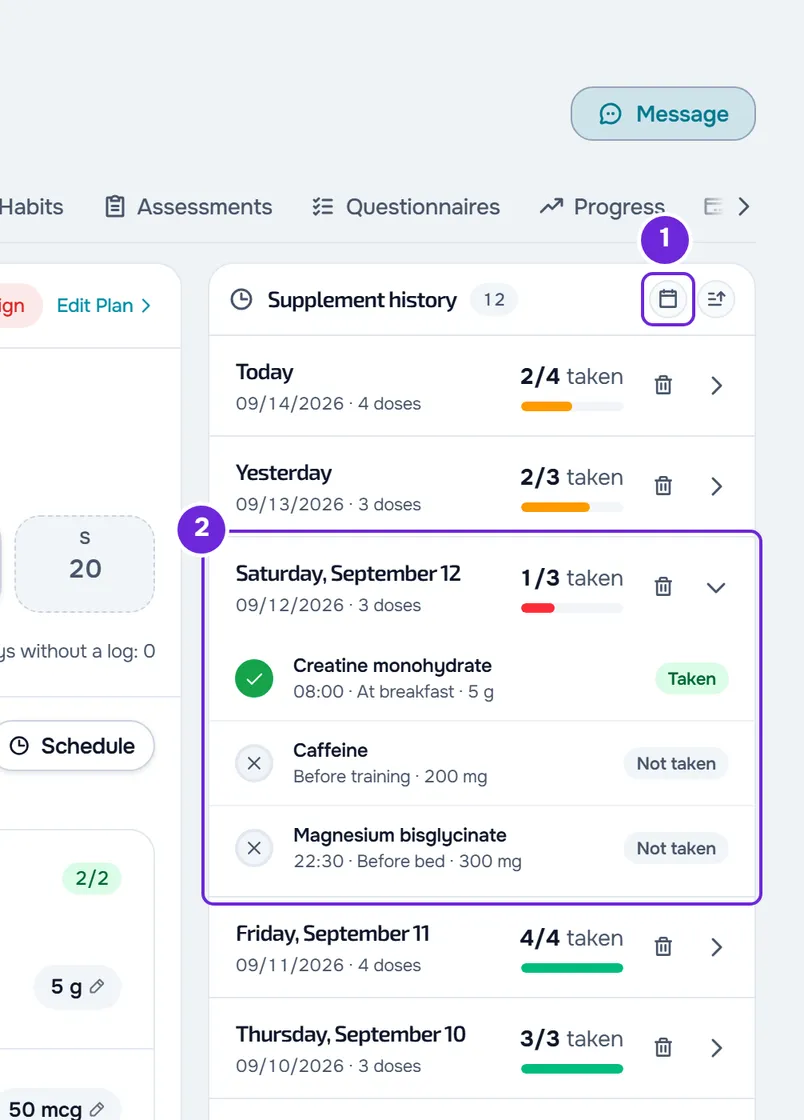
- Select a day to see the doses, each with Taken or Not taken, the time, the time of day and the amount. In an older log, the reason the client gave may also appear.
- Each day shows all the daily doses the plan called for. A dose nobody marked counts as Not taken: here, “not taken” means “not logged”. Logs of doses the plan no longer calls for, for example after you remove the plan, stay there, with the name and amount from that time.
- The days run from the start of the plan, or from the first log if it is earlier, to the client's current day. Only days with doses called for or with at least one log are included.
- The calendar button filters from one date to another, and the button next to it switches the order between newest first and oldest first.
- View all, at the end of the card, appears when there are more days and opens the full page.
The counting rules are in Supplement plan limits and calculation rules.
Delete a day's logs
In the day's row, select the trash can, or right-click the row and select Delete. In the Delete the day's logs window, which says how many doses you are about to delete and that the action can't be undone, select Delete.
The marks for that day disappear, for you and for the client: the doses go back to unmarked and count again as Not taken. If the plan called for doses on that day, the day stays in the history. Amounts changed on that day are kept. The trash can only appears on days with logs, with the client Active and with the Clients > Create permission.
The full history page
View all opens the Supplement history page, with the number of days under the title:
- The Doses taken chart, when the client has history, with the percentage for the period and “X/Y taken”. Choose the period in the selector: Week, Month, 6 Months, Year or All. For a week there is one bar per day; for a month, one per 7 days; for 6 months and a year, one per month; for All, one for each month with doses. Each bar shows what share of the doses called for was taken.
- Filters, with Sort by (Newest or Oldest) and Dates.
- The days, all expanded, 20 at a time: the next ones load as you scroll down the page. The trash can deletes a day as on the card and “Day deleted” appears.
For an ended or archived client, the page says “This client's coaching is closed. Reactivate them to make changes.” and has no trash can.
Common problems
I can't mark a dose, or the mark reverts
One of these causes:
- The day has not come yet and the list says “This day hasn't come yet.” Choose today or a past day.
- In a team workspace, you are missing the Clients > Create permission: the day has neither the line “Mark a dose as taken.” nor the Schedule button. See “No permission to access” and menu items missing for a member.
- The client is scheduled: the line says “The client's access hasn't started yet.” and the day is read-only until their access opens.
- The dose is per kg of body weight and the client has no weight recorded: the row is dimmed. Give it a fixed amount for that day only.
- Your workspace has more active clients than the limit and changes are blocked. See You have more active clients than your plan allows.
“Too many requests. Wait a moment.”
Marking, unmarking, changing amounts, changing times and deleting days count together, up to 30 actions per minute. For the times, the message starts with “Unable to save.” Wait a minute and continue.
The history shows “Not taken” for doses the client took
Nobody marked them on that day. Choose the day in the week strip and mark them for the client, or ask the client to mark them. In a new plan, the days before the client started marking show 0%.
The tab shows “Client is not active”
The client's coaching ended or was archived. You keep the history read-only, up to the day the coaching ended. To mark doses again, reactivate the client.
If this did not solve it, see Common problems with supplement plans or contact support with the client's name, the day and the exact message that appeared.