
Before you start
- Your name and photo are the same across the whole account: what you change on the web also shows in the app, and the other way round.
- The name needs your first and last name: at least two words, up to 100 characters in total. Each word starts with a letter and contains only letters, with or without accents, apostrophes and hyphens; the first and last words have at least 2 characters.
- The photo is an image of up to 25 MB on the web and up to 5 MB in the app. It is saved as a square and shown in a circle. It doesn't use the account's storage space.
Interactive tutorial
Opens in the app and needs you to be signed in.
Steps
To change your name, your photo or both on the web, in the professional dashboard or in a client account:
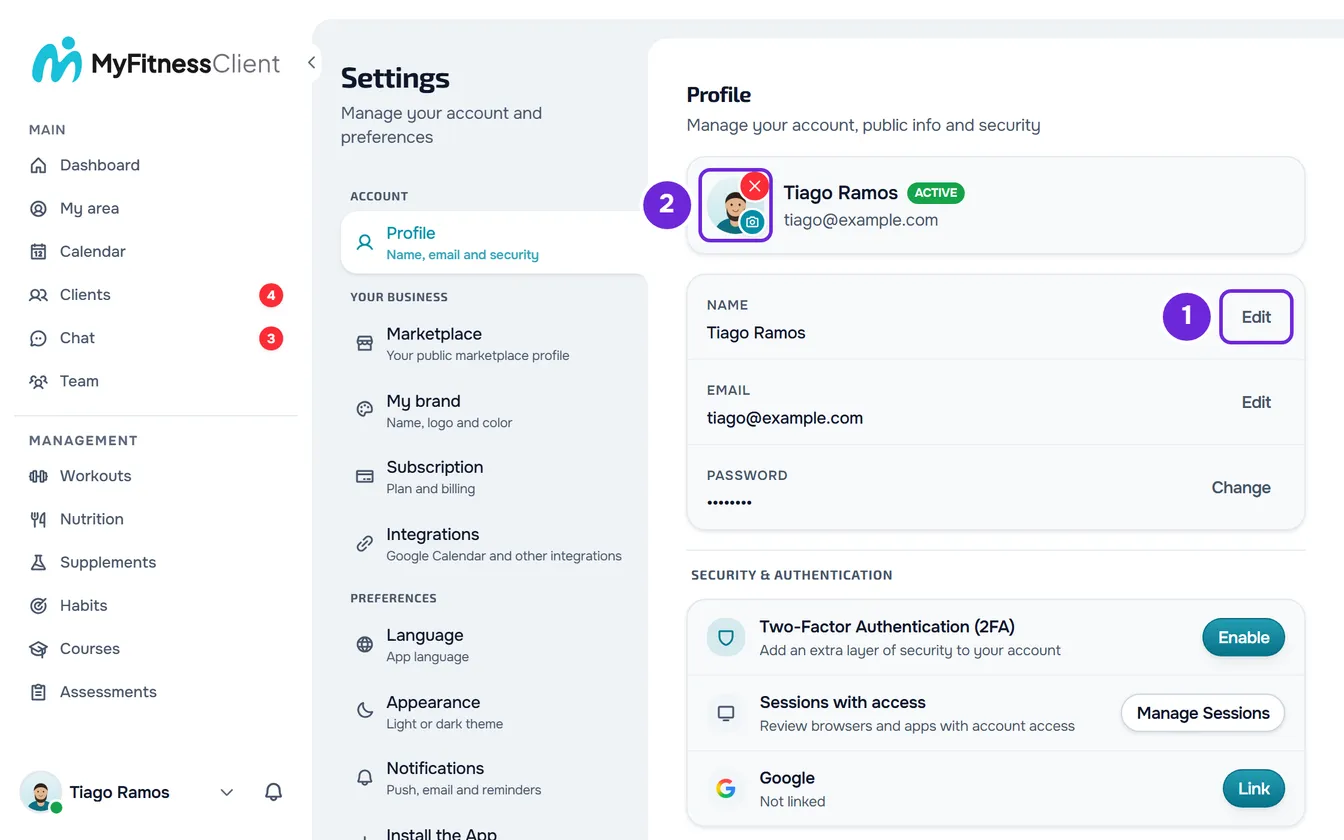
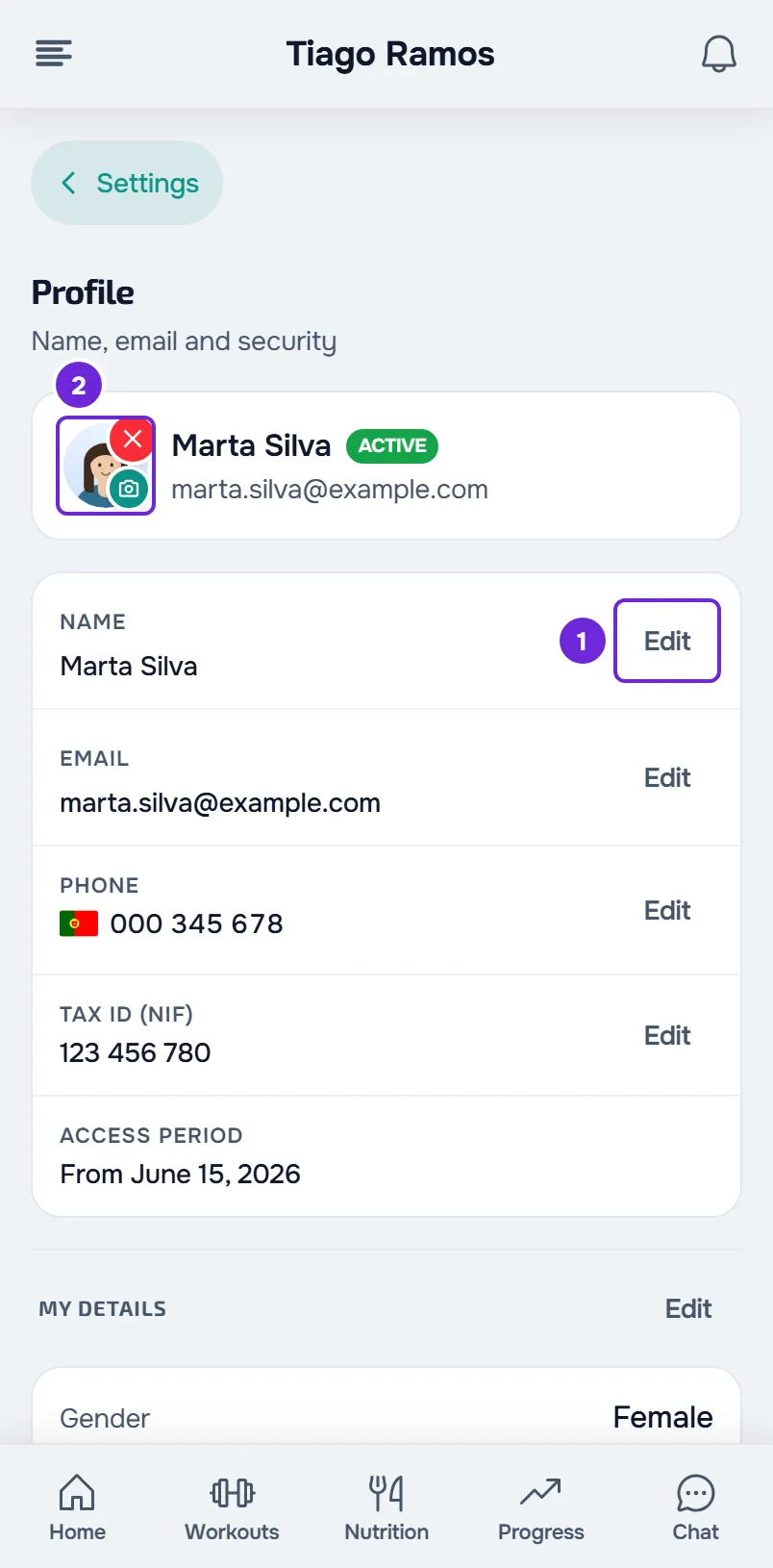
- Open Settings. On a computer, select your photo and name at the bottom of the sidebar, then Settings. On a phone, open the menu and select Settings at the bottom of the menu.
- Select Profile.
- To change your name, in the Name row, select Edit 1.
- Type your first and last name.
- Select Save. The window closes and the row shows the new name.
- To change your photo, select the photo circle 2 with the camera badge on the card at the top of Profile. With no photo, the circle shows the first letter of your name.
- Choose an image. The Adjust Photo window opens.
- Drag the image 1 to frame it in the square and use Zoom 2 to enlarge it, from 100% to 300%. You can also zoom with the mouse wheel or with two fingers.
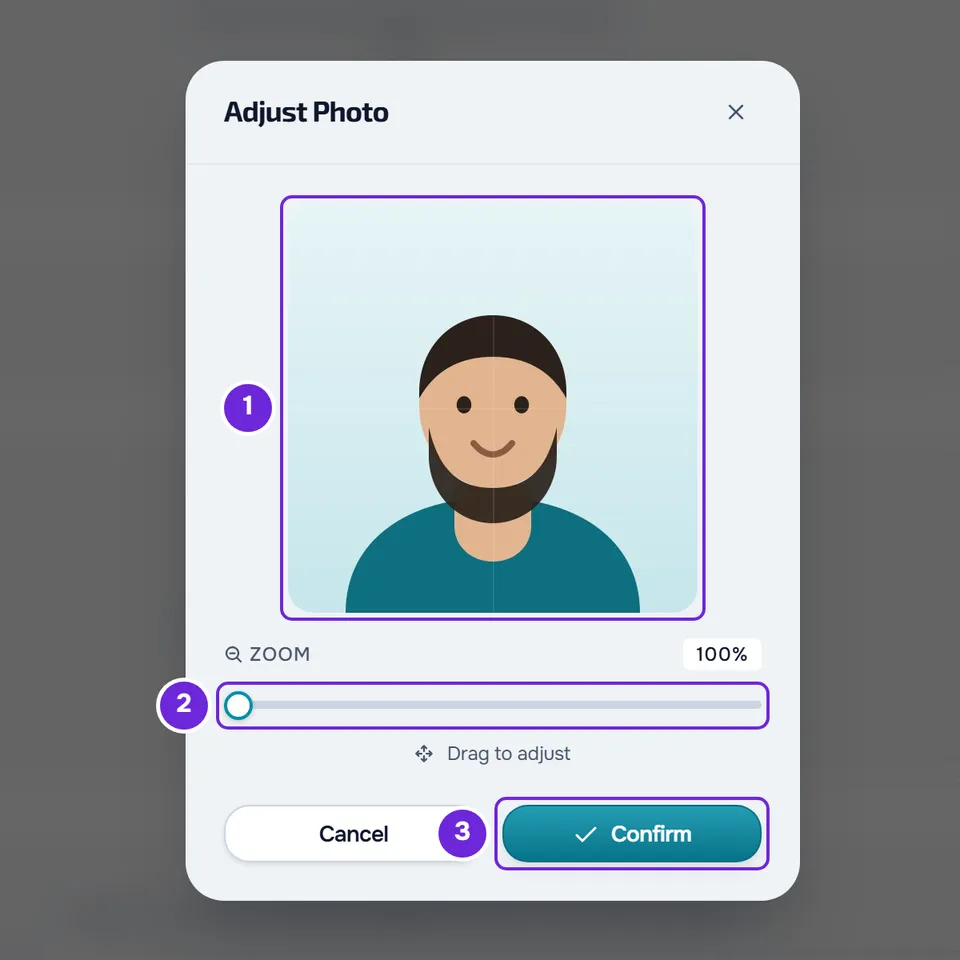
- Select Confirm 3.
The card at the top of Profile now shows the new name and photo, and a confirmation message appears. On a phone, the card with your name at the top of Settings also has the camera badge: select it to change your photo without opening Profile.
In the app
- Open the menu with the button in the top-left corner and select your name at the bottom of the menu. In Settings, select the card with your name and email at the top to open Profile.
- To change your name, in the Name row, select Edit, type the name in New name and select Save.
- To change your photo, select the camera badge on the corner of the photo and choose a photo from the gallery. Your phone shows a square crop so you can frame it before it is sent.
- The card at the top shows the new name and photo right away.
Remove the photo
- On the web, on the card at the top of Profile, select the red X on the corner of the photo and confirm with Remove.
- In the app, select the red X on the corner of the photo and confirm with Remove photo.
In place of the photo, the first letter of your name comes back on the web, or your initials in the app. The X only appears when you have a photo.
Where your name and photo appear
- If you're a professional, your clients see your name and photo in the chat and on the Home screen of their account. Your public profile on the marketplace uses the same photo as your account.
- If you're a client, your professional sees your name and photo in the client list and on your client profile, and your photo in the chat.
On the same screen
- Your email: Change your account email.
- Your phone and tax ID (NIF), in client accounts only: Update your phone, tax ID and personal details.
- Your password: Change or set your account password.
- Sign-in security: Turn on two-factor authentication (2FA) and View and end the open sessions on your account.
Common problems
A message asking for your first and last name, or “Name can only contain letters”
The name doesn't follow the rule and wasn't saved. The first message appears when you type a single word. The second appears when a word has numbers or symbols, when the first or last word has only one character, or when the name is longer than 100 characters. Type your first and last name using only letters and select Save again.
A message asking for a valid image file, or “File too large”
On the web, the first message appears when the file you chose isn't an image, for example a PDF. The second appears when the image is larger than 25 MB, and it shows the file size and the maximum. In the app, the gallery only shows images, and a photo larger than 5 MB gives “Image too large. Pick a smaller photo.”. Choose another image or a smaller version of the same photo.
“Failed to upload profile photo.”
On the web, the photo didn't reach your account. This happens when the image upload fails partway, or when the browser can't open the image, such as a HEIC photo in a browser that doesn't read that format: in that case the Adjust Photo window opens without the image and the message appears when you select Confirm. Try again, or convert the photo to JPEG or PNG. In the app, the same failure shows “Couldn't update your photo.” and asks you to try again.
“Failed to remove profile photo.”
On the web, the request to remove the photo failed, for example because there was no connection, and the photo stays on your account. Check your internet connection and select the red X again. In the app, the same failure shows “Couldn't remove your photo.” and asks you to try again.
Questions
Can I use a different photo on my public profile than on my account?
No. Your public profile on the marketplace shows your account photo. To change it, change the photo in Profile.
Why does the name need two words?
It's the same rule as when you sign up: the account name has a first and last name. A one-word name isn't saved.
If I cancel adjusting the photo, do I lose the photo I had?
No. Closing the Adjust Photo window with Cancel saves nothing, and your previous photo stays as it was.