
When it happens
On the web, MyFitnessClient shows one of these screens in place of the page when the address does not exist or when the page fails, either as it opens or while you are using it. The screen does not change what is already saved in your account.
| Screen | When it appears | Buttons |
|---|---|---|
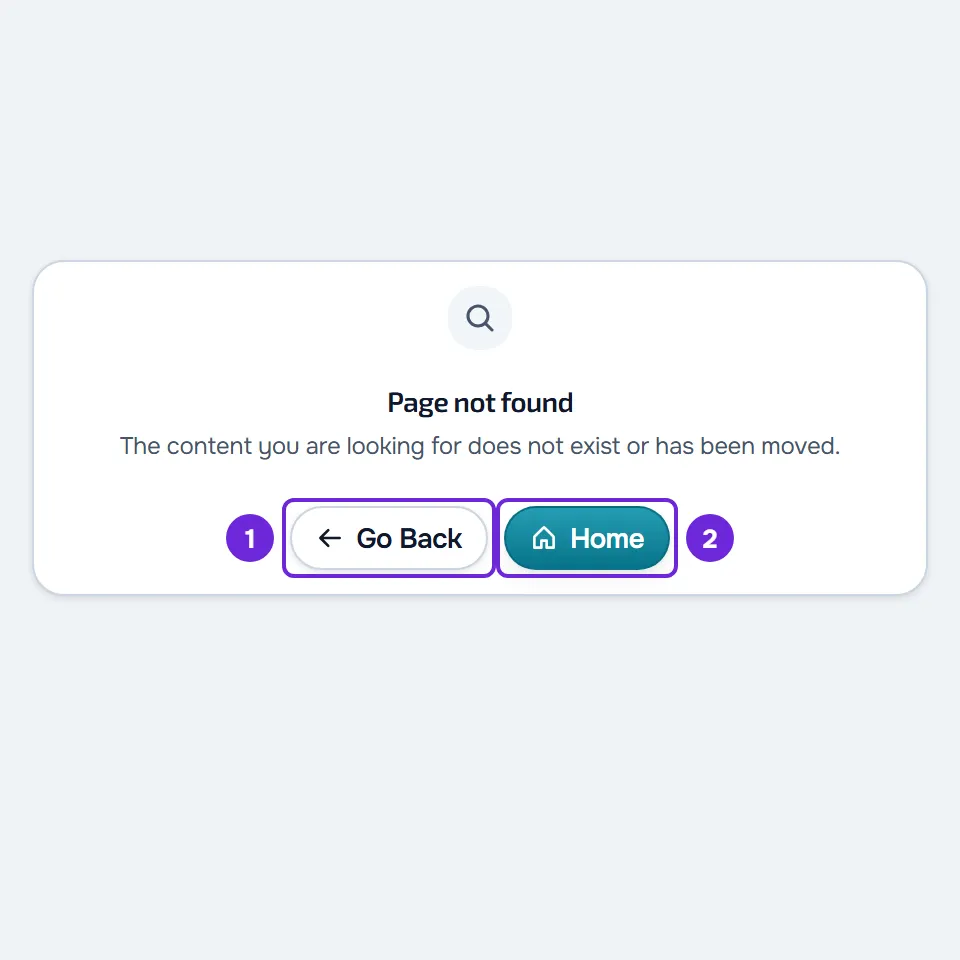
| “Page not found”, with the sentence “The content you are looking for does not exist or has been moved.” | The address does not exist: it is incomplete or misspelled, or the content moved to a different address or was removed. | Go Back returns to the previous page. Home opens the MyFitnessClient home page. |
| Page error: the “We could not load this information” card, with the “Temporary failure” tag and the sentence “A temporary failure occurred. Your data was not changed.” | The page failed while opening, or while you were using it, because of an unexpected error. | Try again asks the server again for what the page shows, without reloading the whole page. Reload page loads the whole page again. With some failures, there is also a button with the word “Reference” and a code. |
| “Critical Error” | The core of the site itself failed and the page error cannot be shown. | Reload loads the whole page again. Home opens the MyFitnessClient home page. With some failures, there is also a “Reference” line with a code. |
In the professional's Dashboard and in the client area, the page error only takes up the content: the menu stays visible and you can open another section.
When the page opens but one part does not load, for example a list or a content item that was deleted, an error card appears in place of that part, not these screens. Some of those cards have the same title as the page error. For those cards, see “We could not load this information” and other error cards.
Steps
To see the page again:
- If you see “Page not found”, select Go Back 1 to return to the previous page, or Home 2 to open the home page.
- If you see the “We could not load this information” card in place of the page, select Try again.
- If the card comes back, select Reload page.
- If you see “Critical Error”, select Reload.
- If the “Critical Error” comes back, select Home.
- If the error screen stays and shows the word “Reference” with a code, copy the code.
- Send support the code, the page address and what you were doing.
When the page opens, the error screen disappears. On the page error, the button with the word “Reference” copies the code and shows “Copied” for a few moments. On the “Critical Error” screen, the “Reference” line has no button: select the code text and copy it, or type it in the message.
When the page reloads on its own
In two cases, the page reloads on its own as soon as the failure happens, and often you do not even see the error screen:
- After a MyFitnessClient update: a page that has been open for a long time requests files from the previous version, which no longer exist. On reload, the page opens in the new version.
- With the page translated by the browser or changed by an extension: automatic translation, such as Chrome's or Safari's, rewrites the page text, and MyFitnessClient loses a part of the page that it needs. On reload, the page is built again.
The page reloads once, at most every 30 seconds. If the failure comes back within that time, the page does not reload again and the error screen stays visible. The “Critical Error” only reloads on its own in the first case.
Common problems
Blank screen or error card right after an update
The page was still on the previous version and did not reload on its own, for example because it had already reloaded less than 30 seconds earlier. Select Reload page on the card, or reload the page in the browser with F5 or Ctrl+R (Cmd+R on Mac). For the “New version available” banner, see “New version available”: update without losing work.
The error only appears with the page translated
Turn off the browser's automatic translation for this site and reload the page. To use MyFitnessClient in another language, change the language in the account itself: the options are Portuguese from Portugal and from Brazil, English, Spanish, French and German. See Change your account language. If you have extensions that change pages, turn them off for this site and reload the page.
The address is correct and “Page not found” appears
The content may have moved to a different address or been removed, or the address may have arrived incomplete. Select Go Back and open the section from the menu. If the page opened in a new tab, Go Back has nowhere to go back to: select Home.
Other similar screens
- A public profile that does not exist or is not live shows “This profile is not available”. See “This profile is not available”: your public profile doesn't appear.
- In the Help Center, an address that does not exist shows “We couldn't find this page”, with the help search, some topics and the “Go to the help center home” link.
- In the MyFitnessClient phone app, a link that the app does not recognize shows “This page does not exist”. See This page does not exist.
Questions
Does the MyFitnessClient team find out about the error?
As a rule, yes: the page error and the “Critical Error” report the failure to the team automatically. If the problem continues, contact support anyway, because the automatic report does not say what you were doing.
Why did the sound or the video stop?
When the page error or the “Critical Error” appears, the page's audio and video stop and go back to the start, including the ringtone of a call. When the page opens again, play the video again.
If this did not solve it
If you are a professional, create a request in Support, as explained in Contact Support and create a request. If you are a client, or you cannot sign in to your account, write to the MyFitnessClient team through the “Didn't find what you're looking for?” block, at the end of the Help Center home page. Include:
- the screen title and the reference code, if there is one;
- the address of the page you were on;
- what you were doing and the time it happened;
- the device and the browser, and whether the page was translated.