
The Macro Calculator opens inside the Daily Goals window of a meal plan. It starts from the client's weight, height, age, sex, activity level and goal, and shows resting expenditure (BMR), total daily expenditure (TDEE), the calorie target and the grams of protein, carbs and fat. The terms are in the glossary.
Before you start
- You need to be able to edit the plan. A team member without permission to edit Nutrition opens the plan read-only, without the calculator.
- The goals belong to the plan: they apply to every client who has it.
- Have the client's weight, height, age and sex at hand and, for the Katch-McArdle formula, their body fat percentage. In a plan with a single client, the fields come filled in with that client's profile data; otherwise, with starting values: 75 kg, 175 cm, 30 years and male. While the calculator reads the profile, the fields show as loading for a moment and Apply to goals is disabled.
Interactive tutorial
Opens in the app and needs you to be signed in.
Steps
To calculate the calories and macros and move them into the plan's goals:
- Open the meal plan and, on the Daily Goals card, select Edit. In Calendar mode, the card is called “Goals for day” followed by the day's number.
- In a weekly or calendar plan, under Apply goal to, choose what the calculator will fill in: This day (the day selected on the page), This week (calendar only) or Whole plan. When you save, This week deletes the adjustments for that week's days and Whole plan deletes all per-day and per-week adjustments. Choose the option before opening the calculator: changing it afterwards fills the fields again with that period's goal.
- Select Open calculator. The window's title changes to Macro Calculator.
- In Calculation formula 1, choose Mifflin-St Jeor, Harris-Benedict (revised) or Katch-McArdle. Underneath, the screen describes the chosen formula.
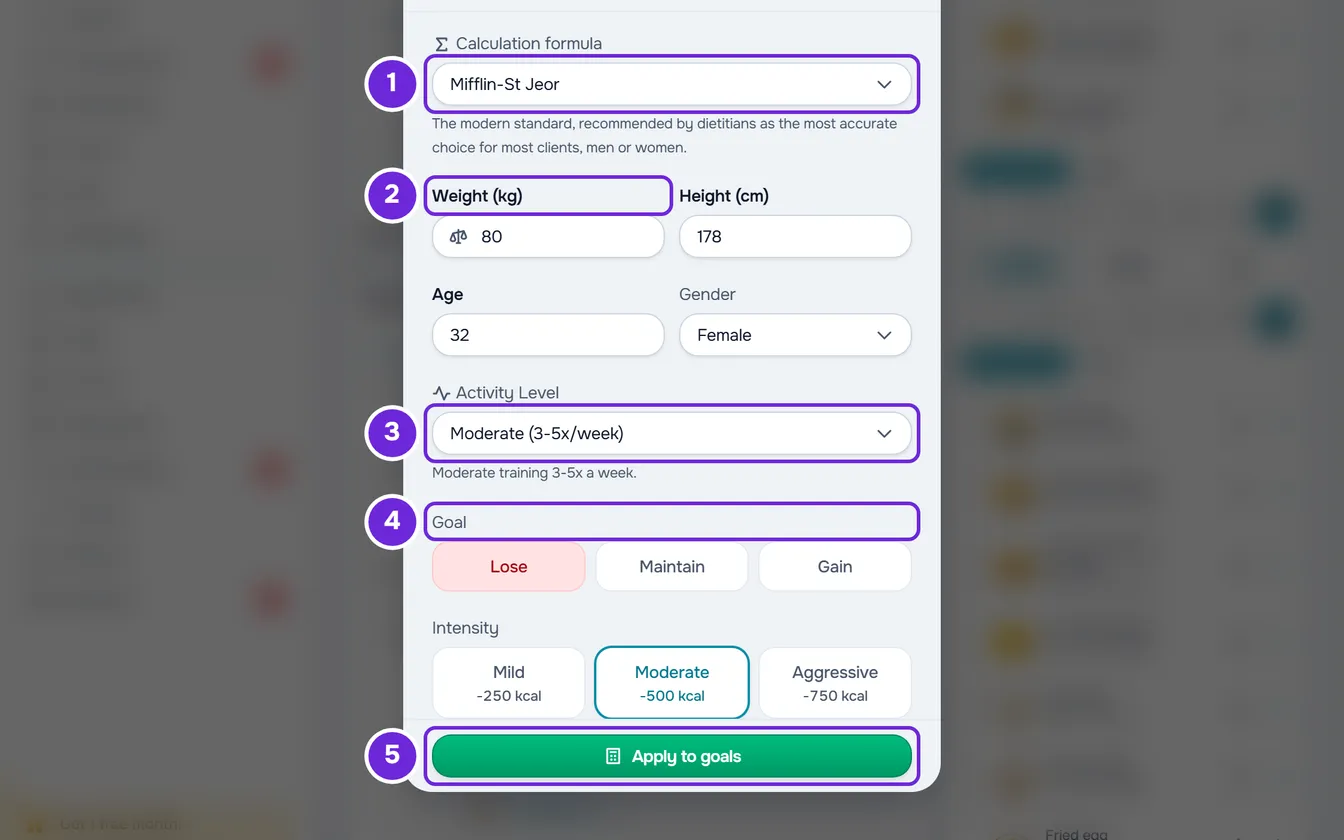
- Check or enter the Weight (kg) 2, Height (cm) and Age, and choose the Gender. With Katch-McArdle, also enter the Body fat (%), which starts empty; this formula does not use height or age.
- In Activity Level 3, choose the client's level. Underneath, a sentence describes the chosen level.
- In Goal 4, select Lose, Maintain or Gain. With Lose or Gain, also choose the Intensity: Mild, Moderate or Aggressive. Each option shows the calories it takes away or adds per day.
- Review the result, which appears under the fields and changes with every edit: the calorie target, the grams of protein, carbs and fat, and the warnings that apply.
- Select Apply to goals 5. The calculator closes and the calories, protein, carbs and fat move into the goal fields, where you can still change them by hand.
- Select Save.
The window closes with the message “Saved!” and the goals card shows the new values.
Back, at the top of the calculator, returns to the goals without applying the result. If, after applying, you close the window or select Cancel without saving, “Save before leaving?” appears: Discard restores the goals the plan had and Save and leave saves the goals.
Reading the result
The result card shows four numbers: BMR, TDEE, the adjustment (the calories the goal takes away or adds) and the target (the calories per day). Under them come protein, carbs and fat in grams; protein also shows the grams per kg of body weight. To see what each number means and the formula used, select Calculation, at the top of the card.
Depending on the case, the card also shows:
- With the Aggressive intensity, an aggressive deficit warning when losing, or an aggressive surplus warning when gaining.
- When the target is raised to the reference minimum, 1500 kcal for male and 1200 kcal for female, a warning saying that the calculation was adjusted to that value.
- When fat is raised to the minimum of 0.8 g per kg of body weight, the note “Fat raised to the minimum of 0.8 g/kg for hormonal health.”.
- At the end, a note reminding you that the result is an estimate.
What the calculator uses
The calculations use fixed values. In short, with the formulas and a full example in How MyFitnessClient calculates calories and macros:
- TDEE: BMR times 1.2, 1.375, 1.55, 1.725 or 1.9, from the lowest activity level to the highest.
- Adjustment: −250, −500 or −750 kcal per day to lose and +150, +300 or +500 kcal to gain, depending on the intensity, from Mild to Aggressive; 0 to maintain.
- Target: TDEE plus the adjustment, never less than 1500 kcal for male or 1200 kcal for female.
- Protein: 2.2 g per kg of body weight to lose, 1.6 g to maintain and 2.0 g to gain.
- Fat: 25% of the target calories, or 0.8 g per kg of body weight when that is higher.
- Carbs: the calories left over, never less than 0. Protein and carbs count as 4 kcal per gram and fat as 9.
Accepted values
A field the formula uses that is empty or out of range shows “Between 30 and 300”, with that field's limits. While any field is like that, the result does not appear and Apply to goals is disabled.
| Field | Range | When it counts |
|---|---|---|
| Weight (kg) | 30 to 300 kg | In every formula |
| Height (cm) | 100 to 250 cm | Mifflin-St Jeor and Harris-Benedict (revised) |
| Age | 14 to 120 years, in whole years | Mifflin-St Jeor and Harris-Benedict (revised) |
| Body fat (%) | 3 to 70% | Katch-McArdle only |
Common problems
No result appears and you cannot apply
A field the formula uses is empty or out of range, and shows “Entre” with the limits. Correct the value. With Katch-McArdle, Body fat (%) is always empty when the calculator opens: fill it in.
Carbs stay at 0 g
This happens when protein and fat already provide more calories than the target, for example with a high body weight, little activity and the Lose goal. The macros then add up to more than the target and, after applying, when the difference is more than 10 kcal, the goals window shows “Macros total … kcal, but the target is … kcal. Difference: … kcal.”. Adjust the grams or the calories by hand before saving. See Meal plan totals are missing or do not add up to the calories.
The target stays at 1500 or 1200 kcal
This is the calculator's reference minimum: when TDEE plus the adjustment comes to less than 1500 kcal for male or less than 1200 kcal for female, the target is set to that value and the card shows a warning. To use a different value, change the calories by hand after applying.
The fields are not filled with the client's data
Each field comes with its starting value (75 kg, 175 cm, 30 years or male) when the calculator does not have that piece of profile data, for example in a plan with no clients or in a profile without weight, height or date of birth. Age comes from the date of birth. Sex only comes from the profile when it is male or female. In a plan with more than one client, the fields start with the starting values. If the profile does not load, for example with no internet connection, the fields also open with the starting values; to make the calculator read it again, reload the page. Enter the right values before applying.
Questions
Does the calculator change the client's profile?
No. It only fills in the goal fields, and nothing is saved until you select Save. What you enter in the calculator is not kept either: when you open it again, the fields start over.
Which formula should I choose?
The calculator always opens on Mifflin-St Jeor. Under Calculation formula, the screen describes the chosen formula and who it suits. The calculations for each one are in How MyFitnessClient calculates calories and macros.