
Before you start
- You need a supplement plan. To create one, see Create a supplement plan for your clients.
- Supplements come from the library: the MyFitnessClient compounds and your own. To find one, see Find supplements in the library and copy them to your own; to add a brand of your own, see Create and edit your own supplements, with a photo and a purchase link.
- In a team workspace, you need the Supplements permission with Edit. Without it, the plan opens read-only, without the library panel or Add supplement.
- On the plan page, changes to the supplements save right away, with no publish button, and apply to the clients who already have the plan.
Steps
To put a supplement in the plan and get it ready for the client:
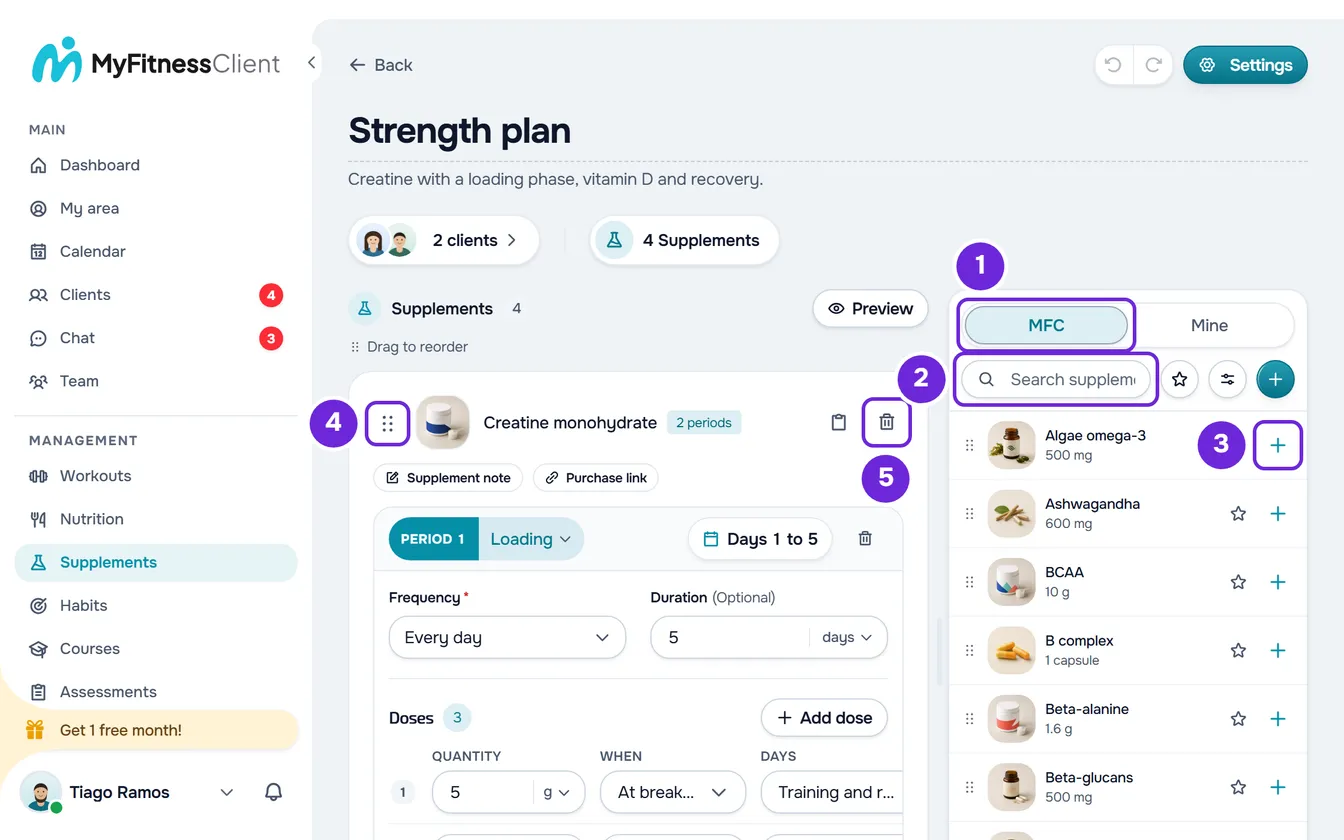
- In the side menu, in the Management group, select Supplements and, on the Supplement plans tab, open the plan.
- Open the library. On a screen 1024 px wide or more, it is in the panel next to the plan. On a narrower screen, select Add supplement, under the cards or, in an empty plan, in the middle of the page.
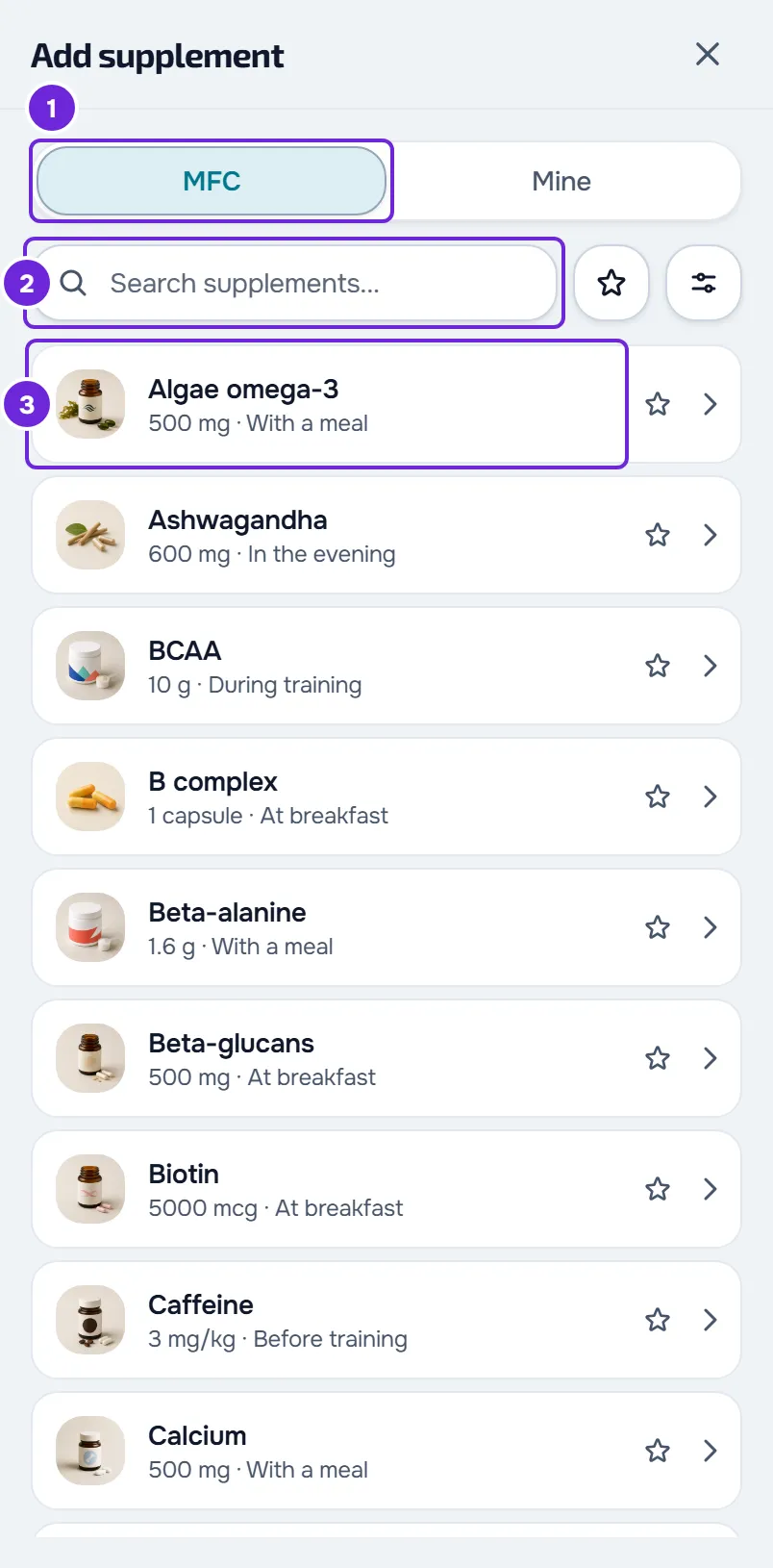
- Choose the MyFitnessClient Library or My supplements tab (in a narrow panel, MFC 1 or Mine) and type the supplement's name in the search 2.
- Select the supplement's row 3. Its details open, with the Library amount and the timing under When, if the library has them.
- Select Add to plan. The supplement goes into a new card, at the end of the list. In the panel, the + on the row 3 does the same without opening the details.
- Check the new card. The supplement comes in with a Maintenance period, Every day and with no end, and one dose with the library's amount and timing, or Any time if the library has no timing. If the library has no amount, the dose comes in with an amount of 1: correct it. To change the amount, frequency and doses, see Set a supplement's amount, frequency and doses.
- Optional: select Supplement note 1 and type what the client should read about this supplement, up to 200 characters. The note saves when you leave the field.
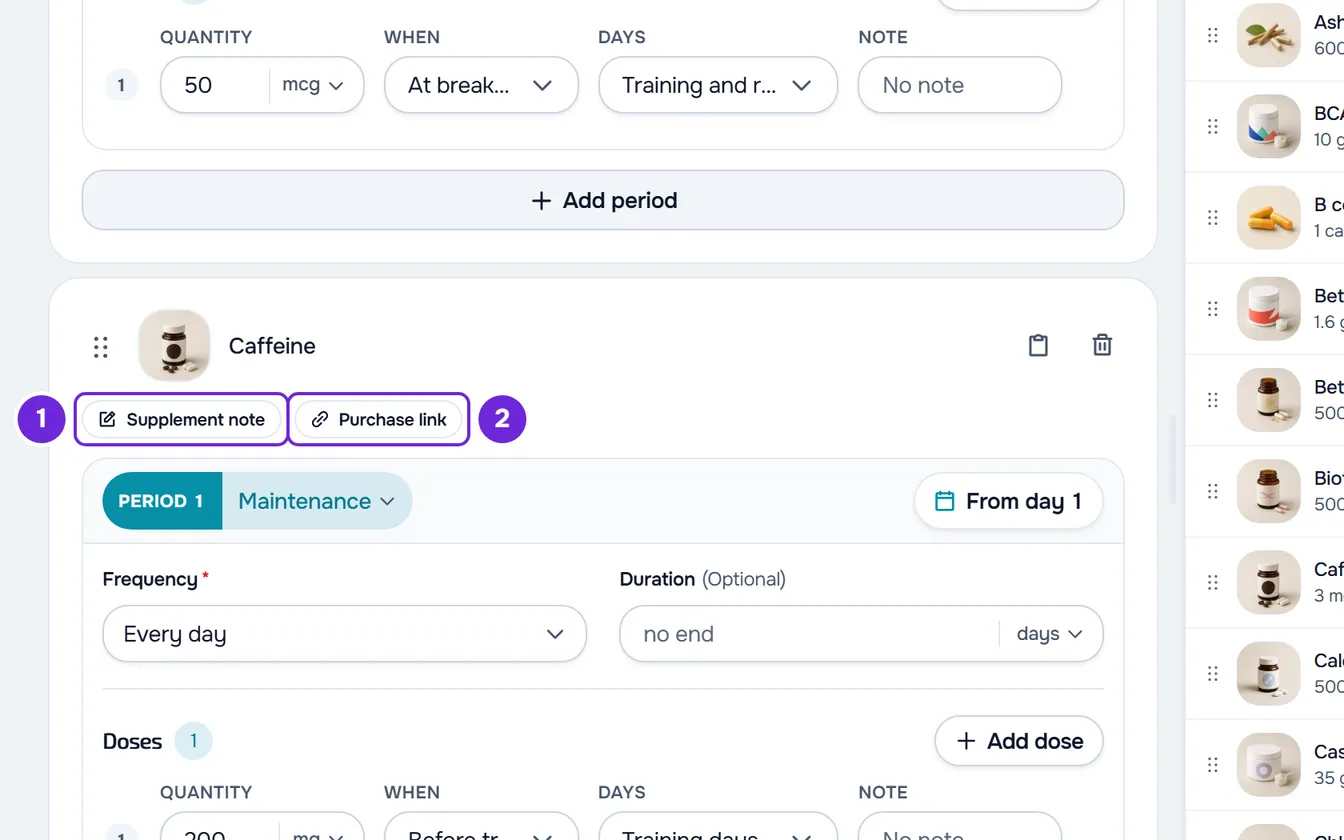
- Optional: so the client knows where to buy it, select Purchase link 2, paste the product's address, which starts with https://, and press Enter. If the library already had a link for this supplement, the field is already open with it, and what you change here applies only to this plan.
- To change the order, drag the card by the dotted handle 4, before the photo, and drop it where you want it. The handle also works by touch.
- To take a supplement out of the plan, select the trash can 5 on the card and, in the confirmation, select Remove.
The supplement stays in the plan, in the position you chose, with nothing to save. If the plan is already assigned, clients see it with the note and the link, as the What the client sees section explains.
A supplement's card
Each supplement in the plan is a card. The top row has:
- the dotted handle, to change the order;
- the photo, which enlarges when you select it;
- the name, which opens Supplement details;
- the number of periods, when the supplement has more than one;
- the copy icon, to put it in another plan, and the trash can, which takes it out of the plan.
Under it are the Supplement note and Purchase link chips, which turn into fields when they have text, and the box for each period, with the frequency, duration, amount and doses. To split a supplement into several periods, see Split a supplement into periods: loading and maintenance.
Right-clicking anywhere on the card opens the menu with Supplement details, Copy and Remove. In a text field, right-clicking opens the browser's menu, so you can copy and paste text.
The supplement details and the Edit button
When you select a supplement's name on the card, its details open, with two tabs: About, with what the library says about the compound (for example Type, Max per dose, Usage note and Anti-doping note) and the purchase link; and In the plan, with the amount, periods, timings and notes you set. A supplement with no library data and no link shows only the plan part, without tabs.
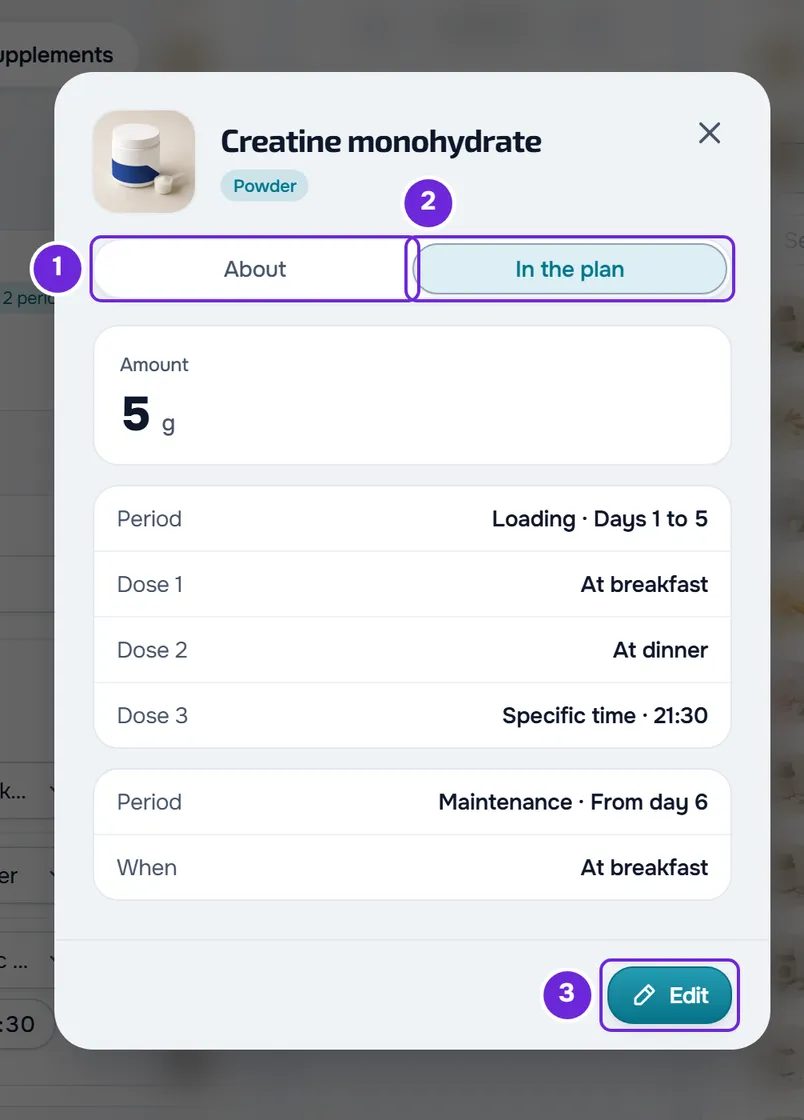
At the bottom of the details, Edit opens Edit supplement, where you change the Supplement name, up to 150 characters, the Brand, up to 100, and the Product photo. Select Save. The change applies only to this card, in this plan: the library and the other plans stay as they were. With the name empty, the field shows “Enter a name.” and you cannot save.
The library panel
On a screen 1024 px wide or more, the library panel sits next to the plan. It has:
- the MyFitnessClient Library and My supplements tabs, which in a narrow panel shrink to MFC and Mine;
- the search, the Show favorites only star, the Filters button, with the Type group, and the + for New supplement, which creates a supplement of your own without leaving the plan and switches to My supplements;
- on each row, the photo, name, brand and amount, the favorite star and the +, which puts the supplement at the end of the plan.
To put a supplement in a specific spot in the plan, press on the row and drag it into the plan: a thumbnail with the photo and name follows the pointer and a dashed rectangle marks, between the cards, where the supplement will go. Drop it to add it there, or press Esc to cancel. Selecting the row without dragging it opens the details, and right-clicking the row opens Supplement details and Add to plan.
To change the panel's width, drag the bar between the plan and the panel. The panel is at least 300 px wide, double-clicking the bar restores the starting width and the browser remembers the width you chose. During Preview, the panel is dimmed and does not respond; while you paste a copied supplement, it does not respond either.
The Add supplement window has the same tabs, the search, the star and Filters, and each row also shows the usual timing. It does not create supplements or let you drag: select the row and then Add to plan. On the page of a plan that already exists, on a phone, the window takes up the whole screen.
The list of the plan's supplements
Under the plan's name, the chip with the number of supplements, for example “4 Supplements”, opens the list of everything the plan has: on each row, the photo, the name, the amount and frequency of the first period and, when there is more than one, the number of periods. Select a row to close the list and take the page to that supplement's card. The chip is disabled in a plan with no supplements and while you paste a copied supplement.
What the client sees
- On each dose, the name and photo from the card; the brand appears in the dose details. If you change them with Edit, the client sees the new ones. If you delete the brand, the dose details stop showing it.
- The Supplement note, under each dose of that supplement and in the dose details.
- The purchase link, on the View product button: under each dose of that supplement, in the dose details and in the Plan products list, which appears even on days with no doses.
- The order of the cards: when two supplements are taken at the same time, the top one appears first.
- A removed supplement leaves the client's day right away. Doses the client already logged keep the name and amount they had.
- A supplement you add to a plan the client has already started counts from today for them, not from day 1 of the plan. See Assign a supplement plan to clients.
Common problems
“Paste a complete https:// link without spaces or sign-in details.”
It appears under Purchase link when you leave the field and the link does not start with https://, has spaces or backslashes, or includes a username or a password. The link is not saved and the field stays open. Copy the full address from the browser's address bar, starting with https://, and paste it again.
The new card appears and then disappears
A supplement added from the panel goes into the plan before the server answers. If the server refuses it, the card goes away and a notice says why. With “You have more active clients than your plan allows. Choose which to keep or upgrade your plan.”, the account is frozen: see You have more active clients than your plan allows. After you fix the cause, add the supplement again.
I can't see the library panel
The panel only appears on a screen 1024 px wide or more; on a narrower screen, use Add supplement. It also does not appear when the plan opens read-only, with “You can only view this. To make changes, ask whoever manages the team for edit permission.”: you are missing the Supplements permission with Edit (see “No permission to access” and menu items missing for a member). During Preview, the panel is dimmed: select Preview again to go back to editing.
The same supplement appears twice
Adding a supplement that is already in the plan does not ask for confirmation; only Paste here for a copied supplement warns you. Remove the extra card with the trash can.
If that didn't solve it, contact support with the plan's name, the supplement's name and the message that appeared.
Questions
If I change a supplement in the library, do the plans change?
Only in what the library says about the compound. When a supplement goes into a plan, the card keeps the name, brand, photo, link and amounts it had at that moment, and editing or deleting the entry in the library does not change them: the client keeps receiving the same supplement, in the same amount. The About tab (in the app, “About this supplement”), in your details and in the client's dose details, reads the library each time: it shows the type, the max per dose and the warnings the entry has now, and stops showing them if you delete it. To change a plan's card, use Edit in the details and the card's Purchase link.
Can I put the same supplement in another plan without setting it up again?
Yes. Select the copy icon on the card, open the other plan and select Paste here where you want it. The copy takes the periods, doses, note and link. See Copy and paste meals, supplements, questions and lessons.
I removed a supplement by mistake. Can I get it back?
Yes, as long as you don't leave or reload the page: select Undo, the back arrow in the plan's header. The supplement comes back with its periods and doses. More about Undo in Create a supplement plan for your clients.
Can I write a note the client doesn't see?
No. The Supplement note and the dose notes are for the client to read, and the card has no note just for you.
Does it work the same way on the plan creation screen?
Almost. The panel, the Add supplement window, the details, the note and the link work the same way, but nothing is saved until you select Create. On that screen, the cards cannot be reordered or copied, a supplement dragged from the panel always goes at the end, and the card's X removes it without asking for confirmation.