
Before you start
- In a team workspace, the list opens with the Supplements > View permission. Duplicate also needs Create. Edit, Delete and Select need Edit. Without Create or Edit, the list has no ⋮ menu and no right-click menu. The workspace owner has all of them.
- The list shows the supplement plans of the workspace you are in, created by you or by your team.
- While the account has more active clients than the subscription allows (in a team workspace, the owner's subscription counts), the list opens, but duplicating and deleting are refused with “You have more active clients than your plan allows. Choose which to keep or upgrade your plan.” See You have more active clients than your plan allows.
Steps
To find a plan and duplicate or delete it:
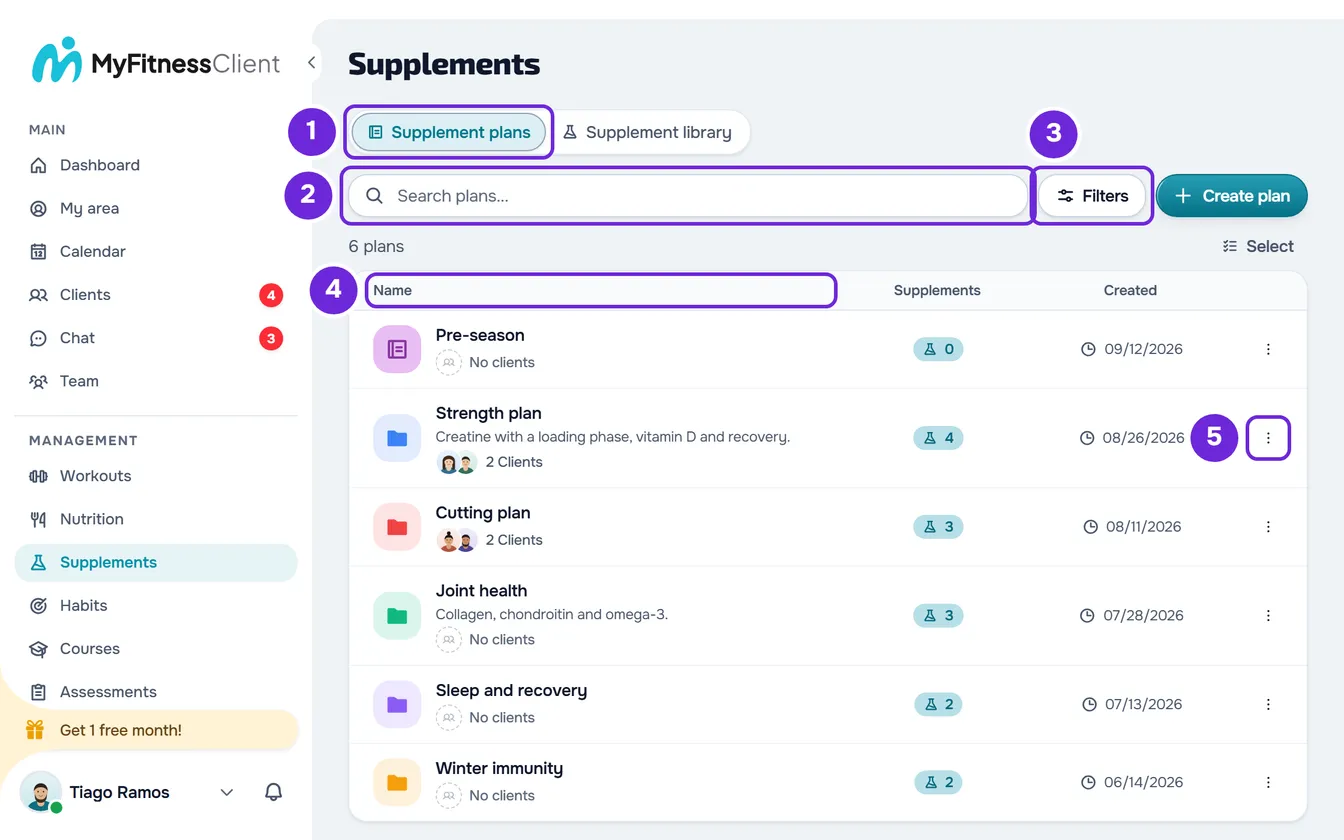
- In the side menu, in the Management group, select Supplements. The page opens on the Supplement plans 1 tab, which on a narrow screen is called Plans.
- Type part of the plan's name in Search plans... 2. The list updates and highlights what you typed in the name.
- Optional: to see only the plans with or without supplements, select Filters 3 and, in the Supplements group, choose With supplements or No supplements. All shows all the plans again.
- Optional: to sort the whole list, select the Name 4 or Created header. On a narrow screen, where the list appears as cards, select Sort.
- On the plan's row, open the ⋮ menu 5. On a computer, right-clicking anywhere on the row opens the same menu.
- To reuse the plan, select Duplicate 2. “Plan duplicated” appears and the copy joins the list with the original's name followed by “(Copy)”.
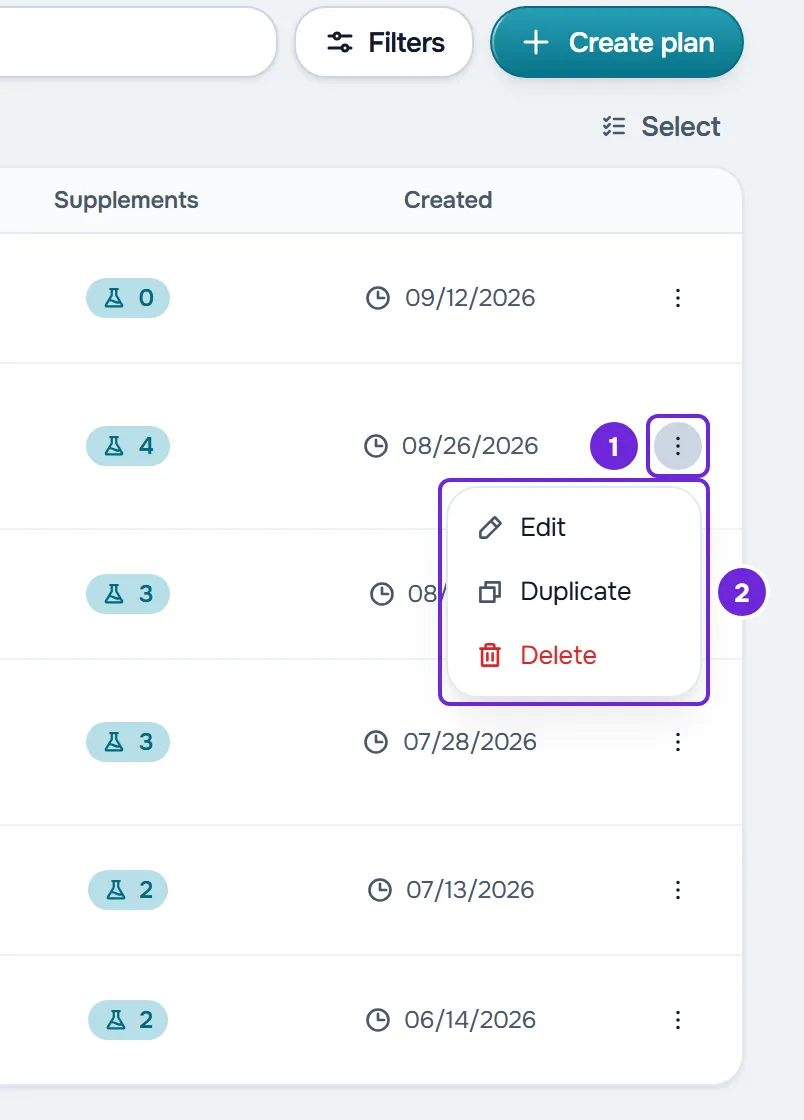
- To delete the plan, select Delete 2. The confirmation window warns that the plan is taken away from whoever has it and that the intake history already logged is kept.
- Select Delete to confirm, or Cancel to back out.
The list reloads and the number of plans at the top of it, for example “12 plans”, already counts the copy or no longer counts the deleted plan. With no search and no other sort order, the copy sits at the top of the first page, because the newest plans come first.
To open a plan, select its row or, in the ⋮ menu, Edit.
Delete several plans at once
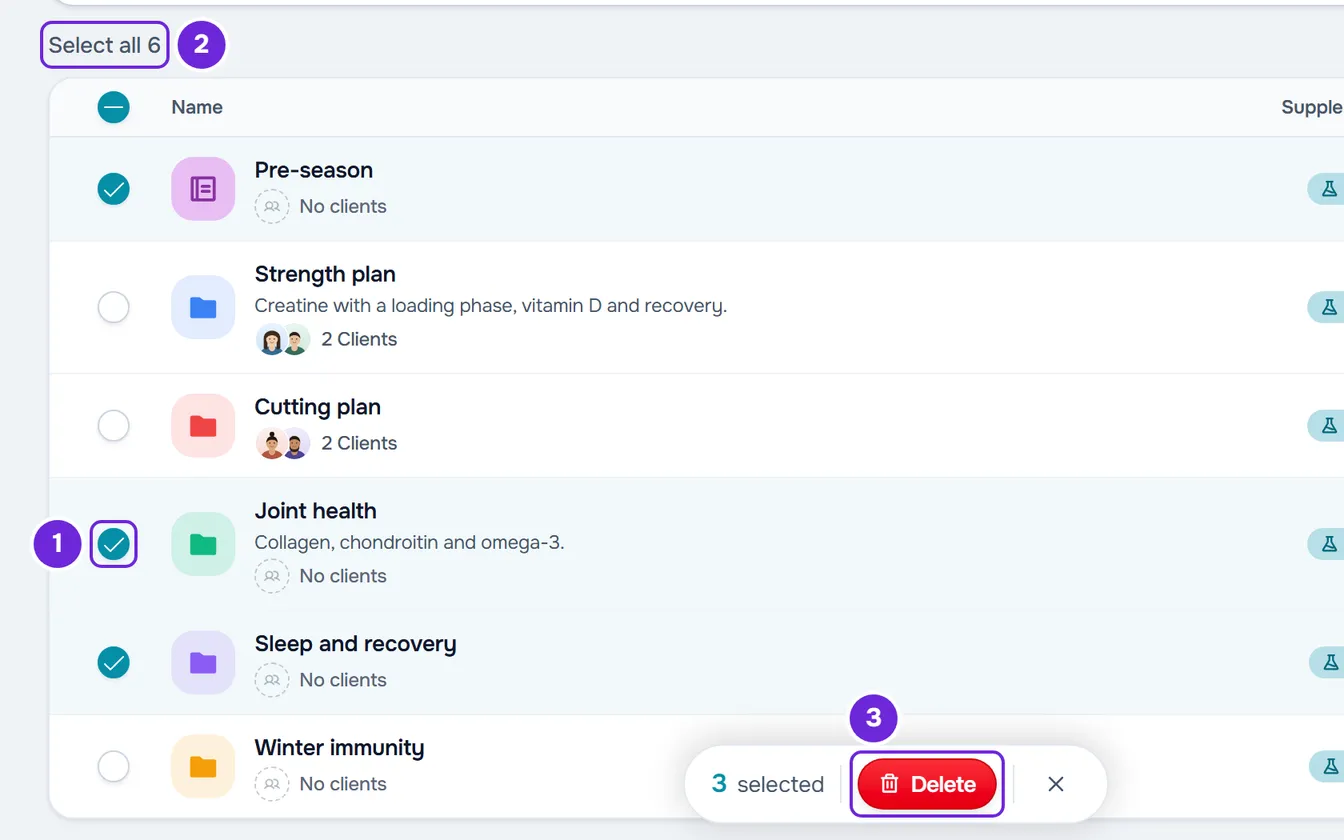
- At the top of the list, on the line with the number of plans, select Select. A circle appears on each plan and the button changes to Cancel.
- Select the plans you want to delete. The bar at the bottom of the screen shows how many you marked, for example “3 selected”. On a phone, it shows only the number.
- To mark all the plans on the page, select Select all N, in place of the number of plans. N is the number of plans on the page you are viewing, 20 at most, and only those are marked.
- In the bar, select Delete. The window asks, for example, “Delete 3?”, or “Delete All (20)?” when you marked all the plans on the page. Select Delete to confirm.
- The selection closes and the list goes back to the first page.
- To leave without deleting, select Cancel or the X on the bar.
Shortcuts
- In the table, holding Ctrl while you select a row (Cmd on Mac) turns on selection and marks that plan.
- On a touch screen with the card list, a long press of half a second on a plan turns on selection and marks that plan.
- On a touch screen with the card list, swiping a plan to the left shows a red button with a trash can, which opens the same confirmation window.
What the list shows and how it sorts
- Each row shows the plan's cover or icon, the name, the description on one line and the clients it is assigned to: up to 3 photos, “+N” when there are more, and the number of clients, or “No clients”. Only clients with active coaching or a scheduled start count. A team member who only sees the clients assigned to them sees only those.
- The Supplements column says how many supplements the plan has and the Created column the date it was created. On a narrow screen, both appear under the name.
- With no sort order chosen, the newest plans come first, 20 per page. Opening or changing a plan does not move it.
- Selecting a header once sorts in ascending order (Name from A to Z, Created from oldest to newest), a second time in descending order, and the third time goes back to the usual order.
- The search looks only in the plan name. It ignores capitalization, accents and hyphens, accepts the words in any order and tolerates small typos in words with 4 or more letters. With no sort order chosen, the closest names come first.
- The search, the filter and the sort order apply to all plans, not just to the page: the number of plans and the pages count only the ones that match.
- The page address keeps the search, the page, the sort order and the filter. Going back in the browser or reloading the page shows the list as you left it, and so does switching to Supplement library and back.
What the copy includes
The copy is a new, independent plan in the same workspace: what you change in one does not change the other, nor what the other's clients receive.
- It includes the supplements, each with its periods, intakes, notes, photo and purchase link, and the plan's description, color, icon and cover.
- It does not include the assigned clients or the intakes they logged: the copy shows “No clients”. To give it to someone, see Assign a supplement plan to clients.
- If you duplicate a copy, the number goes up instead of another suffix being added: “Creatine (Copy)” becomes “Creatine (Copy 2)”. The number comes from the name of the plan you duplicate, so duplicating the same original twice gives two plans with the same name.
- The name can be at most 100 characters long. In a long name, the end of the original name is cut so that “(Copy)” fits.
- Selecting Duplicate again before the first copy finishes does not create a second one.
What happens when you delete
- The plan disappears from the list, for the rest of the team too.
- The clients it was assigned to no longer see it and no longer receive that plan's reminders. MyFitnessClient does not notify them.
- The intakes the clients already marked stay in the supplement history, with the name and amount they had.
- With more than 500 plans marked, MyFitnessClient deletes them in batches of 500. If a batch fails after others, a message appears, for example “Deleted 500. The operation stopped with 20 left. Try again.” The plans stay marked: select Delete in the bar again.
Common problems
“No results found”
The search or the filter lets no plan through. Clear the text in Search plans... or, in Filters, select Clear. With no search and no filter, an account with no plans shows “You don't have any plans yet”: to create the first one, see Create a supplement plan for your clients.
I don't see the ⋮ menu, Duplicate, Delete or Select
In a team workspace, you are missing permissions in Supplements: Create for Duplicate, Edit for Delete and Select. Ask whoever manages the team for them. See “No permission to access” and menu items missing for a member.
With selection on, the rows do not show the ⋮ menu and right-clicking does not open it. Select Cancel at the top of the list to leave selection.
“Unable to load supplements.”
The list did not load, for example because there is no internet connection. Select Try again. The search and the filters stay on the screen.
An error message appears when duplicating or deleting
The list stays as it was. With “You have more active clients than your plan allows. Choose which to keep or upgrade your plan.”, see You have more active clients than your plan allows. With “Not found.”, the plan had already been deleted, for example by another team member: reload the page. With another message, wait a moment and try again.
If this did not solve it, contact support with the plan's name, the exact message and the approximate time.
Questions
Does “Select all N” also mark the plans on other pages?
No. It marks only the plans on the page you are viewing. After deleting, the list goes back to the first page: repeat until you have deleted all the ones you want.
Can I duplicate a plan to another team workspace?
No. The copy stays in the workspace you are in, like the original, and copy and paste also only works within the same workspace. To take only some supplements to another plan in the same workspace, see Copy and paste meals, supplements, questions and lessons.
Is the client notified when I delete their plan?
No. The plan stops appearing for the client, with no notice. If they need another plan, assign one to them: see Assign a supplement plan to clients.
I deleted a plan by mistake. Can I get it back?
Not in the dashboard. If you had duplicated it, the copy is still in the list. If not, create it again and assign it again.