
Before you start
- You change the plan of your own account. If you work in another professional's team, the owner's plan and limits apply in that team's workspace.
- You need a paid plan. A granted plan, with the Granted status on the plan card, can't be changed in Subscription.
- Only one change can be scheduled at a time.
- To move to the Free plan, follow Cancel your subscription and understand what happens next: that plan's card leads to cancellation.
- If the new plan has less space for files and you have files in Materials, a warning about Materials appears first.
Steps
To move down to a lower paid plan:
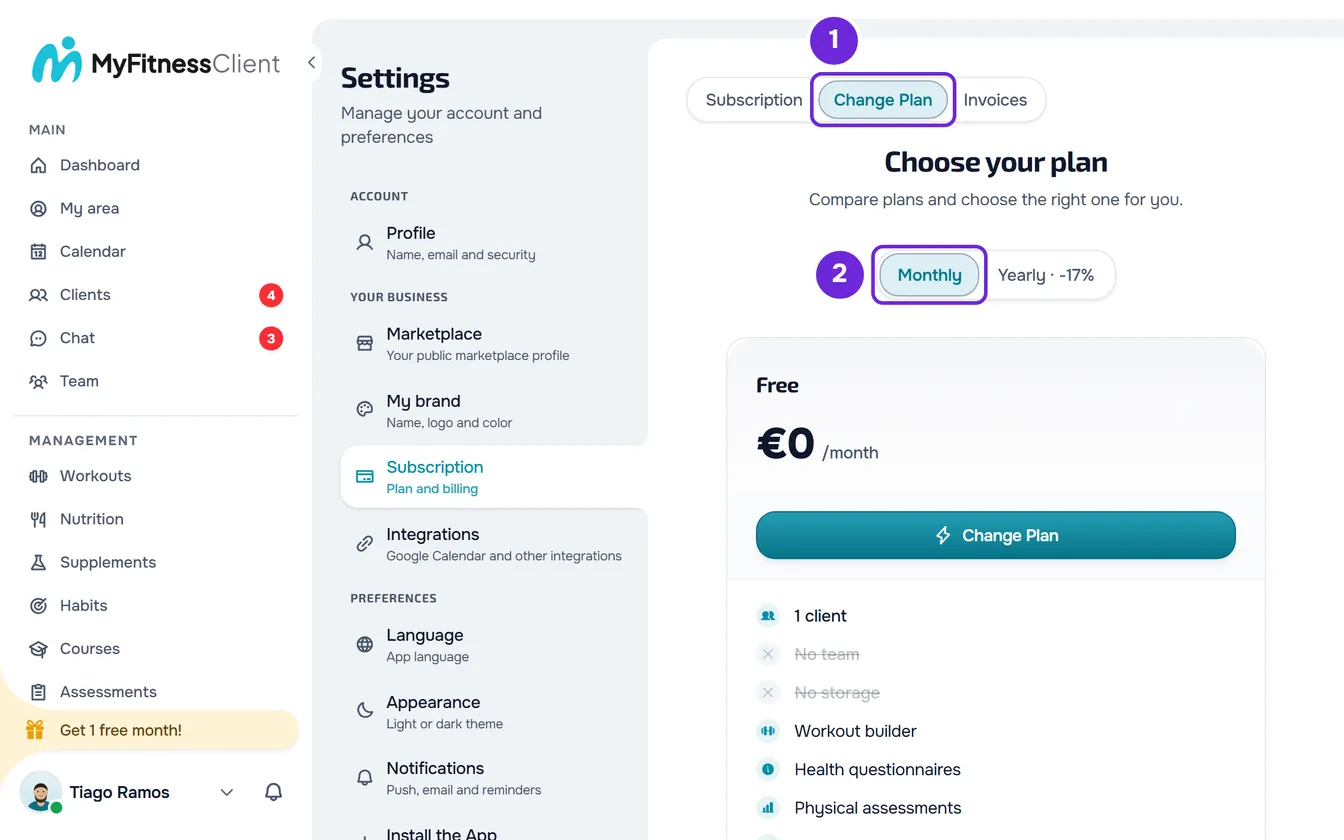
- On a computer, select your photo and your name at the bottom of the side menu, then Settings. On a phone, open the menu and select Settings at the bottom of the menu.
- Select Subscription.
- Select the Change Plan 1 tab.
- Optional: on the switch, choose Monthly 2 or Yearly for the new plan. The switch starts on the interval you pay today.
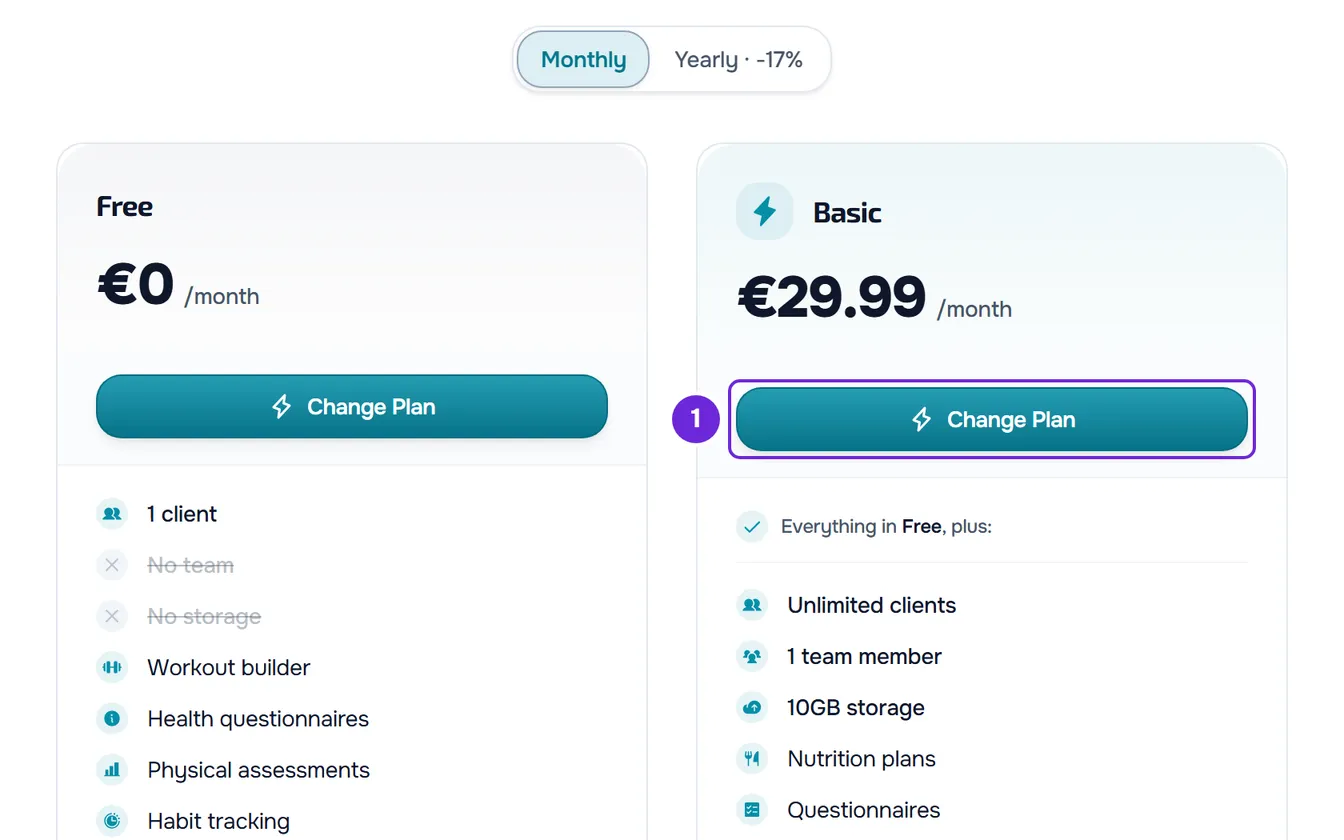
- On the card of the plan you want to move down to, select Change Plan 1.
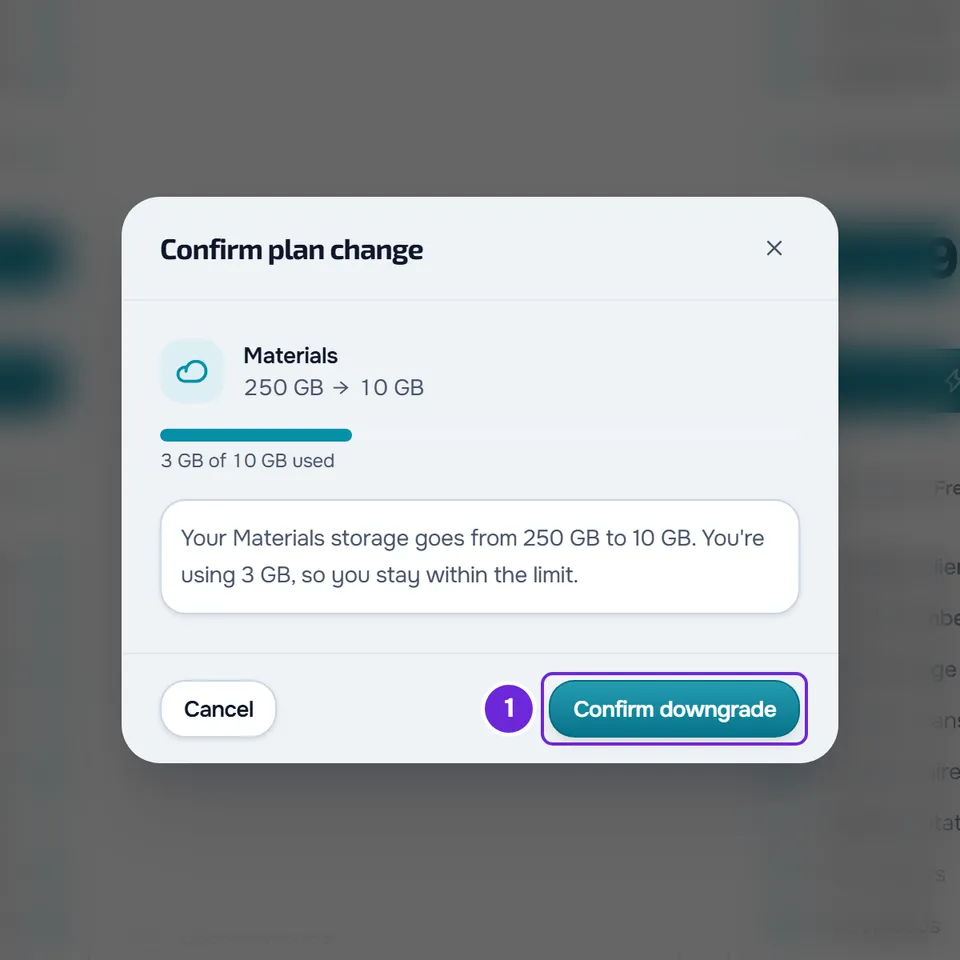
- If a warning about Materials appears, read it and select Confirm downgrade 1. Nothing changes until you confirm in Stripe.
- On the Stripe page that opens, check the new plan and the date of the change, and confirm.
- Go back to Subscription in MyFitnessClient.
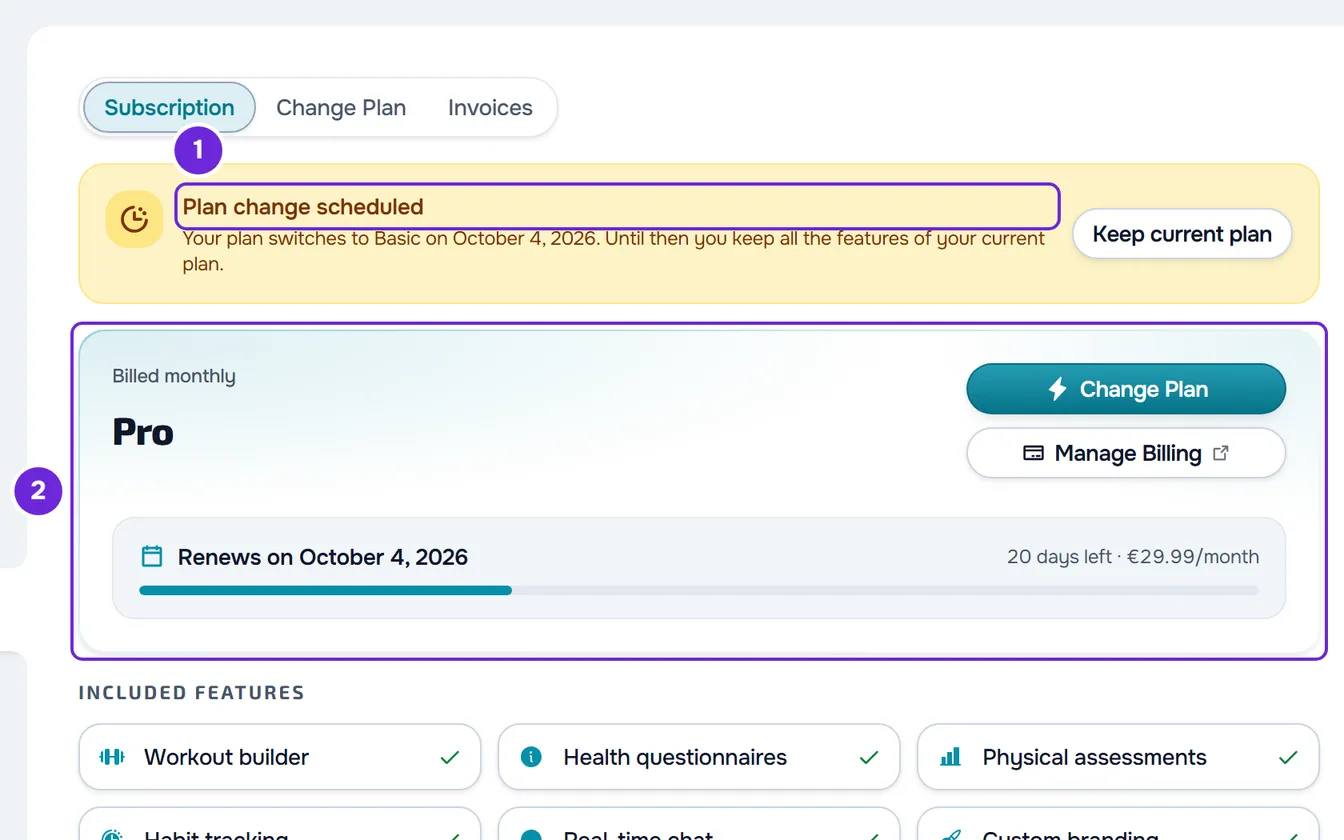
The “Plan change scheduled” banner appears at the top of Subscription and shows which plan the account changes to and on what day, with the Keep current plan button to undo the change. Until then, the plan card still shows your current plan, because that's the one you have.
When the change happens
When the new price is lower, or when you switch your plan from yearly to monthly, the change is scheduled for the end of the period you already paid for. If you also switch from monthly to yearly, Stripe compares the two plans over the same period: the change is scheduled when a year of the new plan costs less than a year of the current plan. Until the day of the change, you keep your current plan and everything it includes. Confirming doesn't charge or refund anything: the renewal on that day is already charged at the new plan's price.
Before you confirm, the Stripe page shows the day the change takes effect.
The Materials warning
Before opening Stripe, MyFitnessClient compares the file space of your current plan with that of the new plan. If the new one has less and you have files in Materials, a warning appears with the current space and the new plan's space. The title tells you which case you're in:
| Warning title | When it appears | What it means |
|---|---|---|
| Confirm plan change | What you use fits in the new plan's space. | You stay within the limit. |
| Your Materials will be full | You use more space than the new plan allows. | From the day of the change, you can't upload new files until you free up the space the warning shows. The files you have aren't deleted. The Free up space link opens Materials. |
| Your Materials become read-only | The new plan doesn't include Materials, like the Free plan. | From the day of the change, the Materials page becomes read-only: you can view, download and delete the files you already have, but not upload new ones. What happens to the files is in “Cancel your subscription and understand what happens next”. The Go to Materials link opens Materials. |
Cancel closes the warning without changing anything. If the new plan has the same space or more, or you have no files in Materials, the warning doesn't appear and the Stripe page opens straight away. Moving to the Free plan always opens a window, even without files: “Switch to the Free plan?”, which says the plan changes at the end of the current period.
What changes on the day of the change
On the day shown in the banner, the account moves to the new plan on its own: the banner disappears and the plan card shows the new plan. Nothing is deleted, but:
- The pages of features the new plan doesn't include now show what the feature does and the plan that includes it. If you have courses and the new plan doesn't include Courses, your courses become read-only. See Feature locked by your plan: what it means.
- The storage limit becomes the new plan's. If you use more, file uploads are refused until you free up space. See “Storage limit exceeded”: how to free up space.
- If the team has more members than the new plan allows, no one is removed, but you can no longer invite and you get a notice in your notifications. See what to do with too many members in the team.
- If you have more active clients than the new plan allows, the account is frozen until you choose who stays active. See You have more active clients than your plan allows.
- The add-on for your app in the stores, if you have it, stays active with any paid plan.
Common problems
“A plan change is already scheduled.”
You already asked for a change that hasn't happened yet, and there can only be one at a time. The same error appears if you try to upgrade while the change is scheduled. The “Plan change scheduled” banner at the top of Subscription shows which change it is and on what day. To ask for another change, first undo this one with Keep current plan on the same banner, or wait for that day.
“Your plan was granted by MyFitnessClient. To change it, contact support.”
It appears when your plan is granted, with the Granted status on the plan card: a granted plan can't be changed in Subscription. If you want another plan before the day your granted plan ends, contact support.
The plan card still shows the current plan
That's expected. The new plan only starts on the day shown in the “Plan change scheduled” banner, and until then you have your current plan and everything it includes.
I came back from Stripe and the banner doesn't appear
If you left the Stripe page without confirming, nothing changed: repeat the steps. If you confirmed, the banner appears when MyFitnessClient receives Stripe's confirmation: open Subscription again later. If that didn't fix it, contact support with your account email and the plan you chose.
Questions
How do I undo the scheduled change?
In Subscription, on the “Plan change scheduled” banner, select Keep current plan. There is no confirmation: the change is removed, “The scheduled change was cancelled. You stay on your current plan.” appears and the banner goes away. Your current plan keeps renewing as before. If you change your mind, ask for the downgrade again with the steps in this article.
Can I switch from yearly to monthly without changing plan?
Yes. In the Change Plan tab, choose Monthly on the switch and, on your plan's card, select Change Plan. The change is scheduled for the end of the yearly period, like a downgrade.