
Before you start
- In a team workspace, you need the Nutrition > Edit permission. Without it, the plan opens read-only.
- Option 1 is the meal itself. The meal's time, day and place in the plan apply to every option; each option has its own name, note and foods.
- In Calendar mode, select the meal in the grid: the card opens in a window, with the same tabs and the same + sign.
Steps
To give a meal options:
- In the side menu, select Nutrition and open the plan.
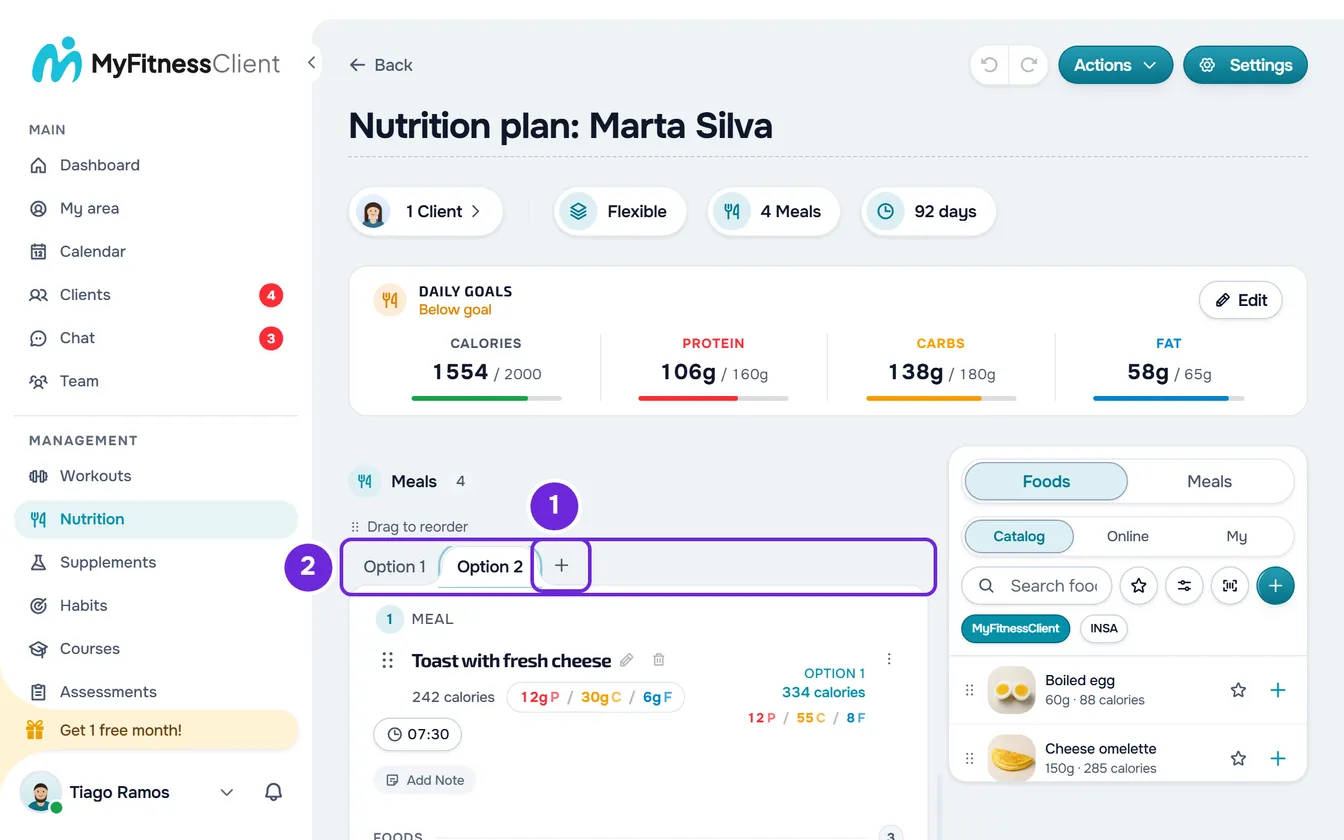
- On the meal card, select the + sign 1 after the last tab (“Option 1” on a meal with no options yet). The Add option window opens.
- To use meals you already have, stay on the Library tab and tick one or more in the circle at the end of each row.
- To create a new option, choose Custom, select No name on the card and type the option's name, up to 50 characters.
- Optional: in Custom, add the foods with Add Food, as in Add, edit and remove foods in a meal.
- Optional: in Custom, turn on Also save to library to reuse the option as a meal in other plans.
- Select Add. With several meals ticked, the button says, for example, “Add (3)”. The window closes and “Option added” appears (with several, for example “3 options added”).
- Optional: on the new option's tab 2, which stays open, add a note with Add Note.
The card gets the “Option 2” tab, or the next one, and shows the foods and macros of the open option, which you change as in a meal without options.
A library meal comes in as an option with the name, note and foods it has in the library, and the name is cut at 50 characters. It is a copy: changing the meal in the library doesn't change the option.
Change an option's name, note and foods
Select the option's tab. The card now shows that option's name, note and foods, and everything is edited as in a meal:
- Name: select the name (it has a pencil next to it), type and confirm with Enter or by leaving the field; Esc cancels. Up to 50 characters. Hovering over a tab shows the option's name, or “No name”.
- Note: Add Note opens a text box, up to 5000 characters. On Option 1, the note saves as you type; on the other options, it saves when you leave the box. The X in the box deletes the note.
- Foods: the same buttons and the same dragging as in a meal without options, as in Add, edit and remove foods in a meal.
- Time: it belongs to the meal. Change it with any option open and the new time applies to all of them.
Change the order of the options
- Drag a tab to another place in the row. On a touchscreen, hold your finger on the tab for a moment before dragging.
- With the keyboard, reach the tabs with the Tab key: the arrow keys switch options, and Alt with ← or → moves the open option one place.
- The tabs are always called “Option 1”, “Option 2” and so on by position: what changes place is the content.
- Putting another option first doesn't touch the meal: that option's name, note and foods move to Option 1, the options that were before it move down one place, and the meal's time, day and place in the plan stay as they were.
The tab where the option landed glows for a moment. While the new order saves, the card's name, note and foods are locked; if saving fails, the previous order comes back and an error message appears.
Delete an option
With the option open, select Delete option in the card's ⋮ or on the trash can next to the name. Right-clicking the option's tab opens that option and the same menu. In the Delete option window, confirm with Delete. “Option deleted” appears.
- Deleting Option 1 doesn't delete the meal: Option 2 becomes Option 1, with its name, note and foods, and the meal keeps its time, day and place in the plan.
- The window warns “This action cannot be undone.” and that is true: Undo doesn't bring back a deleted option.
- With only one option, Delete option doesn't appear, because Option 1 is the meal. To remove it from the plan, use Delete meal, as in Add and organize the meals in a meal plan.
Compare the options' macros
- Under the name, the card shows the calories, protein, carbs and fat of the open option.
- On a screen 1024 px wide or wider, when the open option isn't Option 1, the top of the card also shows, on the other side of the name, an “Option 1” column with its numbers, so you can compare. On narrower screens, you only see the open option's numbers.
- In the list modes (all except Calendar), the Daily Goals card adds up, for each meal, the option you have open. Switch options to see whether the day stays within the goal, set as in Set a plan's daily calorie and macro goals. It is only the view: nothing is saved, and when you open the plan again every meal goes back to Option 1.
What the client sees
The client sees the meal's options in the tabs “Option 1”, “Option 2” and so on, and picks the one they eat. A meal with only Option 1 appears without tabs. More in What the client sees and gets from the meal plan.
Common problems
Undo stopped working after changing the options
Any change to the options (adding, deleting or reordering them, or changing the name, note or foods of Option 2 or later) clears the plan's Undo and Redo history. The change is already saved; you just can't reverse it with Undo. See The meal plan editor: autosave and Undo.
The + sign and dragging the tabs are gone
You are pasting: while you paste, the tabs only switch options and the ⋮ is locked. Select Done on the paste bar. If the plan opens read-only, you are missing the Nutrition > Edit permission. The + sign also disappears when the meal already has 50 options besides Option 1, the maximum.
If that didn't solve it, contact support with the plan's name, the meal's name, the option number and the exact message that appeared.
Questions
Can each option have its own time?
No. The time belongs to the meal and applies to every option; the Add option window doesn't even have the time field.
Do the options go into copies and the plan's PDF?
Yes. Duplicate in the meal's ⋮ and duplicating the plan carry the options over, as in Duplicate a meal plan. In the PDF, the meal says, for example, “Pick one of 2 options” and shows each option with its foods; an option without foods is left out.
Can I use a meal from another plan as an option?
Yes. Select Copy in that meal's ⋮ and open the destination plan: outside Calendar mode, each meal shows Paste option after the tabs. See Copy and paste meals, supplements, questions and lessons.
Can I save an option as a library meal?
Yes. When you create it in Custom, turn on Also save to library. Afterwards, Save to library only appears in the ⋮ with Option 1 open and while that meal isn't in the library, so start by moving the option you want to save to first place.