
It happens when your plan allows fewer active clients than you have: after you downgrade, or when the subscription ends, for example because it was cancelled or not paid. The account is frozen: you can still see everything, but almost every change is refused until you are within the limit. Nothing is deleted.
An amber banner at the top of the dashboard says how many clients you have over your plan, and Settings > Subscription shows the “Client Limit Exceeded” card. Every refused change shows the amber notice “You have more active clients than your plan allows. Choose which to keep or upgrade your plan.”
Who counts toward the limit
Only active clients count for this notice. The demo client does not count, and neither do clients scheduled to start on a future date. To find out how many clients your plan allows and who takes up a seat, see Client limit and occupied slots on your plan.
What is blocked
While the account is frozen, the server refuses almost every change, for example:
- creating, inviting, importing, editing, archiving and reactivating clients, and accepting requests;
- creating, editing and deleting tags, and adding them to or removing them from clients;
- creating, editing, assigning and deleting workouts, programs, meal plans, supplements, habits, assessments and questionnaires;
- sending chat messages and making changes to the calendar, courses and materials;
- recording payments and changing clients' plans and packs.
These keep working:
- viewing everything: clients, workouts, plans, conversations and payments;
- rejecting, blocking and unblocking requests from new clients, and handling the contacts left on your public profile;
- deleting files in Materials, also with Empty, to free up space: the page opens read-only, without Upload or New folder, and lets you view, download and delete files;
- your account, security, subscription, branding and team members.
Your active clients keep using the app. While the account is frozen, automatic questionnaires and reminders for unanswered questionnaires are not sent (see Clients stopped receiving automatic questionnaires). A scheduled chat message whose time comes up during this period is not sent: it moves to Paused, in Scheduled messages, and only goes out again when, after you fix the problem, you select Resume.
How to fix it
You have two ways out: choose which clients stay active, within the plan limit, or upgrade to a plan with more seats. Only the account owner can do either.
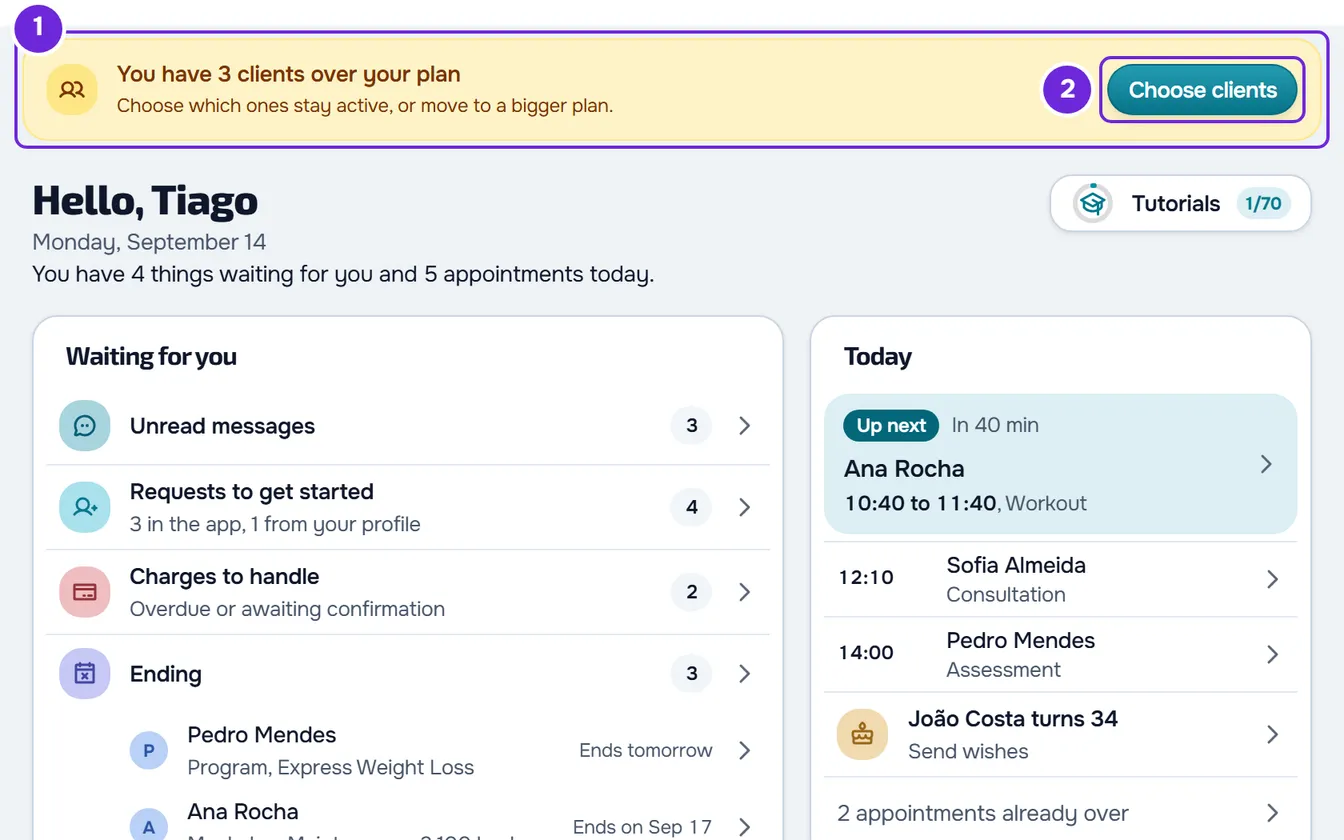
To choose who stays active:
- In the amber banner at the top of the dashboard 1, select Choose clients 2, or open Settings > Subscription and select Choose Clients.
- In the “Choose who stays active” window, select each client you want to keep 1. The list has all your active clients except the demo client. A check mark shows the ones you chose and the counter shows how many you chose and how many the plan allows.
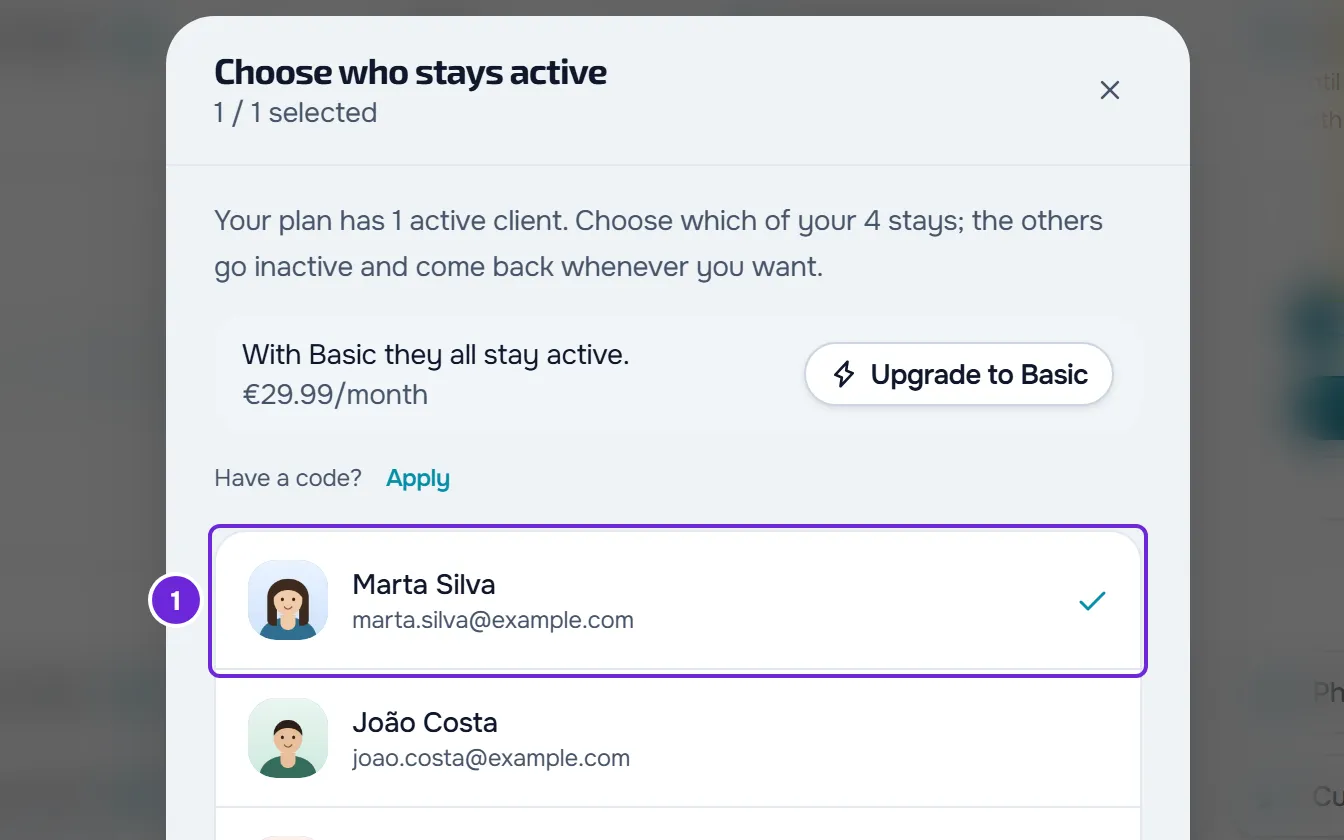
- Select Keep 1 client or Keep {n} clients: the button shows how many clients you chose.
“Client selection saved” appears and the window closes. The clients you did not choose are deactivated and changes work again.
Keep all your clients active
If you do not want to deactivate anyone, upgrade to a plan with more seats. In the “Choose who stays active” window, the line “With {plan} they all stay active.” has the Upgrade to {plan} button, which opens the checkout for that plan. If you have a promo code, select Apply in “Have a code?”, in the same window, type it and select Apply code before you pay: the code stays on your account and is used at checkout. In Settings > Subscription, the Change Plan button on the same card shows the plans. When a plan with room for everyone becomes active, there are no more clients over the limit and no one is deactivated. See Upgrade your plan and pay for your subscription.
What happens to the clients left out
The clients you do not choose are deactivated, as when you archive a client:
- they lose access to the app and each one gets a notice;
- manual charges are suspended and plan subscriptions paid online end at the end of the period already paid;
- nothing is deleted: history, plans and conversations stay saved.
Upgrading later does not reactivate them. To bring them back, reactivate them in Clients, one at a time or several at once. Each reactivated client takes up a seat in the plan.
If you are a team member
On another professional's team, the limit is the one in the owner's plan. You see the amber notice when a change is refused, but you do not see the banner or the window. Ask the owner to choose who stays active or upgrade the plan.
If the banner says your clients are blocked
If your plan includes no active clients, there is nothing to choose. The banner says “Your {n} clients are blocked” (or “Your client is blocked”) and the button opens the “Locked feature” window, with the plan that lets you work with all of them again. In this case, the only way out is to upgrade.
Messages and what to do
| Message | When it appears | What to do |
|---|---|---|
| “Your plan has {max} active clients. Untick one to choose another.” (with 1 seat: “Your plan has only 1 active client. Untick one to choose another.”) | In the window, when you tick more clients than the plan allows. | Untick a client before you tick another. |
| “The client selection is invalid.” | One of the ticked clients stopped being active after you opened the window. | Close the window, open it again and choose again. |
| “You selected more clients than your plan allows.” | The plan limit changed after you opened the window. | Close the window, open it again and choose again. |
| “Student management is locked while the account is frozen.” | In courses, when you make a change while the account is frozen. | Choose who stays active or upgrade your plan. |
If this did not solve it
If the banner is still there after you choose or upgrade, reload the page. If it stays, contact support (see Contact Support and create a request) with the plan you have, the number of active clients and the exact message you see.