
Before you start
- In a team workspace, deleting meals requires the Nutrition > Edit permission; without it, Delete and Select do not appear. The workspace owner has all permissions.
- The library belongs to the workspace: a meal you delete stops appearing for the whole team.
- If “You have more active clients than your plan allows. Choose which to keep or upgrade your plan.” appears, the deletion doesn't save until you fix it: see You have more active clients than your plan allows.
Steps
To delete a meal from the library:
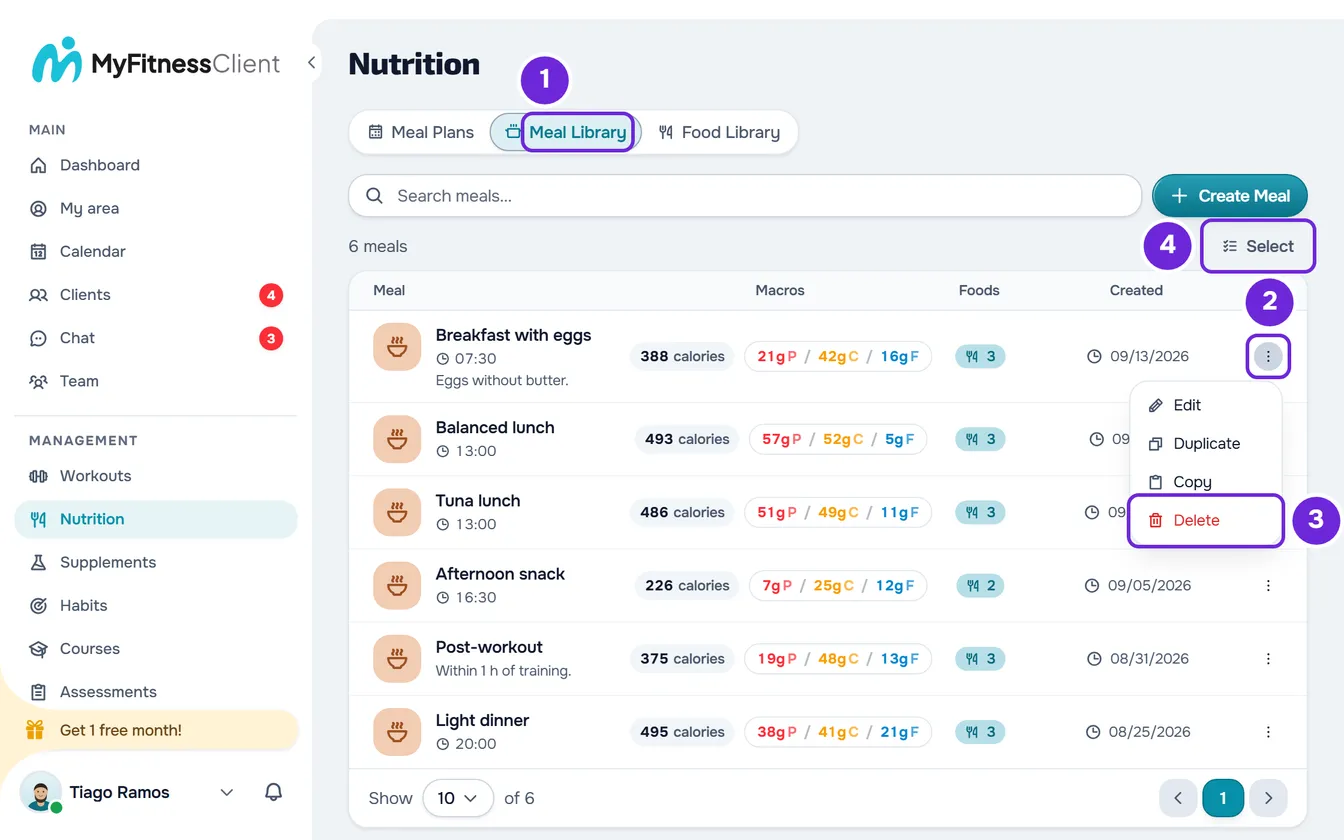
- In the side menu, select Nutrition.
- Select the Meal Library 1 tab. On a narrow screen, such as a phone's, the tab is called Meals.
- On the meal's row, open the ⋮ menu 2 and select Delete 3. You can also right-click the row.
- In the Delete Meal window, select Delete 1.
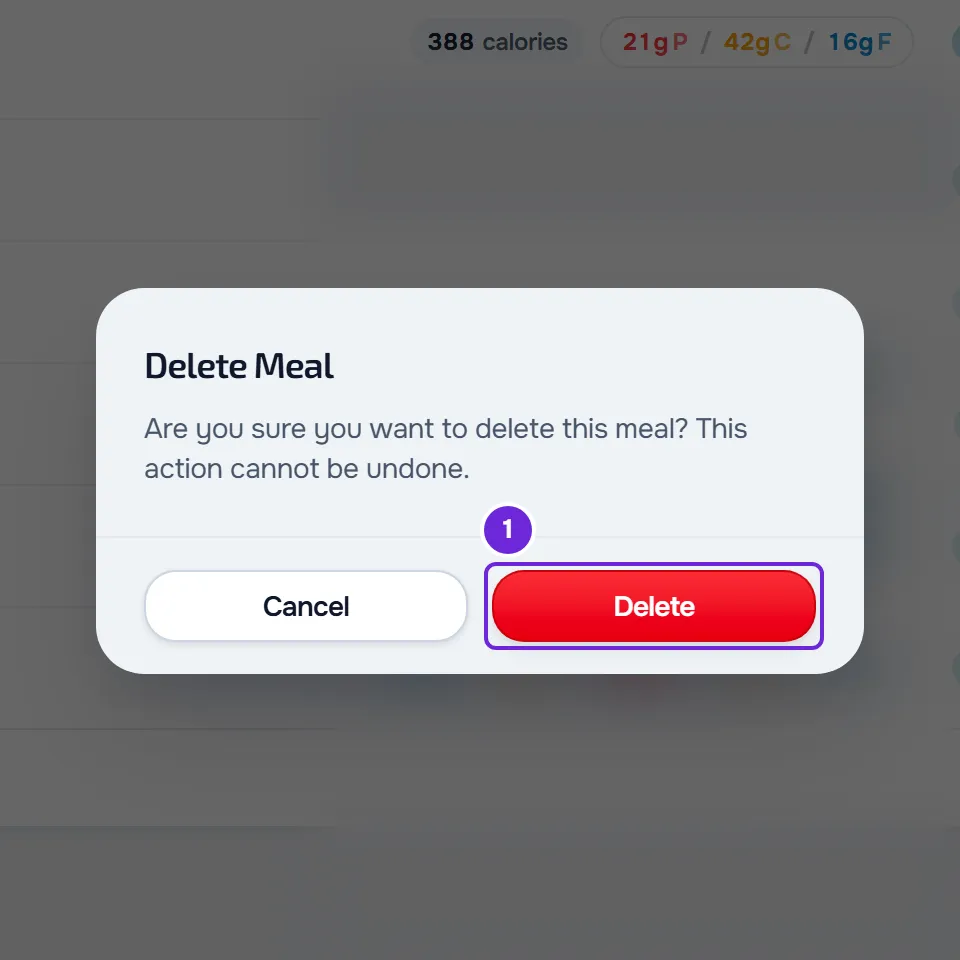
The window closes, the “Meal deleted” notice appears and the meal disappears from the list.
Delete several meals at once
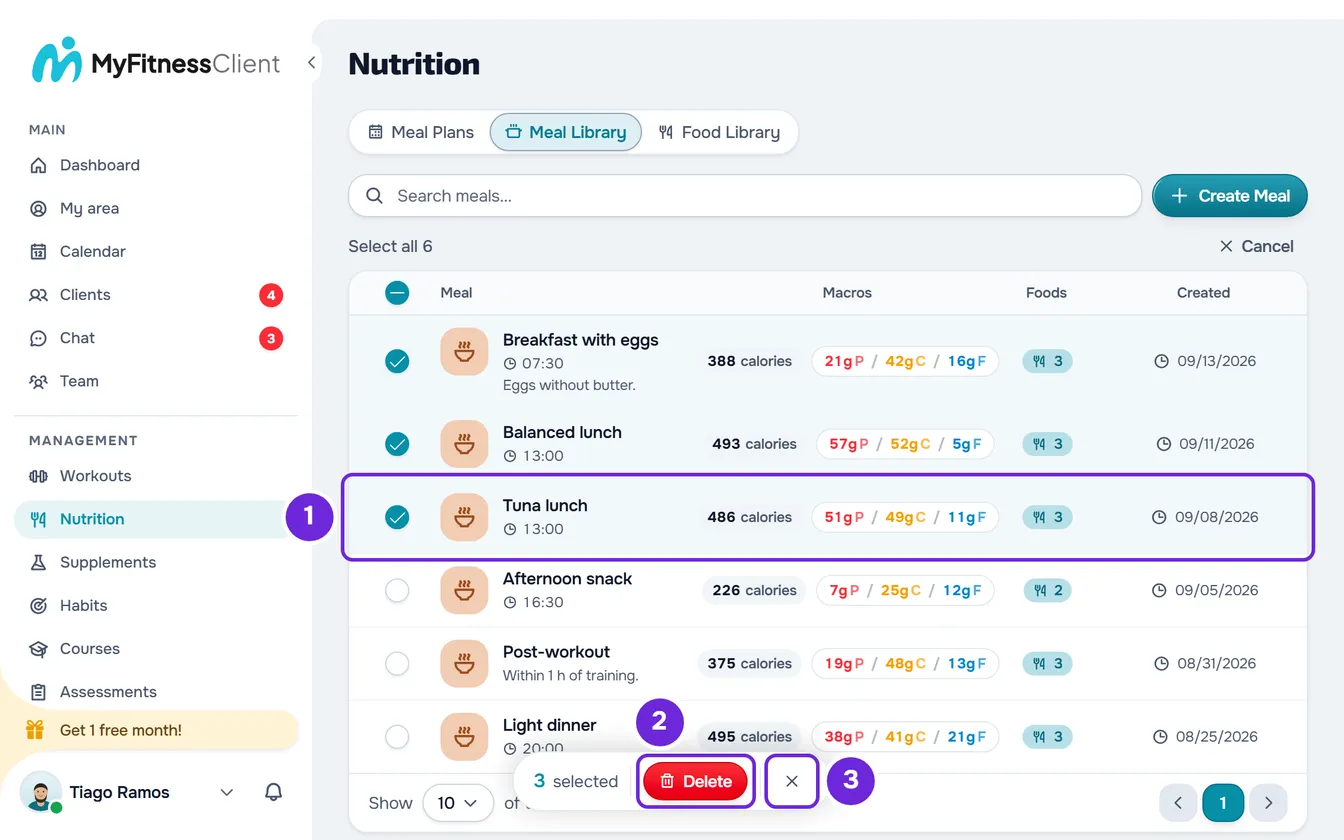
- At the top of the list, next to the number of meals, select Select. A circle appears on each row.
- Select the meals you want to delete. The bar at the bottom of the screen shows how many you have marked, for example “3 selected”. On a phone, it shows only the number.
- To mark all the meals on the page, select the circle at the top of the list; on a narrow screen, Select all on the first row of the list. If there are more pages, “Select all” followed by the total also appears, which marks the meals on every page.
- To mark the meals on every page straight away, select “Select all” followed by the total, in place of the number of meals, for example “Select all 40”. With a search typed in, only the meals the search finds are marked.
- In the bar, select Delete. The confirmation window says how many meals you are about to delete, for example “Delete 3 meals?”, also when you have marked all the ones in the list, as in “Delete 40 meals?”. Select Delete to confirm.
- The “Meals deleted” notice appears (with a single meal, “Meal deleted”) and the selection closes.
- To leave the selection without deleting, select Cancel, where Select was, or the bar's X.
There is no limit on meals per deletion: MyFitnessClient deletes them in batches of 500.
What happens when you delete
- The meal is removed from the library and is no longer available to add to meal plans.
- The meal plans where you already put it don't change: each plan has its own copy of the meal, and clients keep seeing it. See Library foods and meals: what changes in plans.
- In plans where the meal came from the library, or from which you saved it with Save to library, that option appears again in the ⋮ menu of the plan's meal.
- A deleted meal can't be recovered: the confirmation warns “This action cannot be undone.”.
Shortcuts
- Right-clicking a row opens the same menu as the ⋮: Edit, Duplicate, Copy and, last, Delete.
- On a computer, holding Ctrl (Cmd on a Mac) while you select a row turns on selection and marks that meal.
- On a narrow touch screen, such as a phone's, a long press of half a second on a meal turns on selection and marks that meal.
- On a narrow touch screen, swiping the row to the left shows a red button with a trash can, which opens the same Delete Meal window.
Common problems
I can't see “Delete” or “Select”
In a team workspace, you are missing the Nutrition > Edit permission. Without it, the meal's ⋮ menu has neither Edit nor Delete, and the row doesn't swipe. Ask the workspace owner for the permission.
An error message appears when deleting
The meal was not deleted. If you see “Connection error.”, check your internet connection and try again. If you see “Server error.” or “Error deleting meal”, wait a moment and try again. If you see “Not found.”, the meal had already been deleted, for example by someone else on the team: reload the page.
Deleting several meals stopped partway
One of the batches of 500 failed after others had already been deleted. The notice says how many were deleted and how many are left, for example “Deleted 500. The operation stopped with 120 left. Try again.”. The meals stay marked: select Delete in the bar again to delete the remaining ones.
I deleted a meal by mistake
The meal can't be recovered. If it is in a meal plan, open the plan and, in that meal's ⋮ menu, select Save to library. In a plan in Calendar mode, open the meal first to see that menu; in a meal with options, this item only appears with the first option open. A window opens already filled in with what is in the plan and, when you save, the meal returns to the library as a new meal. If it wasn't in any plan, create it again: see Create or duplicate a meal in the meal library.
If this did not solve it, contact support with the meal's name, the exact message and the approximate time.