
This happens in a workout's editor, in Workouts: the workout doesn't save, the name is underlined in red, the editor stops responding, the exercise panel doesn't appear, Add set does nothing, the PDF export asks for another plan, or you deleted a workout by mistake. A workout that already exists saves by itself 1.5 seconds after the last change, with no save button. A new workout is only saved when you select Create Workout. The editor of a workout inside a program and the editor of a workout in a client's profile have the same save indicator, the same dialog when leaving and the same panel.
“Error saving”
The save indicator is at the top of the editor. When a save fails, it shows Error saving in red, with Try again next to it. On a screen narrower than 640 px, it shows only a red warning icon, which does the same as Try again. While the warning is visible, what you changed since the last save exists only on this screen.
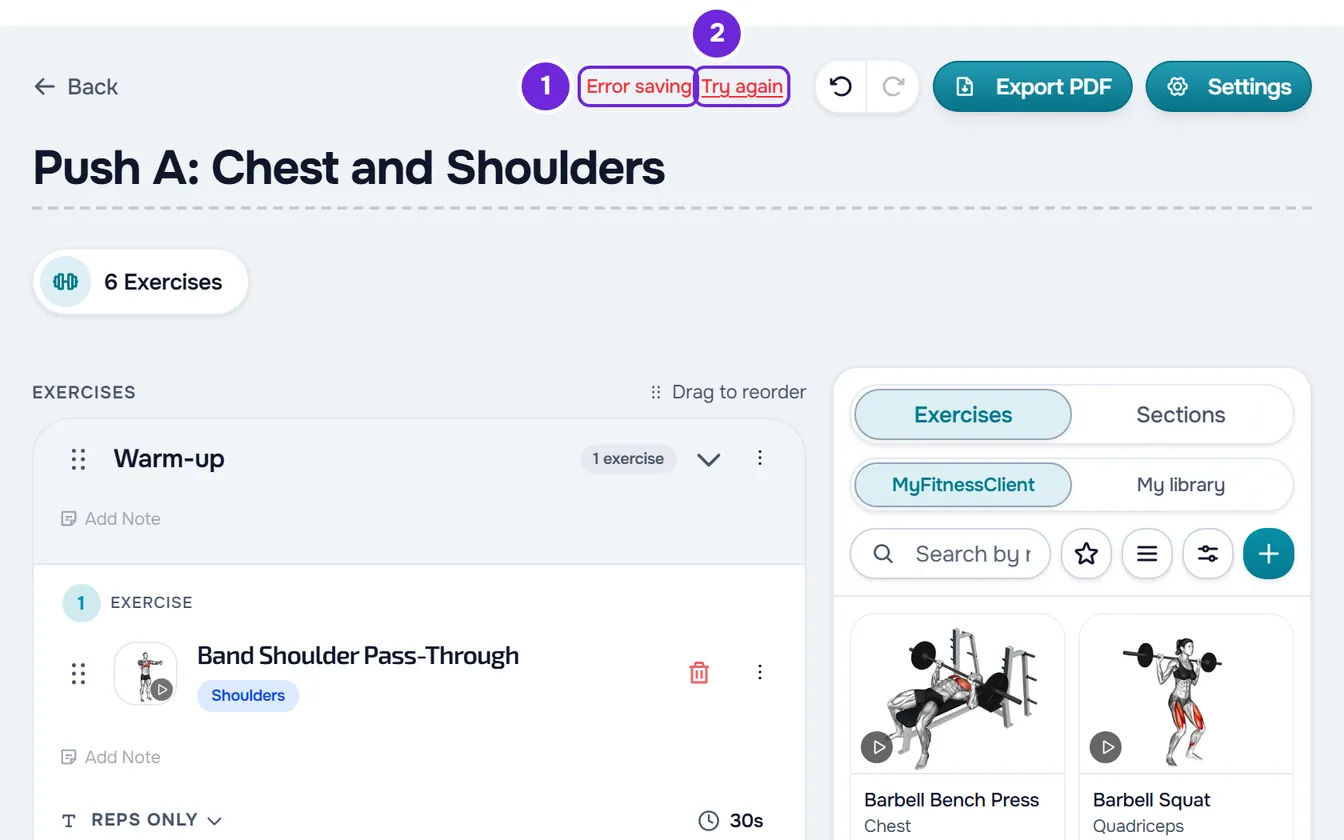
To save the workout:
- Select Try again 2, next to Error saving 1, or the red warning icon.
- If the warning comes back, look for the cause in the following table and fix it.
- Select Try again once more.
Each attempt sends the whole workout, with all the unsaved changes. When the save goes through, the warning disappears and, from 640 px wide, the indicator shows “Changes saved!” for 2 seconds. If, instead of fixing it, you use the undo button to undo the changes that were not saved, the warning also disappears: the workout goes back to what is saved.
| Cause | What to do |
|---|---|
| The name has more than 100 characters, the description has more than 1000, or the workout has more than 200 exercises and sections, counted together. The editor lets you type, but the server rejects the whole workout. | Shorten the name, at the top of the editor or in Settings, or the Description, in Settings. With more than 200 exercises and sections, split the workout in two. |
| The internet connection failed. If the browser detects that you have no network, “You are offline” also appears. | When the connection is back, select Try again. The save does not repeat by itself when the network returns: only the next change you make tries again. |
| Your account, or the account of the owner of the team you work in, has more active clients than the plan allows. The notice “You have more active clients than your plan allows. Choose which to keep or upgrade your plan.” appears. While this lasts, no change is saved, but you can still see the workouts. | Choose which clients stay active or change your plan. In a team, this is up to the owner. If you need the changes, leave the editor open, resolve the limit in another browser tab and select Try again. |
| You work in a team and don't have the Edit action in the Workouts area, for example because the owner removed it after you opened the workout. “You don't have permission to do this in this team.” appears. | Ask the team owner for the Edit action in the Workouts area. |
| The workout was deleted after you opened it, in another browser window or by another team member. | The changes can no longer be saved to this workout. See the section “I deleted a workout by mistake”. |
| A temporary server failure. | Wait a moment and select Try again. |
To choose the clients or change your plan, see You have more active clients than your plan allows. For a team's permissions, see “No permission to access” and menu items missing for a member. Without a network, see “You are offline”: what to do on the web.
Leaving the workout when saving fails
With unsaved changes, Back saves first and only leaves if the save goes through. If it fails, the “Error saving” dialog opens, with the sentence “The latest changes to this workout could not be saved.”:
- Try again closes the dialog and tries to save again, without leaving. Closing the dialog with Esc or by selecting outside it does the same. When the save goes through, select Back again.
- Don't save leaves the workout without the unsaved changes.
If you leave another way, such as a side menu item, reloading the page or closing the tab, MyFitnessClient still sends the unsaved changes, but does not confirm whether they were saved. Open the workout again to check.
The workout name is underlined in red
This happens when you delete the name of a workout that already exists. Without a name, MyFitnessClient saves no changes: the name is underlined in red, with a sentence under it asking for the workout name. Type the name at the top of the editor and autosave works again.
If you select Back without a name, the “The workout has no name” dialog opens. Keep editing closes the dialog and puts the cursor in the name. Don't save leaves and loses the unsaved changes: the workout keeps the name and content of the last save.
Create Workout shows a warning
A new workout has no autosave: it is only saved when you select Create Workout (Create on a screen narrower than 640 px). If it can't be created, a warning appears and the editor stays as it was. When it goes through, “Workout created successfully!” appears and you return to the workout list.
| Warning | Cause | What to do |
|---|---|---|
| A warning asking for a name for the workout | The name is empty. | Type the name at the top of the editor. |
| “The workout name cannot exceed 100 characters.” | The name has more than 100 characters, not counting spaces at the start and end. | Shorten the name. |
| “The workout must have at least 1 exercise.” | The workout has no exercise. Sections without exercises don't count. | Add at least one exercise. |
| “There are invalid rep ranges. The max reps value cannot be less than the minimum.” | In a set, the maximum reps is lower than the minimum. The maximum's box turns red. | Fix the maximum. |
| “Invalid data. Check the fields.” | The server rejected a value, for example a description with more than 1000 characters or more than 200 exercises and sections. | Shorten the Description, in Settings, or split the workout in two. |
| “You have more active clients than your plan allows. Choose which to keep or upgrade your plan.” | Your account, or the account of the owner of the team you work in, has more active clients than the plan allows. | Choose which clients stay active or change your plan. In a team, this is up to the owner. |
| “You don't have permission to do this in this team.” | You work in a team and don't have the Create action in the Workouts area. | Ask the team owner for that action. |
| “Connection error.” or a “Server error.” message that asks you to try again | The internet connection or the server failed. | Check the connection and select Create Workout again. |
| “Error creating workout” | A failure the page can't explain. | Select Create Workout again. |
In a workout that already exists, a range with the maximum lower than the minimum doesn't block the save: the box turns red and that set is saved with the minimum only, until you fix the maximum.
The editor doesn't respond and the add buttons are gone
This happens when you copied an exercise, a superset, a circuit or a section: the editor enters paste mode and only accepts pasting that copy. The exercise cards don't respond, Add Exercise and Section disappear from the end of the workout, the side panel is locked and paste buttons, such as Paste here, appear where the copy fits. The bottom bar shows what you copied.
To edit again, select Done in the bottom bar. The copy is then no longer available to paste. A copy lasts 24 hours: a workout you open within that time, with the copy still stored, opens in paste mode. The other reasons why Paste doesn't appear are in The “Paste” button doesn't appear or pasting is refused.
I can't see the exercise panel
The side panel with the exercise library only appears when the browser window is at least 1024 px wide. The browser zoom counts: at 200%, a 1920 px window becomes 960 px and the panel disappears. There is no button to show or hide the panel.
- Widen the window or reduce the browser zoom.
- On a narrower screen, use Add Exercise at the end of the workout (Exercise on a screen narrower than 640 px). It opens the same library in a dialog.
- If the panel is visible but the “+” and dragging do nothing, the editor is in paste mode: select Done in the bottom bar.
Add set does nothing
| Situation | What to do |
|---|---|
| The exercise already has 50 sets, the maximum per exercise. Add set and Duplicate, in a set's ⋮ menu, stop adding sets, without a warning. | An exercise can't go past 50 sets. For more, add the same exercise to the workout again. |
| The exercise is part of a circuit. In a circuit, each row is a round: there is no Add set or − button, and sets can't be duplicated. | Change the number of rounds in the circuit's bar. |
| The editor is in paste mode. | Select Done in the bottom bar. |
| The new set appears without the values of the previous one. | It's not an error: Add set doesn't copy the previous set. To repeat a set with the same values, open that set's ⋮ menu and select Duplicate. |
| The − button doesn't appear. | It only appears with more than one set: each exercise always has at least one. |
Export PDF opens a prompt to change your plan
Your account's plan doesn't include PDF export. Instead of generating the file, Export PDF opens the “PDF exports” dialog, with what the export does and a button to change your plan. Maybe later closes the dialog without changing anything. See Feature locked by your plan: what it means.
The Export PDF button only appears in a workout that already exists and has at least one exercise. For a new workout, create it with Create Workout and open it again from the list.
I deleted a workout by mistake
There is no way to restore a deleted workout on screen. The delete dialog warns “Are you sure you want to delete this workout? This action cannot be undone.”, and deleting several workouts at once can't be undone either. Deleting the workout from the library doesn't delete what was made from it:
- The programs the workout was in keep their copy, with the exercises and sets.
- The workouts you gave to clients from it are kept: each client has their own copy.
- The workouts you duplicated or pasted from it are separate workouts and are kept.
In a published course that used the workout in a lesson, that workout's block becomes unavailable to enrolled clients. Opening the link of a deleted workout shows “Could not load the workout.”.
To get the workout back in the library from a copy left in a program or in the Extra Workouts of a client's profile, open that workout's ⋮ menu and select Copy. Then, in Workouts, select Paste, next to New Workout. A new workout appears in the library, with what that copy has today.
If this did not solve it
Contact support with the workout name, the approximate time, what you were doing and the exact message that appeared. If you work in a team, also say which team you were in.