
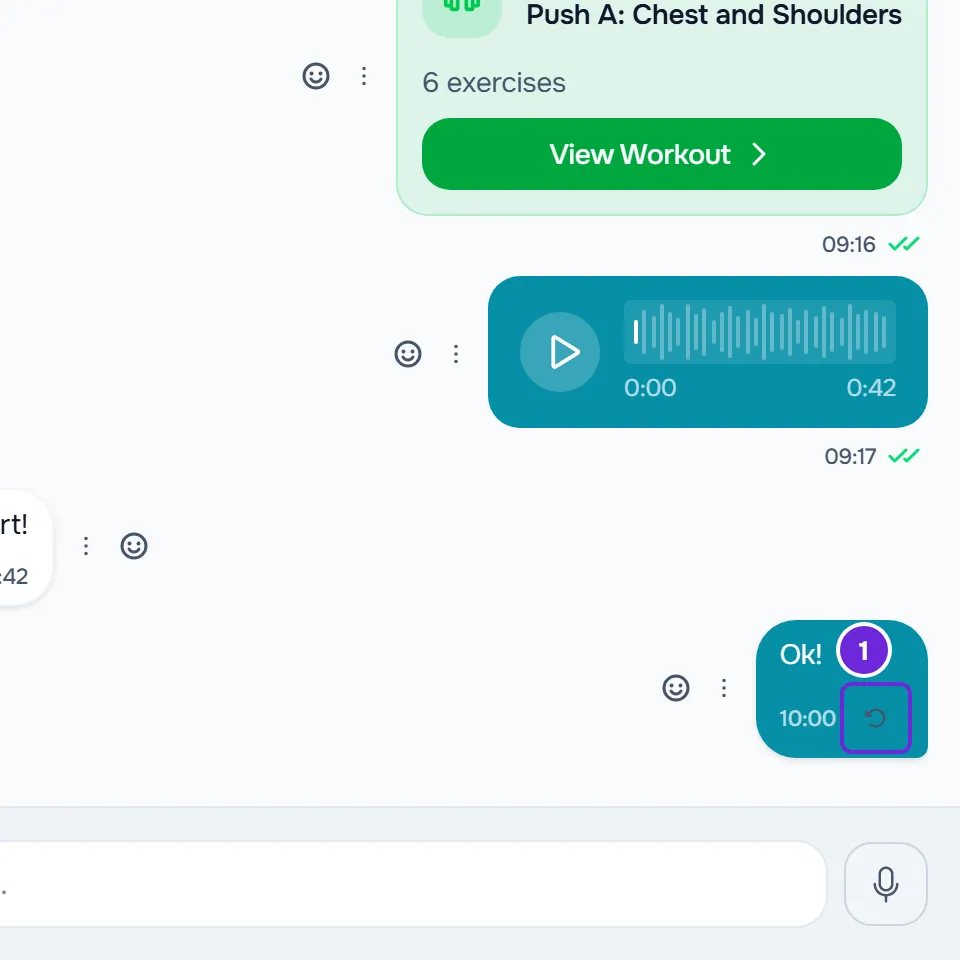
When a message doesn't go through, it stays in the conversation marked as not sent. On the website, a small button with a circular arrow appears next to the message time: it's the Retry button. In the app, the line “Not sent. Tap to try again.” appears next to the message, with a red warning icon. Retrying only works once the cause is gone, like a connection failure. If the cause persists, the message fails again.
How to fix it
To resend the message:
- Make sure you have an internet connection.
- On the website, select the Retry 1 button, the circular arrow next to the message time.
- In the app, select the message's “Not sent. Tap to try again.” line.
- In the “Couldn't send. Try again.” window, choose Try again.
- If the message fails again, look for the cause in Causes and solutions and fix it before retrying.
When the message goes through, the circular arrow on the website and the red warning in the app are replaced by the sent check mark, and the other person receives it. In the app, to give up on the message, choose Delete in the same window.
What's different between the website and the app
- On the website, the failed message only stays on the screen while you have the conversation open. If you switch conversations or reload the page, it disappears without being sent and you have to write it again.
- On the website, a workout, an assessment or a meal plan shared in the conversation that doesn't go through is marked as not sent, with the Retry button.
- In the app, without an internet connection, a text or a GIF shows a clock and goes through on its own when the connection comes back, up to 1 minute after you send it. After that minute, it's marked as not sent.
- In the app, when sending fails because there's no network or because of a server error, the app tries again on its own before marking the message.
- On the website and in the app, retrying never duplicates the message: if the first attempt arrived, the server recognizes it.
- In the app, when the server refuses the message because of a conversation rule, a sentence next to the message box says why. On the website, a notice at the top of the screen says why, and the message keeps the circular arrow button.
Causes and solutions
Find the cause by what you see on the screen:
| Cause | What you see | What to do |
|---|---|---|
| You have no internet connection, or the server didn't respond. | On the website, the “You are offline” notice when the browser detects that the network dropped, or “The response is taking longer than usual” while the server doesn't respond. When sending fails, a notice at the top of the screen says why, for example “Connection error.”, and the message keeps the circular arrow button. In the app, the clock and then “Not sent. Tap to try again.” | Wait for the connection to come back and retry. If the problem is on the server, try again in a few minutes. |
| The text is too long: it goes over 10,000 characters or 9,967 bytes. An accented letter takes up 2 bytes and an emoji 4 or more, so a text with many accents or emojis reaches the limit sooner. | On the website, the notice “Invalid data. Check the fields.” and the circular arrow button. In the app, only the message marked as not sent, with no sentence explaining why. | Write the text in several shorter messages. Retrying doesn't fix it. |
| You sent more than 20 messages in 10 seconds, counting all conversations. Each photo, video or file counts as one message. | On the website, the notice “Too many requests. Wait a moment.” and the circular arrow button. In the app, the message waits a few seconds and the app tries again on its own. | Wait 10 seconds and retry. |
| The client blocked the one-to-one conversation in the app. While it's blocked, no one sends messages in it. | On the website, the notice “This conversation is blocked.” and the circular arrow button. | Only the client can unblock it, in the app, with Unblock conversation. If you're the professional, talk to them another way. |
| The group became announcements-only: in it, clients can only read. | In the app, “Only group admins can send messages in this group.” On the website, the notice “Only admins can send messages in this group.” and the circular arrow button; after you reload the page, the message box is replaced by the same sentence as in the app. | You can still read what arrives in the group. To talk to your professional, use your one-to-one conversation with them. |
| Your professional closed your replies in this conversation, or you reached today's message limit. | In the app, “Replies are disabled in this conversation.” or “You have reached today's message limit.” On the website, the notice “Messaging has been turned off in this conversation.” or “You have reached the daily message limit in this conversation. You can send again tomorrow.” and the circular arrow button; when you open the conversation again, a padlock appears with the same sentence as in the app. | For the daily limit, wait until midnight in your professional's time zone. For closed replies, talk to your professional another way. |
| You sent a voice message in a conversation where voice messages aren't available. | In the app, “Voice messages aren't available in this conversation.”, and the recording isn't kept. On the website, the notice “This feature is not included in the current plan.” and the voice message marked as not sent. | Write the message as text. Retrying doesn't fix it. |
| You no longer have access to the conversation, for example: you left the group or were removed from it, the group was deleted or, in a team, you no longer have access to that client. | On the website, the notice “Not found.” and the circular arrow button; when you open the conversation again, “This conversation is no longer available.” appears and the conversation leaves the list. In the app, only “Not sent. Tap to try again.” | Go back to the conversation list. To get back into a group, ask a group admin to add you. |
| You're a team member without permission to send messages. | On the website, the notice “You don't have permission to do this in this team.” | Ask the team owner for the Chat > Send messages permission. |
| You have more active clients than your account allows. | On the website, a notice that says exactly that. | Follow what the notice asks. Until then, none of your messages go through. |
If you see a padlock in place of the message box, see I can't write in the chat: I see a padlock. If messages go through but replies take a while to appear, see The chat doesn't update by itself or messages arrive late.
Photos, videos, files and voice messages
- On the website, a file only enters the conversation after it uploads. A file refused because of its type or size doesn't even enter the send box, and one that doesn't upload leaves it; in both cases a notice appears with the reason, for example “This file type is not allowed.” or the professional's file storage being full. Fix the cause and attach it again.
- On the website, a file that has already uploaded but whose message doesn't go through is marked as not sent, with the Retry button, like a text.
- On the website, a voice message that doesn't upload doesn't appear in the conversation either: only the notice appears.
- In the app, a photo, a video or a file that doesn't go through leaves the conversation and goes back to the send box, ready to send again, and a sentence next to the message box says why. A voice message that doesn't go through is kept so you can send it again, except when voice messages aren't available in the conversation.
- If a photo, a video or a file keeps failing, attach it again and send it in a new message.
If this did not solve it
Write to the MyFitnessClient team through the contact on the “Didn't find what you're looking for?” card, at the end of the Help Center home page. In the app, the same card, at the end of the Help Centre, shows the email for problems with the app. If you're a professional, you can also create a request in Support, in Settings. Send:
- the day and time of the message that failed;
- the name of the conversation or group;
- the type of message: text, GIF, photo, video, file or voice;
- the sentence or notice that appeared, if any;
- whether you use the website, and with which browser, or the app, and on which phone.