
The shopping list adds up the foods of a meal plan for the days you choose and sorts them by supermarket aisle, each with the quantity ready to buy. The professional opens it in the plan, on the website; the client opens it on their Nutrition screen, on the website and in the app.
Before you start
- Professional: the plan must have at least one meal. With no meals, or while you are creating the plan, the Actions button does not appear.
- Team member: the permission to view Nutrition is enough. The list also opens when you have read-only access to the plan.
- Client: you need an assigned meal plan, and Nutrition must be part of your coaching. Without a plan, the Actions menu has no Shopping list.
- If you are a professional and follow your own plan in My area, the list works like the client's.
Interactive tutorial
Opens in the app and needs you to be signed in.
Steps
To create the shopping list on the website:
- In Nutrition, open the meal plan: the professional opens it from the list of plans; the client sees theirs straight away.
- Select Actions 1 > Shopping list 2. The list opens with 7 days selected.
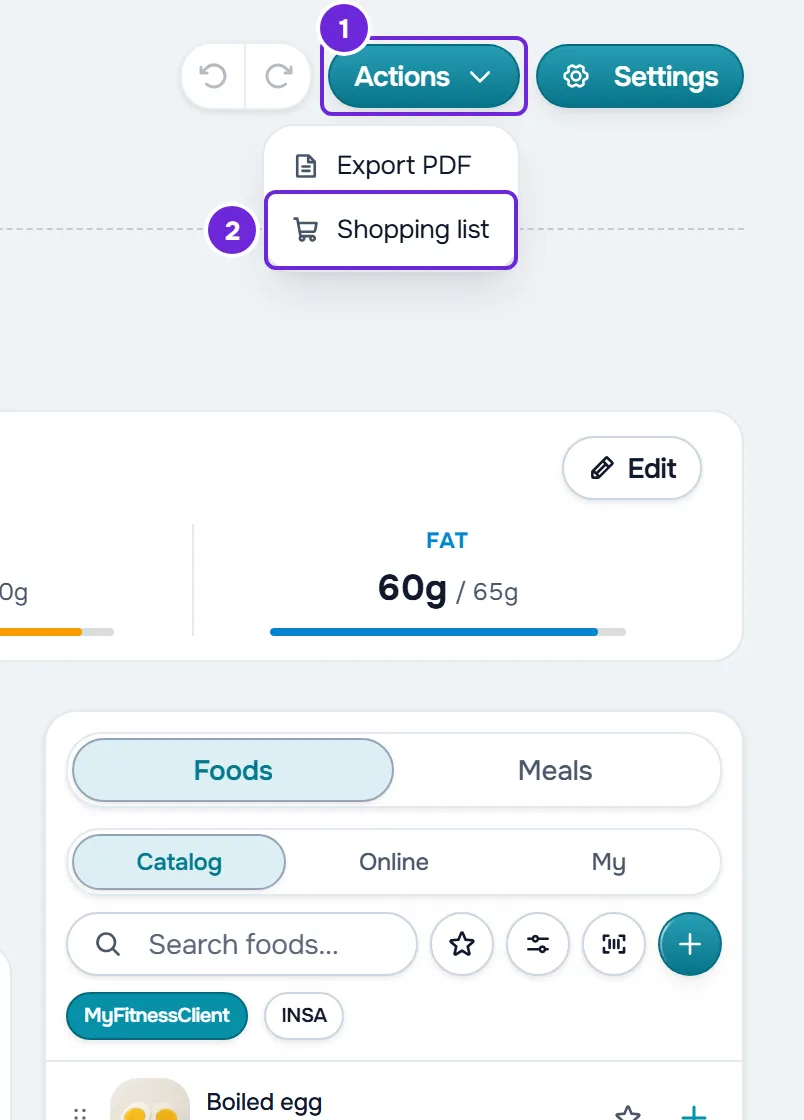
- In the day selector 1, choose 1 day (the client sees Today), 3 days, 7 days or Other.
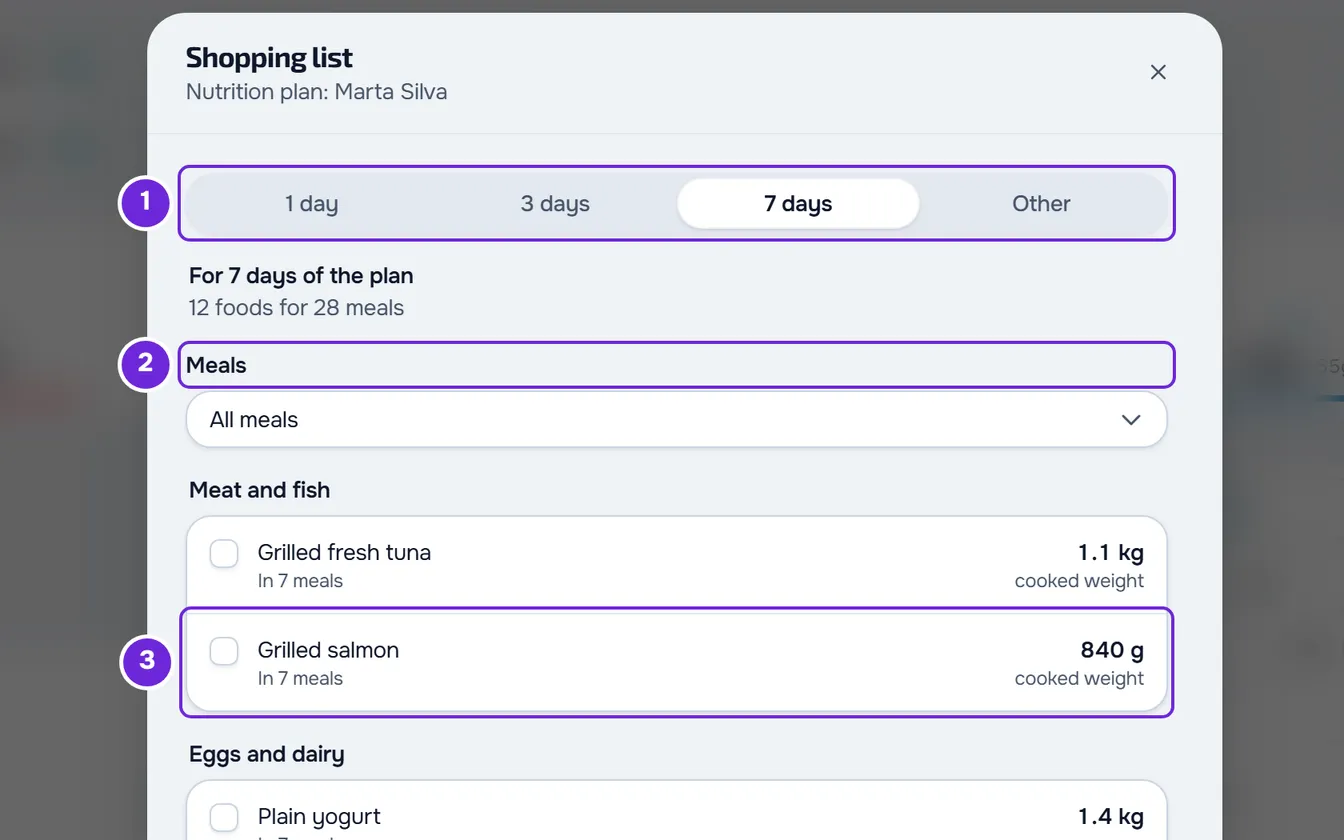
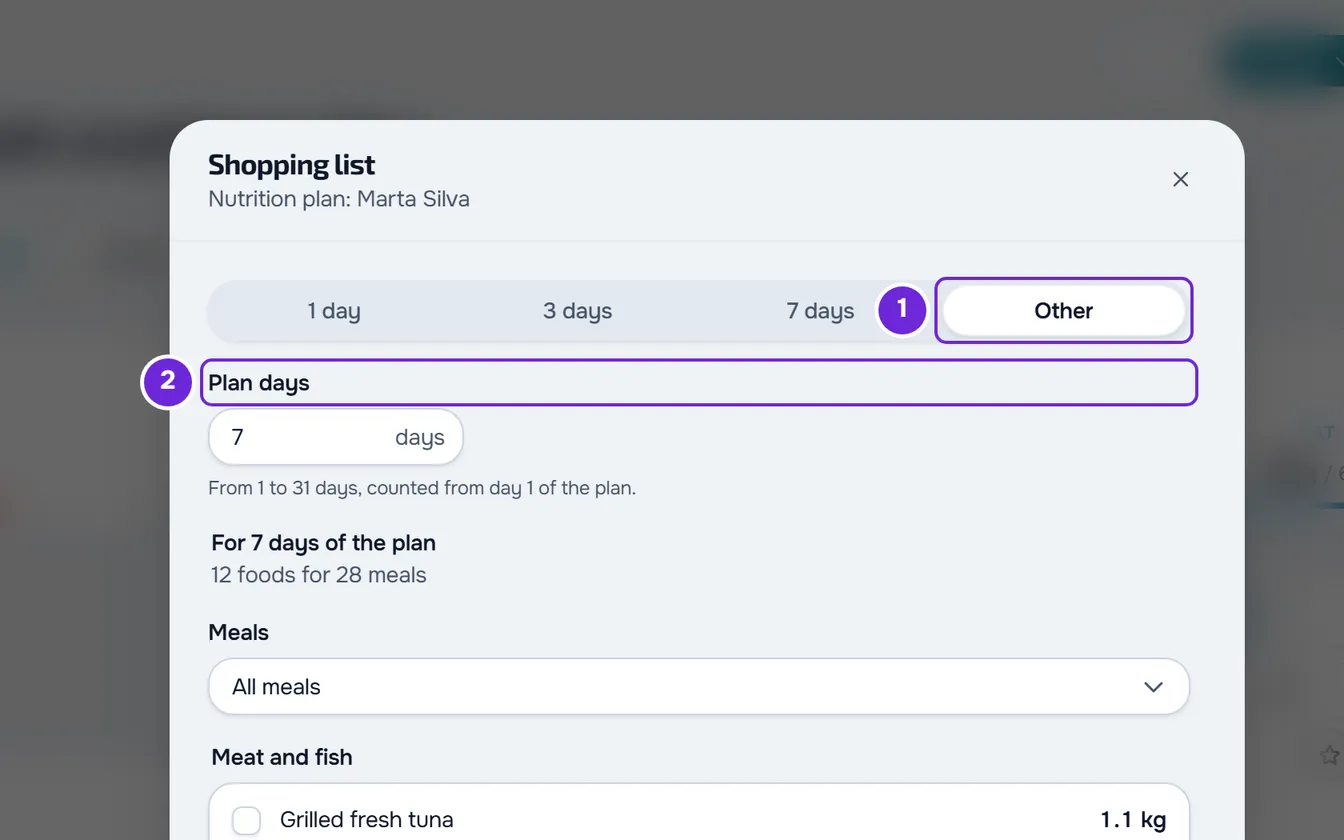
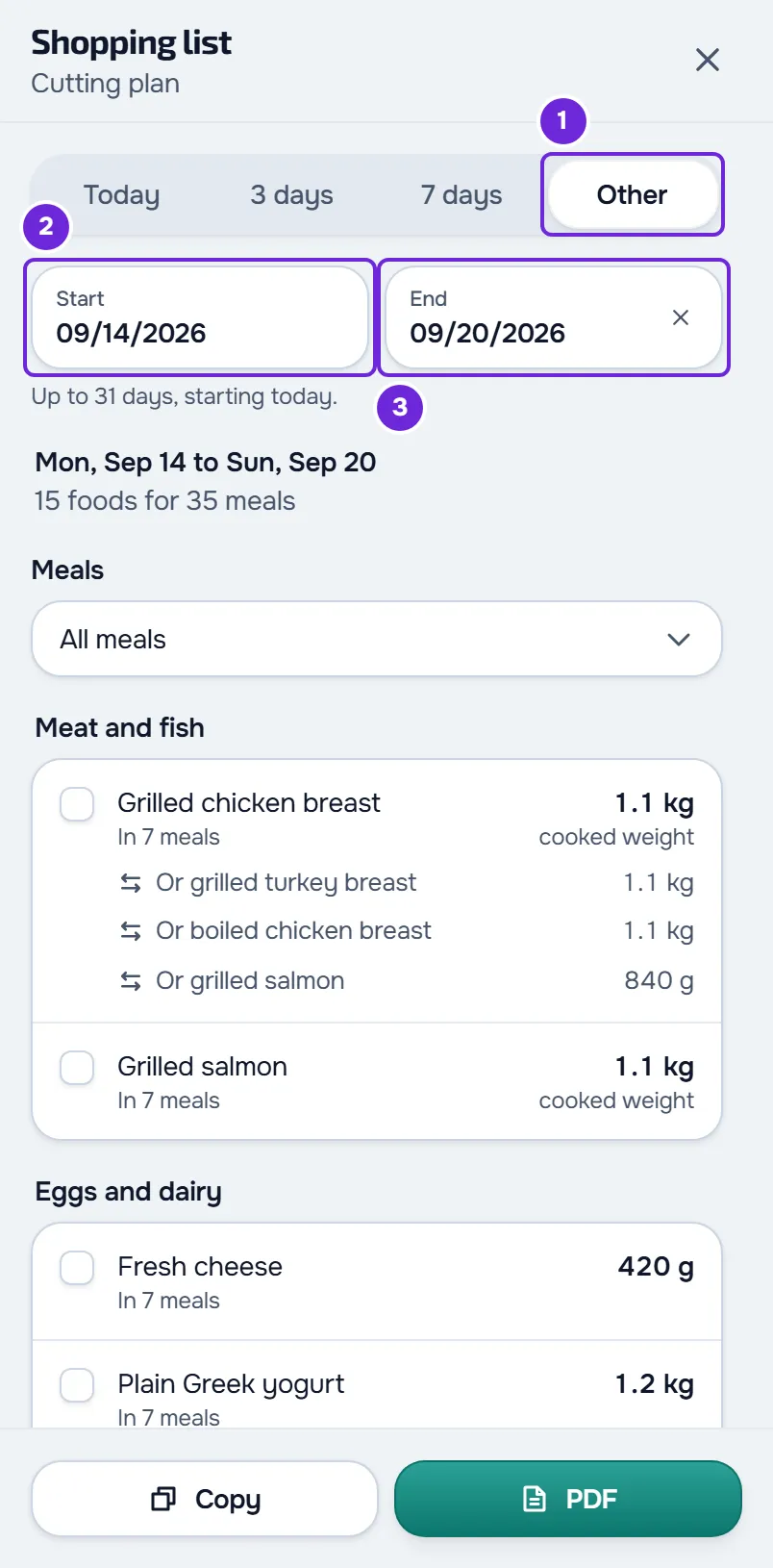
- If you chose Other 1, set the days: the professional types a number from 1 to 31 in Plan days 2; the client picks the dates in Start and End.
- Optional: in Meals 2, tick only the meals you want to shop for. The field only appears when the chosen days have more than one meal.
- Optional: tick off what you already have. Select the food's row 3 and it moves to “Already have (N)”, after the aisles.
- In the footer, select Copy to take the list as text or PDF to save it to a file.
The list shows the foods sorted by supermarket aisle, each with the quantity to buy and the number of meals it is in. At the top, the summary gives the days and how many foods there are for how many meals, for example “14 foods for 35 meals”. On the website, closing the list resets the choice: when you open it again, it goes back to 7 days and all meals. Ticked-off foods stay saved in the browser.
To see what the text and the PDF include, see Copy the shopping list or save it as a PDF. To read the aisles, the ticks and the substitutions, see Aisles, ticks and alternatives in the shopping list.
How the days are counted
The professional counts plan days, from day 1 and without dates: the summary says, for example, “For 7 days of the plan”. The client counts dates from today and the summary shows the first and the last day. Each day gets the meals the plan gives it, according to the plan's mode:
| Plan mode | Professional's list | Client's list |
|---|---|---|
| Flexible | The same day, repeated as many times as the number of days chosen. | The plan's meals on each date. |
| Weekly | Consecutive days starting on a Monday. With 7 days, each day of the week is included once. | The meals of the weekday of each date. |
| Calendar | Plan day 1, 2, 3 and, after the last day of the plan, back to day 1. In a 3-day plan, 7 days gives days 1, 2, 3, 1, 2, 3, 1. | The plan day that falls on each date, counted from the start of the client's dates in the plan. |
| Sequential | The plan days that have meals, in order, and then back to the first. | The plan day the client is on and the following ones, one per date. |
The client's list only counts days within their dates in the plan: a day before the start has no meals. It also never goes past 31 days from today or past the end of the plan, so, near the end, 3 days and 7 days only ask for the days left. On the website, in Other, the sentence under the dates gives the limit: “Up to 31 days, starting today.” or, when the plan ends sooner, also the end date.
In the summary, a meal served on 3 days counts as 3 meals. The professional's list does not know any client's dates, so it can differ from the one the client sees.
In the app
In the latest version of the app, the list works like the client's list on the website, with these differences:
- To open it, in Nutrition, select the button with three dots and, in Actions, select Shopping list. On a wide screen, such as a tablet's, Shopping list is already visible on the Nutrition screen.
- The days are Today, 3 days, 7 days and Other. In Other, the From and To fields open the list of days, on the First day and Last day pages.
- Meals opens a page with the meals to tick.
- “Already have (N)” is always open, with the Clear ticks button.
- The footer has Copy and Share, which sends the same text through the phone's share sheet. The app has no PDF.
If the list in your app does not have Today, 3 days, 7 days and Other, but tabs such as Daily, Weekly (×7) and Monthly (×30), or counted in weeks or in cycles, it is an earlier version of the app: update it to get the list by days.
Common problems
“Failed to load shopping list.”
The list did not load: the connection failed, you asked for more than 20 lists in the same minute by changing the days or the meals many times, or you no longer have access to that plan. Select Try again. In the app, the error screen says “Could not load.” or the reason. Each cause, with what to do, is in The shopping list shows an error, is empty or has lost your ticks.
“No meals on these days.”
There is nothing to buy on the chosen days: the plan has no meals on those days, the meals ticked in Meals have no foods, or, in the client's list, the days fall before the start of their dates in the plan. Select Choose other days to switch to Other and choose other days (on the website, if you are already in Other, the button does not appear: change the days there), or tick all the meals again in Meals.
“Choose 1 to 31 days.”
It appears to the professional, in Other, when Plan days is empty or does not hold a whole number from 1 to 31. Until you type a valid number, the previous list stays on screen, and that is the one Copy and PDF take.
Questions
Does the list show calories?
No. It only shows the foods and the quantities to buy, on screen, in the copied text and in the PDF.
If the plan changes, does the list change?
Yes. The list is calculated from the plan every time you ask for it, and none of it is saved on the server. If the plan changed while the list was open on the website, close it and open it again.
Are substitutions included in the quantities?
No. Each substitution appears under its food, starting with “Or”, and is not added up: you buy one or the other. The food from meal options appears at the end, in “If you switch options”, also left out of the totals.
Does the client see the same list as the professional?
Not always. The professional counts plan days from day 1 and the client counts dates from today, within their dates in the plan. See the How the days are counted section.