
Before you start
- Nutrition has to be part of your coaching with your professional. If you cannot find it in the menu, see “Not in your plan”: a section of the app has disappeared.
- If your coaching has not started yet, has ended or is inactive, the notice about your access appears where the meals would be. See Access statuses: scheduled, ended and inactive.
- You do not need a meal plan: without a plan, Nutrition still opens, so you can log what you eat and set your own goal. See Meal plan modes, locked plan and days without a plan.
Interactive tutorial
Opens in the app and needs you to be signed in.
Steps
To see your meal plan for a day:
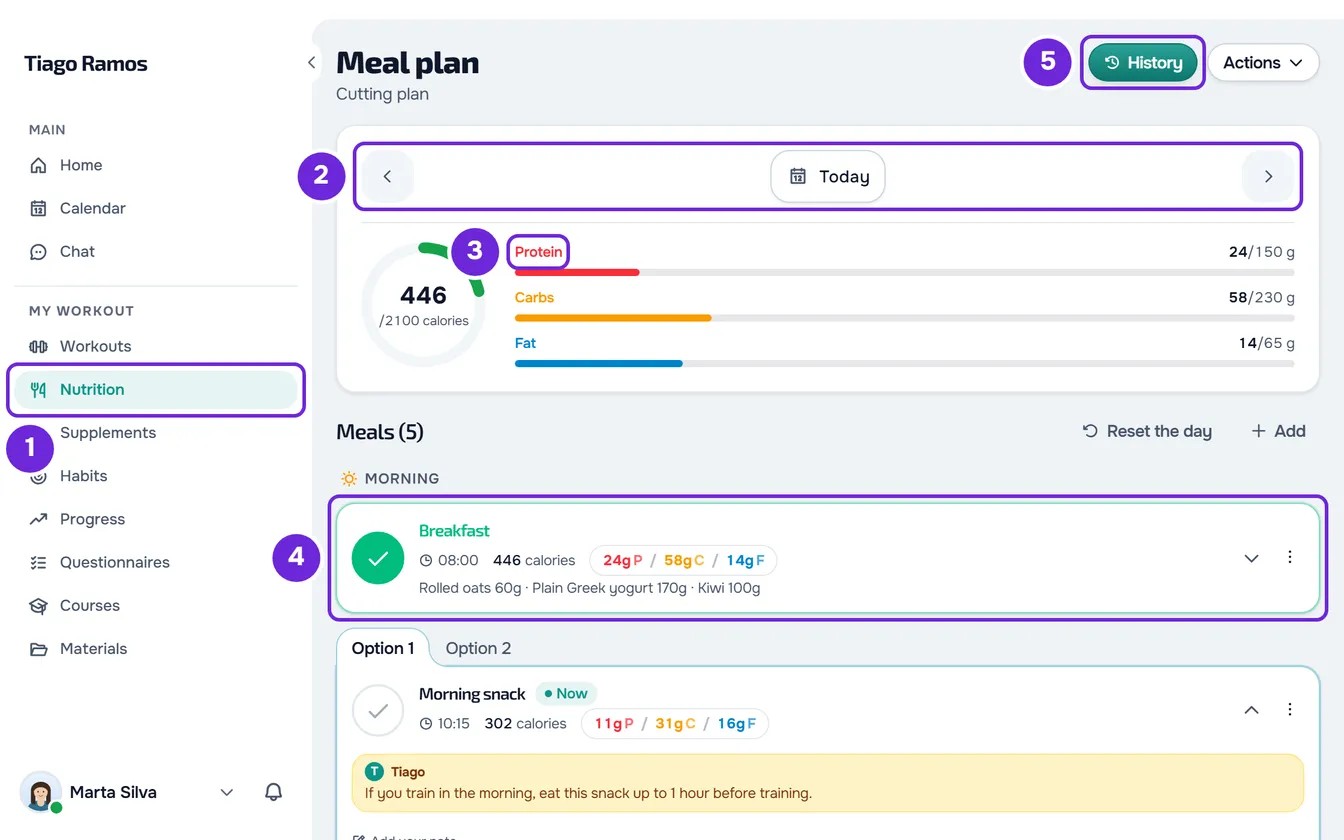
- In the menu, in the My Workout section, select Nutrition 1. On a narrow screen, such as a phone's, Nutrition is also in the bar at the bottom of the screen. The Meal plan screen opens on today's date and, if you have a plan, shows its name under the title.
- To see another day, select the arrow before or after the date 2. Each arrow moves one day back or forward.
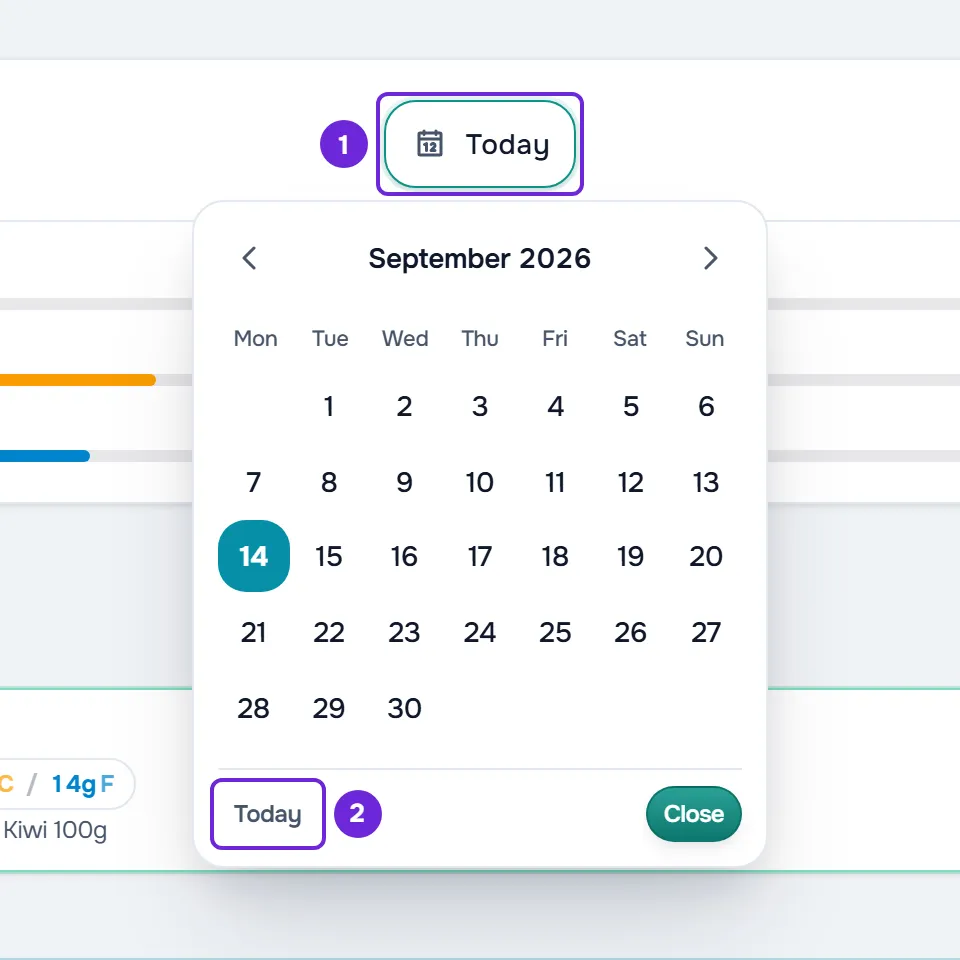
- Optional: to jump to a day further away, select the date (Today 1, Yesterday, Tomorrow or the weekday with the date, for example “Tuesday, 17 April”) and choose the day in the calendar. Today 2, at the bottom of the calendar, takes you back to today.
- On the ring, read the calories you have eaten that day and, under them, the goal for the day, for example “/2100 calories”.
- On the Protein 3, Carbs and Fat bars, read the grams you have eaten and the goal, for example “92/165 g”.
- Scroll through the meals of the day 4. When your professional gave the meals a time of day, they are grouped under Morning, Afternoon and Evening; the others, and the ones you created, come at the end. The meal for the current time has the Now tag.
- Optional: at the top of the screen, select History 5 to see what you ate on other days, or open Actions for the other options. On a narrow screen, History is inside Actions.
You see the meals of the day you chose, with that day's ring and bars. To mark a meal, see Log what you ate by marking the meal as eaten.
In the app
- Nutrition is a tab in the bar at the bottom of the screen and opens the Meal Plan screen.
- Instead of the arrows, there is a strip with the 7 days of the week, from Monday to Sunday. A green dot marks the recent days with meals marked as eaten. Select a day to open it, or swipe the strip sideways to switch weeks.
- For a day further away, select the calendar button at the top of the screen. Pick a day opens, with the month and the Today button.
- The ring shows the goal in kcal, for example “/1,850 kcal”. Under the bars, one tag counts the meals marked as eaten, for example “2/4 meals”, and another shows the calorie goal, for example “Target 1,850”.
- The three-dot button, at the top of the screen, opens Actions: History, Copy yesterday's meals (only for today), Shopping list and Export Plan, which shares the plan as text. The last two only appear with a plan.
- On a wide screen, such as a tablet in landscape, History sits at the top of the screen, the other actions sit in a column next to the summary and the strip of days has arrows to switch weeks, instead of the calendar button.
How to read the ring and the bars
- The ring fills as you mark meals and stays green until you reach the calorie goal. When you go past it, it turns red. Each bar fills up to the goal and also turns red when you go past it.
- Only the meals you marked as eaten count. On the website, on a day that has passed, every meal with a log entry on that day counts. See Correct a day that has passed.
- “-” appears instead of a number when one of the foods that count has no declared value for it. The sum would be incomplete, so MyFitnessClient does not show it.
- Without a calorie goal, the ring does not fill and shows only the unit under the number. In the app, the card then shows the Set goal button instead of the bars.
- A bar without a goal does not fill (in the app, it does not appear) and shows only the grams you ate.
Where the goal for the day comes from
The goal of the ring and the bars comes from the first of these cases that applies:
- The goal in your professional's plan. In a weekly or calendar plan, they can give certain days or certain weeks a different goal. On those days that goal applies, and whatever they left blank follows the general goal of the plan.
- When the plan has no goal for a value, the goal for that value is the total of the plan's meals on that day. On a day with a different goal, a value that neither that day nor the plan defines has no goal.
- When the day still has no calorie goal (for example, you have no plan, or the plan has no calorie goal and no meals with calories on that day), your daily goal applies, if you set one, for calories and for macros.
The plan always comes first: your goal only counts on days when the plan gives no calories. No notice marks a day with a different goal: only the number changes.
Set your daily goal
When the day has no calorie goal, the Set goal button appears on the ring card.
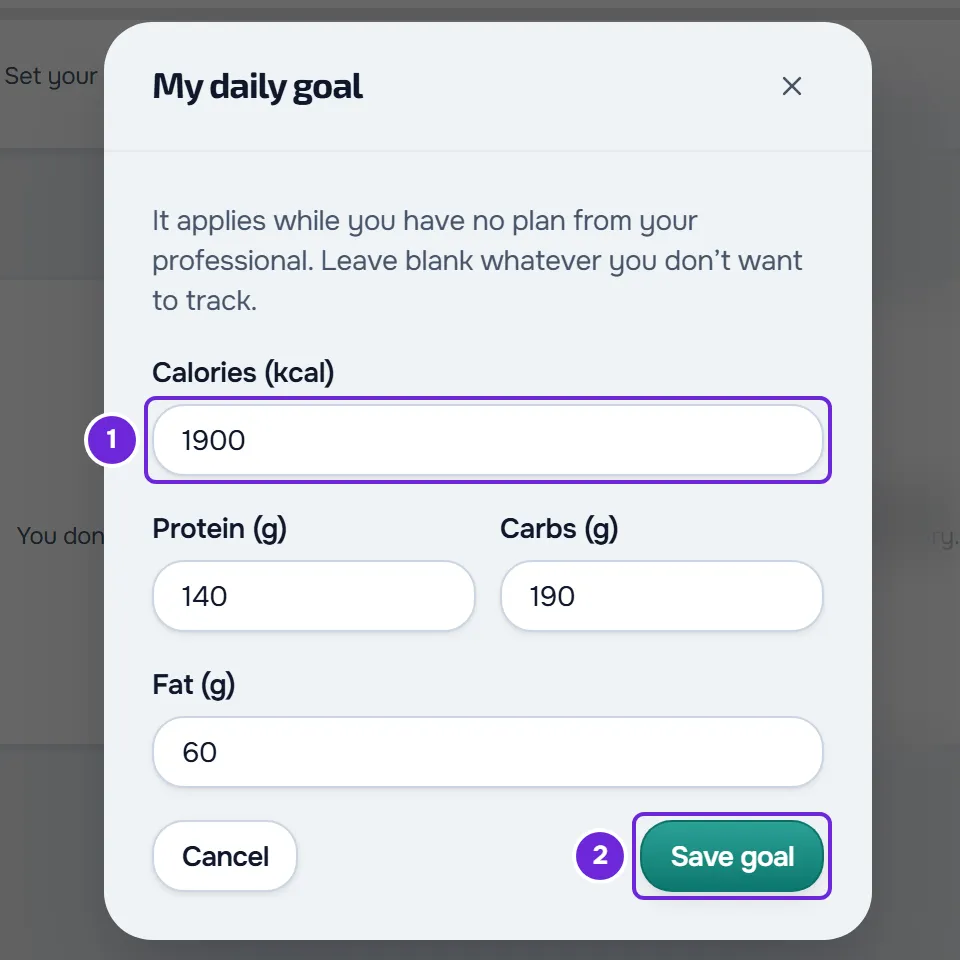
- Select Set goal. My daily goal opens, with fields for calories (kcal), protein (g), carbs (g) and fat (g).
- Enter only the values you want to follow, as whole numbers, up to 5 digits. An empty field has no goal.
- Select Save goal. “Goal saved” appears, and the ring and the bars start using your goal.
- The goal is saved to your account. It appears again when you come back to Nutrition, even after you reload the page. It is the same on the website and in the app.
- With a calorie goal saved, the button shows the goal, for example “Goal 2000” (in the app, a tag on the card). Select it to open the window and change the goal. To delete it, select Clear goal in the window.
- The goal accepts up to 20,000 kcal and up to 2,000 g of protein, carbs and fat. With a larger value, it is not saved and an error message appears.
- Your professional does not see this goal.
The Actions menu
- Copy yesterday's meals: only appears for today. See Add extra meals: new, quick, saved or from yesterday.
- Shopping list: only appears with a plan. See Create the shopping list for a meal plan.
- Export Plan: only appears with a plan. See Export the meal plan as a PDF or as text.
Common problems
“Couldn't load”
Nutrition could not read the plan or the day, almost always because there is no connection. Check your connection and select Try again. If it continues, see Common Nutrition problems and error messages.
The ring does not fill and Set goal appears
The day has no calorie goal: you have no plan, or the plan has no goal and no meals with calories on that day. Set your goal, as in “Set your daily goal”.
The goal changed from one day to the next
In a weekly or calendar plan, your professional can give certain days different goals. In a plan without a goal, the goal is the total of each day's meals, which changes when the meals change.
“Now” does not appear on any meal
The Now tag only appears for today, on a meal with a time that you have not marked yet. It starts 15 minutes before the meal's time and moves to the next meal 15 minutes before that meal's time. Before the first meal of the day, it stays on the first one; on the last one, it disappears 3 hours after its time. When you mark the current meal, the tag only comes back on the next meal.
Questions
Can I see and log the coming days?
Yes. The coming days open like today, with the meals the plan has for that day, and you can mark them. Previous days open read-only: see Correct a day that has passed.
Which day is “today”?
With an assigned plan, “today” is the day in your account's time zone, not in the device's. Without a plan, the device's time zone applies.
Does Nutrition work without internet?
On the website, no: it needs a connection. In the app, the days the phone has already saved open without a connection. See The app says “Offline” or takes a long time to load.
Where do I log the water I drink?
Nutrition has no water log. See Nutrition has no water log: use a habit.