
Before you start
- Nutrition must be part of your coaching with your professional. If you can’t find it, see “Not in your plan”: a section of the app has disappeared.
- On a locked plan you can’t add foods: the button doesn’t appear. See Meal plan modes, locked plan and days without a plan.
- On a day that has passed, first select Edit this day. See Correct a day that has passed.
- Foods go into a meal of the day. If the day has no meals, create one first: see Add extra meals: new, quick, saved or from yesterday.
Interactive tutorial
Opens in the app and needs you to be signed in.
Steps
To add foods to a meal:
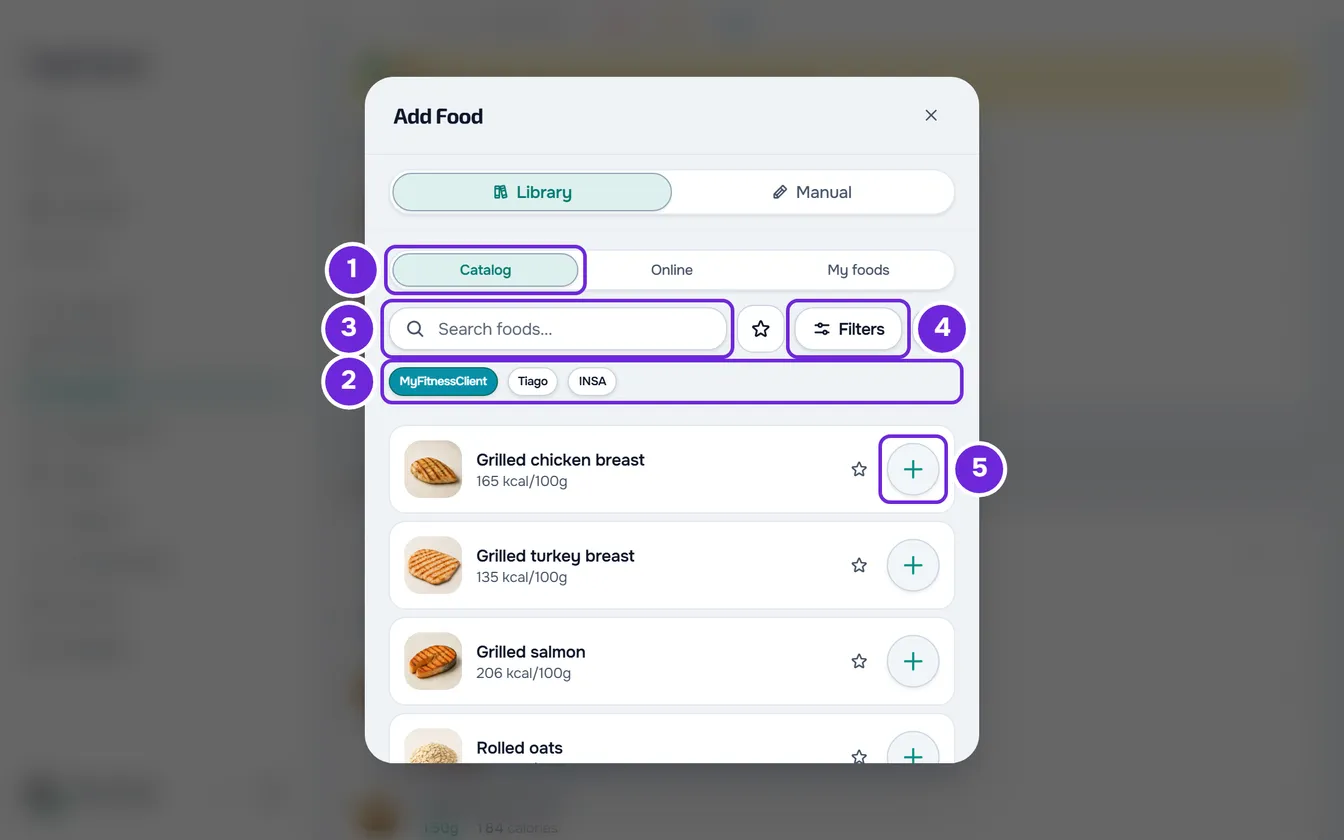
- In Nutrition, at the end of the meal, select Add Food. A meal you have already marked as eaten appears collapsed: select its name to open it, or choose Add Food in the meal’s ⋮ menu, which also opens when you right-click its header.
- The window opens on Library > Catalog 1. If there is a row of buttons 2 under the search box, choose where the foods come from: MyFitnessClient, your professional’s name or INSA.
- Find the food: type part of its name in the search box 3, or select Filters 4 and choose a category. With no search and no filters, the list first shows your Favorites and Recent foods, when you have them, and then All.
- Select the food. Its details open with the quantity of one serving, in g or ml, and with the calories, macros and other nutrients for that quantity.
- In Quantity 1, type how much you ate or select one of the quick buttons. The calories and macros in the details change straight away.
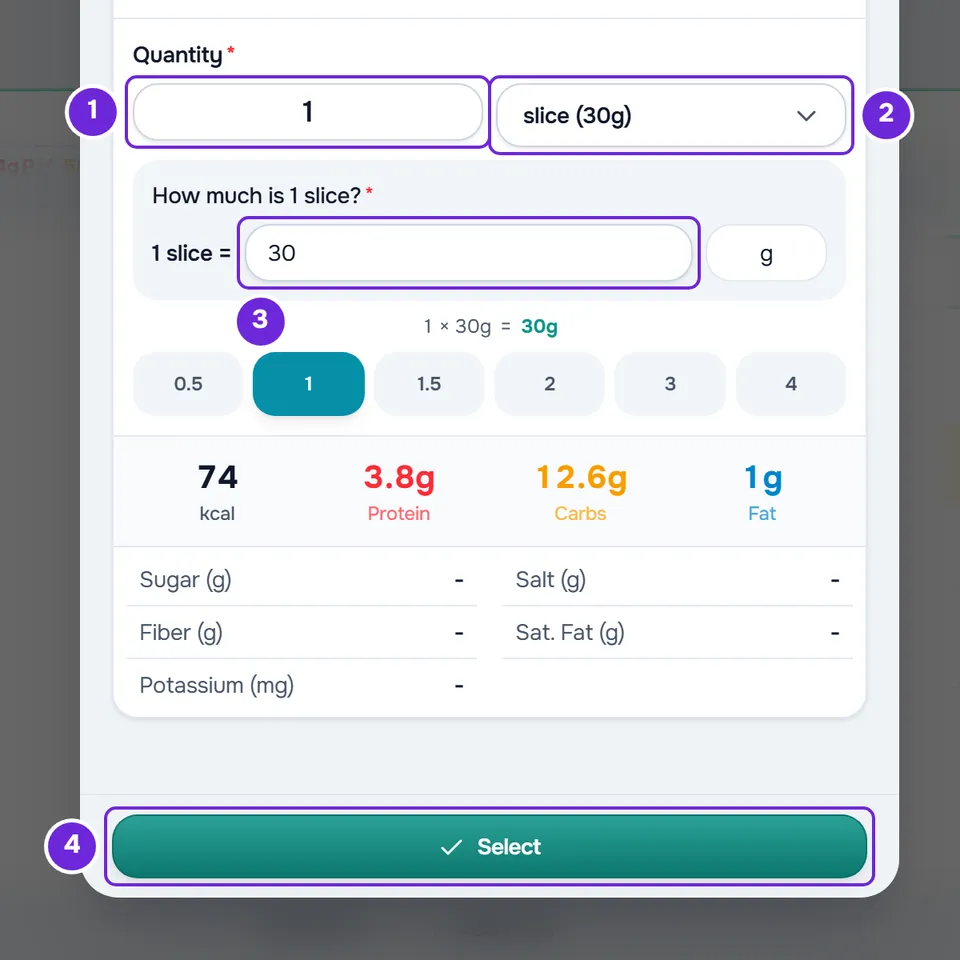
- Optional: choose another unit in the menu next to the field 2, for example slice or tablespoon. If the “How much is 1 …?” field 3 is empty, type how much one weighs, in g or ml.
- Confirm with Select 4. The details close and the food is selected in the list, with a tick, the quantity and the calories.
- Optional: to add more foods, repeat the search and the choice, or select the circle with + 5 at the end of a food’s row, which adds it with the quantity of one serving.
- At the bottom of the window, a line adds up the foods you chose and their calories, for example “3 items · 506 kcal” 2. Select Add 3. The button shows in brackets how many foods you chose.
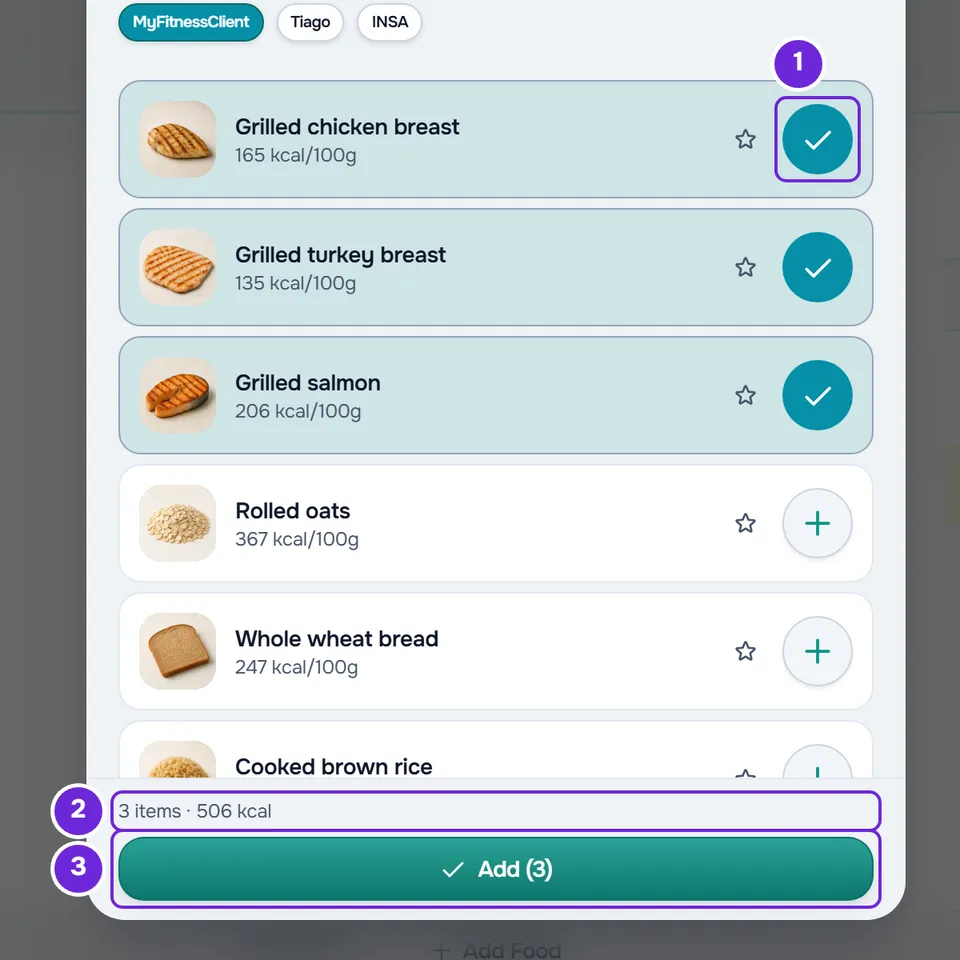
The window closes and the foods appear at the end of the meal, with the message “Meal updated”. Your professional sees them in that day’s log. Adding foods doesn’t mark the meal as eaten: for that, see Log what you ate by marking the meal as eaten.
In the app
- The sheet is called Add food and its title names the meal the foods go to. Besides the button at the end of the meal and the ⋮ menu, on your phone you have the screen’s + button: in “What do you want to log?”, Add food opens the sheet for the unmarked meal closest to the current time.
- The food’s details open in a sheet with Quantity and Unit. The button shows the calories you are about to log, for example “Select · 186 kcal”, and stays disabled while the quantity is empty. Units open in another sheet, with All and, at the end, Custom unit.
- At the end you see the message “Food added”. Closing the sheet with foods selected asks “Discard changes?”.
- With no internet connection you see “Offline: search foods saved on this device.” and, when your phone has saved foods from your plan, the Foods from the saved plan section. The Manual, Online and My foods tabs and the INSA button show “This needs an internet connection.” Favorites don’t appear and the barcode scanner is disabled. What you add is saved on your phone and goes to the server when you are back online. See The app says “Offline” or takes a long time to load.
Where the foods come from
The row of buttons in Catalog only appears when there are at least two to choose from. The other tabs have the rest:
- MyFitnessClient: the platform’s catalog. In an app with your professional’s brand, this button has the brand’s name.
- Your professional’s name: only the foods they created and used in your plans, never their whole library. It only appears while your coaching is active.
- INSA: the Portuguese food composition table. Each food’s details say “Source: INSA, Portuguese food composition table, version 7.1 (2026).” It only appears when the catalog has this table.
- My foods: the foods you created. In the Manual tab you type the values yourself for a food you can’t find. See Create and manage your own foods.
- Online: supermarket products from Open Food Facts. See Scan barcodes and search for products online.
Quantity and unit
The limits and the quick buttons depend on the unit:
| Unit | Minimum | Maximum | Quick buttons |
|---|---|---|---|
| g and ml | 1 | 5000 | 25, 50, 100, 150, 200 and 250 |
| mg | 1 | 5,000,000 | 100, 250, 500, 1000, 2000 and 5000 |
| kg and l | 0.01 | 50 | 0.25, 0.5, 1, 1.5, 2 and 3 |
| The others (piece, slice, tablespoon, a unit of your own) | 0.5 | 50 | 0.5, 1, 1.5, 2, 3 and 4 |
- The field accepts a comma or a full stop. A value lower than the minimum counts as the minimum, and one higher than the maximum counts as the maximum. On the website, an empty field or 0 goes back to 100 in g, ml and mg, and to 1 in the other units.
- The unit menu starts with the food’s own unit, when it has one, with the weight of one serving (for example “slice (30g)”), and with g or ml. The others are under All. A food measured in g doesn’t offer ml or l, and one measured in ml doesn’t offer g, kg or mg.
- In Custom, at the end of the menu, you type a unit of your own and confirm with the tick. It has up to 20 characters, starts with a letter, has no brackets and can’t be g, ml, kg, l or mg.
- Changing the unit doesn’t change the amount of food: for bread with 30 g slices, 150 g becomes 5 slices, with the same calories.
- In a unit that isn’t a weight or a volume, you see “How much is 1 slice?”, with the weight of one in g or ml. In the food’s own unit it is already filled in. In a unit from All or one of your own, the weight and the quantity stay empty until you type how much one weighs; the quantity then matches the same amount of food. Without that weight the food isn’t added.
Several foods at once
- The circle with + at the end of each row adds the food with the quantity of one serving, without opening its details. Select it again to remove it.
- To change the quantity of a food you already chose, open it again: its details open with the quantity you chose.
- Over Add, you see how many items you chose and how many calories they add up to, for example “3 items · 640 kcal”. This line doesn’t appear when one of the foods doesn’t state its calories.
- A food that is already in the meal has the Already in this meal tag. You can add it again.
- On the website, closing the window with foods selected asks “Save before leaving?”: Save and leave adds them and Discard closes without adding them.
Favorites and recent foods
- The star on each row marks the food as a favorite and, selected again, removes it. You can have up to 200 favorites, which are the same on the website and in the app.
- To see only your favorites, select the star button next to the search box. In the app, open the filters and choose Favourites only.
- On the website, a favorite leaves the general list and moves to the Favorites section, with the number next to it. Selecting the section title collapses or expands it; with the section collapsed, favorites go back to the general list. In the app, the section shows up to 20.
- The Recent section shows up to 6 of the last foods you added on this device. On another device the list is different. On the website, the list stays in this browser for your account and is cleared when you sign out or when another account signs in on it.
Common problems
“No results”
The food isn’t in the list you chose. Try another word or another button in the row. With at least 2 letters typed, Search Online appears (in the app, Search online), which looks for the product on Open Food Facts: see Scan barcodes and search for products online. If it doesn’t exist anywhere, create it: see Create and manage your own foods.
A food left the general list
On the website, you marked it as a favorite: it is in the Favorites section, at the top of the list.
“Set how much 1 tablespoon is (in g or ml).”
You chose a unit with no known weight and the “How much is 1 tablespoon?” field is empty. Type how much one weighs, in g or ml, and select Select again. In the app this message doesn’t appear: the button stays disabled until you type the weight.
“Try again” appears and the window doesn’t close
On the website, saving failed, for example because there was no connection. The foods you chose stay in the window: check your connection and select Add again. If it keeps happening, see Common Nutrition problems and error messages.