
The Supplements page shows, day by day, the doses of the supplement plan your professional assigned to you. When it is missing from the menu or opens with no doses, the cause is almost always in what your professional set up. In this article, “your plan” is the plan you have with your professional, which decides which sections of the app you get; the “supplement plan” is the list of supplements they assign to you.
What you see and why
| What you see | Why it happens |
|---|---|
| Supplements is not in the menu. | Your plan does not include Supplements. On the web, it also happens when your account is not connected to any professional. |
| “Not in your plan” and “This isn't part of your plan. Talk to your professional.”, when you open the page from a notification, a link or a bookmark. | Your plan does not include Supplements. |
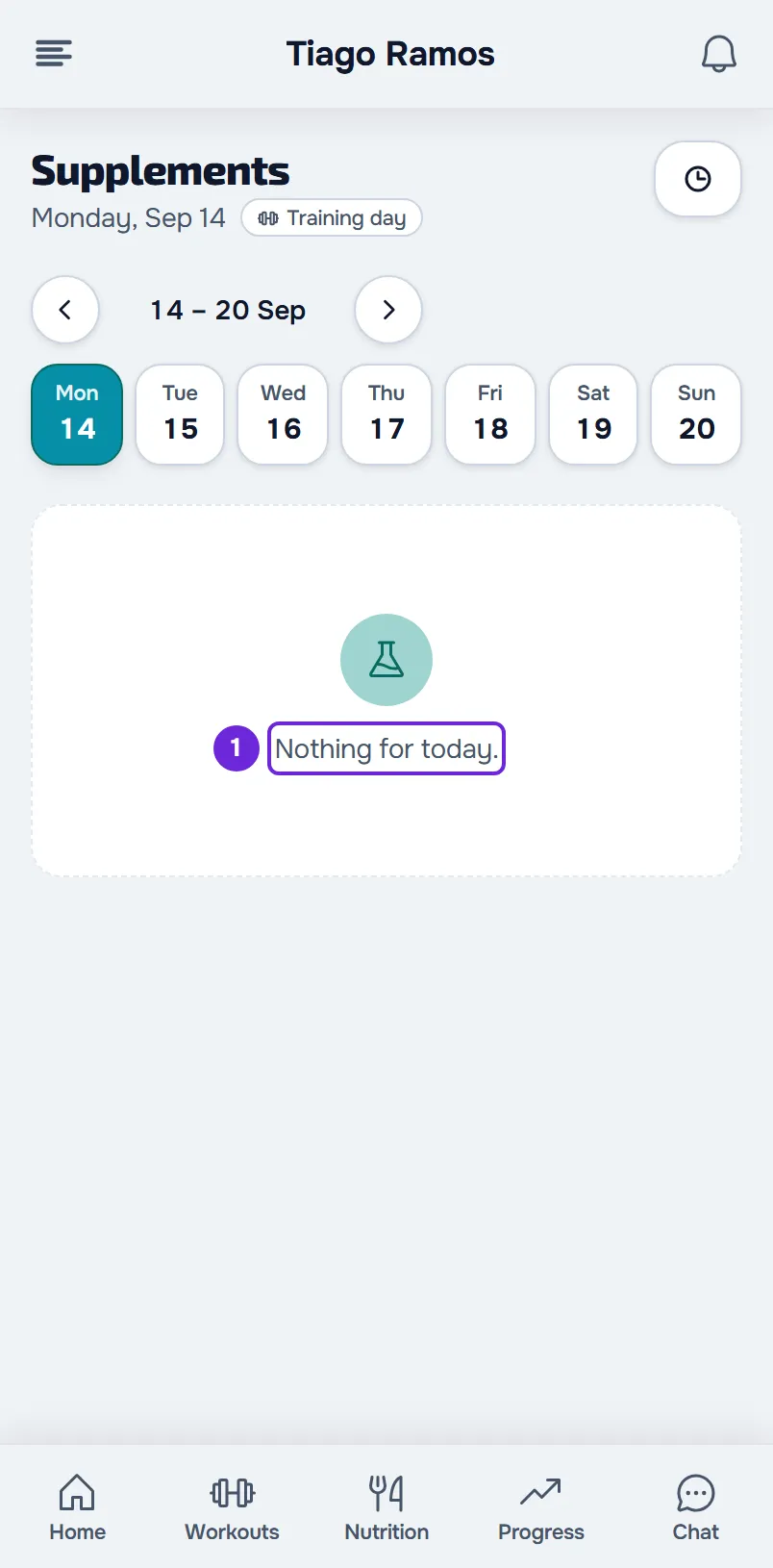
| On the web, “Nothing for today.” or, on another day, “Nothing on this day.” In the app, “Nothing for today” or “Nothing on this day”, with “Supplements your professional schedules for this day will appear here.” | You have no supplement plan assigned, the plan has not started yet or has already ended, or no supplement in the plan is taken on that day. |
| Instead of the list, “Available from {date}.”, “Coaching ended on {date}.” or “No access at the moment.” The second sentence only appears on the web: in the app, coaching that has ended shows “No access at the moment.” | Your coaching is scheduled, has ended or is inactive. While access is closed, the page does not show the supplement plan. |
| On the web, “We could not load this information”, with the Try again button. In the app, “Unable to load supplements.” | The page could not load the day. |
| In the app, “No internet connection”. | You have no network and your phone does not have that day saved. |
| On the web, the page does not open: you end up on Home or on Find a professional. In the app, the page opens empty. | Your account is not connected to any professional. |
What to do
If the cause is your plan or the supplement plan, only your professional can fix it. To ask them:
- In the menu, select Chat and open the conversation with your professional.
- Tell them what you see and on which day: the exact message, or that Supplements is not in the menu.
- If your plan does not include Supplements, ask them to change it.
- If the page opens empty, ask them to assign you a supplement plan or to confirm the plan's start and end dates.
- After the change, go back to the Supplements page. On the web, the page reloads the day when you return to it and every 60 seconds; in the app, pull the list down to refresh it.
When your plan includes Supplements again, the entry comes back to the menu on its own, within 2 minutes with the page or the app open. In the app, when your plan includes Chat, the Message your professional button on the empty screen also opens the conversation. If the conversation shows “Replies are disabled in this conversation.”, contact them another way, such as by phone or during a session.
In other cases
- Coaching closed: open Home to see the status and the dates. On the web, when coaching has ended or is inactive, View takes you to Home. Only your professional changes the dates of your coaching. See Access statuses: scheduled, ended and inactive.
- Loading error: select Try again. If the error persists, see “We could not load this information” and other error cards.
- No network, in the app: connect your phone to the internet. The page loads again on its own when the connection comes back. See The app says “Offline” or takes a long time to load.
- No professional: connect to a professional through their invitation. See “You don't have a professional yet”: what to do.
What changes when your plan does not include Supplements
- The Supplements entry disappears from the menu and the Supplements card disappears from Home.
- You stop receiving supplement reminders.
- If your professional assigns you a supplement plan, you do not get the “New supplement plan” notification, either in the bell or on your phone.
What always stays in the menu and what changes in other sections is in “Not in your plan”: a section of the app has disappeared.
Common problems
I have a supplement plan, but the page says “Nothing for today.”
The plan only appears between the start date and the end date your professional set. A supplement that is not taken every day, for example only on certain days of the week, does not appear on the other days. If you know the start date, select that day in the week strip: with the plan assigned, you see that day's doses, read-only until the day arrives. See View or log supplements for another day.
My professional says they assigned me a plan, but I can't see it
Check the start date with them: before it, the page stays empty. If the date has already arrived, on the web wait up to 60 seconds with the page open or reload it; in the app, pull the list down. If the page shows “Available from {date}.”, your coaching has not started yet and the plan does not appear before that day.
I have an overdue payment. Will Supplements disappear?
A pause for an overdue payment does not remove Supplements from the menu or stop you from marking your doses. If your professional chose to end access when a payment becomes overdue, your coaching ends and the page shows, instead of the list, one of the closed-coaching lines from the table. See Payment overdue: what is paused and how to settle it.
I see “Pick your plan to start”
Your professional asks you to pick a plan before you get in. Until then, you only have the chat. In the app, the Supplements page shows this message and the Choose a plan button, which takes you to Home to pick the plan. On the web, the Supplements page shows this message in a card, with your professional's plans. See Choose and pay for a plan from your professional.
If this did not solve it
If your professional confirms that your plan includes Supplements and that the supplement plan covers the day you are viewing, and the page is still empty, write to the MyFitnessClient team through the contact shown in the Help Center and send:
- your professional's name;
- the day you are viewing on the page;
- whether it happens on the web, in the app or both;
- the exact message you see or a screenshot.