
Before you start
- If your professional locked the plan, there are no buttons to add meals or to save them, and Copy yesterday's meals copies only the plan's meals. See Meal plan modes, locked plan and days without a plan.
- On a day that has passed, first select Edit this day (Correct a day that has passed). Copy yesterday's meals is only available for today.
- An extra meal stays only on the day you add it to, and your professional sees it in your log for that day. Even with a time, it does not trigger reminders: reminders are only for the plan's meals.
Interactive tutorial
Opens in the app and needs you to be signed in.
Steps
To add a meal that is not in the plan to the day:
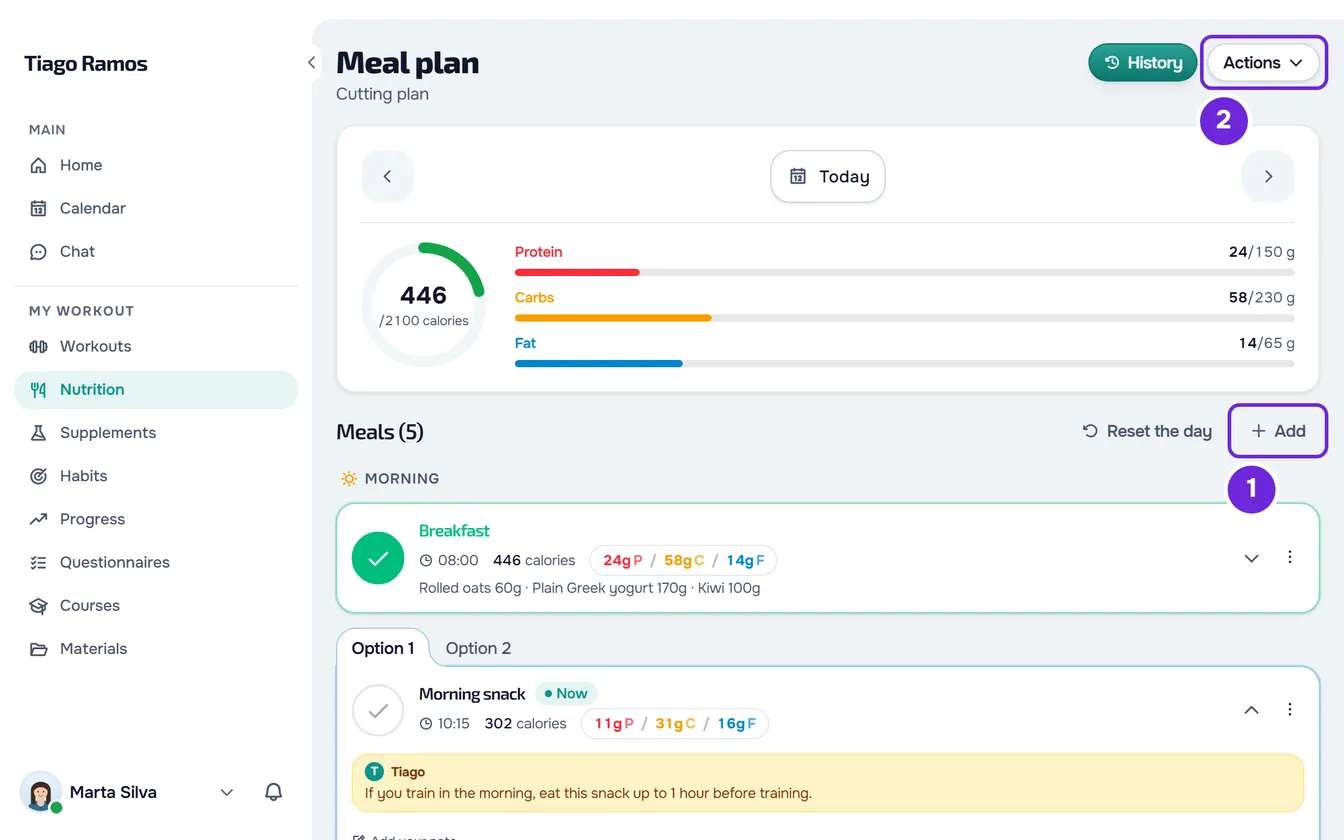
- In Nutrition, open the day you want the meal on.
- On the Meals heading row, select Add 1. On a day with no meals, New meal on the empty card also works.
- On the Manual 1 tab, type the name in Meal Name 2, up to 100 characters.
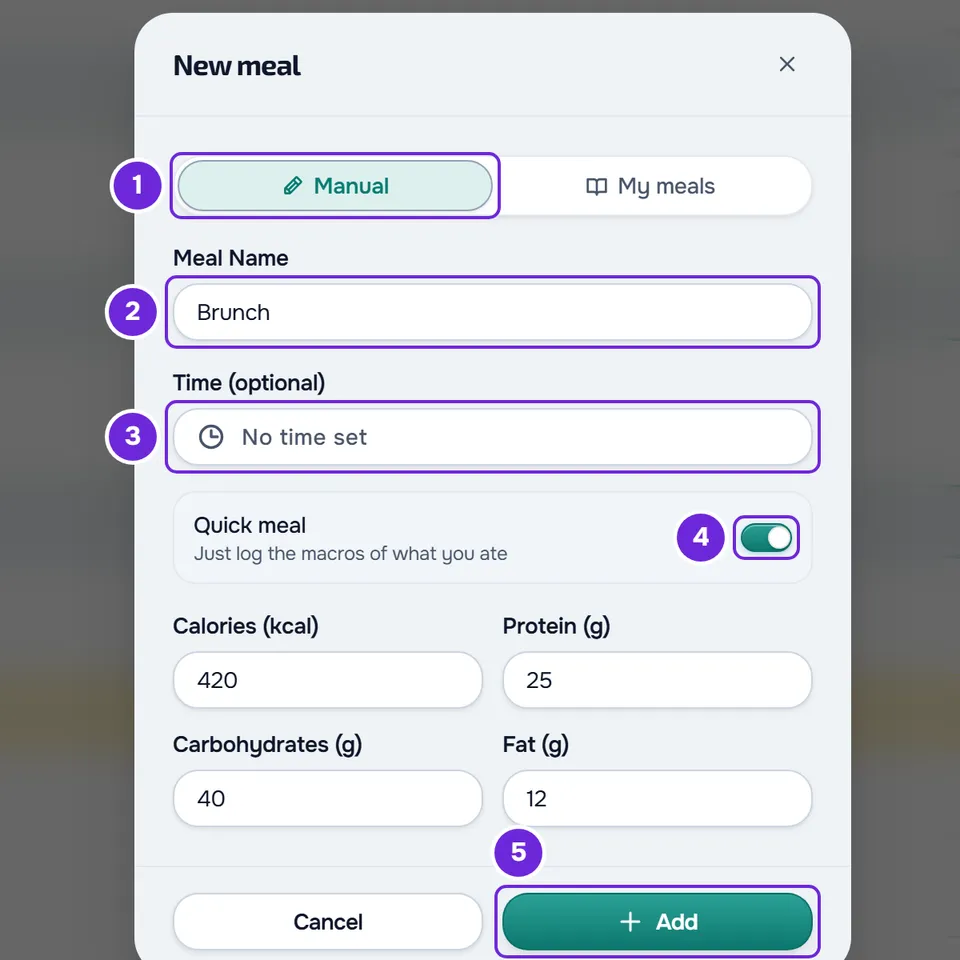
- Optional: in Time (optional) 3, choose the time of the meal.
- Optional: to log only the numbers, turn on Quick meal 4 and fill in the calories, protein, carbs and fat. All four are required; a 0 works.
- Select Add 5.
- If you did not turn on the quick meal, the meal is empty: on its card, select Add Food and choose the foods (Add foods to a meal).
The meal appears at the end of the day's list, with the “Meal created” notice. A quick meal is added already marked as eaten, with the “Meal logged” notice, and keeps the numbers in a single food with the meal's name, which you can correct like any other (Edit or delete a food in your meal).
In the app
- On a phone, select the round + button in the corner of the screen. In What do you want to log?, Quick meal and New meal both open the New meal sheet; for the quick meal, turn on the switch in the sheet. On wide screens, select Add next to the day's meals.
- The fields are Meal name, Time (optional) and, with Quick meal on, Calories (kcal), Protein (g), Carbs (g) and Fat (g). Add only becomes active with the name and, for a quick meal, with the four numbers.
- Creating a meal works without internet on the days the app has already stored on your phone; the meal is sent to the server when there is a connection.
Add a saved meal
In the New meal window, the My meals tab keeps the meals you repeat. Each row shows the name, the calories and the number of foods.
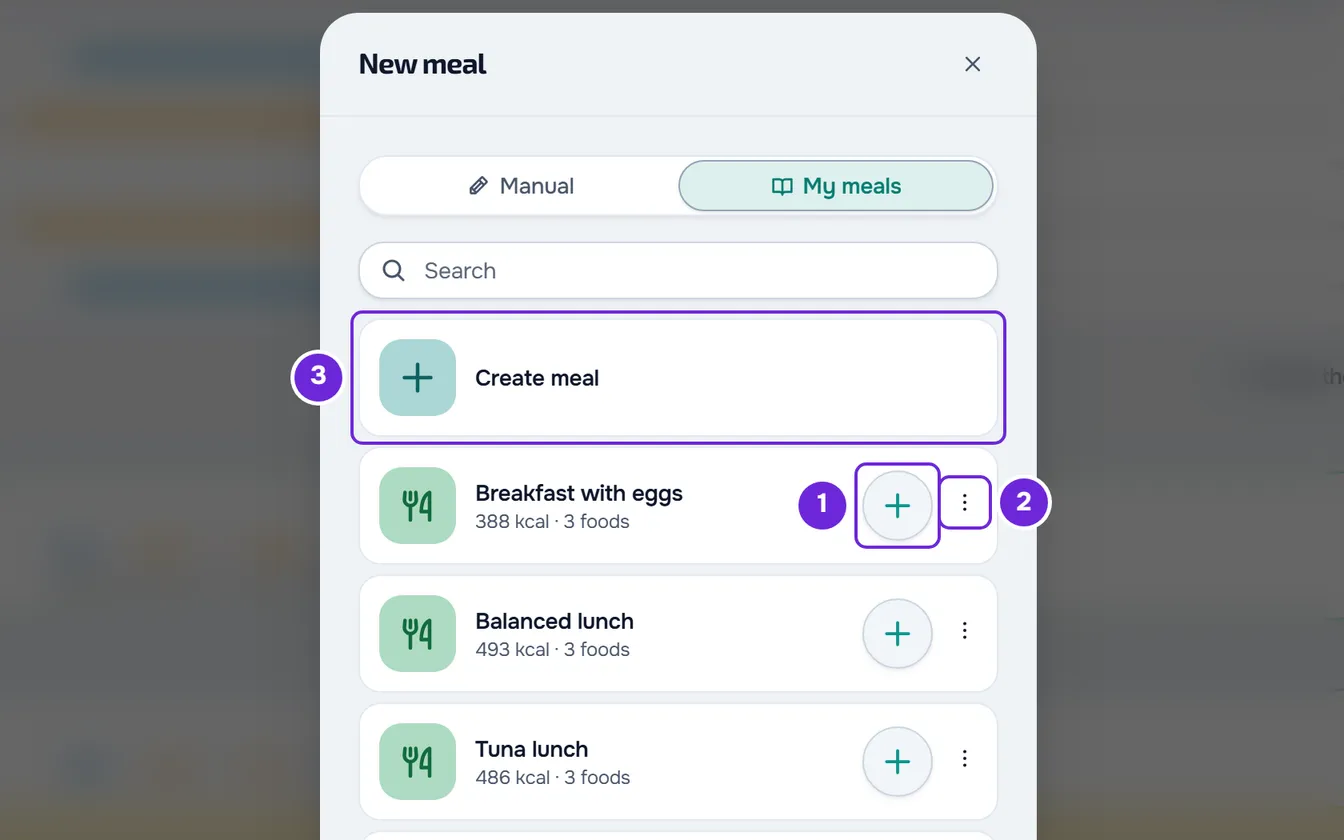
- To add one to the day, select the row's +. It comes in as a new, unmarked meal, with the saved name, time and foods, and “Meal created” appears. Mark it when you eat it (Log what you ate by marking the meal as eaten).
- To change it, select the row or ⋮ > Edit meal; a right-click on the row opens the same menu. The meals you have already added to a day do not change.
- To delete it, select ⋮ > Delete and confirm. “Meal deleted” appears. The days you used it on stay as they were.
- The list shows the 50 most recently created meals; to reach the others, search by name. You can save up to 200 meals.
- In the app, the tab is the same and each meal has the + and the ⋯, with Edit meal and Delete meal. Offline, the tab does not open and “This needs an internet connection.” appears.
Save a meal to repeat it
- From a meal on the day: on the card, select ⋮ > Save to my meals; a right-click on the top of the card opens the same menu. The editor opens with that meal's name, time and foods. The substitutions your professional gave the foods are not included. This option only appears on meals that have foods.
- From scratch: in My meals, select Create meal.
- In the editor, select the name (No name, on a new meal) to type it, Set Time to set a time and Add Food to add foods.
- Select Save, which only becomes active with the name and at least one food. “Meal saved” appears.
- In the app, the card's ⋯ has Save to my meals, and the editor has Meal name, Time (optional) and Add food. Saving needs an internet connection.
Copy yesterday's meals
On today's date, open the Actions menu and select Copy yesterday's meals. In the app, on a phone, the Actions menu opens from the round ⋯ button at the top of the screen; on wide screens, the option is also in the day summary column.
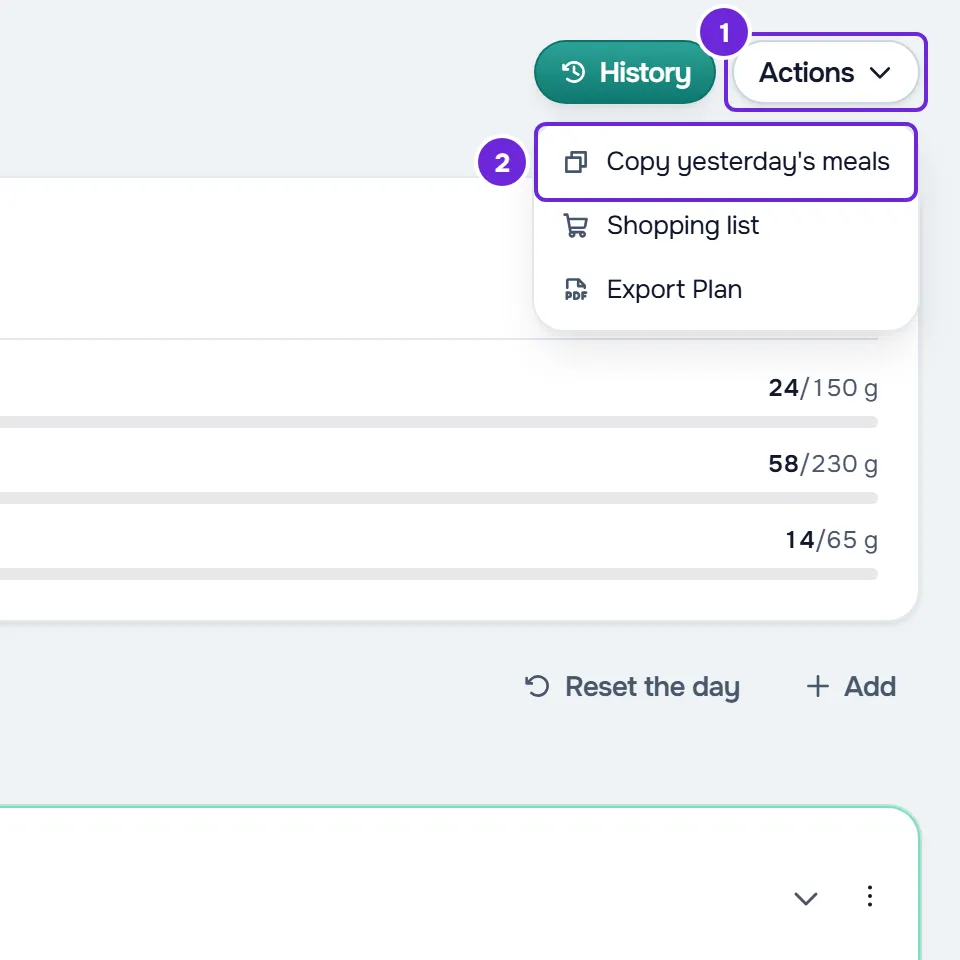
- It copies the meals that had an entry yesterday, marked as eaten or only changed, with yesterday's foods. The ones you deleted are left out.
- The copies are added unmarked: mark the ones you eat.
- A plan meal that already has an entry today is not copied.
- Extra meals are always copied, with their time. If you copy twice, they are duplicated.
- The name and time you changed yesterday on a plan meal, and your notes, do not carry over to today.
- With a locked plan, it copies only the plan's meals.
- On the website, in a plan with different meals on each day, only yesterday's plan meals that are also part of today are copied.
At the end, a notice says how many meals were copied, or “You already logged these meals today” (in the app, “You had already logged these meals today”), or “Nothing to copy from yesterday”. In the app, if the notice counts meals you don't see, read Common Nutrition problems and error messages.
Common problems
The Add button is greyed out
The meal name is missing. In the app, with Quick meal on, the button also stays greyed out while one of the four numbers is missing.
“Enter calories, protein, carbohydrates, and fat to log a quick meal.”
It appears on the website when you turn on Quick meal and leave one of the four fields empty. Fill in all four; a 0 works.
“You've reached the limit of 200 meals.”
You already have 200 saved meals. In My meals, delete the ones you no longer use and save again.
I can't change the name of an extra meal
The ⋮ of an extra meal does not have Edit meal: only plan meals have it. To change the name or time, delete it with Delete meal, on the website and in the app, and create another one (Edit, restore or delete a meal or a whole day). If it has foods, save it first with Save to my meals, correct the name in the editor and add it to the day from My meals; the copy is added unmarked.