
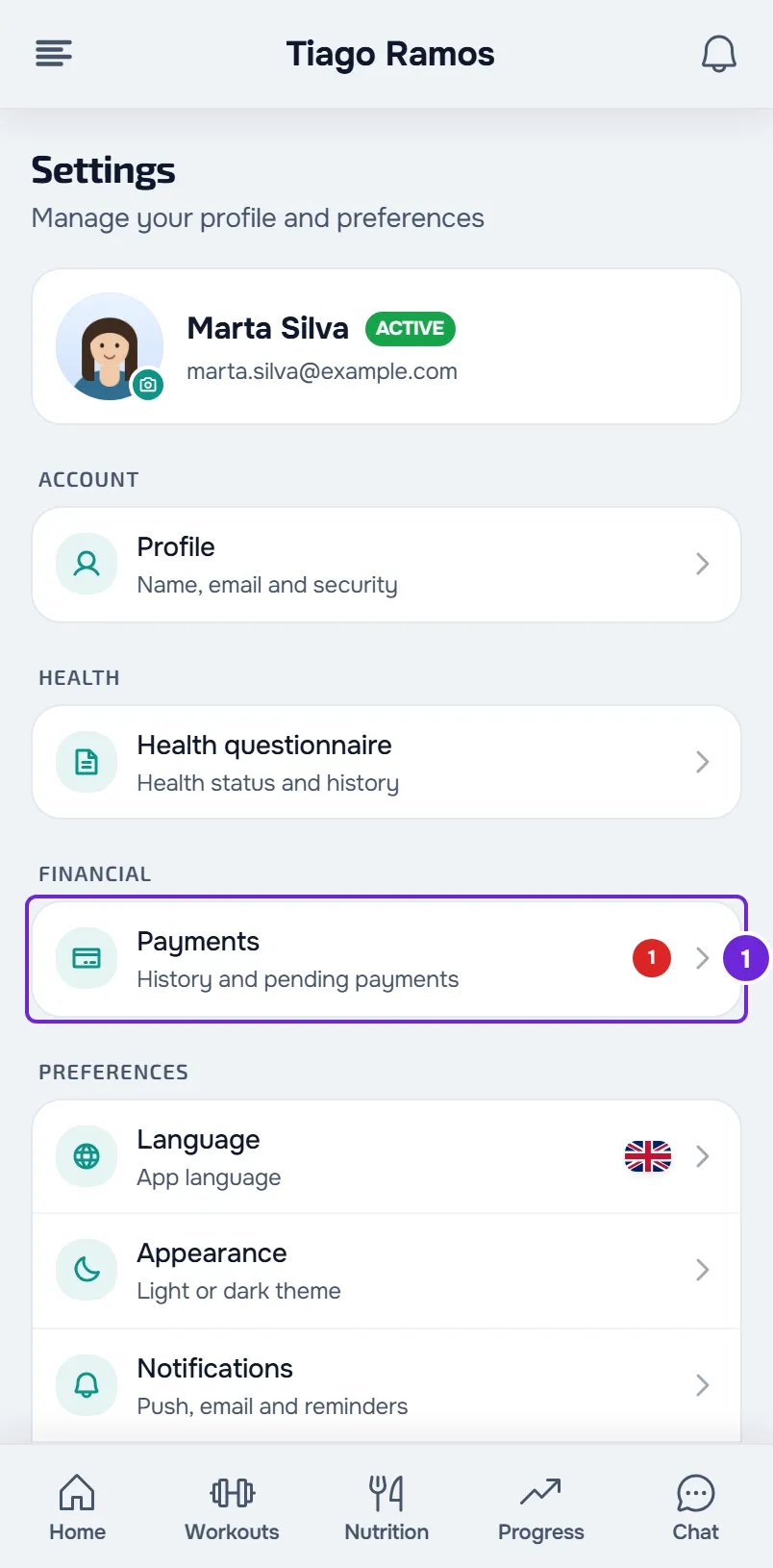
Payments to your professional are in Settings > Payments, in the FINANCIAL group on the website or Financial in the app. Each section says when the problem happens, the cause and what to do. A payment changes status when your professional confirms what you marked as paid, or when Stripe, which processes online payments, confirms a payment.
The Pay now button does not appear
The Pay now button only appears on a Pending or Overdue payment that can be paid online. The causes, from most to least common:
| Cause | What to do |
|---|---|
| The payment is no longer Pending or Overdue: it is Awaiting confirmation, Paid or Cancelled. | There is nothing to pay. If the payment is Awaiting confirmation, your professional is still confirming the payment you marked. |
| Your professional does not have online payments turned on, for example because their Stripe account is not ready yet. The payment only shows Mark as paid. | Pay them outside the platform, for example by bank transfer or in cash, and select Mark as paid. |
| The Your plan card already has the button to pay this same payment. To avoid two pay buttons, the payment in the list only has Mark as paid. | Use the button on the Your plan card. You can also select the payment: in the details, Pay now is still available. |
| The amount is lower than the minimum Stripe accepts in the payment's currency (in euros, €0.50), or that currency cannot be paid online. | Pay outside the platform and select Mark as paid. |
| Your coaching has not started yet and the payment is for a monthly fee or for your plan. Before the start, only payments that are not for a monthly fee or a plan can be paid online. | Wait for the start date, or pay outside the platform and select Mark as paid. |
| Your coaching ended because you disconnected or because your professional ended it, and the payment is for your plan. | Talk to your professional before you pay. |
| You had already paid this online and that payment was disputed with the bank. On the website, Mark as paid does not appear either. | Talk to your professional. |
To pay outside the platform and let your professional know, see Mark a payment made outside the platform as paid. For the card button, see Pay, renew or change your professional's plan.
A message appears when I select Pay now
| Message | Cause | What to do |
|---|---|---|
| “An online payment is in progress. Wait a few minutes and try again.” | You already started paying online and that payment has not finished yet, for example an unpaid Multibanco reference or a payment Stripe is still confirming. | Wait a few minutes and try again. With Multibanco, the confirmation only arrives after you pay the reference. |
| “Online payments are not accepted yet.” | Your professional does not have online payments turned on. | Pay outside the platform and select Mark as paid. |
| “The payment changed in the meantime. Reload and confirm the amount.” | The payment changed while the payment page was being prepared, for example because your professional edited it at that moment. | Reload the page (in the app, pull down on the screen) and confirm the amount before you pay. |
| “Checkout could not be started.” or “Could not start the payment” | A failure while preparing or opening the payment page. | Try again in a little while. If the message comes back, see the “If this did not solve it” section. |
I marked it as paid and it still shows Awaiting confirmation
This is expected: the payment stays Awaiting confirmation until your professional confirms they received it. When they confirm, it changes to Paid. If they reject it, you see the message from the next section. How long it takes depends on them: if it takes a while, talk to them.
If you got the method, the date or the note wrong, select Unmark payment and confirm with Unmark. The payment goes back to Pending, or to Overdue if the due date has passed, and you can mark it again. See Mark a payment made outside the platform as paid.
“This payment wasn't confirmed”
Your professional did not confirm the payment you marked and wrote the reason. The payment goes back to Pending or Overdue and shows “This payment wasn't confirmed”, with the reason under it.
Read the reason and fix what it says, for example pay what was missing or give the right date and method. Then select Mark as paid again or, if it appears, Pay now. When you mark it again, the message disappears. If you do not agree with the reason, talk to your professional. To pay online, see Pay what you owe your professional online with Pay now.
I paid online and the payment is still Pending
When you come back from the Stripe page, MyFitnessClient checks the payment up to 8 times, every 2 seconds. Stripe notifies MyFitnessClient a few seconds later, so the payment can stay Pending for a short time.
- On the website, if the confirmation does not arrive in time, you see “Payment processing” and “Your payment is being processed and will be confirmed shortly.” This is not a failure. If you reload the page, MyFitnessClient checks again and shows “Payment confirmed” if the confirmation has already arrived. The Payments list also updates on its own.
- In the app, you see “Payment received. Confirming…”. If the payment is still Pending, pull down on the screen in a little while to refresh.
- With Multibanco, the payment is only confirmed after you pay the reference Stripe shows you.
- If you left the Stripe page without completing the payment, nothing was charged and the payment is still Pending or Overdue. In the app, “Payment not completed.” appears. Select Pay now again.
If after a few minutes the payment is still Pending and you did not pay by Multibanco, see the “If this did not solve it” section.
The plan is active and you have not paid anything yet
This happens when you choose or pay for a plan with automatic payment, for example monthly, while a plan you already paid for, such as a pack, still gives you access. So that you do not pay for the same days twice, the first charge of the new plan is set for the day after the last day of the plan you already paid for. Stripe treats that time as a trial period. This only happens when that next day is between 49 hours and 730 days away; otherwise, the first charge is made right away.
Until the first charge:
- The Your plan card still shows the plan you already paid for and the date until which it gives you access.
- The new plan appears underneath, among your plans, with nothing to pay. In the app, under Your plans, the date after “Renews” is the date of the first charge.
- If the new plan is also one of those that give you access, the Access period row shows “Renews on” (in the app, “Renews”) followed by the day of the first charge: on the website, in Settings > Profile; in the app, in Settings.
- Your access still comes from the plan you already paid for. The days of the new plan only start counting with the first charge: this time does not give you extra days.
It is not an error. If you do not want the new plan, cancel it before the first charge: it ends without ever being charged. See Cancel or resume your plan subscription.
I do not see Payments in Settings
With a linked professional, Payments always appears. Without a professional, the FINANCIAL group (in the app, Financial) only stays in Settings while you still owe a payment to a previous professional, so that you can pay it. See “You don't have a professional yet”: what to do.
You paid and the overdue restrictions are still there
A payment you marked as paid still counts as unpaid while it is Awaiting confirmation. It changes to Paid when your professional confirms it. An online payment changes to Paid as soon as Stripe confirms it. To know what is paused and how to settle it, see Payment overdue: what is paused and how to settle it.
If this did not solve it
Talk to your professional first: they confirm the payments you mark and turn on online payments. If the problem continues, write to the MyFitnessClient team through the contact shown in the Help Center and send:
- your professional's name;
- the amount and date of the payment;
- how you paid: online, through Stripe, or outside the platform, with the method you used;
- the exact message you see and whether it happened on the website or in the app;
- a screenshot of the payment in the list.