
When it happens
- The section's entry disappears from the menu. Workouts, Nutrition, Supplements, Progress, Questionnaires and Materials can disappear, and Courses when you have no courses. On a phone, in the bottom bar, Workouts, Nutrition and Progress can disappear; Home and Chat always stay.
- That section's cards disappear from Home, without any notice.
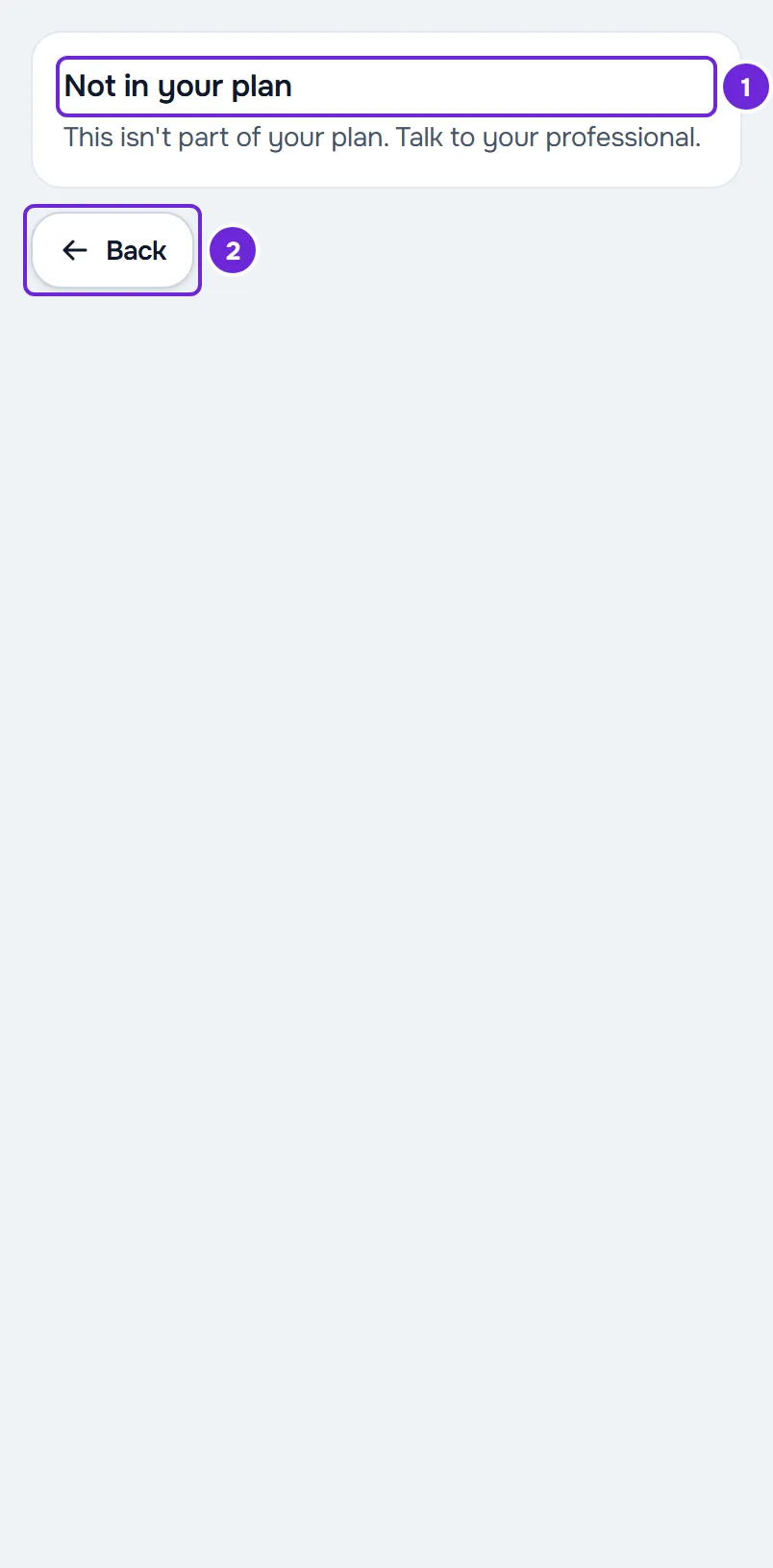
- If you open a page of that section from a notification, a link or an old bookmark, you see “Not in your plan”, with the sentence “This isn't part of your plan. Talk to your professional.” On the website, when they appear, Home takes you to the home page and Back to the previous page. In the app, the screen only has the message: leave through the menu or the back arrow.
- A questionnaire or a check-in opened from a notification shows the same message when its section is not in your plan.
Why it happens
Your professional chooses which sections the plan you have with them includes: Workouts, Nutrition, Supplements, Habits, Progress, Questionnaires, Materials, Courses, Chat and Calls. Almost everything the plan does not include disappears from the website and the app; the exceptions are in What always stays. Only your professional can change what your plan includes.
It has nothing to do with payments. An overdue payment pauses some actions, but the sections stay in the menu, and paying does not bring back a section the plan does not include. See Payment overdue: what is paused and how to settle it.
What to do
To get a section back:
- In the menu, select Chat and open the conversation with your professional.
- Tell them which section is missing. If the conversation shows “Replies are disabled in this conversation.”, contact them another way, such as by phone or during a session.
- After they change your plan, wait up to 2 minutes with the page or the app open: the section comes back to the menu on its own. To see it right away, on Home too, reload the page on the website; in the app, close it and open it again.
What always stays
- Home, Calendar and Settings never disappear, even if the plan includes no sections.
- Habits always stays in the menu. Without Habits in the plan, you only see the habits you created; the ones your professional assigned to you stop appearing and come back when the section is back in the plan.
- Chat always stays in the menu. Without Chat in the plan, you can still read your professional's messages, but you cannot reply to them: the conversation shows “Replies are disabled in this conversation.”
- Without Calls in the plan, the call buttons disappear from the conversation on the website and only your professional can start a call, which you can still answer on the website.
- Courses stays in the menu while you have courses of your own, even if the plan does not include Courses.
- The anamnesis does not depend on the plan.
What changes on other pages
- Without Workouts in the plan, Calendar stops showing the program's workouts, the rest days and the workouts you did. The events your professional schedules and your personal events stay there.
- The check-in is part of Progress. Without Progress in the plan, the check-in disappears from Home and Calendar.
- Reminders for a section the plan does not include (meals, supplements, check-in and habits your professional assigned to you) stop arriving, and so do that section's automatic questionnaires.
Common problems
Workouts disappeared from Calendar
If Workouts left your menu, your plan no longer includes Workouts and Calendar stops showing them. Talk to your professional. If Workouts is still in the menu, the plan is not the cause: with coaching closed, Calendar also stops showing the program. See Access statuses: scheduled, ended and inactive.
The section is in the menu, but it is empty
A section your plan does not include is not left empty: it leaves the menu. If you see a line about your coaching, such as “No access at the moment.”, your coaching is scheduled, has ended or is inactive. See Access statuses: scheduled, ended and inactive.
“Replies are disabled in this conversation.”
Your plan does not include Chat, or your professional turned off your replies. In both cases, only they can change it: contact them another way. See I can't write in the chat: I see a padlock.
In the app, the section is still in the menu, but it opens empty or with an error
In an old version of the app, sections the plan does not include stay in the menu, but open empty or with an error message. Update to the latest version of the app: the section leaves the menu. See A new version of the app is available.
If this did not solve it
If your professional confirms that the section is in your plan and it is still missing from the menu after you reload the page or open the app again, write to the MyFitnessClient team through the contact shown in the Help Center and send:
- your professional's name;
- the missing section;
- whether it happens on the website, in the app or both;
- the exact message you see, if any.