
Before you start
- You buy on the MyFitnessClient website: in the browser on your computer or phone, or in the app installed from the website. The app from the app stores does not sell courses.
- You need active coaching with the professional who sells the course, and Courses must be included in the plan they gave you. If it is not, you do not see the Discover tab and, while you have no courses, not even Courses in the menu (“Not in your plan”: a section of the app has disappeared).
- The course must be published and visible to you. The professional chooses whether to show it to all active clients or only to some.
- The professional must sell the course online. A card showing “Free” and “from your professional” is not for sale: ask the professional for access.
- With an overdue payment, the Discover tab and the course page can show “Payment overdue” instead of the courses. Settle the payment first (Payment overdue: what is paused and how to settle it). The courses you already have stay open.
Steps
To buy or subscribe to a course:
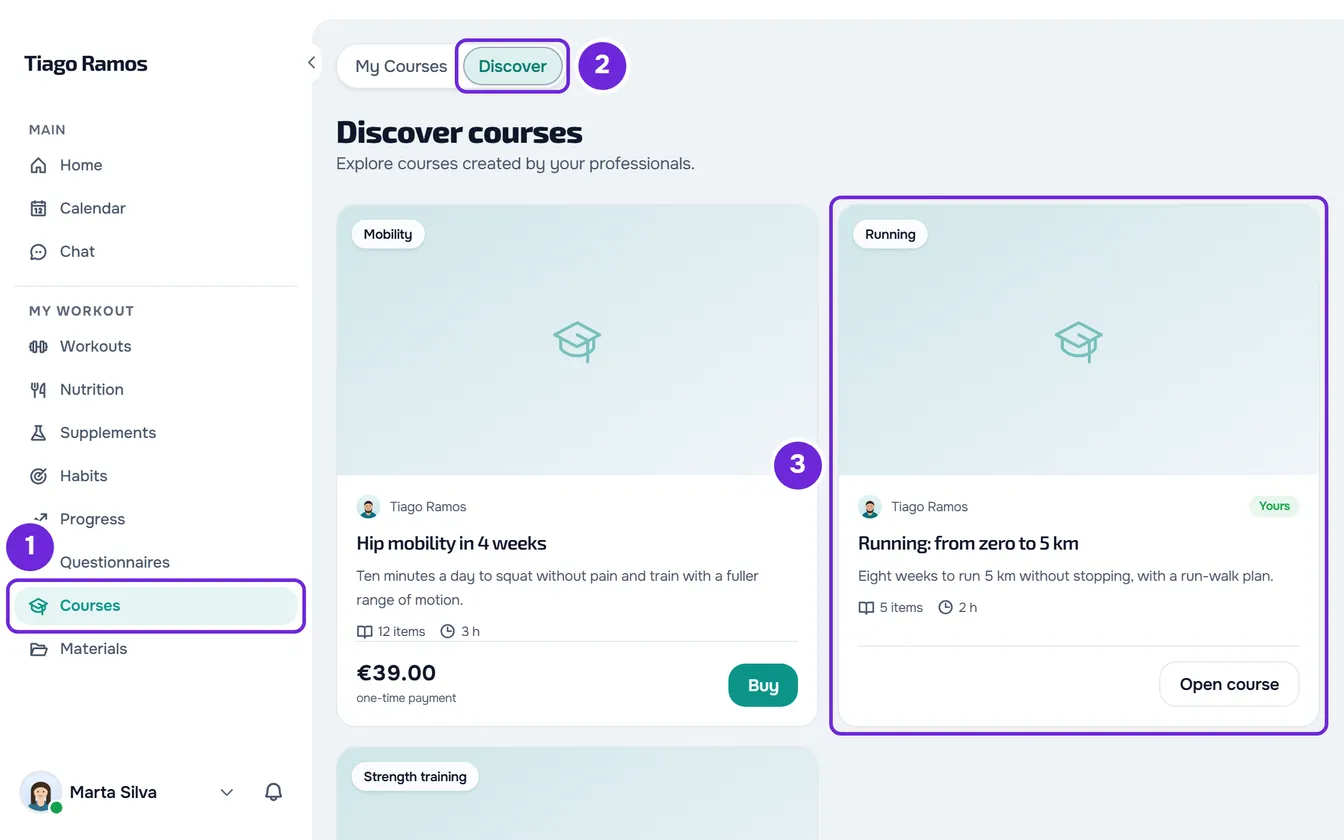
- In the menu, under My Workout, select Courses 1.
- Select the Discover 2 tab. The courses published for you appear.
- Select the course card. The course page opens, with the purchase panel. A card showing Yours 3 is for a course you already have, and it opens the course itself.
- Optional: under Course content, select a module to see its lessons; the first one is already open. Lessons marked “Preview available” show their content right there.
- In the purchase panel, tick both boxes: the one for guaranteed access for 12 months 1 and the one for immediate access 2. The button only becomes active with both ticked.
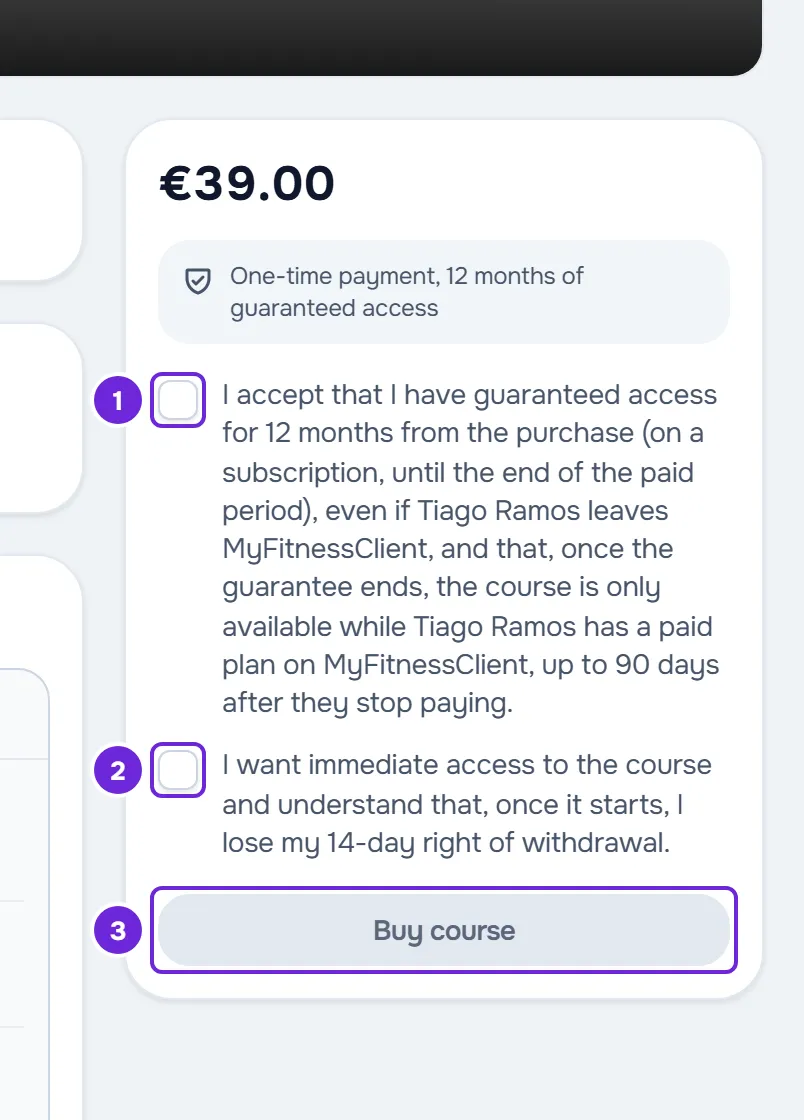
- Select Buy course 3 or, for a subscription course, Subscribe. The Stripe payment page opens.
- On the Stripe page, choose the payment method, fill in the details and confirm the payment. Stripe takes you back to MyFitnessClient, to the “Confirming payment” page.
- Wait while the page checks the payment, for up to about 1 minute. When the payment is confirmed, the page changes to “Purchase confirmed” and the course opens by itself 1.2 seconds later.
- If the course does not open by itself, select Open course.
The course is now in My Courses. You get the “Purchase confirmed” notification (for a subscription, “Subscription confirmed”) and a confirmation email at your account's email address.
What you accept in the two boxes
The boxes start unticked on every course. On the screen, {name} is your professional's name:
- “I accept that I have guaranteed access for 12 months from the purchase (on a subscription, until the end of the paid period), even if {name} leaves MyFitnessClient, and that, once the guarantee ends, the course is only available while {name} has a paid plan on MyFitnessClient, up to 90 days after they stop paying.”
- “I want immediate access to the course and understand that, once it starts, I lose my 14-day right of withdrawal.”
For what the guarantee covers, see 12-month access guarantee for a purchased course.
One-time purchase or subscription
The card and the course page say how the course is paid for, in the price and currency the professional chose:
- One-time purchase: the card says “one-time payment” and the course page says “One-time payment, 12 months of guaranteed access”. You pay once and there are no renewals.
- Subscription: the card says “per month”, “per year” or, for example, “every 3 months”, and the course page says “Access while the subscription remains active”. Stripe charges automatically each period, until the subscription is cancelled. To cancel, change the card or view the receipts, see Manage a course subscription and view receipts.
In the app
The MyFitnessClient app from the app stores does not sell courses and has no Discover tab. If you open the page of a course you do not have yet in the app, for example from a link, the purchase button is replaced by “This course is not available for purchase in this app.” Buy the course on the website. After the purchase, the course also appears in the app's list of courses.
Common problems
The Buy course or Subscribe button does not become active
- One of the two boxes is not ticked.
- The panel says “Online purchase unavailable. Ask your professional for access.”: the professional does not sell this course online or cannot receive online payments right now. Ask them for access. It also appears when a payment of yours for this course was refunded or is in dispute: in that case, write to support.
- The panel says “Your payment is being confirmed.”: a payment for this course is already under way. If you left the Stripe page without paying, the button becomes active again when that payment expires, about 1 hour after you opened it.
- The panel says “This subscription needs attention. Update payment or manage the subscription.”: your subscription to this course has an overdue payment or is paused. Select Manage subscription and update the payment on Stripe (Manage a course subscription and view receipts).
“Confirmation is taking longer”
The payment was still not confirmed after about 1 minute. Do not pay again: access activates by itself when the confirmation arrives, even if you close the page. Select View my courses and check again later.
“Could not verify”
The page could not confirm the payment: the payment failed or was cancelled, or it could not be confirmed. Select View my courses and, in a few moments, check whether the course is in My Courses. If it is not, see Can't buy or subscribe to a course.
Another message appears when you select the button
A message that appears before the Stripe page does not charge anything. For what each one means and what to send to support, see Can't buy or subscribe to a course.
Questions
Who does the money go to?
To your professional: you pay on Stripe, into their account, and the contract is with them. On the Stripe payment page, next to the pay button, the notice starts with “Sold by {name}, acting as a trader.”, says the contract is with them and not with MyFitnessClient, and gives the professional's contact details.
Which payment methods can I use?
The ones the Stripe payment page shows you. The list depends on Stripe and on your professional's account, so it can change from one professional to another.
How many times can I try?
Up to 10 purchase requests per minute. After that, the purchase is refused until that minute has passed: wait and try again.
My professional had already given me access to this course. Can I buy it?
If that access is still active, you do not need to: the card says Yours and opens the course. If the access was paused or ended and the course is on sale for you in Discover, the one-time purchase gives you access again and keeps your progress. For a subscription course, see Can't buy or subscribe to a course.