
Before you start
- You need to be linked to a professional and have no plan with them yet: no plan in the Your plan section, no monthly fee paid manually and no active automatic payment.
- Your professional decides whether you can choose the plan. If they don't allow it, or have no plans to choose from, the section shows “You have no plan.” and they are the one who gives you the plan.
- Paying online only works if your professional takes online payments. If they don't, Pay and continue sends them a request instead of opening Stripe: see “If your professional does not take online payments” in this article.
- If you joined through an invitation that already included a package, you paid when you joined. See Pay and join with an invitation that includes a package.
Steps
To choose a plan from your professional and pay for it online:
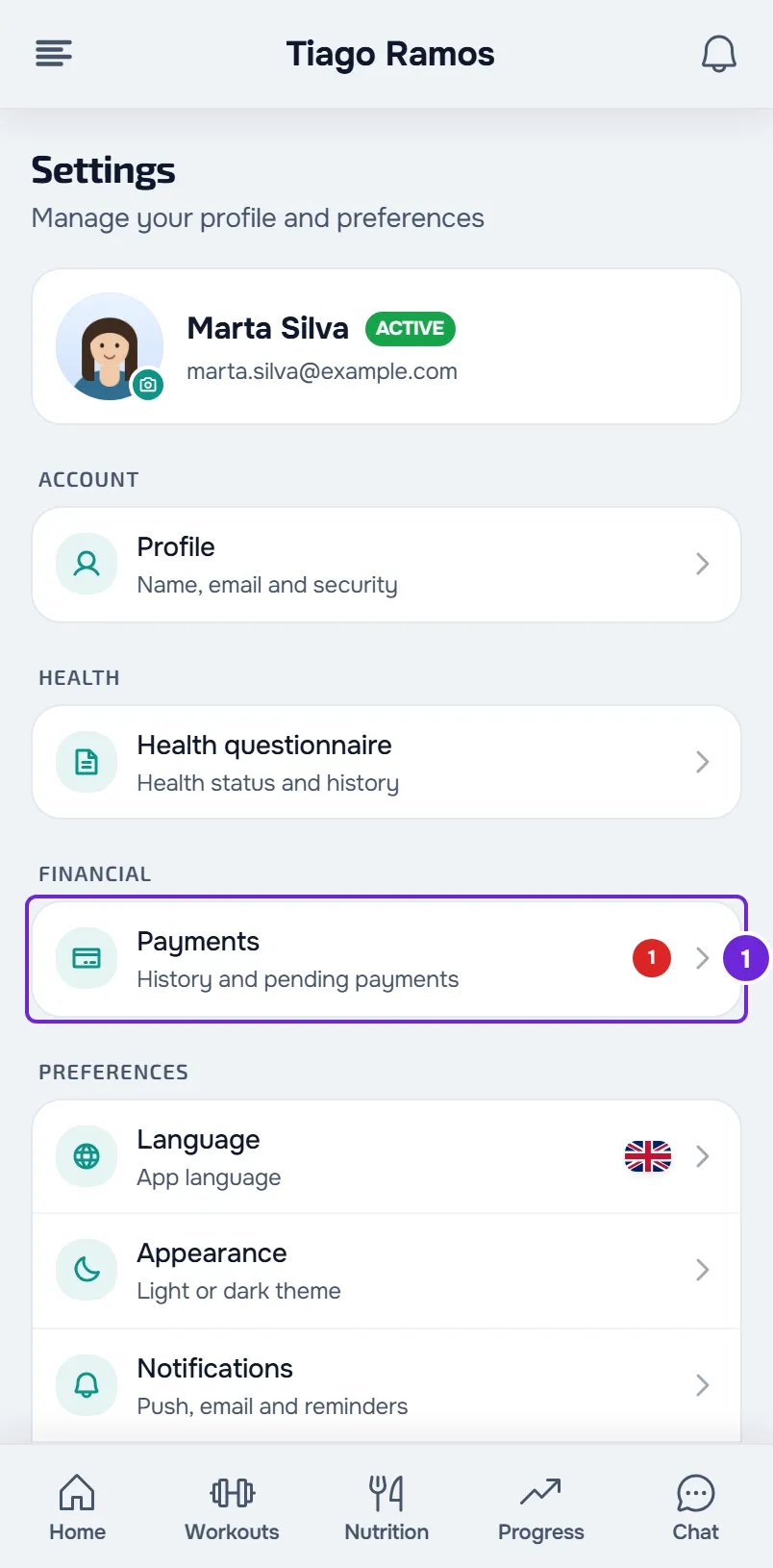
- Open Settings and select Payments 1.
- In the Your plan section, read the list that starts with “Choose one of your professional's plans.” Each plan shows its name and amount; for plans that repeat, the amount includes the period, for example “/month”.
- Select the plan you want. The first one in the list is already chosen, unless one of the plans says “What you had”: that is your previous plan and it is the one already chosen.
- Select Pay and continue. The Stripe payment page opens.
- On the Stripe page, choose the method, fill in your details and pay. The methods shown depend on what your professional turned on.
- When Stripe sends you back to MyFitnessClient, wait a few seconds while the page confirms the payment.
- For a plan that repeats, the return page is Plan active: select View payments or My plans. Both open Payments.
The plan appears in the Your plan section with the Active badge. For a plan that repeats, Stripe charges each following period automatically until the plan is cancelled. To learn what each badge and each date on the card means, see States and buttons of the Your plan card.
For a one-time package, with no period after the amount, the return page is Payment confirmed, the same as for other online payments, with Back to payments. See Pay what you owe your professional online with Pay now.
For a plan that repeats, if the confirmation takes a while, the page stays on “Payment received” with “We're confirming with the bank. This usually takes a few seconds. You can close this page.” This is not a failure: the plan appears in Your plan when the confirmation from Stripe arrives.
If you leave the Stripe page without paying, you go back to Payments and nothing is charged. The plan you chose stays in Your plan with the Awaiting payment badge and a button to pay for it. See Pay, renew or change your professional's plan.
If your professional does not take online payments
Pay and continue does not open Stripe: it sends a request to your professional and “Request sent. Your professional confirms once it's received.” appears. They get a notification with the request.
From then on, Your plan shows the plan with the Awaiting payment badge and the sentence “Your professional confirms once they receive the payment.”, and the payment appears in your list of payments. Pay them outside the platform and mark the payment as paid (see Mark a payment made outside the platform as paid). The plan changes to Active when they confirm the payment.
If your professional asks you to choose a plan before you join
If your professional asks you to choose a plan before you join, Home shows the “Pick your plan to start” card, with the sentence “Your professional asks you to pick a plan before opening the app. Until then you can talk to them.” The card has the same list and the same Pay and continue as in the steps, and the Message your professional button.
Until the payment is confirmed, you only have the chat. After that, the sections of your plan open and the card disappears. This only happens to people who connected with the professional after they turned this option on.
The Available list
The Your plan section can also show the Available list. It is not your professional's catalog: it only shows the automatic payment plan created from your monthly fee paid manually, or a plan of theirs that you already had and that ended, or whose payment was left unfinished. For the first case, also see Switch a monthly fee you pay manually to automatic payment.
- Each plan shows its name, amount and period, for example “/ month”. If “Payment setup isn't finished yet.” appears, the Subscribe button stays disabled until your professional's online payments are ready.
- Subscribe opens the Confirm subscription window, with the amount, the First charge, the date the plan renews (Renews), “Cancel anytime” and the notice about the 14 days to withdraw.
- The First charge is “today”, or a date with the sentence “Nothing is charged today: the current period is already paid.” when the plan replaces a monthly fee whose current period you already paid or marked as paid.
- An unusually high amount for the currency appears in red, with “Unusually high amount. Check with your professional before continuing.”
- In the window, Subscribe opens the Stripe page and Cancel closes the window without you paying. After you pay, the return page is Plan active, as at the end of the steps.
If you had already paid and the confirmation had not arrived yet, “Subscription activated. The payment had already gone through.” appears and you don't pay again. If you leave the Stripe page without paying, nothing is charged and that plan only shows up again in Available one hour after you selected Subscribe, when that payment page expires. On the website, until then the plan stays in Your plan with “Payment not finished” and the Check button.
In the app
- The Available list is in Settings > Financial > Plans, with the same Subscribe and the same Confirm subscription window. When your professional's online payments are not ready, the plan shows that sentence and has no button.
- Subscribe opens the Stripe page in your phone's browser. Every time you come back to the app, it checks the payment by itself, up to 8 times. If the plan stays in My subscriptions with “Payment not finished”, select Check: “Subscription activated.” or “The payment isn't confirmed yet. Try again shortly.” appears.
- In the latest version of the app, the list of your professional's plans with Pay and continue appears on Home, in the “Pick your plan to start” card. With coaching under way and no plan at all, the app only shows that list in that card.
Common problems
“You have no plan.” and no plan appears to choose from
Your professional does not let you choose the plan, or has no plan to choose from. Talk to them: they are the one who gives you the plan.
“You already have an active package with this professional.”
You already have a plan that repeats with them, for example because you paid in another tab. Reload the page: the plan appears in Your plan and the list no longer appears.
“This package no longer exists.”
Your professional removed that plan from the list, or stopped letting you choose, after you opened the page. Reload the page and, if the list still appears, choose another plan.
“Payment setup isn't finished yet.”
It appears on a plan in the Available list when your professional's online payments are not ready yet. The Subscribe button stays disabled until then; talk to them.
Questions
Who does the money go to?
To your professional, through Stripe. In the Your plan section, the sentence next to the list says the contract is with them and not with MyFitnessClient.
When do I pay again?
For a plan that repeats and that you paid on Stripe, Stripe charges each following period automatically until the plan is cancelled. For a one-time package, you pay once. If your professional takes payments manually, each payment appears in your list of payments and you pay them outside the platform.
Can I change plans later?
See Pay, renew or change your professional's plan. To stop paying for a plan that repeats, see Cancel or resume your plan subscription.
I already have a plan. Can I choose another one?
Not in this list. With a plan in Your plan, a monthly fee paid manually or an active automatic payment, the list does not appear, so you don't pay for two plans with the same professional. The exception is the automatic payment plan that replaces your monthly fee paid manually, in Available.
I opened a notification or an email about plans. Where are they?
The plan links used in notifications and emails open Settings > Payments, where the Your plan section is.