
Before you start
- You need active coaching with your professional in MyFitnessClient, Supplements included in the plan you have with them, and a supplement plan assigned to you. If the page does not appear or is empty, see The Supplements page is empty or missing.
- To find the page and mark today's doses, see Mark your supplement doses for the day.
Steps
To view or mark the doses for another day:
- In the menu, select Supplements. The page opens on today's date, with the week strip under the title.
- If the day is in another week, select the arrows on either side of the week range 1, for example “14 – 20 Sep”, until you reach that week. Each arrow moves seven days back or forward.
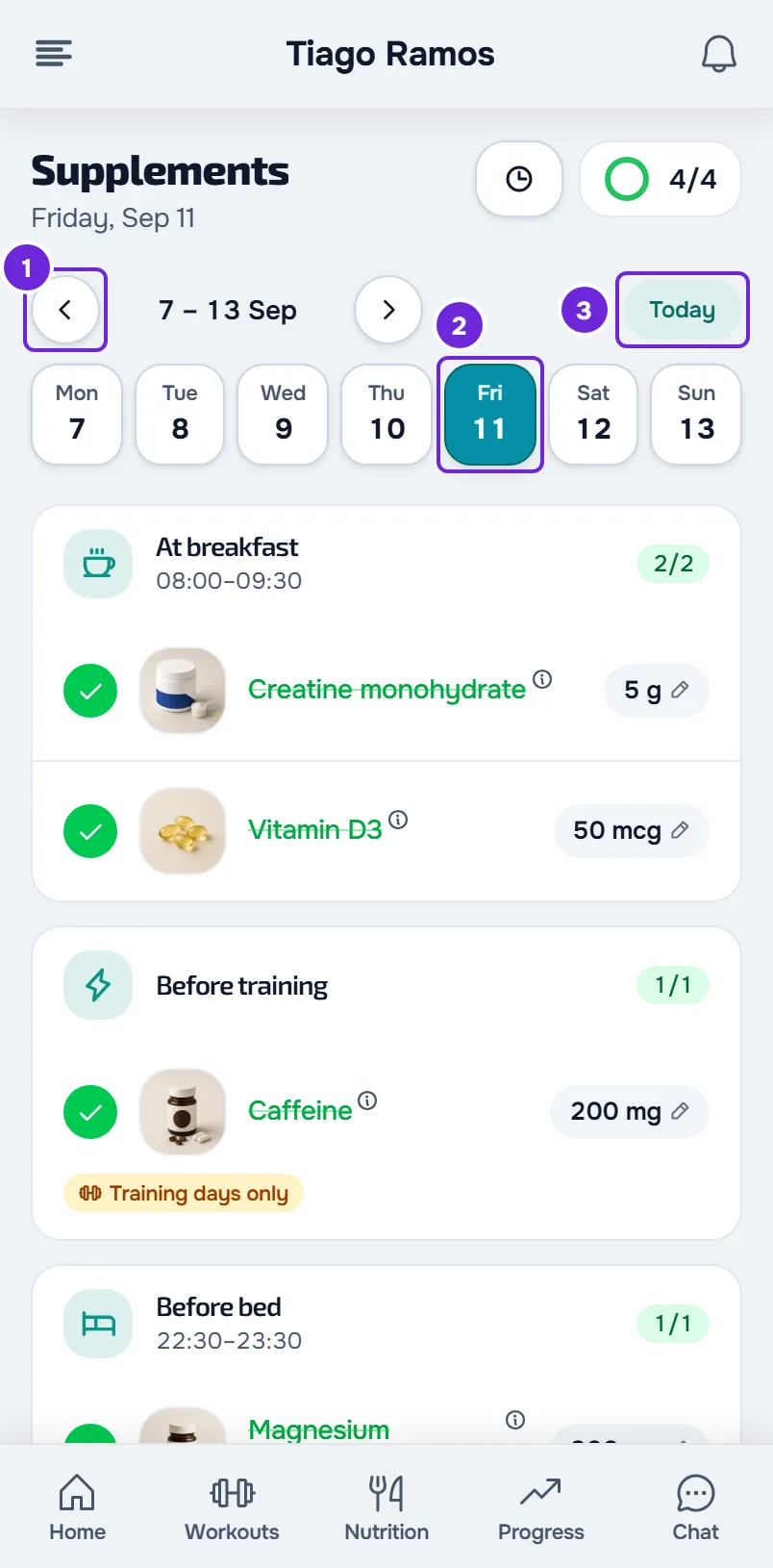
- In the week strip, select the day 2. The date under the title changes to that day and the list shows that day's doses, including the ones you have already marked.
- If the day has already passed, select the row of a dose to mark it as taken. Select it again to unmark it.
- Optional: to change the amount of a dose for that day only, select the amount with the pencil. See Change a supplement amount for one day only.
- To go back to today, in the row with the arrows, select Today 3. It only appears when you are on another day.
What you mark is saved on the day selected in the strip, and the ring next to the title counts that day's doses, excluding those under As needed and Weekly goal.
On the web
- On a touch screen, you can also change the week by dragging the strip of days sideways. With a mouse, use the arrows.
- With the keyboard, on a day in the strip, the ← and → keys move one day at a time.
In the app
- Drag the strip of days sideways to change the week.
- When offline, the app only shows the days it has already saved. For a day it has not saved, “No internet connection” appears.
- In the latest version of the app, in Records waiting to send, Open record on a supplements day opens the page on that day. See Record “to review” or “The server did not accept this record”.
What you can do on each day
- Today and days that have passed: you can mark and unmark doses and change the amount of a dose for that day only.
- Days that have not come yet: you can only read the list, so you know what you will take. There are no circles to mark and no pencil on the amount, but the supplement name still opens its details.
- Days outside the dates of your supplement plan: instead of the list, “Nothing on this day.” appears, or “Nothing for today.” when it is today. In the app, the sentences appear without the final period.
Common problems
I cannot mark a dose for tomorrow
A day that has not come yet is read-only, on the web and in the app. Mark the dose on the day itself or later.
“Nothing on this day.” appears on a day when I expected doses
The day falls before the start or after the end of your supplement plan, or no supplement in the plan is taken that day, for example when the supplement is only for certain days of the week. Check the plan dates with your professional. See The Supplements page is empty or missing.
I marked the dose on the wrong day
In the week strip, select the day you marked it on and select the dose row to unmark it. Then select the right day and mark the dose. If the right day has not come yet, mark it when that day comes.
My professional changed the plan and I do not see the change
On the web, the page reloads the selected day when you come back to it and every 60 seconds while it is on screen. In the app, pull the list down to refresh it.
Questions
How far back can I mark a day that has passed?
The page lets you mark a day that has passed as long as that day falls within the dates of your supplement plan and your coaching is active.
Can my professional see what I mark on a day that has passed?
Yes. The mark goes into your professional's records on that day, and unmarking deletes it from that day.
When does the page move to the next day?
If you are viewing today, the page moves to the new day after midnight. On the web, this happens on the next reload, when you come back to the page or within 60 seconds at most; in the app, at midnight on your phone or when you come back to the app. If you selected another day, the page stays on it until you select Today.