
The Supplements page shows one day at a time. In the supplement plan, your professional chooses the time of day for each dose and its conditions; the page groups the doses into cards by time of day, shows the conditions as tags and sets apart what is not for every day. To mark your doses, see Mark your supplement doses for the day.
What the page shows
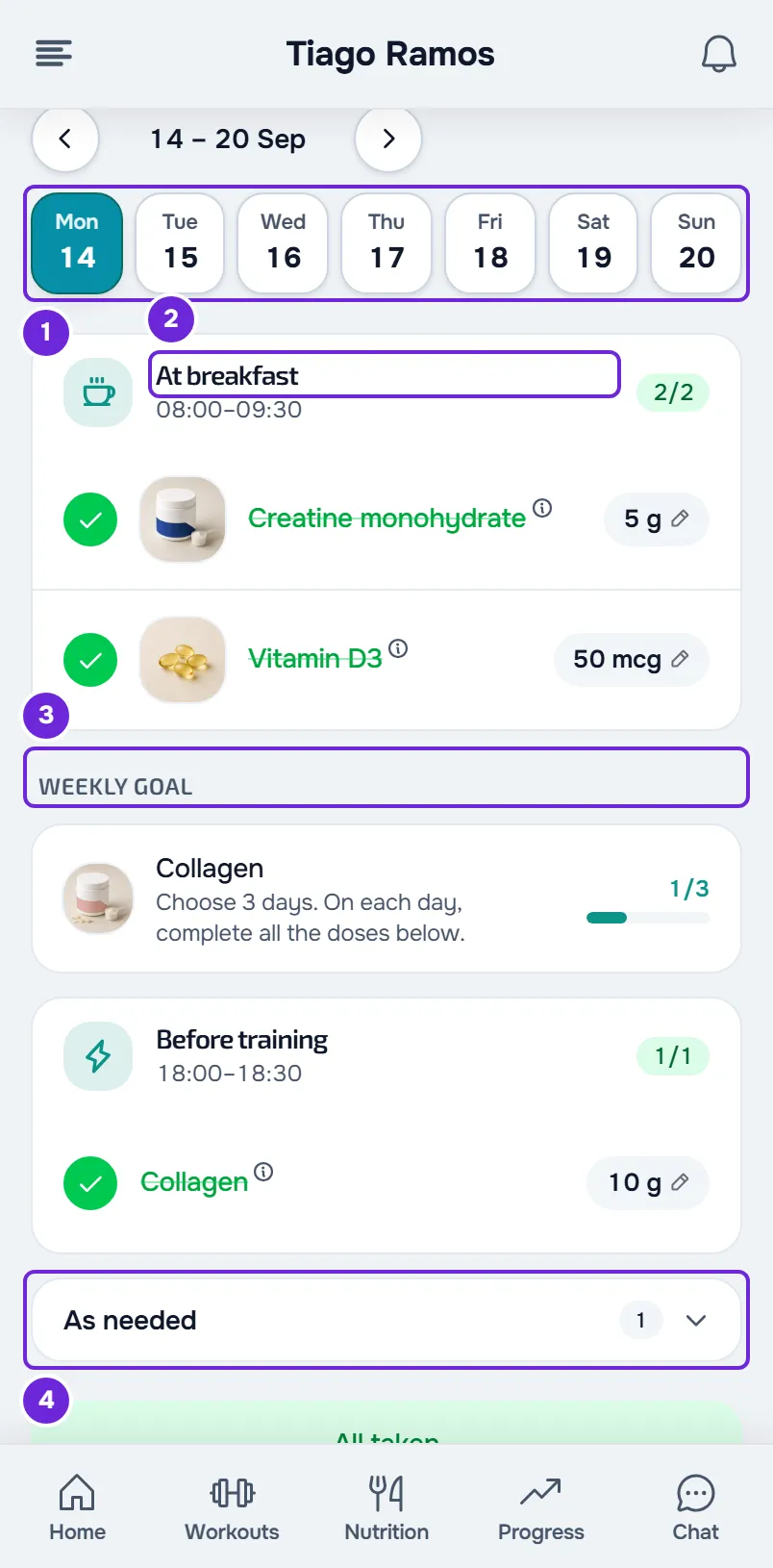
From top to bottom:
- The Supplements title and, under it, the date of the day you are viewing. Next to the date, “Training day” or “Rest day” appears, only when the app knows the type of day.
- Next to the title, the Schedule button, with the times of your routine. On narrow screens it only shows a clock. See Set your supplement times.
- Next to the Schedule button, the ring with the daily doses you have already marked out of the day's total, for example 2/5. Doses under Weekly goal and As needed do not count. On a day with no daily doses, the ring does not appear.
- The week strip, to change the day. See View or log supplements for another day.
- The time-of-day cards, each with its doses.
- The Weekly goal section, when the plan has a supplement to take on a number of days per week.
- The collapsible As needed section, when the plan has doses only for when you need them.
- The green All taken banner, when you have marked all the daily doses for the day.
- The collapsible Plan products section, when your professional added a product link. See View a supplement's details and open the product link.
On a day with no doses, the page says there is nothing for that day. If you did not expect that, see The Supplements page is empty or missing. On a wide screen in the app, the time-of-day cards sit side by side.
The times of day
Each card is a time of day. It has an icon, the name of the time of day, the time range under it, for example 08:00–09:30, and how many doses for that time of day you have already marked, for example 1/2. The count turns green when they are all marked.
Your professional chooses the time of day for each dose from these: On waking, Fasted, At breakfast, Mid-morning, At lunch, Mid-afternoon, At dinner, In the evening, Before bed, Before training, During training, After training, With a meal, With the largest meal, Any time and Split throughout the day. They can also choose a specific time: the card is then named after the time itself, for example 10:00, with “until 10:30” under it.
The cards are ordered by start time, from earliest to latest. Doses with the same time of day and the same time range share a card, even when they are for different supplements. With a meal, With the largest meal, Any time and Split throughout the day never show a time range and sit in the list next to lunch. The three training times of day have no time range when the app does not know what time you train that day, and then they sit in the list between 18:00 and 19:30.
Where each time range comes from
The time ranges are based on the times you choose in Schedule and on the day's workout. With the default times (waking at 07:00, breakfast at 08:00, lunch at 13:00, dinner at 20:00 and bedtime at 23:00), Mid-morning shows 10:30–12:00 and Mid-afternoon shows 16:30–18:00.
| Time of day | Starts | Lasts |
|---|---|---|
| On waking and Fasted | At your wake-up time | 60 minutes |
| At breakfast, At lunch and At dinner | At the time you chose for that meal | 90 minutes |
| Mid-morning | Halfway between breakfast and lunch, rounded to the nearest 5 minutes | 90 minutes |
| Mid-afternoon | Halfway between lunch and dinner, rounded to the nearest 5 minutes | 90 minutes |
| In the evening | Halfway between dinner and bedtime, rounded to the nearest 5 minutes | 90 minutes |
| Before bed | At your bedtime | 60 minutes |
| Before training | 30 minutes before the workout starts | Until the workout starts |
| During training | When the workout starts | Until the workout ends or, with no end time, 60 minutes |
| After training | When the workout ends or, with no end time, 60 minutes after it starts | 45 minutes |
| A dose at a specific time | At the time your professional chose | 30 minutes |
| With a meal, With the largest meal, Any time and Split throughout the day | No time range | No time range |
The workout time is, in this order: the time a workout already logged that day started; the time scheduled for the workout in the program or in the Calendar; your Usual training time, which does not count on a rest day. The end time is only known once the workout is logged.
These are the default durations. Some plans change how long a time of day lasts or make it start earlier or later, and the time range on the card already takes that into account. No time range goes past 23:59: with bedtime at 23:00, Before bed shows 23:00–23:59.
Tags on each dose
Under the name of a dose, tags may appear with the conditions your professional asked for:
- Amber: “Training days only” or “Rest days only”.
- Green, about food: “With food”, “On an empty stomach”, “With fat”, “With vitamin C” or “With carbs”. Several can appear.
- Red, with the cut-off time, for example “Never after 18:00”.
- Gray: “Not taken” (in the app, “Didn't take”). It comes from an old record where the dose was left as not taken. The circle stays unmarked and, if you select the row, the dose becomes taken.
Tags are for information only: they do not hide the dose or stop you from marking it. The day's list does not change with the type of day, so a “Training days only” dose also appears on a rest day, and you can mark it. The type of day only decides reminders: see Turn supplement reminders on or off.
After the tags, there may also be your professional's notes, an amber warning on a per-kilo dose when you have no weight logged, and the product link. For the warning, see “An up-to-date weight is needed to calculate the amount”.
Training day and rest day
The tag next to the date says what the app knows about that day. It shows “Training day” when that day has at least one of these:
- a workout your professional assigned to you with that date;
- a workout already logged;
- a workout scheduled in your active training program, when the program follows the days of the week or the dates of a calendar;
- a workout with a time in your Calendar that is not canceled.
It shows “Rest day” when your active training program follows the days of the week or the dates of a calendar, covers that day and has no workout scheduled, and none of the other things apply. In other cases, for example with a flexible or sequential program, or with no program, the app does not know whether you will train and shows no tag. When a workout is logged that day, the day becomes “Training day”.
Weekly goal
This section appears when your professional asks for a supplement on a number of days per week, for example 3, without saying which ones. The supplement appears every day, under the Weekly goal heading, and you choose the days you take it.
- The goal card shows the supplement's photo and name, how many days you need to choose and the day counter, for example 1/3, with a bar.
- Next come the time-of-day cards for that supplement, each with its time range and count.
- A day counts when you mark all the doses of that supplement on that day. If one is left unmarked, the day does not count.
- The counter adds up the complete days of the week, from Monday to the day you are viewing, never past today. In a new week, it starts from zero.
- These doses are not part of the ring or All taken and have no reminders.
As needed
This is a collapsed section, with the number of doses, for the supplements your professional said to take only when you need them. Select the section to open it: a sentence explains how it works, and the cards for those doses are under it.
- You mark these doses like the others, and your professional sees them in your records.
- The cards have no count or time range, except a dose at a specific time, which shows the time.
- They are not part of the ring or All taken, have no reminders and, if left unmarked, do not count as missed.