
Before you start
- With two-factor authentication (2FA) on, every sign-in to your account asks for a 6-digit code after your password, or after Google or Apple. It is available on the web, for professionals and clients, and in the app.
- There are two methods: the code arrives at your account's email, or an authenticator app on your phone, such as Google Authenticator or another TOTP app, generates it. Only the app method gives you recovery codes.
- If your account has a password, you enter it to turn 2FA on. An account created with Google or Apple, without a password, turns it on without that step.
Interactive tutorial
Opens in the app and needs you to be signed in.
Steps
To turn on 2FA with an authenticator app, on the web:
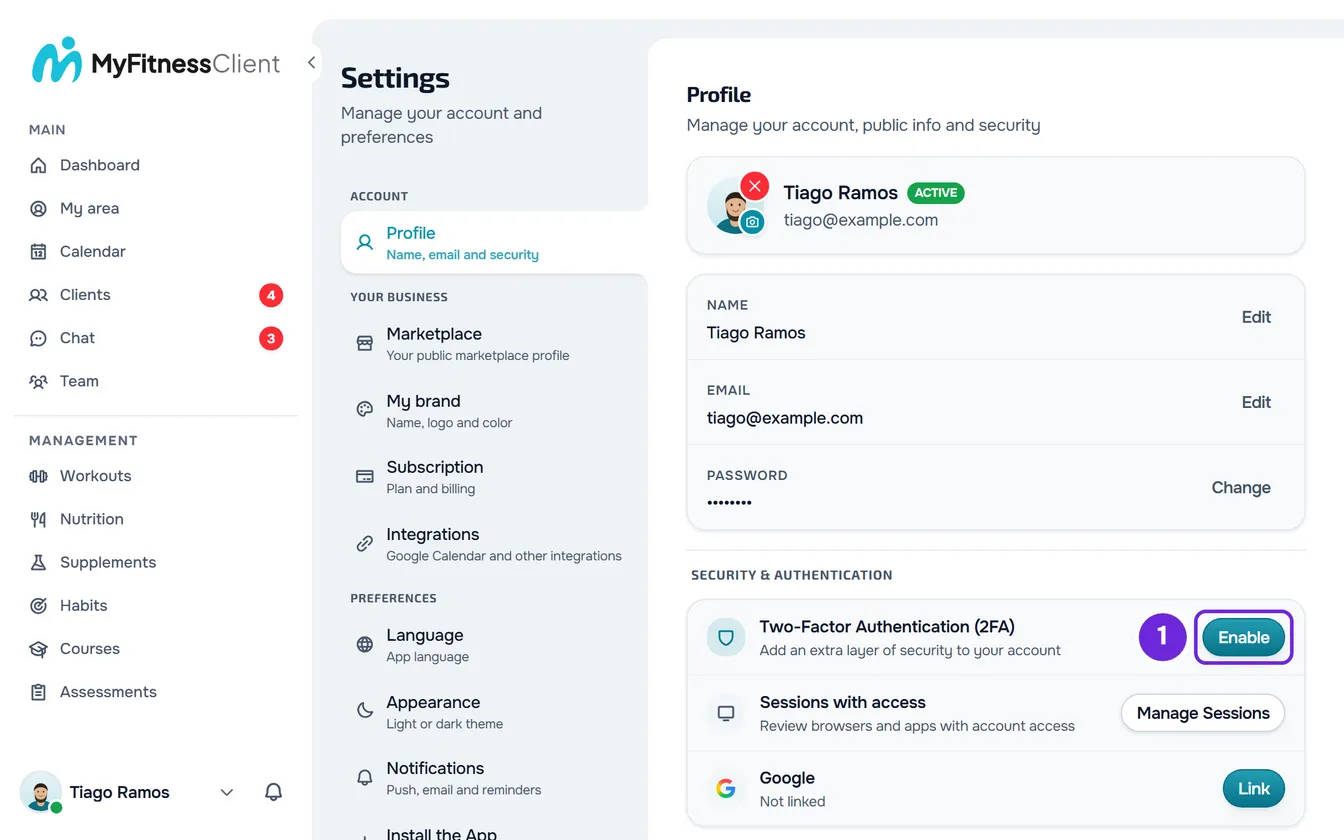
- Open Settings. On a computer, select your photo and name at the bottom of the side menu, then Settings. On a phone, open the menu and select Settings at the bottom of the menu.
- Select Profile.
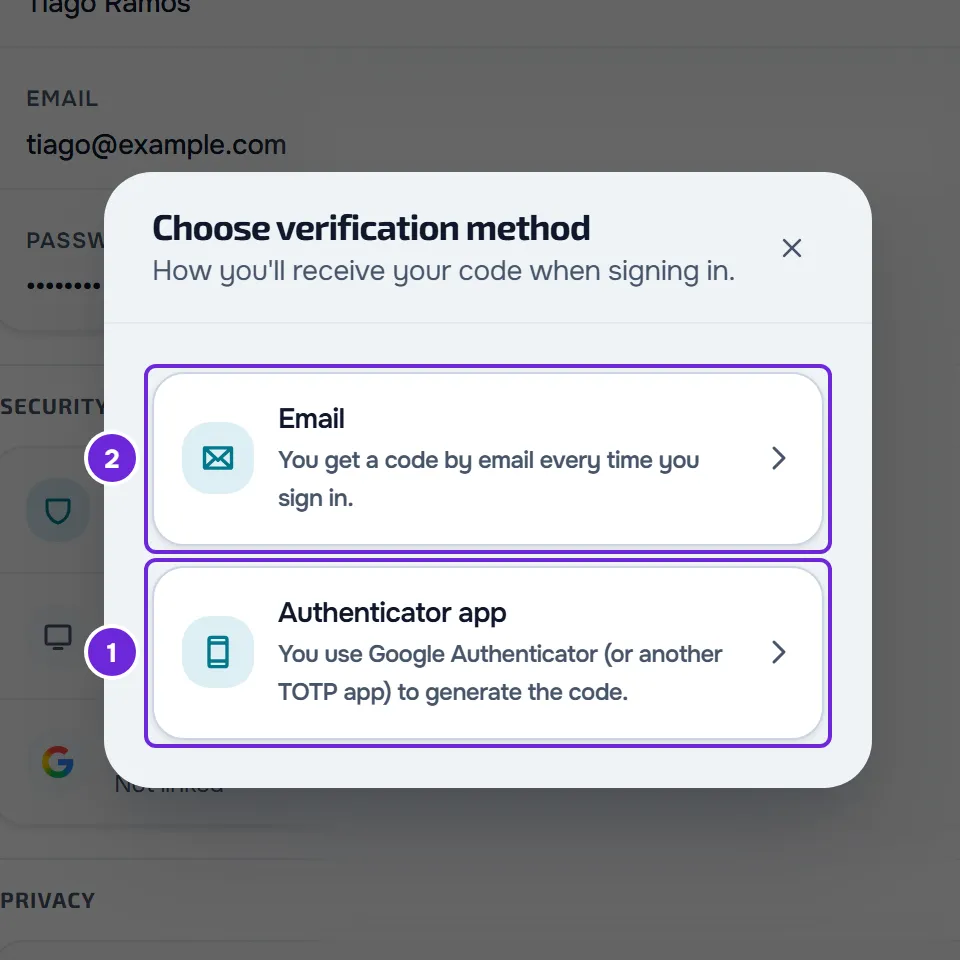
- In the Security & Authentication block, on the Two-Factor Authentication (2FA) row, select Enable 1. The Choose verification method window opens.
- Select Authenticator app 1.
- If your account has a password, enter it in Password and select Save. On an account without a password, the QR code appears right away.
- In the authenticator app on your phone, add an account and scan the QR code. If you can't scan it, enter the 16-character key shown under the code into the app.
- In 6-digit code from the app, enter the code the app shows for MyFitnessClient and select Save. The Recovery codes window opens, with 10 codes.
- Keep the codes somewhere safe: select Copy 1, or Download 2 to save the
recovery-codes.txtfile.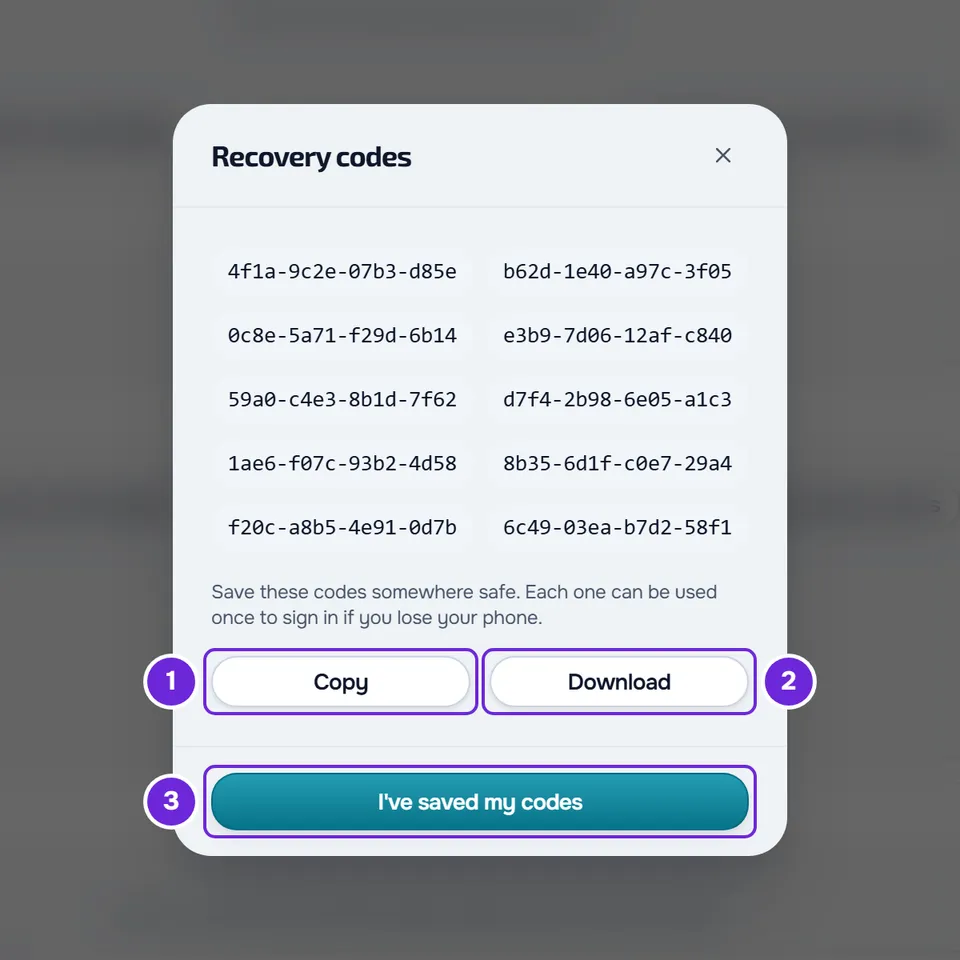
- Select I've saved my codes 3. Once the window closes, the codes are not shown again.
The row now shows Active (authenticator app). At your next sign-in, MyFitnessClient asks for the app code after your password.
By email
- In the Choose verification method window, select Email. If the account has a password, enter it and select Save.
- “Email 2FA enabled.” appears and the row now shows Active (email code). You receive the email “You turned on two-factor authentication” at the account's email.
- From then on, each sign-in sends a new code to your email. This method has no recovery codes.
In the app
- Open the menu with the button in the top-left corner and select your name at the bottom of the menu. In Settings, select the card with your name and email at the top to open Profile.
- In the Security & authentication group, select Two-factor authentication (2FA). The row shows Disabled or Enabled.
- If the account has a password, enter it first in Current password: the Enable buttons only become available after that.
- On the By email card or the Authenticator app card, select Enable.
- With the authenticator app on the same phone, select Open in authenticator app to add the account to it, or Copy key and paste the key into the app. If the authenticator app is on another device, scan the QR code with it. Then enter the code in 6-digit code from the app: it continues automatically after the sixth digit.
- In Recovery codes, select Copy or Share, then I've saved my codes.
Sign in with 2FA
After your email and password, or after Google or Apple, the Security Verification screen opens. The account only opens once you enter the right code.
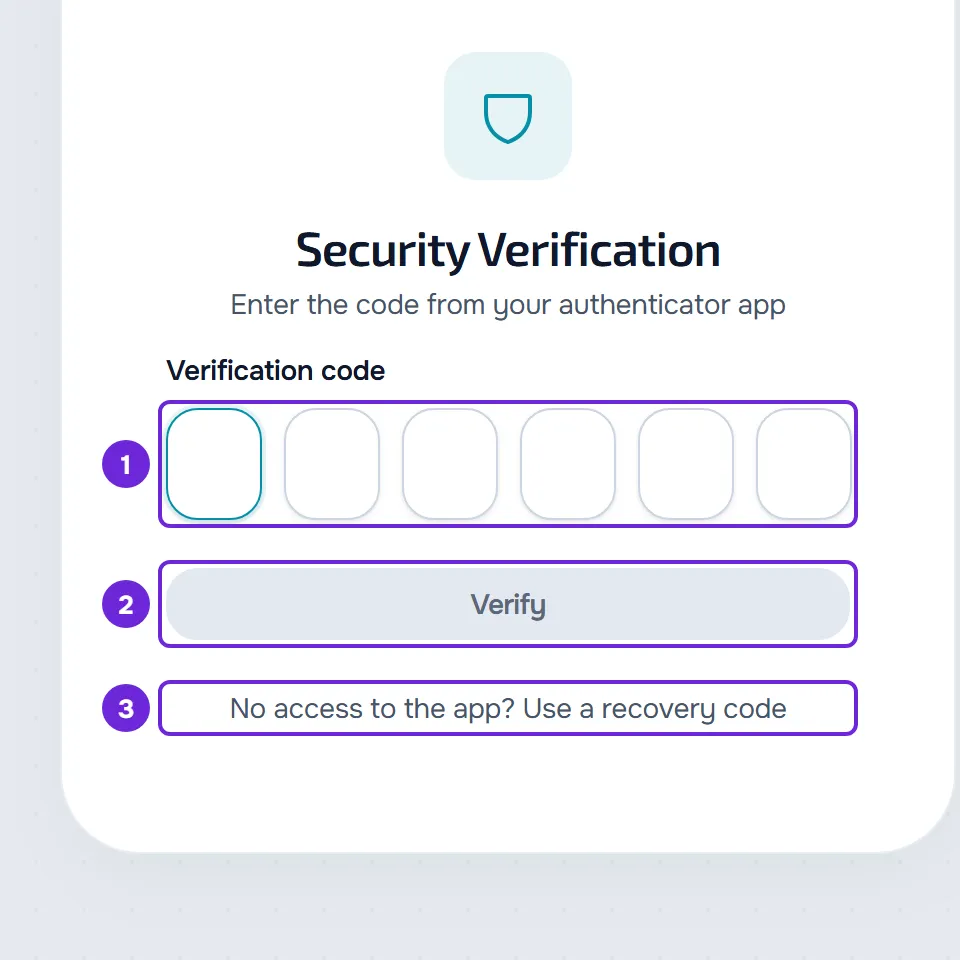
- By email: you receive the email “Your sign-in code”, with a 6-digit code valid for 10 minutes. Enter it in the six boxes: it continues automatically after the sixth digit, or select Verify.
- If the email didn't arrive, select Resend code, which becomes available 60 seconds after the last code was sent. The new code replaces the previous one.
- With the authenticator app: enter the code the app shows at that moment. The code changes every 30 seconds and there is no resend. You have 10 minutes, counted from the start of the sign-in, to enter it.
- Each sign-in accepts up to 5 wrong codes. After that, that sign-in no longer works and a new sign-in, with the password, Google or Apple, is blocked until the code's 10 minutes are up.
- In the app, the screen is called Security verification and works the same way. The code you entered is cleared if the app goes to the background. To cancel, select Back to sign in; on the web, Back.
I lost the app: use a recovery code
If you turned on 2FA with the authenticator app, you received 10 recovery codes, in the form xxxx-xxxx-xxxx-xxxx. Each code works only once, in place of the app code.
- On the Security Verification screen, select No access to the app? Use a recovery code. In the app, select Use a recovery code.
- In Recovery code, enter one of the codes, with or without hyphens, in upper or lower case, and select Verify.
- Recovery code used appears, with the number of codes you have left. Select Continue to sign in. In the app, the notice has the same name.
- On the web, when you use the last code, the notice asks you to generate a new list in Settings.
After you sign in, switch 2FA to email or generate new codes, as in the next section. Without the app and without recovery codes, you can't complete the sign-in: if your account is still open on another device, switch to email there or turn 2FA off; if not, write to [email protected] from the account's email. Writing from that email is not enough on its own: support also asks for details only the account owner knows, for example the amount and date of the last payment. Once support has confirmed that the request comes from you, they schedule 2FA to turn off 24 hours later, and you receive the email “Request to turn off two-factor authentication” right away, with the date and time. Until then, signing in still asks for the code. The first time you sign in after that, with your password, Google or Apple, 2FA turns off without asking for a code and you receive the email “We turned off two-factor authentication”. While you wait, don't enter codes when you sign in: a wrong code cancels the request, and so does signing in with a valid code, from the app, a recovery code or the code by email. Support can cancel it too. When the request is canceled by a wrong code or by support, you receive the email “The request to turn off two-factor authentication was canceled”. If it was a wrong code, whoever entered it signed in with your password or with your Google or Apple account: if it wasn't you, reset your password with the button in that email or, if you sign in only with Google or Apple, change that account's password. If you got the email “Request to turn off two-factor authentication” without asking for it, select “Cancel the request” in the email and then Cancel the request on the page that opens: the request is canceled without you signing in, even if your account is already open. Then change your password, if the account has one, and reply to the email.
Switch method, regenerate the codes or turn 2FA off
On the 2FA row, the buttons depend on the active method:
- Switch to authenticator app, with the email method: follow steps 5 to 9. Until you confirm the app code, email stays active.
- Switch to email, with the app method: enter your password, if the account has one, and select Save. The authenticator app and the recovery codes stop working, and you receive the email “You turned on two-factor authentication”.
- Regenerate recovery codes, with the app method: enter your password, if the account has one, and select Save. You receive 10 new codes and the old ones stop working.
- Disable: MyFitnessClient immediately sends a 6-digit code to the account's email, valid for 10 minutes. Enter it in Confirmation code and select Disable. The password alone does not turn 2FA off. If the email doesn't arrive, select Resend code after 60 seconds. At the end, you receive the email “You turned off two-factor authentication”.
To use the authenticator app on a new phone, first switch to email, then select Switch to authenticator app. In the app, the same buttons are on the Two-factor authentication (2FA) screen.
Common problems
“Invalid code. Check the app and try again.”
It appears when you turn on the authenticator app and the code entered isn't the one MyFitnessClient expects. The code changes every 30 seconds: enter the one the app shows at that moment. If your phone's time is wrong, turn on automatic time in the phone's settings. If you scanned the QR code from an earlier attempt, delete that account from the authenticator app and scan the QR code that is open now.
“Your verification session expired.”
On the web, the sign-in went past 10 minutes, you tried again after 5 wrong codes, or you started another sign-in in another tab or on another device. Sign in again. If it was after 5 wrong codes, signing in, with the password, Google or Apple, only works again once the code's 10 minutes are up. In the app, a sign-in past the time limit shows “Code expired. Request a new one.”, an attempt after 5 wrong codes shows “Too many attempts. Try again later.” and another sign-in started elsewhere shows “Invalid session.”: select Back to sign in and sign in again.
“Too many attempts. Try again later.”
It appears when you sign in, with the password, Google or Apple, after 5 wrong codes in the same sign-in: new sign-ins are blocked until the code's 10 minutes are up. In the app, it also appears on the code screen when you try again after the 5 wrong codes. Wait and sign in again. If you use the authenticator app, first check that your phone's time is right.
“This recovery code has already been used. Try another one.”
Each recovery code works only once. Enter another one from your list. In the app, the message is “This recovery code has already been used.”.
Questions
Which method should I choose?
Email doesn't need another app, but each sign-in depends on the email arriving and there are no recovery codes. The authenticator app works without email and gives you 10 recovery codes for when you don't have your phone.
Can I see the recovery codes again?
No. They only appear when you turn on the app or regenerate them. If you lost them and can still sign in, select Regenerate recovery codes to get a new list; the old one stops working.
If I change or reset my password, does 2FA turn off?
No. 2FA stays on and the next sign-in asks for the code. To change or reset your password, see Change or set your account password and Reset a forgotten password.