
This happens when you look for an exercise in the library and the list doesn't show it, or the list is empty and shows “Try switching to the 'My Exercises' tab.”, “No exercises found” or “You don't have custom exercises yet.” in place of the exercises. The library is in Workouts, on the Exercise Library tab, and has two lists: MyFitnessClient Library, with the MyFitnessClient exercises, and My Exercises, with the ones you created or copied (in a team, those of the whole team).
The search, the filters and the favorites star apply to the open list and stay active when you switch to the other one. In MyFitnessClient Library, the empty list says “Try switching to the 'My Exercises' tab.”. In My Exercises, it says “No exercises found” when there is a search, a filter or the star turned on, and “You don't have custom exercises yet.” when, without any of these, the list has no exercises. Either way, the cause is one of the following.
The list hides the exercise
The exercise exists, but the open list, a filter, the search or the page keeps you from seeing it. Check the causes in the order of the table.
| Cause | How to recognize it | What to do |
|---|---|---|
| It is in the other list. An exercise you created or copied only appears in My Exercises; a MyFitnessClient exercise only appears in MyFitnessClient Library. | The open list is the highlighted one, over the search box. | Select the other list. |
| Filters are active. They stay active when you switch lists, when you create or copy an exercise and when you reload the page. | The Filters button shows a number, which is how many filters are active. | Open the panel with the Filters button and select Clear. |
| The Show favorites only star is on. The list shows only the exercises you marked as favorites yourself: a teammate's favorites don't count, and an exercise you have just created is not a favorite yet. | The star button, between the search box and Filters, is filled. The Filters number doesn't count it and Clear doesn't turn it off. | Select the star to turn it off. |
| The filter uses a field the exercise doesn't have. Training Type, Difficulty and Movement Pattern are optional and are empty in a new exercise. Target Muscles only looks at the primary muscle, which in a new exercise is set to “Abdominals”. Equipment looks at all of the exercise's equipment, which in a new exercise is set to “Other”. | The exercise appears when you remove that filter. | Remove the filter. If the exercise is in My Exercises, edit it and fill in the field, so that it appears with that filter. |
| The search doesn't match the name. With a single character, the search doesn't filter the list. A word that isn't in the name can hide the exercise. With several words and no result, the search drops the last ones and shows approximate exercises, without telling you. A muscle name on its own, such as “shoulders”, shows the exercises that work that muscle, and not the ones with the word in their name. | The search box has text in it. | Type a single word from the name, with 2 or more characters, that isn't the name of a muscle. The start of the word is enough; capital letters, accents and the plural don't matter. |
| It is on another page. Without a search, each page is grouped by primary muscle, so the exercises of one muscle can be spread over several pages. | The total appears at the top of the list, for example “143 exercises”, and in the footer, in “Show 20 of 143”. | Type the name in the search box, which looks through all the pages of the open list, or go through the pages in the footer. |
The exercise isn't where you expect
| Cause | How to recognize it | What to do |
|---|---|---|
| You are looking for the copy of a MyFitnessClient exercise. The copy is kept in My Exercises with the original's translated name in the dashboard language, the same one you see on the original. With no translation in that language, it gets the original name followed by “(Cópia)”. | In My Exercises there is an exercise with the original's name. | In My Exercises, type the original's name in the search box. |
| The exercise wasn't saved. It is only saved when the notice “Exercise created” appears or, for a copy, “Exercise duplicated”. | The exercise window stayed open, usually with an error message. | Save again. If the error repeats, follow the link after this table. |
| You created or copied an exercise and it isn't on the page you see. After saving, the list shows My Exercises, and the new exercise can be on another page. | The notice “Exercise created” or “Exercise duplicated” appeared, but the exercise isn't in the list. | Type the exercise's name in the search box. |
| A teammate created, changed or deleted the exercise after you opened the list. The list doesn't update by itself. | Your teammate already sees the change and you don't. | Reload the page. |
| The exercise was created in another workspace. My Exercises shows only the exercises of the workspace you are in. A team member has a personal workspace and the team's workspace, each with its own exercises. | The switcher at the top of the side menu shows the workspace you are in. It only appears for people with more than one workspace. | In the switcher, choose the workspace where the exercise was created. |
| The exercise was deleted. In a team, the owner and the members with the Workouts > Edit permission can delete exercises from My Exercises. Deletion is permanent. | With no search, no filters and the star off, the exercise isn't in My Exercises. | Create it again with New, or copy the MyFitnessClient exercise again. |
| The exercise belongs to another account. You don't see the exercises another professional created in their workspace, nor the ones a client created in their own account. | The exercise was never created or copied in this workspace. | Create the exercise with New. |
If the exercise isn't saved, see Can't save an exercise.
Look for the exercise step by step
To check the most frequent causes in one go:
- In the side menu, select Workouts.
- Select the Exercise Library tab.
- Select the list where the exercise should be: My Exercises 1, if you created or copied it, or MyFitnessClient Library, if it is from MyFitnessClient.
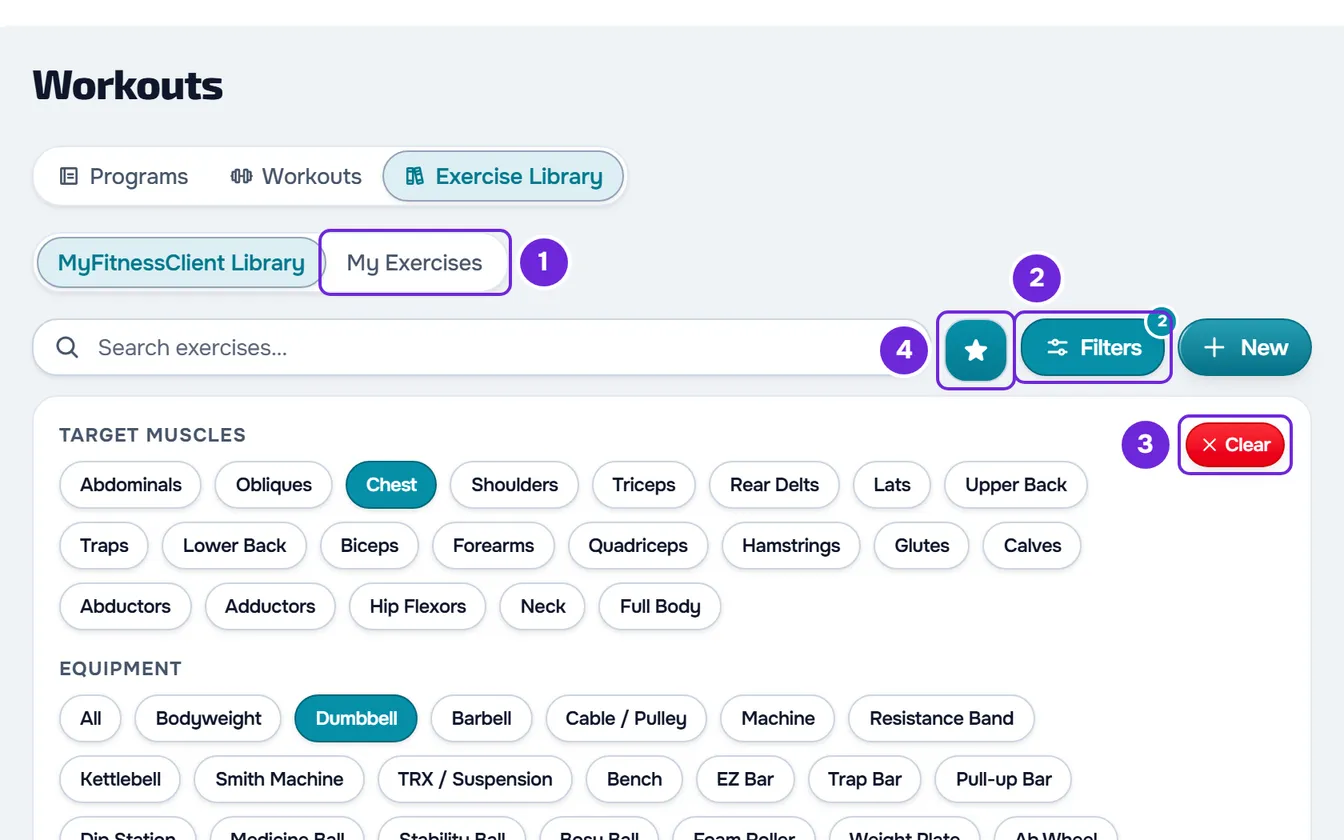
- If the Filters 2 button shows a number, open the panel with that button and select Clear 3.
- If the Show favorites only 4 star is filled, select it to turn it off.
- In the search box, type a single word from the exercise's name, with 2 or more characters.
- If the list has more than one page, go through the pages in the footer.
When the exercise appears, the word you typed is highlighted in its name. If it doesn't appear, select the other list: the search is kept.
On a screen less than 640 px wide, such as a phone's, the tab is called Exercises, the lists are called Library and Mine, the Filters button shows only the icon and the Target Muscles filter is called Muscle.
The library doesn't open or doesn't load
- If Workouts doesn't appear in the side menu of a team's workspace, or the page shows “No permission to access”, you are missing the Workouts > View permission. See “No permission to access” and menu items missing for a member.
- If a card with the Try again button appears between the two lists and the search box, the list didn't load: select the button. Along with the card, the empty-list message also appears, even if the library has exercises. See “We could not load this information” and other error cards.
- If the list doesn't change when you change a filter or the page, the request may have failed: in that case, the list keeps the exercises from before. Reload the page.
If this did not solve it
Contact support and include:
- the name of the exercise;
- the list where you are looking for it and, in a team, the workspace you are in;
- what you typed in the search box, the active filters and whether the star was on;
- the day and the approximate time when you created or copied the exercise;
- the exact message, if one appeared, and the Reference code of the error card, if the card shows it.