
Before you start
- The library has two lists. The MyFitnessClient Library holds the compounds that MyFitnessClient maintains, the same for every professional: you can view them, mark them as favorites and copy them, but not edit or delete them. My supplements holds the branded entries that you and your team create, as explained in Create and edit your own supplements, with a photo and a purchase link.
- In a team workspace, you need the Supplements permission with View to open the library and mark favorites, and with Create to copy a compound. Without View, Supplements does not appear in the side menu: see “No permission to access” and menu items missing for a member.
Steps
To find a supplement in the library and copy it to your own:
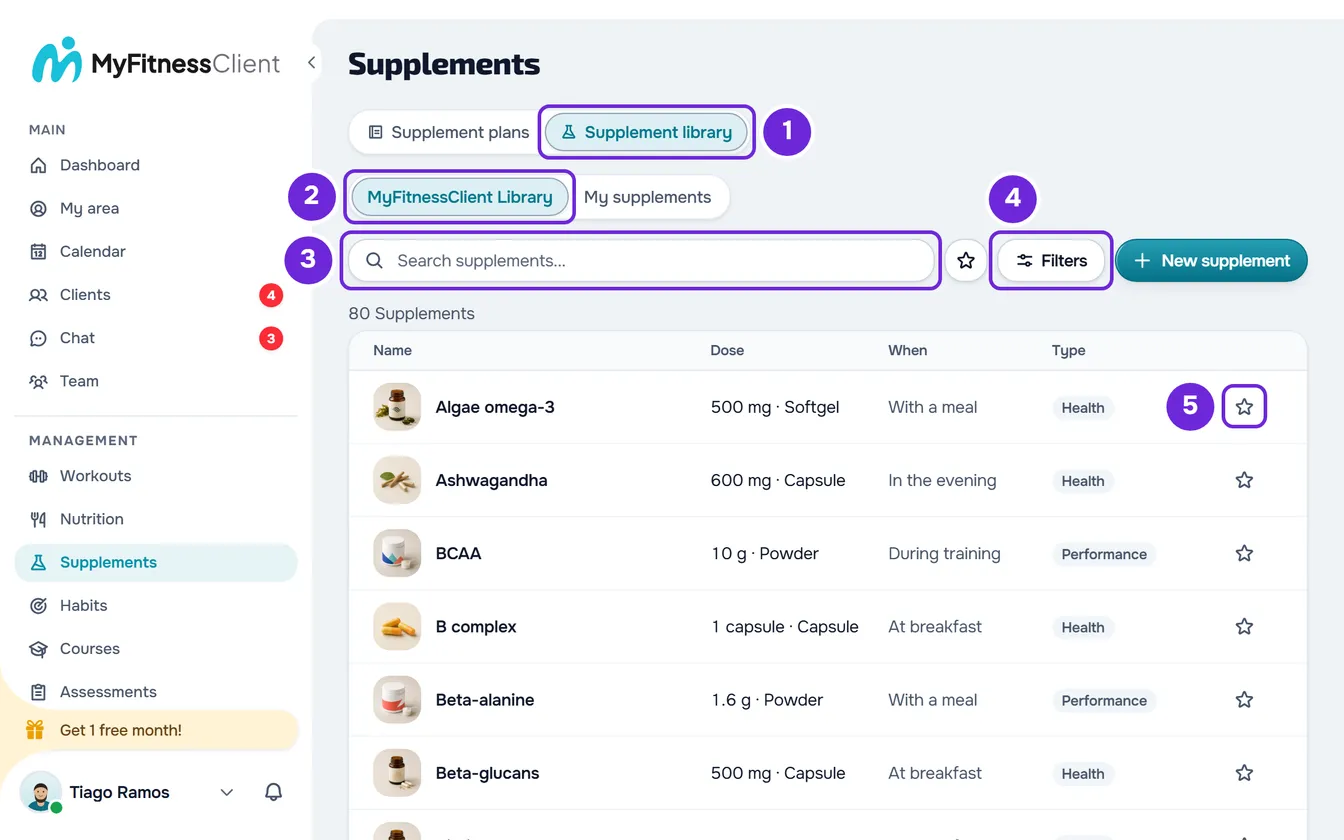
- In the side menu, in the Management group, select Supplements.
- Select the Supplement library 1 tab (on a screen less than 640 px wide, Library).
- Choose the list to search in: MyFitnessClient Library 2, where the library opens, or My supplements (on a narrow screen, Mine).
- In the Search supplements... 3 box, type the supplement's name, the brand or the English name. The list updates 0.3 seconds after you stop typing.
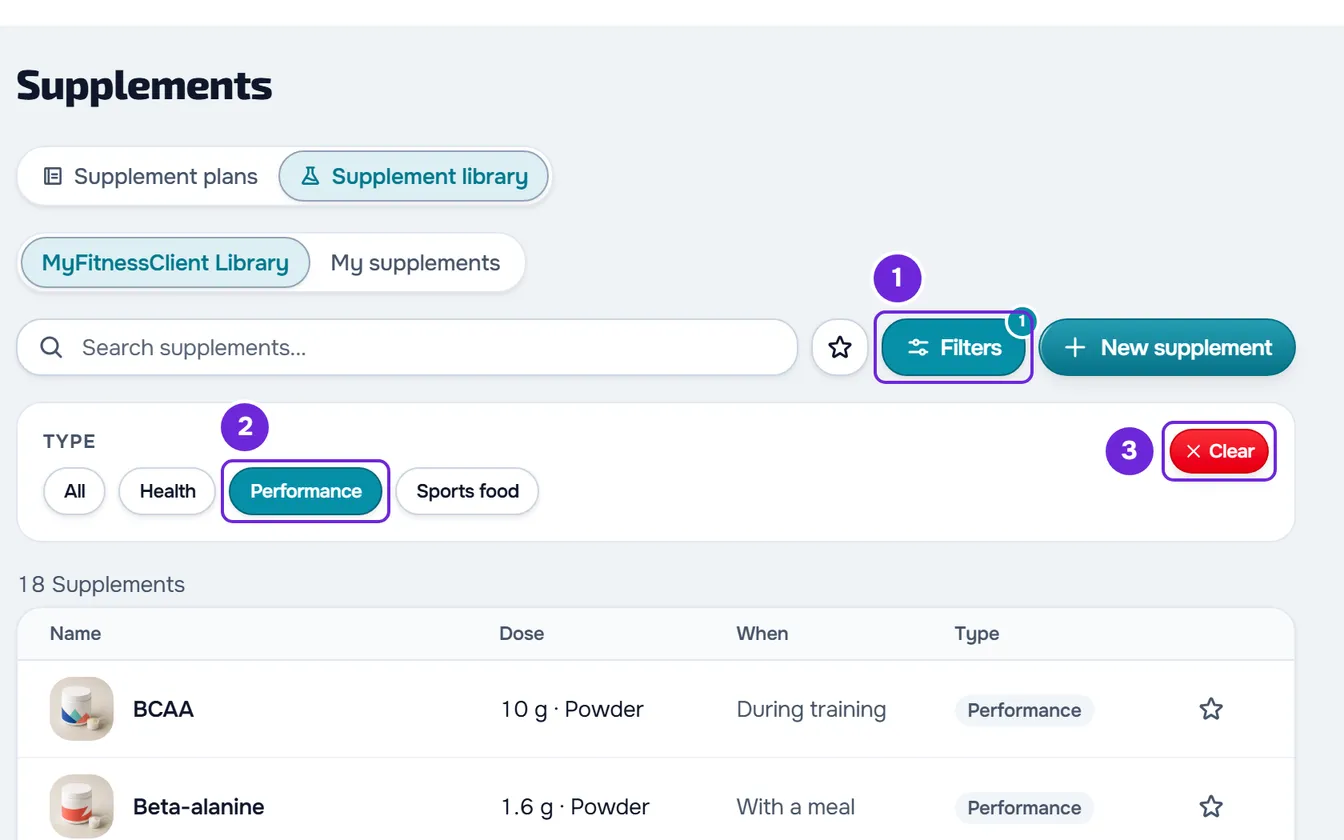
- Optional: to see only one type, select Filters 1 (on a narrow screen, just the icon) and, under Type, choose Health, Performance 2 or Sports food. To see them all again, choose All or select Clear 3.
- Optional: to mark a supplement as a favorite, select the star on its row 5. The star fills in amber; selecting it again removes the supplement from your favorites.
- Optional: to see only your favorites, select Show favorites only, the star button between the search and Filters. The button's star stays filled while the filter is on.
- Select the supplement's row. Its details sheet opens, with what the library has on the supplement.
- To get a copy you can edit, in the footer of the details sheet of a MyFitnessClient Library compound, select Copy to My Library 1. The sheet closes, “Changes saved!” appears and the page switches to My supplements.
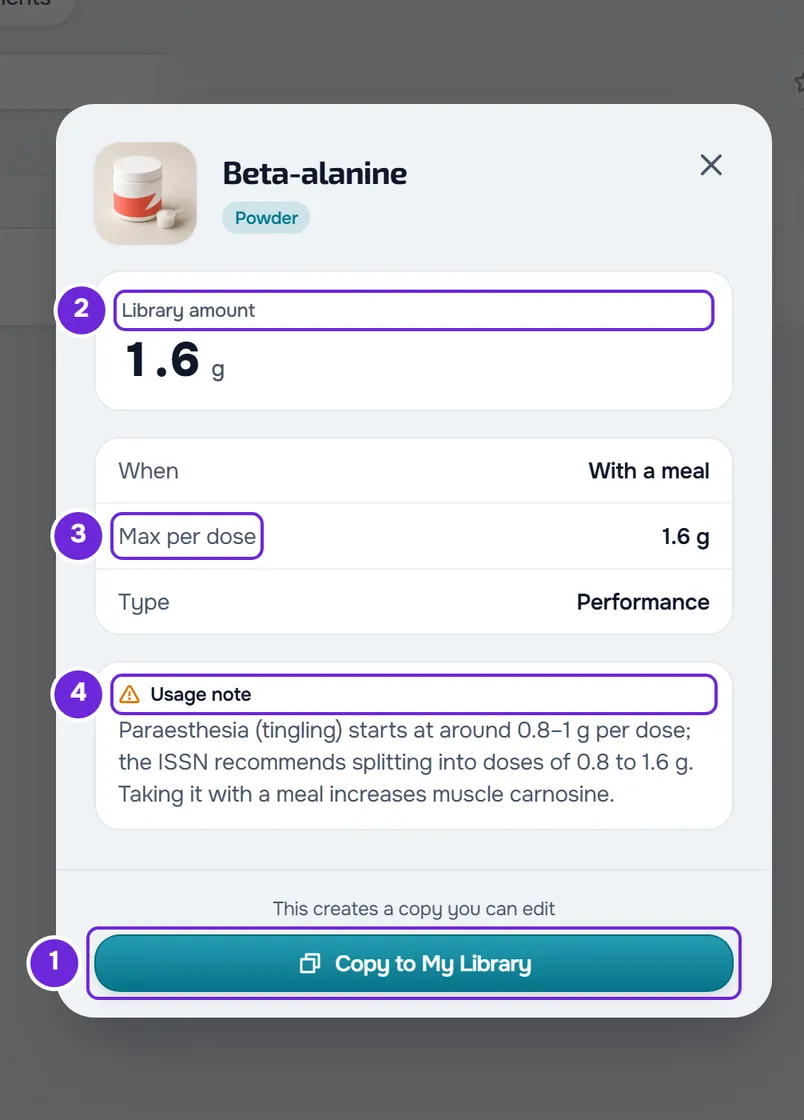
The copy appears in My supplements, with the same name. It is your own entry: you can edit it and add it to plans like any of your supplements. To add it to a plan, see Add and arrange supplements in a supplement plan.
What the MyFitnessClient Library includes
The MyFitnessClient Library has 80 generic, unbranded compounds: 50 Health, 18 Performance and 12 Sports food. Each compound comes with:
- its name in the language you use MyFitnessClient in, a photo and the form, for example Powder or Capsule;
- the usual amount and time of day, which the supplement starts with when it is added to a plan. In the plan, you change both, as explained in Set a supplement's amount, frequency and doses;
- the type and, in 24 compounds, a usage note. Only Beta-alanine has a maximum per dose.
MyFitnessClient compounds have no brand, purchase link or anti-doping note, and cannot be edited or deleted. To change one, copy it to My supplements and edit the copy.
How to read the details sheet
The sheet shows the photo, the name and the form and, on one of your entries, the brand. Under that, only what the entry has appears:
- Library amount: the usual amount, with its unit. An amount per kg of body weight shows “/kg”, like the “3 mg/kg” of Caffeine, and an amount per hour of exercise shows “/h”.
- When: the usual time of day, for example “Before training”.
- Max per dose: the maximum amount given for one dose. It is for information only: MyFitnessClient does not compare it with the amounts in your plans.
- Type: Health, Performance or Sports food.
- Usage note and Anti-doping note: on MyFitnessClient compounds, the note is a general sentence from the catalog, the same for everyone; on your entries, both are the entry's text: what you wrote or, on a copy, the note the compound came with.
- View product: opens the purchase link in another tab and shows the store's domain and “Link from your professional” next to it. It only appears on an entry with a purchase link.
In the footer, a MyFitnessClient compound has Copy to My Library, with the sentence “This creates a copy you can edit”. One of your entries has Edit and Delete, as explained in Create and edit your own supplements, with a photo and a purchase link. In a team workspace, each button only appears with the permission it needs: Create to copy, Edit to edit and delete.
How search works
- Search only looks in the list you have open, across all its pages and not just the one you see.
- Every word you type has to appear, in any order, in the name you see, in the brand or, for MyFitnessClient compounds, in the English name: “creatine” finds “Creatine monohydrate”.
- Accents, capital letters and hyphens do not count: “beta alanine” finds “Beta-alanine” and “omega 3” finds “Omega-3 (EPA and DHA)”.
- With 4 or more letters, a word also finds similar words that start with the same letter, in the name you see or in the English name, but not in the brand. That way it catches small typos like “creatinna”.
- Search reads at most 100 characters and 8 words; the rest is left out.
- What you typed is highlighted in the name, when it is in it.
- With no search, the list follows the alphabetical order of the name, ignoring accents. With a search, your favorites come first, then the supplements closest to what you typed.
- The list shows 20 supplements per page, with the total at the top, for example “80 Supplements”. Changing the list, the search, the type or the favorites filter takes you back to page 1.
- The page address only keeps the Supplement library tab. When you reload the page, the library goes back to MyFitnessClient Library, with no search or filters. If you switch to Supplement plans and come back without reloading, everything stays as it was.
Favorites
- Favorites are yours: each person on the team has their own, and marking a supplement changes nothing for the others or for clients.
- The star is the same on this page, in the library panel of a plan's page and in the Add supplement window: a supplement marked in one place is marked in the others. In the panel and the window, when you are not searching, favorites appear in a Favorites section at the top of the list. This page has no such section: use Show favorites only or the search, which puts favorites first.
- Show favorites only shows only the favorites of the open list: a favorite from My supplements does not appear in the MyFitnessClient Library, and vice versa.
- You can have up to 200 favorite supplements. Exercise and food favorites count separately.
- If you delete one of your supplements, it no longer appears in your favorites, but still counts towards the limit of 200. To free up the slot, remove its star before you delete it.
- When the account has more active clients than its plan allows, the star does not save: it goes back to how it was and “You have more active clients than your plan allows. Choose which to keep or upgrade your plan.” appears. See You have more active clients than your plan allows.
The compounds in the MyFitnessClient Library
The 80 compounds, by type and in alphabetical order. The usual amount and time of each one are on its details sheet.
Health (50)
Algae omega-3, Ashwagandha, B complex, Beta-glucans, Biotin, Calcium, Chlorella, Chondroitin, Chromium, Coenzyme Q10, Collagen, Copper, Curcumin, Digestive enzymes, Eggshell membrane, Folate (folic acid), Fruit polyphenols, Garlic extract, Ginger extract, Glucosamine, Inositol, Iodine, Iron bisglycinate, Krill oil, L-carnitine, Lutein, Magnesium bisglycinate, Melatonin, Milk thistle, MSM, Multivitamin, N-acetylcysteine (NAC), Omega-3 (EPA and DHA), Potassium, Prebiotics, Probiotics, Psyllium, Quinine, Resveratrol, Rhodiola rosea, Selenium, Spirulina, Vitamin B12, Vitamin B6, Vitamin C, Vitamin D3, Vitamin E, Vitamin K2, Zinc and ZMA.
Performance (18)
BCAA, Beta-alanine, Caffeine, Citrulline malate, Creatine HCl, Creatine monohydrate, Essential amino acids (EAA), Glutamine, Glycerol, HMB, Ketone esters, L-arginine, L-tyrosine, Menthol, Nitrate (beetroot), Pickle juice, Sodium bicarbonate and Taurine.
Sports food (12)
Casein protein, Cyclic dextrin, Electrolyte supplement, Energy bar, Energy gel, Maltodextrin, Mixed macronutrient shake, Plant protein, Protein bar, Sports drink, Weight gainer and Whey protein.
Common problems
“You have reached the limit of 200 favorites”
It appears when you already have 200 favorite supplements and mark one more, and the star goes back to empty: in the library, in the panel of a plan's page and in the Add supplement window. To mark another one, turn on Show favorites only in each of the two lists and remove the star from the supplements you no longer use. The limit also counts favorites that do not appear in these lists: supplements created in another team workspace you belong to and those that have already been deleted.
“Unable to load supplements.”
The list did not load, because of a connection or server failure. The search and the filters stay on the screen. Select Try again.
“No results found”
No supplement in the open list matches the search, the type and the favorites filter. Check:
- the list: search looks in the MyFitnessClient Library or in My supplements, never in both at once;
- the filters: a number on the Filters button means a type is chosen, and a filled Show favorites only button means you only see favorites. An entry with no type does not appear when a type is chosen;
- the words: a word with fewer than 4 letters has to appear with no typos in the name, the brand or the English name. Try the brand or the English name.
Copy to My Library does not appear
The button only exists on the details sheet of a MyFitnessClient Library compound; one of your entries has Edit and Delete. In a team workspace, without the Supplements permission with Create, the sheet does not have the button: ask whoever manages the team for it. If the button is there but the copy is not kept and “You have more active clients than your plan allows. Choose which to keep or upgrade your plan.” appears, see You have more active clients than your plan allows.
If that did not solve it, contact support with the supplement's name, the list you were searching in and the message that appeared.
Questions
Does the client see the supplement library?
No. The client only sees the supplements in a supplement plan you assigned to them.
Can I edit or delete a MyFitnessClient compound?
No. Copy it with Copy to My Library and edit the copy, in My supplements.
Does the copy follow changes to the original compound?
No. The copy is a new entry, with no link to the original: if MyFitnessClient changes the compound, the copy stays as it was. Copying the same compound twice creates two entries.
Does the copy take everything the compound has?
It takes the name, in the language you are using, the photo, the form, the amount, the time, the maximum per dose, the type and the usage note, already translated.
Does my team see my favorites?
No. Favorites belong to each person. The entries in My supplements belong to the team: anyone with the permission sees the same ones.