
Before you start
- The client must have a catalog plan or a custom plan. Without a plan, the action is Give plan: see Give a client a recurring plan or a pack.
- On a custom plan, Change plan edits the plan without replacing it. Only the workspace owner sees this action.
- On a catalog plan, Change plan opens the Give a plan window so you can give another one. The owner can do it, or a member with the Mark paid and assign plans permission; on a monthly fee that still renews, only the owner sees the action, because only they can cancel it.
- With more active clients than your plan allows, MyFitnessClient refuses to change plans until you fix it: see You have more active clients than your plan allows.
Interactive tutorial
Opens in the app and needs you to be signed in.
Steps
On a catalog plan, Change plan opens the Give a plan window: follow the “Swap a catalog plan for another” section in this article. To change a custom plan:
- In the side menu, under Management, select Payments.
- Select the Clients tab.
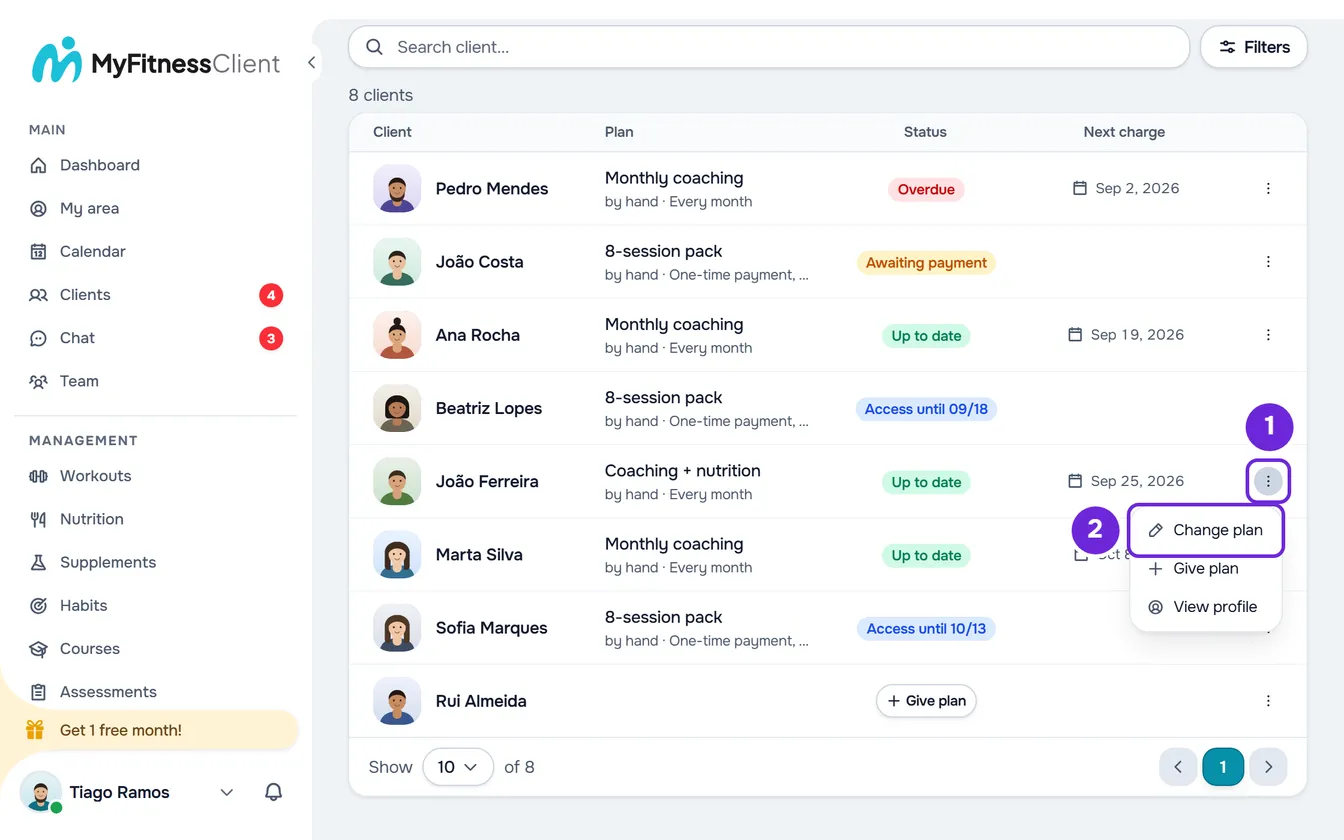
- On the client's row, select ⋮ 1, or right-click the row, and choose Change plan 2. The Change plan window opens, with the client's name and the plan's name.
- Optional: change the Price 1. On a pack, or on an automatic subscription you turned into a plan, the field is locked and a note says why.
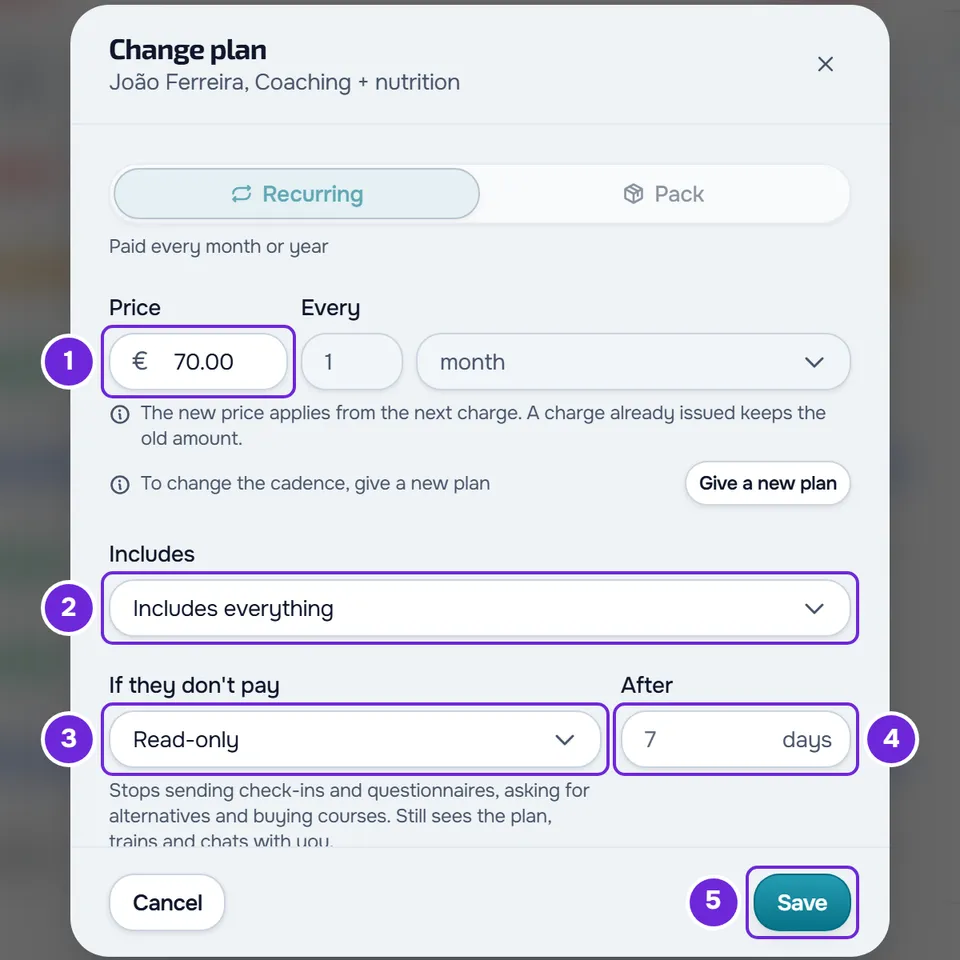
- Optional: under Includes 2, open the list and check or uncheck the sections the client has access to. The first row, Everything, checks or unchecks them all.
- Optional: under If they don't pay 3, choose Stays the same, Read-only or No access.
- Optional: with Read-only or No access, under After 4, type how many grace days you give after the due date, from 0 to 90, or leave the field empty to use the default value it shows.
- Select Save 5.
- If a confirmation opens, read it and select Save to continue or Cancel to go back to the window.
The window closes with the “Plan saved” message and the client's row shows the plan with the changes. If you changed nothing, Save only closes the window.
The same Change plan button is on the plan card: in the client's profile, on the Payments tab, and in the window that opens when you select the client's row. On a custom plan, the card and the ⋮ menu also have Give plan, so you can give the client a new plan.
What you can change on a custom plan
The Change plan window shows the plan's fields, but not all of them can be edited:
| Field | What happens |
|---|---|
| Recurring or Pack, Every and Access | Locked, with the note “To change the cadence, give a new plan” and the Give a new plan button, which closes this window and opens Give a plan. |
| Price of a monthly fee | Changes. The new price applies from the next charge, and a charge already issued keeps the old amount. |
| Price of a pack | Locked: “A pack's price can't change once it has been given. For a different price, give a new plan.” |
| Price of an automatic subscription you turned into a plan with Make it the plan | Locked: “The price comes from the client's existing automatic payment.” |
| Includes | Changes the sections the client sees on the website and in the app. The change reaches them within 2 minutes. |
| If they don't pay and After | Change right away and act on the client's access at once. After only appears with Read-only or No access; with 0, the rule takes effect on the day after the due date. |
The window does not show How it's paid: the plan stays By hand or Automatic, as it was given.
The confirmations
Some changes ask for confirmation before saving. If two appear, they come one after the other.
- “Switch to ‘No access’?” appears when you change If they don't pay to No access.
- “Shorten the grace period?” appears when the plan is already on No access and you lower the days in After, also when you leave the field empty and the default value is lower.
- Both warn that, if the client has a payment overdue past the grace period, they lose access now, and that changing it back later does not give their access back.
- “Confirm large price increase” appears when the new price is more than triple the current price, and asks whether you confirm.
What changes for the client
- Price: the client gets the “Price change” notification in the app and an email with the new price and the day from which they pay it, or “from your next charge” when that day has already passed.
- Includes: almost all the sections you removed disappear from the client's website and app. What they see is in “Not in your plan”: a section of the app has disappeared.
- If they don't pay: with No access, a client with a payment overdue for more days than the grace period loses access. On a plan still awaiting payment that moves to No access, the client has the days in After to pay, counting from today, or from the first day of access if it has not started yet.
- Switching back to Stays the same or Read-only does not give access back to someone who already lost it. What each rule does is in Choose what happens when a client does not pay.
Swap a catalog plan for another
On a catalog plan, Change plan, in the ⋮ menu of the client's row or on the plan card, opens the Give a plan window, with your plans under Recurring and Packs (paid once) and, for the owner, Only for this client > Custom. Choose the new plan and the Payment and select Give plan, as in Give a client a recurring plan or a pack. What happens to the current plan depends on that plan:
- A monthly fee that still renews, or a plan still awaiting payment: the new plan is not given right away. The window shows the warning “This client already has an active recurring plan.” or “This client already has a plan awaiting payment.”, with the Cancel the current plan and give this one button. Select it and, in “Cancel the current plan?”, select Cancel and give this one. The monthly fee stops renewing and the client keeps access until the end of the paid period; on a plan awaiting payment, the payment request is canceled. The new plan takes the place of the current one.
- A team member only sees Cancel the current plan and give this one when the current plan is awaiting payment.
- A running pack, a monthly fee that no longer renews or a plan that has already ended: nothing is canceled and the new plan is given. Before you select Give plan, the What will happen panel shows when the client gets access and when the first charge is.
Common problems
The Change plan action does not appear
- The client has no plan: the action is Give plan.
- The client pays through a Monthly fee by hand or an Automatic subscription outside a plan. These are neither catalog nor custom plans and have no Change plan: the card says where you manage them. See Switch a monthly fee charged by hand to automatic payment.
- You are a team member: on a custom plan you only see Give plan, and on a monthly fee that still renews you do not see the action. Without the Mark paid and assign plans permission, you see neither. Ask the owner to change the plan or to give you the permission.
“This client already has a plan awaiting payment, under “Next” on their plan. Mark it as paid or cancel it before giving another one.”
It appears when you give the new plan while another plan awaiting payment is waiting behind the current one. On the plan card, on the “Next” line, select Mark as paid or Cancel, and change the plan again. See Mark a charge as paid.
“Grace must be a whole number from 0 to 90”
The After field only accepts whole numbers from 0 to 90. Correct the number, or leave the field empty to use the default value.
If that did not solve it, contact support with the client's name, the plan's name and a screenshot of the window: see Contact Support and create a request.
Questions
Can I change the cadence of a custom plan?
No. In the Change plan window, select Give a new plan and choose Custom with the new cadence. If the current plan still renews or is awaiting payment, the window offers Cancel the current plan and give this one.
Can I change the price of a catalog plan for just one client?
No. A catalog plan's price changes in Payments > Plans, only for new clients or also for those who already have it: see Change a plan's price for new or all clients. For a price of their own, give them a Custom plan.
How do I move a plan paid by hand to automatic payment?
With online payments connected, swap it for a catalog monthly fee with Request payment, or give a Custom plan with How it's paid set to Automatic, only with a monthly or yearly cadence. The What will happen panel shows the first charge: see Delayed first charge of an automatic plan.
Does the client pay the difference for the period in which I changed the price?
No. The new price only applies from the next charge, and a charge already issued keeps the old amount.