
This happens in the workspace of a team where you are a member. Most pages belong to a permission area, such as Clients, Workouts or Nutrition. Without the View permission for that area, the item does not appear in the menu and, if you open the page from a link or a saved address, the dashboard shows an amber padlock with “No permission to access”, the sentence “You don't have permission to view {area} in this workspace.” and the request “Ask {owner} to grant you access in Team > Edit permissions.” (without the owner's name, “Ask the team owner to grant you access in Team > Edit permissions.”). The Back button takes you to the previous page or to the Dashboard.
In your personal workspace, team permissions do not apply: this screen only appears in another professional's workspace. {area} is the area's name, for example “habits”.
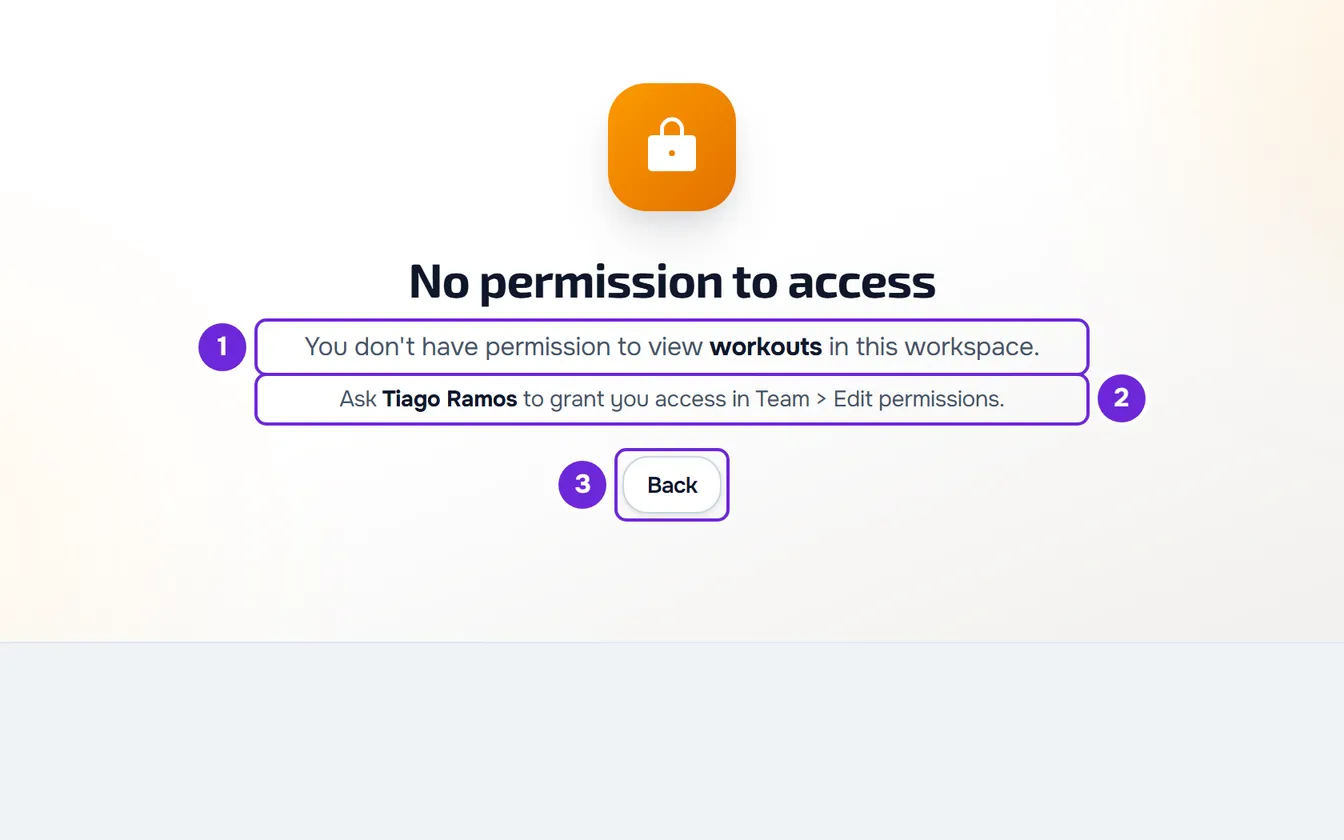
Causes and solutions
| Cause | How to recognize it | What to do |
|---|---|---|
| The owner has not given you View in that area. | In Team, in the “My permissions” section, the area says “No access”. | Ask the owner to give you View in that area (see “How the owner gives access”). |
| The owner changed your permissions after you opened the dashboard. | You received the “Permissions updated” notice, or “My permissions” already shows the area and the menu does not yet. | Reload the page in your browser. The menu and the pages read the permissions when the dashboard loads. |
| You are in another team's workspace. | The workspace switcher at the top of the side menu shows the name of another team. | Choose the right team in the switcher. |
| The page belongs to Courses. | In a team's workspace there is no Courses item and the page says “Available in your personal workspace”. | You manage courses in your personal workspace: select Switch to personal workspace. No permission shows them in a team. |
| A connection failure, not a permissions problem. | The page says “We couldn't confirm your access” and “This is usually a temporary connection problem. It is not a permissions issue.” | Select Try again. The dashboard also retries by itself when the connection returns. |
| You no longer have access to the team. | The “Workspace access revoked” notice appears (or, at the moment the team becomes inactive, “This workspace is inactive because its paid plan ended.”) and the Dashboard opens. | You were removed, or the team was dissolved or became inactive. Talk to the owner. |
If the team became inactive, see what to do when the team is inactive.
You see the page, but an action is refused
View only lets you see. Creating, editing, assigning or sending needs that area's action in the permissions editor. Many buttons are hidden when you do not have the action; the ones that remain are refused by the server with the notice “You don't have permission to do this in this team.” The notice does not say which permission is missing: compare what you did with the area in “My permissions”.
The server checks the permissions on every request. So, after the owner removes one of your permissions, the item may stay in the menu until you reload the page, but what you do there is already refused with the same notice.
If the refusal says “Only the account owner can do this.”, the action belongs to the team owner only and no permission unlocks it: ask the owner to do it.
See your permissions
In the team's workspace, open Team. The “My permissions” section lists the 14 areas, each with the actions you have or “No access”. The list is read when you open the page, so it shows the current state even before the menu changes. The “Your access” field, in the summary at the top, shows your level (for example, Assistant) or how many permissions you have.
Menu items for a member
- Always: Dashboard, My area, Calendar and Team.
- Only with View in the area: Clients (Clients area), Chat and, under Management, Workouts, Nutrition, Supplements, Habits, Assessments, Questionnaires, Progress (Assessments area), Materials and Payments.
- Never: Courses.
- The Programs, Health questionnaires, Tasks and Activity areas have no menu item of their own.
- On a phone, in the bar at the bottom of the screen, Dashboard and Calendar always appear; Clients, Workouts and Chat follow the menu rule.
- While the workspace loads, the menu shows every item and only then hides the ones you cannot open.
- The menu never hides an item because of the plan.
What each item opens is in Dashboard side menu: what each item opens.
Which permission each page needs
Without the action shown, these pages display “No permission to access”. The areas and the actions use the names from the permissions editor. On a page that needs Create or Edit, the sentence names that action: “You don't have permission to create {area} in this workspace.” or “You don't have permission to edit {area} in this workspace.”.
| Area | Pages that need View | Pages that need another action |
|---|---|---|
| Clients | Clients, a client's profile, a client's workout, nutrition and supplement histories, and the full activity that opens from the Dashboard | None |
| Health questionnaires | A client's health questionnaire and filling in the health questionnaire | None |
| Workouts | Workouts and Exercises | Creating a workout needs Create; editing a workout needs Edit |
| Programs | The list of programs and each program | Creating or editing a workout inside a program needs Edit |
| Nutrition | Nutrition, a new meal plan and each plan | None |
| Supplements | Supplements and each plan | Creating a plan needs Create |
| Habits | Habits | None |
| Assessments | Assessments, each assessment, a client's assessments, Progress and check-ins | A new assessment needs Create; editing an assessment or a check-in needs Edit |
| Questionnaires | Questionnaires, creating or opening a questionnaire and the responses | None |
| Chat | Chat and each conversation | None |
| Payments | Payments | None |
| Materials | Materials | None |
Dashboard, My area, Calendar, Team and Notifications do not show this screen.
In a client's profile
With View in Clients you can open the profile. The Nutrition, Supplements, Habits, Assessments, Questionnaires, Progress and Payments tabs also need View for their own area (Progress uses the Assessments one): without it, the tab shows “You do not have access to this area” instead of the content.
How the owner gives access
Tell the owner which page you wanted to open and which area it belongs to. To give a member access, the owner does this in their personal workspace:
- In the side menu, select Team.
- On the member's card, select ⋮ (or right-click the card) and choose Edit permissions.
- Open Customize by area.
- In the area's row, select View and the other actions the member needs. To give every action in the area, turn on that row's switch.
- Select Save.
If the member's permissions changed, they receive the “Permissions updated” notice in the bell. After reloading the page, the item appears in the menu and the page opens.
If this did not solve it
Reload the page and confirm in “My permissions” that the area has View. If it continues, contact support (see Contact Support and create a request) with the name of the team owner, the address of the page and the exact sentence on the screen.