
This article is for when a MyFitnessClient email does not reach the person it was meant for: the invitation you send to a client, or a notification email, such as the one about unread messages, a client's coaching request or a payment reminder. The screen does not always warn you when the email is not sent. Check the causes in this order:
- the address has no mailbox, such as the example addresses and the Test Student's;
- the address has a typo;
- the email went to spam or to another folder;
- for a notification, the person who should receive it has Email turned off in Settings;
- the address is blocked.
“The email could not be sent. You can share the link.”
This appears on the invitation screen after you invite a client by email, in New Client > Invite client, or on the profile of a client without an account, with Invite to the app. The invitation is created: only the email was not sent. For an invitation made in New Client, the message can go on with “When they accept with that email, they connect right away.” The same situation gives two other messages:
- when you create a client in Create client with Invite to the app turned on, the notice “Client created and invitation prepared, but the email was not sent. You can resend it from the Invitations tab, in Clients.”;
- when you resend an invitation on the Invitations tab, the notice “Email could not be sent. Link copied to clipboard.”, with the link already copied.
The email is not sent for one of these reasons:
| Cause | What to do |
|---|---|
| The address has no mailbox, for example [email protected]. The rules are in the section “Addresses that never receive emails”. | Create a new invitation with the person's real address, or an invitation by Link, which is not tied to an address. This invitation's link does not help: it only accepts that address. |
| The address is blocked in MyFitnessClient. You cannot see this on your screen. | The person asks support to unblock the address. In the meantime, create an invitation by Link or with another address of theirs. |
| The email service failed at that moment. | Later, on the Invitations tab, select Resend in the invitation row's menu. You can also send the link through another channel. |
For a client without an account, the profile only accepts one invitation at a time: cancel the old one with Cancel invitation before you create the new one, as explained in An invitation is already waiting for a response.
Send the invitation link through another channel
An email invitation's link only works for the invited address: the person signs in with that email or creates the account with it. When creating the account, they confirm the email with a code sent to that address. So this route does not work for an address without a mailbox and can fail for a blocked address: in those cases, create an invitation by Link.
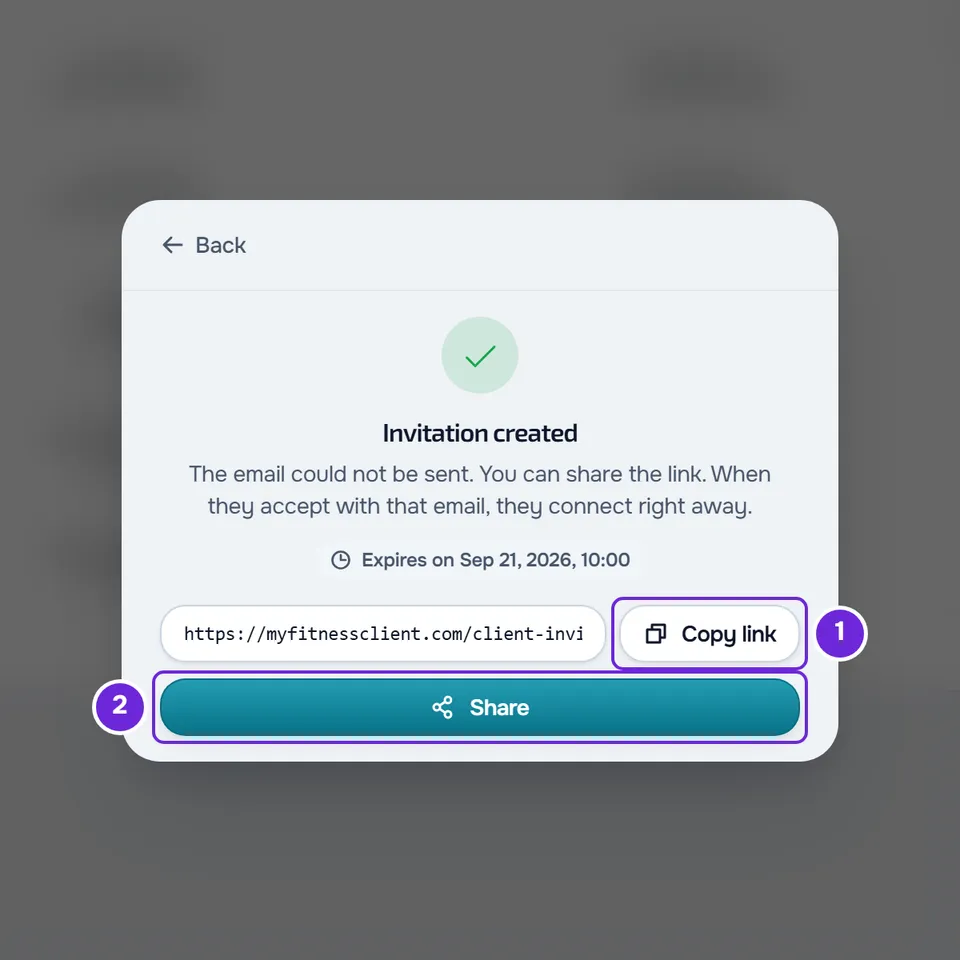
If the invitation screen is still open, select Copy link, or Share, which opens the device's share sheet when the browser has one and otherwise copies the link. If you already closed the screen:
- In the side menu, select Clients.
- Open the Invitations tab.
- On the invitation row, open the ⋮ menu, or right-click the row, and select View link.
- Select Copy.
- Send the link to the person through another channel, such as WhatsApp or an SMS.
The person opens the link and follows the invitation with the invited address, as explained in Open your professional's invitation and create your account.
Addresses that never receive emails
MyFitnessClient does not send emails to addresses reserved for examples and tests, because they have no mailbox. The email is discarded before it is sent. This applies to all emails: invitations, notifications, reminders, codes and password recovery. Uppercase and lowercase count as the same.
| Rule | Examples that do not receive | Examples that receive |
|---|---|---|
| The address ends in .invalid, .test, .example, .localhost or .local | [email protected], [email protected] | [email protected], [email protected] |
| The address ends in @example.com, @example.net or @example.org | [email protected], [email protected] | [email protected], [email protected] |
| The address starts with aluno.teste before the @, on any domain | [email protected], [email protected] | [email protected], [email protected] |
That is why these never receive emails:
- The Test Student, who has an aluno.teste address. See Example data and the Test Student: what a new account includes.
- A client you created in Create client who has not accepted an invitation yet. Without an account, MyFitnessClient keeps an internal address for them that ends in .invalid, so they do not receive reminders or notifications by email. The email you type when you create them only receives the invitation, when you invite them to the app.
- An address made up to try things out, such as [email protected]. To see the email the client receives, invite a real address of yours other than the one on your professional account.
With these addresses, the client invitation warns you on screen, but some cases do not. The team invitation shows “Invitation sent”, because the email is sent in the background: see The team invitation does not arrive or shows an error. Someone who creates an account with one of these addresses moves on to the code screen, but the code never arrives: see Not receiving the email verification code.
The screen says the email was sent, but it did not arrive
“The invitation was sent by email.” means the email left MyFitnessClient, also when you open the invitation again. If it did not arrive, or if a notification is missing at a real address, check these causes, in order:
| Cause | How to confirm | What to do |
|---|---|---|
| The address has a typo, for example [email protected]. | On the Invitations tab, the invitation row shows the email. | Create a new invitation with the right address and cancel the old one with Cancel, in the row's menu, because whoever receives the email at the wrong address can accept it. For a client without an account, first cancel the old one with Cancel invitation. |
| The email went to spam, to promotions or to another folder. | The person who should receive it searches all folders. In an invitation in English, the subject is the professional's name followed by “sent you an invitation”. | Move the email to the inbox. |
| For a notification, Email is turned off for the person who should receive it. | In Settings > Notifications, the Email switch is off. For a professional, its description says “Reminders, messages, activity and plan notices. Security notices always arrive.” | Turn on Email. The type of notification, for example new messages, must also be on, on the same page. Invitations and security emails do not depend on these switches. |
| The unread messages email has not been sent yet. | It is only sent when the oldest unread message is 24 hours old. It gathers all conversations in one email, and at most one is sent per day. | If the messages are read before the 24 hours are up, the email is not sent. Push notifications for messages do not wait for these 24 hours. |
| The address is blocked. The MyFitnessClient team can block an address, for example after bounced emails or a spam complaint. | For a professional, in Settings > Notifications, the MyFitnessClient tips, offers and news switch cannot be changed and shows “Emails to this address are blocked. Contact support to unblock them, then turn this back on here.” On a client account, no screen shows it. | Ask support to unblock the address. While it is blocked, no invitation, reminder or activity notification is sent to it. Security and billing emails, such as password recovery, are only held back when the block is due to bounced emails. |
What keeps working
- The invitation link works the same without the email, for whoever uses the invited address: send it through another channel.
- If the person already has a client account with that email, the invitation also reaches them as a notification in their account, even without the email.
- Bell notifications and push notifications do not go through email: an email that is not sent does not hold them back.
Questions
I turned off the tips and news emails. Will I stop receiving invitations and notifications?
No. Turning off MyFitnessClient tips, offers and news, or unsubscribing through the link in one of those emails, only stops those emails. Invitations, notifications and reminders are still sent.
If this did not solve it
If you are a professional, contact support, as explained in Contact Support and create a request. If you are a client, talk to your professional or write to [email protected]. Send:
- the address the email should have gone to, exactly as it was typed;
- which email it was: the invitation, a notification or a reminder;
- the day and approximate time it was sent;
- the message that appeared on screen, if any.
Do not send your password or the full invitation link.