
Before you start
- You need access to the inbox of your account's email address: that's where we send the link.
- It works for professionals and clients. It also works for an account created with Google or Apple that doesn't have a password yet: in that case, the steps set the first one.
Steps
To reset your password on the website:
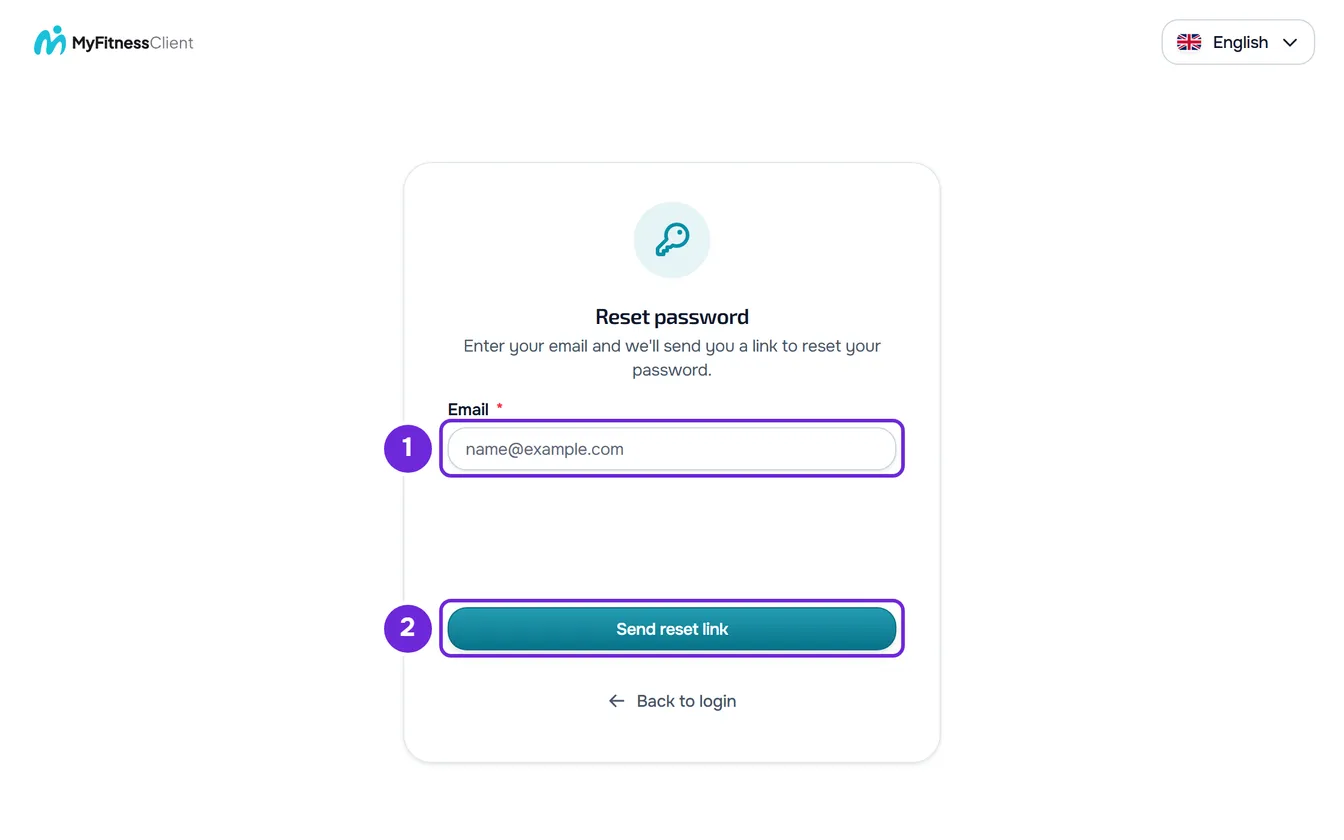
- On the sign-in page, select Forgot password?
- In Email 1, enter your account's email.
- Wait for the security check to finish. Until then, the send button stays disabled.
- Select Send reset link 2. Email sent! appears.
- In your inbox, open the email “Reset your password” and select Reset password. The page for choosing your new password opens in the browser.
- In New Password 1, enter the new password, 8 to 72 characters long and different from the current one. With more than 72, “At most 72 characters.” appears and the password is not saved.
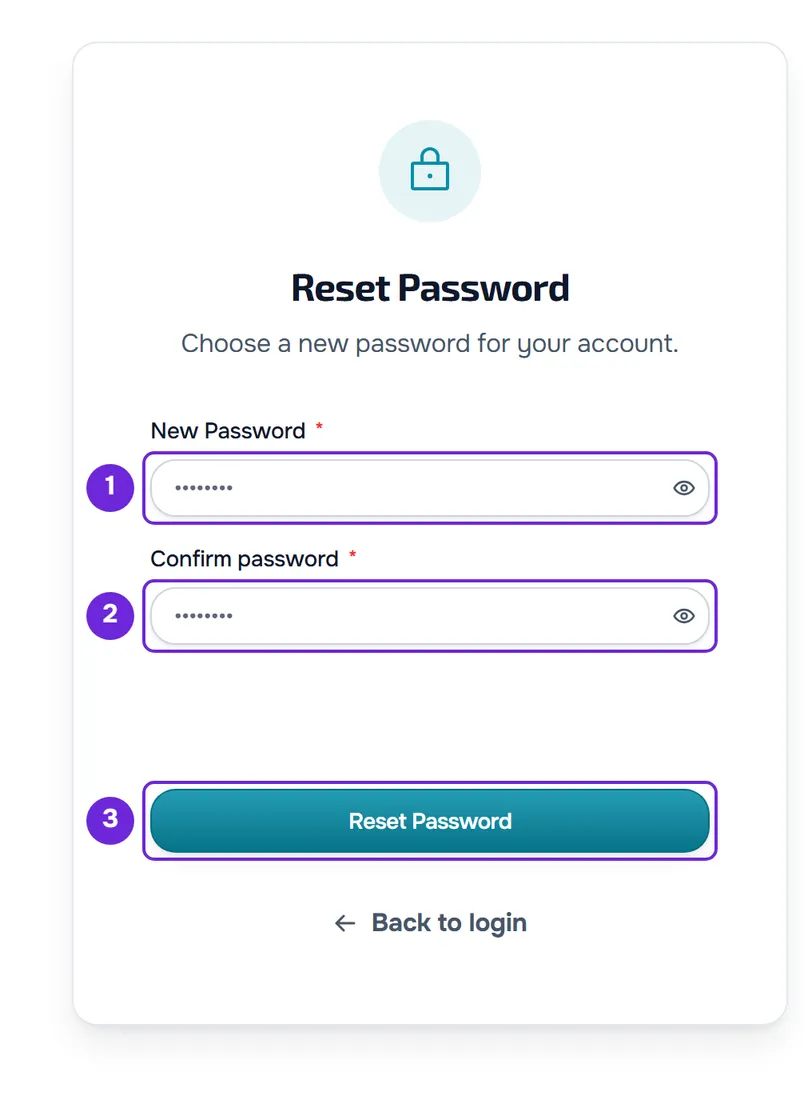
- In Confirm password 2, enter it again.
- Wait for the security check to finish and select Reset Password 3. Password reset! appears.
- Select Continue to Login and sign in with your email and the new password.
The new password works on the website and in the app, and the old one stops working.
In the app
- On the Sign in screen, select Forgot your password?
- In Email, enter the account's email and select Send link. Email sent appears.
- The button in the email opens the website page in the browser, not the app. Set the new password there, as in the website steps, and then sign in to the app with it.
- If the app shows “The security check did not work on this device. You can reset your password on the website.”, select Reset on the website and make the request in the browser.
What changes when you reset
- The old password stops working.
- All of the account's sessions end, in every browser and app, and those devices stop receiving push notifications. Sign in again on each one with the new password. See Why was I signed out of my account?
- Two-factor authentication (2FA), if it was on, stays on. A sign-in that was halfway through the second 2FA step is no longer valid: start again.
- You get the email “Your password was changed”, with the date of the change. If it wasn't you, the Reset password button in that email takes you to request a new link.
Expiry and limits
- The link is valid for 1 hour and works only once.
- Each new request replaces the previous one: only the link in the most recent email works.
- You can request up to 3 links per minute for the same email. After that, on the website, “Too many requests. Wait a moment.” appears and the button shows the seconds left.
- The new password page accepts up to 5 attempts per minute from the same network.
Common problems
“Email sent!” appears, but the email doesn't arrive
The page shows the same screen whether or not there is an account with that email, so it also appears when the email is misspelled. Check your spam and promotions folders and make sure you entered your account's email. If your professional added you, ask them which email they used. Then make a new request.
“Invalid or expired link.”
The link is more than 1 hour old or was cut off when it was copied. Request a new link from Forgot password? and open it within 1 hour. If the page shows “Invalid or expired recovery link.” with the fields disabled, you opened it without the link from the email: use the button in the email.
“This link has already been used.”
You already reset your password with this link, or you requested another link after it. Open the most recent email. If you already reset it, sign in with the new password.
The send button stays disabled
The security check hasn't finished yet or it failed. When it fails, an error message appears with the Try again button: select it. On the page where you request the link, you may also see “The security check could not load, which is why the button stays disabled. Disable ad blockers on this page, try another browser, or switch network.” If it keeps failing, follow that advice. If the button shows a padlock and seconds, wait for the countdown to end. The other messages are in I can't sign up, sign in or reset my password.
Questions
Why does “Email sent!” appear for an email that has no account?
It's on purpose: the response is the same whether there is an account or not, so nobody can find out which emails have a MyFitnessClient account.
Do I lose two-factor authentication (2FA) when I reset?
No. It stays on and, when you sign in, it asks for the code as before. See Turn on two-factor authentication (2FA).
I always sign in with Google or Apple. Can I use these steps?
Yes. If the account doesn't have a password yet, the steps set the first one and you can also sign in with email and password. Signing in with Google or Apple keeps working. While signed in, you can also set it in Settings: see Change or set your account password.