
Before you start
- Only the workspace owner connects Stripe. In a team workspace, members don't see the Settings tab in Payments, whatever permission they have.
- The country where you work decides which country Stripe opens your account in, the suggested currency and the payment methods. Confirm it before you start: see Choose the country and currency you charge in.
- If you have never chosen the currency and have no prices or charges yet, the workspace starts charging in the Stripe account's currency when you connect it.
Steps
To connect Stripe:
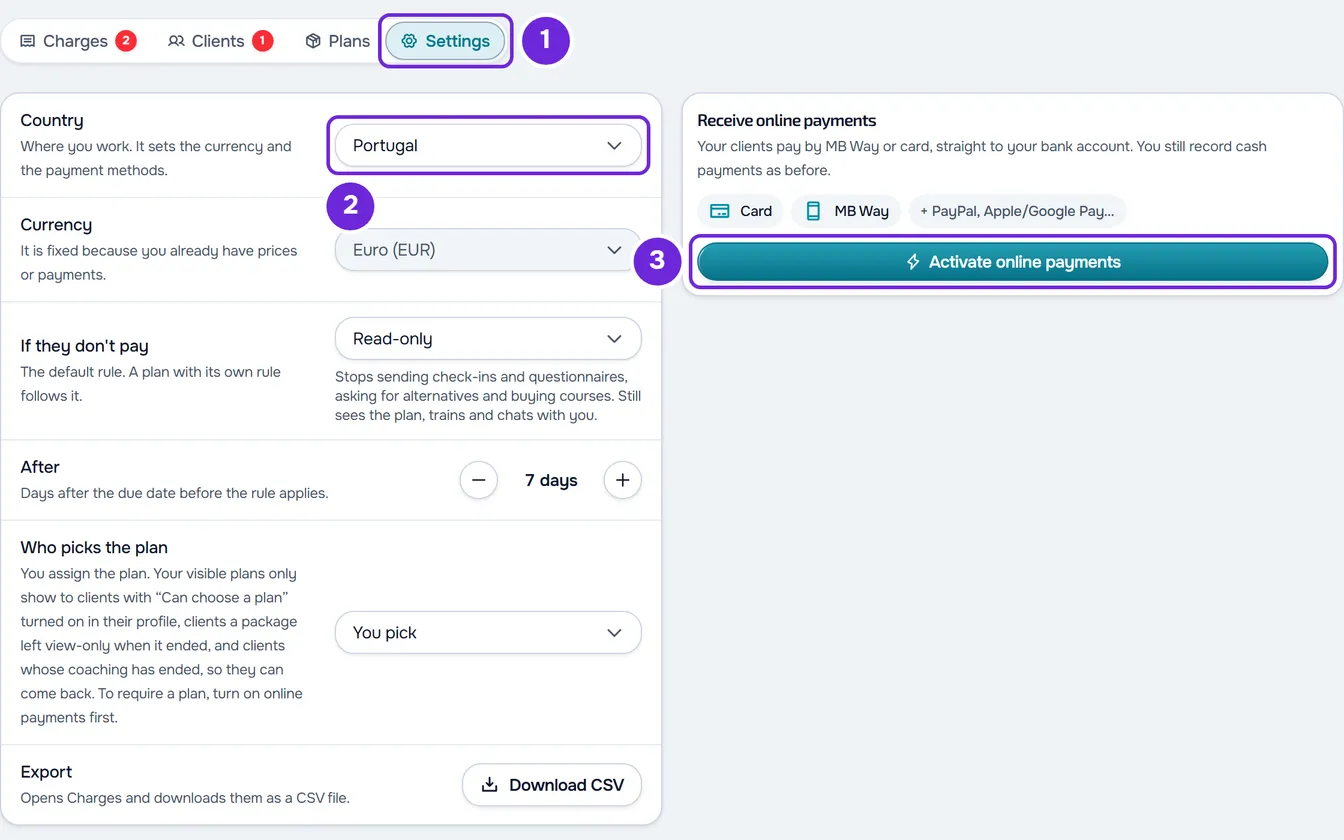
- In the side menu, in the Management section, select Payments.
- Select the Settings 1 tab.
- In the Country 2 row, confirm the country where you work and, if it isn't right, change it before you continue. Stripe opens the account in that country.
- On the Receive online payments card, select Activate online payments 3. The Stripe page opens in the same browser tab.
- On the Stripe page, fill in the details it asks for and finish. At the end, Stripe brings you back to Payments, already on the Settings tab, and the card reads the account's new status.
- If the card shows Action needed or Verification pending, select Continue on Stripe and complete what Stripe asks for. Repeat until the card shows Active.
With Active, the card shows the account's country and the currency you get paid in, and it starts showing the balance and the Open Stripe dashboard button: see Check your Stripe balance and payouts. Your clients can then pay open charges online with Pay now, and a manual monthly fee can switch to automatic payment: see Switch a monthly fee charged by hand to automatic payment.
On a narrow screen, such as a phone's
The settings appear as a list, one row per setting, and each row opens a panel. The country is in the Country and currency row. Until you start connecting Stripe, the Receive online payments card, with the Activate online payments button, sits right after the list. Once you start, the card leaves the page: the Online payments row shows the account status and opens the card in a panel, with the same buttons. With Action needed, an amber banner with “Finish setting up your account” also appears after the list.
What each card status means
The Receive online payments card shows where your Stripe account stands:
| The card shows | What it means | What you do |
|---|---|---|
| The Activate online payments button | You haven't started connecting Stripe yet. | Follow the steps in this article. |
| Finish setting up your account, with the Action needed badge | Stripe needs more details, or it disabled the account and asks you to take action. | Select Continue on Stripe and complete what Stripe asks for. |
| Under review, with a pulsing bar | You have already submitted your details and Stripe is verifying them. The card says it usually takes a few minutes. | Wait: there is no button in this status. When the account can already charge and get paid, MyFitnessClient sends you the “Online payments restored” notification. Open the page again later to see the new status. |
| Verification pending | The account already accepts payments, but Stripe has not yet released payouts to your bank. Until then, clients cannot subscribe or pay online. | Select Continue on Stripe and finish the verification. |
| Active | The account charges and can pay the money out to your bank. | Nothing. The card shows the balance and the methods clients can use. |
Common problems
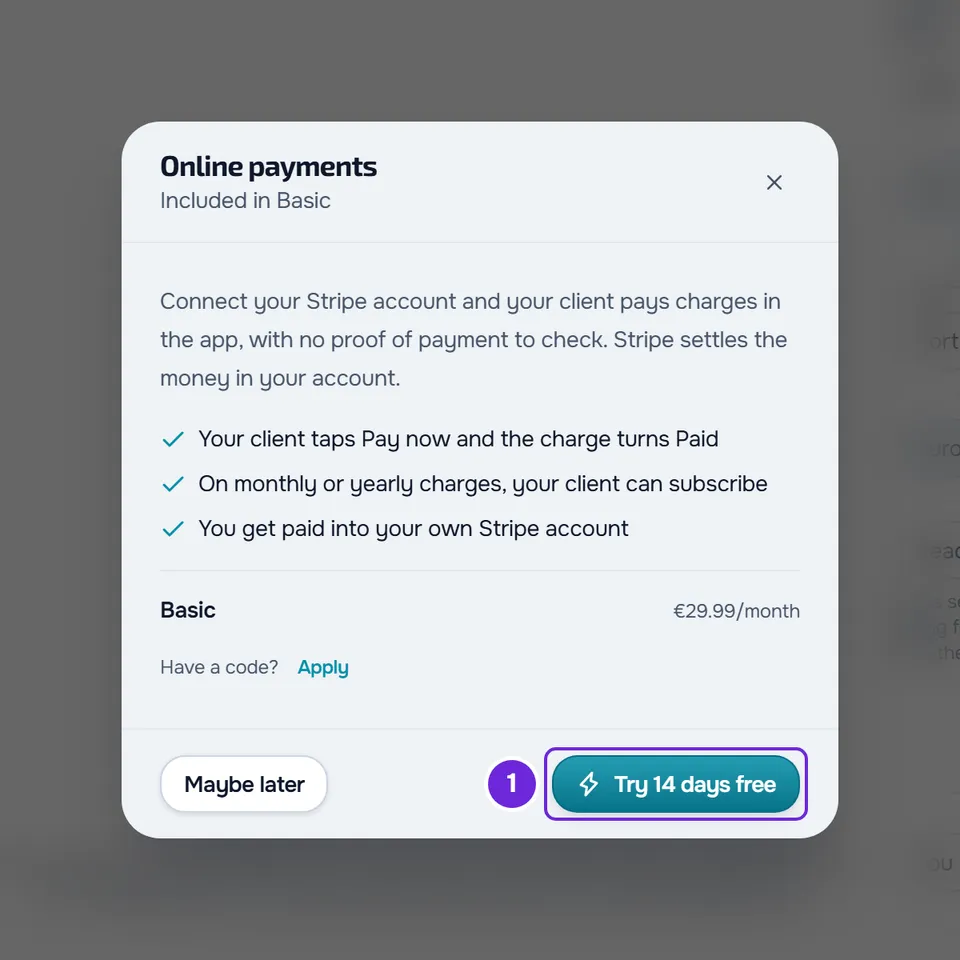
Instead of Stripe, a window to change your plan opens
This happens when your MyFitnessClient account's plan doesn't include online payments. The window explains what they do and shows the cheapest plan that includes them, with the button to switch to it. If your plan hadn't loaded yet or failed to load, the card shows the message “Online payments aren't included in your plan. Upgrade to turn them on.” instead. To fix it, change your plan as explained in Upgrade your plan and pay for your subscription, and select Activate online payments again.
“We couldn't start.”
This message, followed by a request to try again, appears on the card when the request fails after you select Activate online payments, Continue on Stripe or Open Stripe dashboard. It may be a temporary failure or the limit of 10 requests per minute, which also counts each time the page reads the balance and the methods. Wait a minute and try again.
I got the “Online payments restricted” or “Stripe account disconnected” notification
MyFitnessClient sends you these notifications when Stripe changes your account's status. “Online payments restricted” means Stripe restricted payments or payouts: the card shows what is missing, as in the status table. “Stripe account disconnected” means the connection between your Stripe account and MyFitnessClient was removed on Stripe's side: online payments stop and, if Who picks the plan was set to They must pick to come in, the setting switches by itself to They can pick.
In both cases, follow what the card shows: with Action needed or Verification pending, select Continue on Stripe and complete what Stripe asks for. After a disconnected account, this button opens a new Stripe account. When the account can charge and get paid again, the card shows Active.
Clients don't see Pay now
The Pay now button only appears to the client when the card shows Active and your MyFitnessClient account's plan includes online payments. The charge has to be unpaid or overdue, in a currency and for an amount that Stripe accepts. For the client's side, see Fix payment problems: Pay now, confirmation and plan.
If that didn't solve it, contact support with the message you see, the card status and the time you tried: see Contact Support and create a request.
Questions
Does the money go through MyFitnessClient?
No. The Stripe account is yours: you accept Stripe's agreement and clients pay directly into that account, without MyFitnessClient receiving or holding the money. Stripe's fees are deducted from your account: see Fees on client online payments.
In which countries can I open the Stripe account?
In 45 countries, which you find in the Country row with the “Search country” search. The country decides the suggested currency and the payment methods.
Can I change the country after connecting Stripe?
Yes, while the account is not yet charging or getting paid: change the Country row and, if the card shows Action needed, select Continue on Stripe. Stripe opens a new account in that country and you go through the steps again. When the account starts charging or getting paid, the Country row becomes fixed and says “It is fixed because online payments are already active.” See Choose the country and currency you charge in.
Do I still record cash and bank transfer payments?
Yes. Connecting Stripe doesn't change the payments you record by hand: see Mark a charge as paid.
Which payment methods can clients use?
Card, which includes Apple Pay, Google Pay and Link, is always on. You turn MB Way, Multibanco, PayPal, Klarna and Revolut Pay on or off, and MB Way and Multibanco only exist for accounts in Portugal. See Choose your clients' online payment methods.