
You see this in Chat, in the Scheduled messages window, on the Paused tab: the schedule's row has a red box with the reason for the pause, or, when you select Resume, the notice “This schedule has no remaining sends.” appears and the row stays as it was.
Before you start
- In a team, Resume, Edit and Cancel sending require the Chat > Send messages permission. If you don't have it, see “No permission to access” and menu items missing for a member.
- The workspace owner sees the whole team's schedules; each member sees only the ones they created.
What happens at send time
At the scheduled time, the platform does this, in this order:
- It checks the workspace plan: Chat included, the account not frozen and, for an audio message, audio messages included. If anything fails, the schedule pauses and the send does not count.
- It counts the send. From this point on, the send counts even if it reaches no client.
- It picks the recipients at that moment, only among active clients. With All clients, this also includes clients who became active after you created the schedule. In a schedule created by the workspace owner, a client who blocked the conversation with them does not receive it. In a schedule created by a team member, only the clients that member can see receive it, and only while they have Chat > Send messages.
- It sends each client a regular message, in the private conversation with whoever created the schedule, with the usual notification.
- If delivery to a client fails, it tries up to 5 times, waiting 1, 5, 15 and 60 minutes in between.
If the platform is down at the scheduled time, the overdue sends go out as one. While a schedule is paused, nothing goes out. When you resume, the next date is the first one after that moment: what should have gone out during the pause is not sent. The pause does not use up sends from After or push back the date of On date. The exception is a Once schedule that has not gone out yet: if its time has already passed, it goes out right after you resume.
Why it paused on its own
The reason is in the row's red box. Each message means the following:
| Red box text | Cause | What to do |
|---|---|---|
| “The account is frozen: it has more active clients than the plan allows.” | The account is frozen: you have more active clients than the plan allows. | Choose which clients stay active, or upgrade your plan. Then select Resume. |
| “The plan no longer includes audio messages.” | It is an audio message and the plan no longer includes audio messages. | Go back to a plan with audio messages and select Resume. Otherwise, the schedule pauses again at the next send. |
| “The plan no longer includes Chat.” | The workspace plan no longer includes Chat. | When the plan includes Chat again, select Resume. |
| “Whoever scheduled this message can no longer send messages in this team.” | Whoever created the schedule is a team member and no longer has Chat > Send messages, left the team, or the team became inactive. This send has already counted. | The owner gives the permission back to the member and selects Resume. If the member left the team, or if the schedule is Once, the owner creates a new schedule. |
| “Some sends failed.” or “The file for this scheduled message is no longer available.” | Delivery failed. For a message with a file, the most likely reason is that the file no longer exists, for example because it was deleted in Materials. This send has already counted. | For a series, open Edit, under Content type select Attachment (or Audio, for an audio message) and upload the file again. Select Save changes and then Resume. For a Once schedule, create a new one. |
| “The last send failed.” | The reason was saved before the red box started showing reasons in your language. | Select Resume. If the schedule pauses again, the red box shows the reason. |
| No red box | Someone paused the schedule with Pause. It also happens when the plan changes while a send is in progress; in that case, the send has already counted. | Select Resume. |
While the account is frozen, Pause, Resume, Cancel sending and Save changes show “You have more active clients than your plan allows. Choose which to keep or upgrade your plan.” See You have more active clients than your plan allows. To change plans, see Upgrade your plan and pay for your subscription; for an inactive team, see what to do when the team is inactive. Resume and saving an edit clear the red box.
“This schedule has no remaining sends.”
It appears when you select Resume and the schedule no longer has any send date after now. Nothing changes: the row stays in Paused, with the Resume button, and nothing is sent. Only the Schedule resumed notice means the schedule went back to Active. It happens in three cases:
- The series ends On date and that date passed during the pause, or no day of the repetition falls between now and that date anymore.
- The series ends After a number of sends and the last one had already counted when it was paused.
- The schedule is Once and its send had already counted when it was paused. The message may not have reached anyone: open the row's arrow to see how many clients received it.
The cases where the send counts before the pause are in the table, marked “This send has already counted”. The list does not show when the series ends: open Edit and look at Ends. The number of sends that have already counted appears as “N send(s) made” when you hover over the row's arrow, and in the right-click menu.
How to fix it
Extend a series that has ended
If the row has a red box, fix the cause first (table in “Why it paused on its own”). Then, to continue the series:
- In the side menu, select Chat.
- In the header of the conversation list, select the Scheduled messages icon.
- Open the Paused 1 tab.
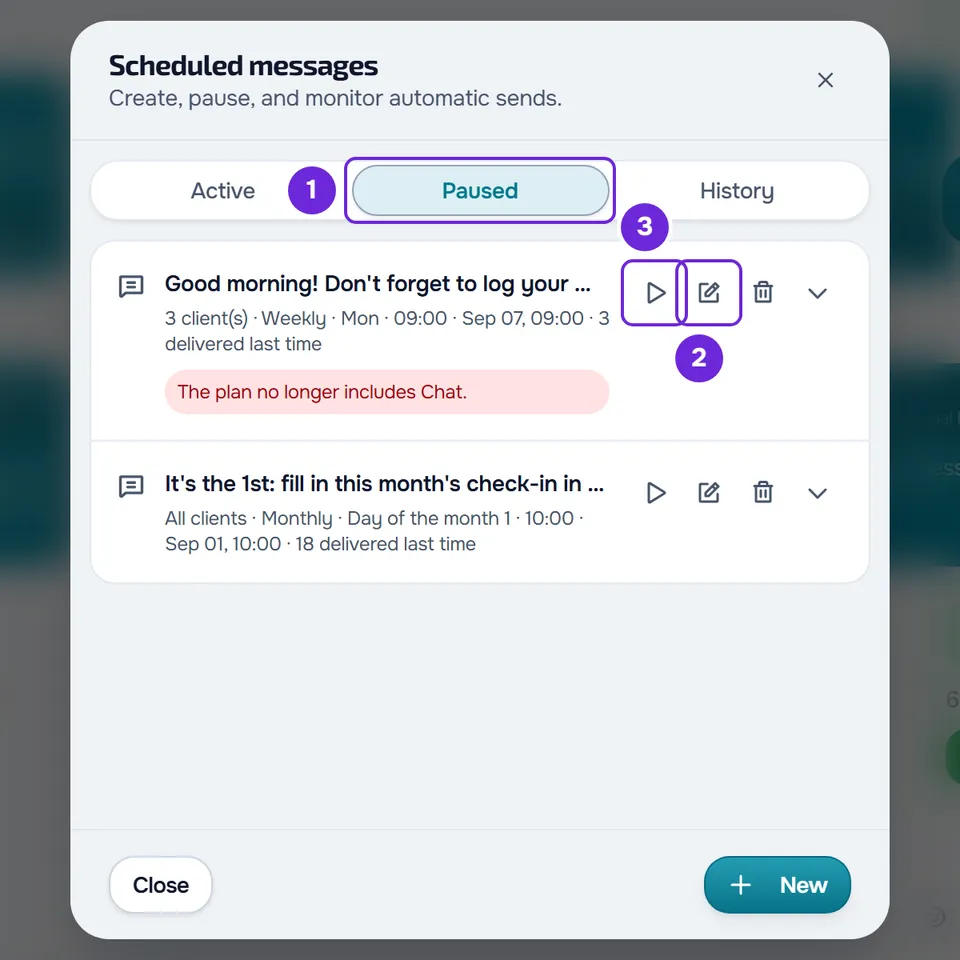
- On the schedule's row, select Edit 2, or right-click the row and select Edit.
- Under Ends, choose Never, After with a number higher than the number of sends made, or On date with a later date.
- Select Save changes. The Schedule updated notice appears and the row stays in Paused.
- Select Resume 3.
The Schedule resumed notice appears and the schedule moves to Active, with the next send date under “Next”.
Schedule again or cancel
- For a Once schedule whose send has already counted, the way out is to create a new one. Edit does not help: when you save, “The schedule could not be saved. Check the details and try again.” appears, even with another date. Fix the cause of the red box first, select New in the Scheduled messages window and schedule the same message.
- To stop it for good, select Cancel sending on the row (the trash can icon) and confirm with Cancel sending. The Schedule cancelled notice appears and the schedule moves to History. This cannot be undone.
Schedules in Paused count toward the limit of 100 active or paused schedules per workspace. Cancelling the ones that will no longer go out frees up slots.
Save changes shows an error
For a series, “The schedule could not be saved. Check the details and try again.” appears when one of the clients in Recipients is no longer active and has no scheduled access (or, for a team member, is no longer assigned to them), when the next send falls before a client's access starts, when the chosen workout, assessment or file no longer exists, when it is an audio message and the plan no longer includes audio messages, when a send of that schedule is in progress, or when the account is frozen. Remove that client or choose other content and save again. If a send is in progress, wait a few minutes.
The client did not receive the message
Open the row's arrow (“N send(s) made”): it shows the last 10 sends, each with “sent” and, in red, “not delivered”. Only the clients who could receive it at that moment count. The most common causes:
- The client was not active at send time, for example because their access had ended or had not started yet.
- In a schedule created by the workspace owner, the client blocked the conversation with them.
- In a schedule created by a team member, the client is not among the clients that member can see.
- Delivery failed all 5 attempts. The red box shows “Some sends failed.”, the history shows how many deliveries failed and the schedule does not pause.
When no client can receive it, the send still counts, the history shows “0/0 sent” and the red box says “No client could receive the message at send time.”. The schedule does not pause. If the server can't prepare a send, the red box says “The send failed. Try again later.”, the schedule stays active and the platform tries again on its own.
If this did not solve it
Contact support and include:
- the red box text, if there is one;
- whether the schedule is Once or a series and, for a series, what Ends says;
- the “N send(s) made” number, on the row's arrow;
- the date and time the message should have gone out;
- the text of the notice that appeared when you selected Resume or Save changes.