
Before you start
- It works with or without an active meal plan. Without a plan, see the “No active meal plan” section.
- What you add stays only on the day you add it to: the meal plan does not change. A meal you add does not trigger reminders, even with a time, because reminders are only for the plan's meals.
- On a day that has passed, first select Edit this day. See Review and fix past nutrition days.
- Creating a meal and adding foods are saves. The Nutrition tab of My area accepts up to 30 saves per minute, counted together with the others, such as marking a meal as eaten. See Required plan, limits and addresses for My area.
- If the Nutrition tab does not show your day, see My area does not open, does not load or does not let you save.
Steps
To add a meal that is not in the plan to your day:
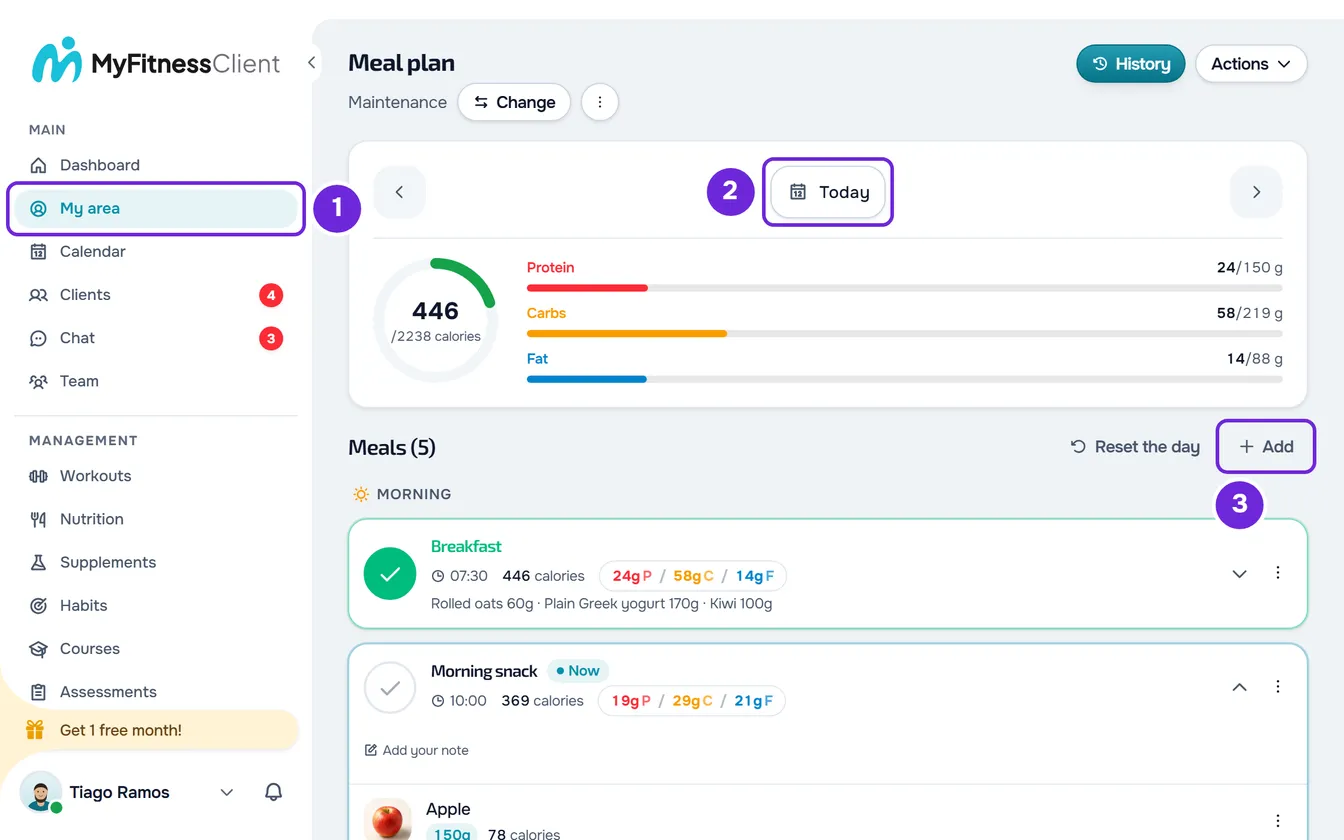
- In the side menu, select My area 1 > Nutrition.
- On the top card, choose the day with the arrows or with the date picker 2.
- On the Meals heading row, select Add 3. On a plan day with no meals, the empty card also has the New meal button. Both open the New meal window.
- In Meal Name 1, type the name, up to 100 characters.
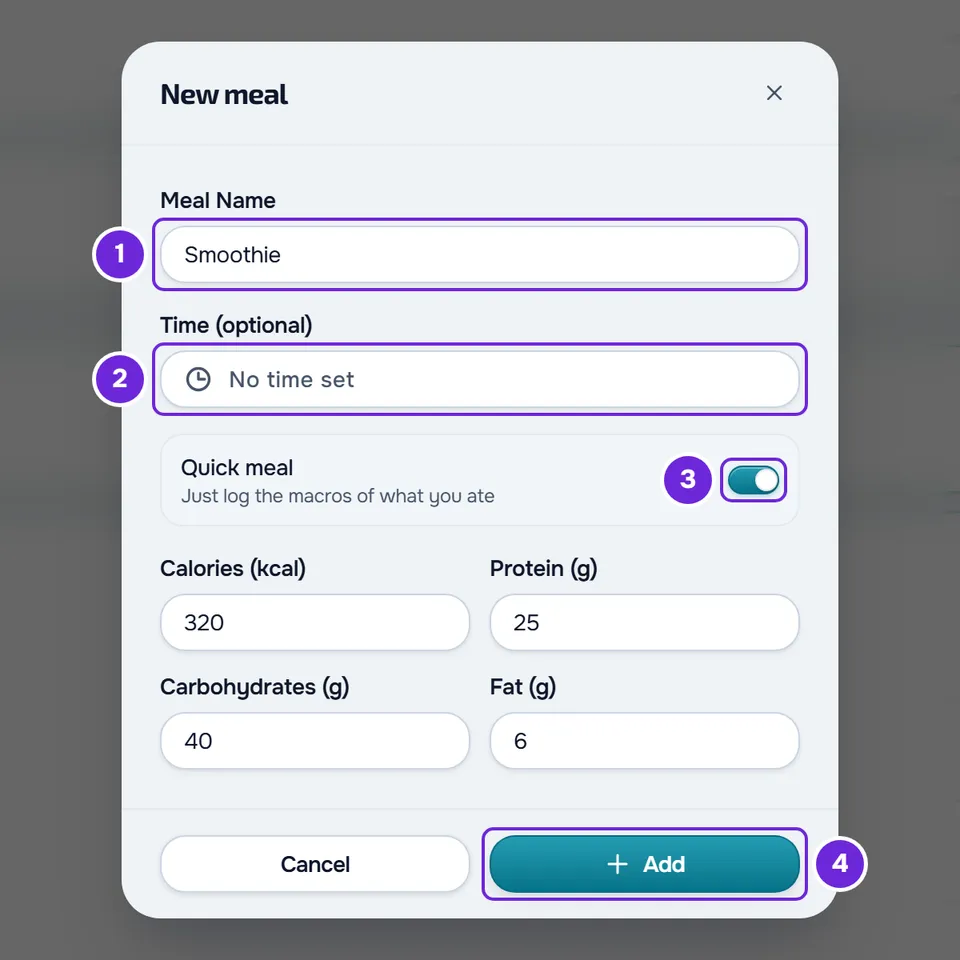
- Optional: in Time (optional) 2, choose the time of the meal. Without a time, the field says “No time set”.
- Optional: to log only the numbers of what you ate, turn on Quick meal 3 and fill in the calories, protein, carbohydrates and fat. All four are required; a 0 works.
- Select Add 4. The button only becomes active after you type the name.
- If you did not turn on the quick meal, the meal is empty: on its card, select Add Food and choose the foods, as the “Add foods to a meal” section explains.
The meal appears at the end of the day's list, with the “Meal created” notice. A quick meal is added already marked as eaten, with the “Meal logged” notice, and keeps the numbers in a single food with the meal's name. For today and the following days, the other meals only count in the day's ring after you mark them as eaten: see Log your meals for the day.
If you close the window or select Cancel with fields filled in, “Save before leaving?” appears: Save and leave creates the meal, if it already has a name, and Discard closes the window without creating it.
Add foods to a meal
This works for the plan's meals and for the ones you added. At the end of an open meal, select Add Food. A meal marked as eaten appears collapsed: select its name to open it, or choose Add Food in the meal's ⋮ menu, which also opens with a right-click on its header.
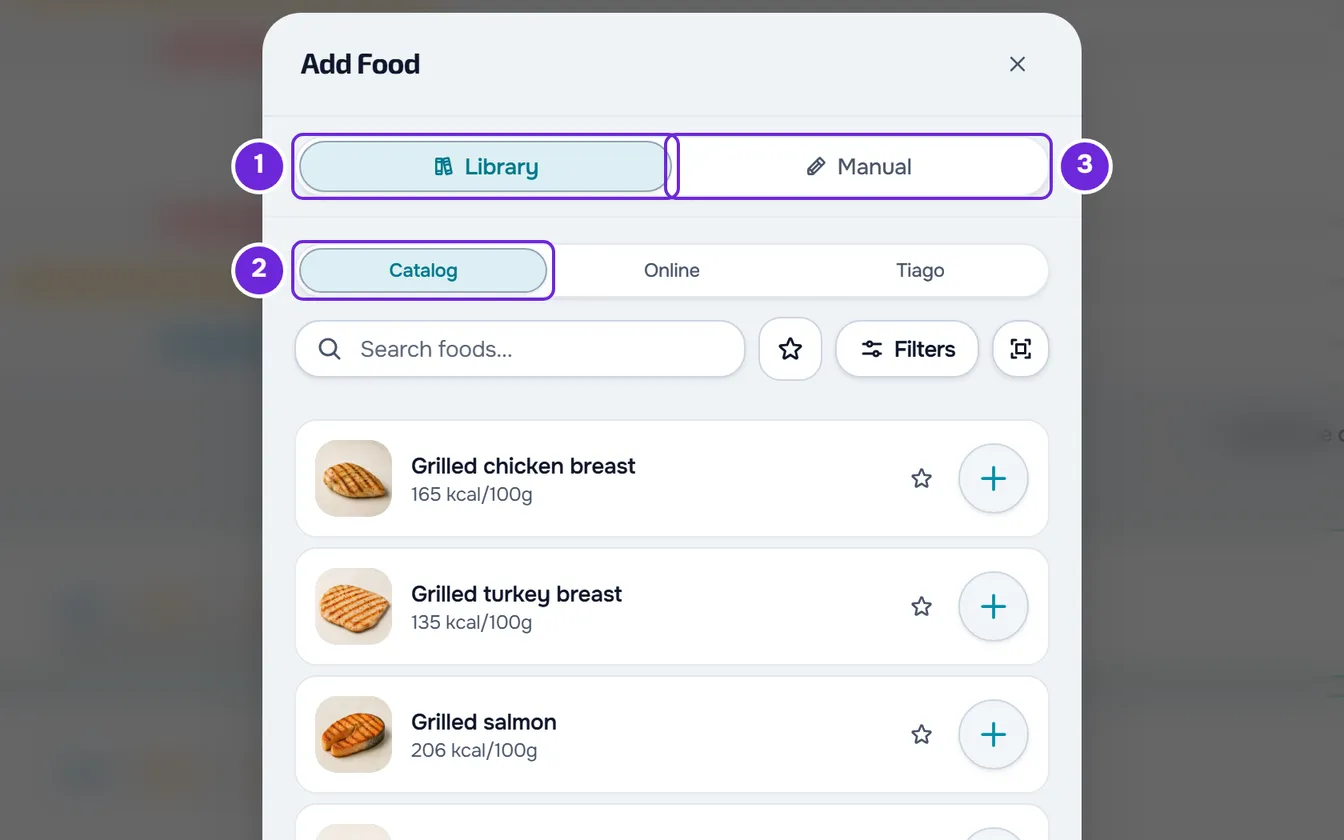
The Add Food window has two tabs:
- Library, with three tabs: Catalog, the public MyFitnessClient catalog; Online, the Open Food Facts products, which you search by name or by barcode; and one with your first name, with the foods in your food library. If your profile has no name, this last one is called My foods. The barcode button, next to the search, reads the code with the device's camera.
- Manual, to type the name and values of a food you cannot find; the calories, protein, carbohydrates and fat are required. Here, Add adds it to the meal right away, together with the ones you already chose in Library. That food goes only into this meal and does not stay in your library.
To choose, select the food, adjust the Quantity on the card that opens and confirm with Select. The + next to each food in the list chooses it right away, with the quantity the card suggests. You can choose several. At the end, select Add: the button shows in brackets how many foods you chose. The window closes, the foods appear at the end of the meal and the “Meal updated” notice appears. Adding foods does not mark the meal as eaten.
- On the card of an Online product, Save to library is on: when you confirm with Select, the product is also saved in your food library. Turn it off if you only want it in this meal. The + in the list does not save the product to the library.
- If you close the window with foods chosen, or with Manual filled in, “Save before leaving?” appears: Save and leave adds them to the meal and Discard closes the window without adding them.
- To save a new food in your library and use it again, see Create or edit a custom food. To search for and save a product by barcode, see Add a product by name or barcode.
No active meal plan
Without an active plan, Nutrition shows, under the title, the “No active plan” card with the Choose plan button. You do not need to choose a plan to log: the day continues under the card, with Add on the Meals heading row, and the steps are the same. The day's ring shows the calories without a goal, and the Actions menu has neither the shopping list nor the plan export.
To activate a plan, or if Nutrition says your plan has ended, see No active program: the program or plan does not appear or has ended.
What the Nutrition tab of My area does not have
- A daily goal of your own. The ring's goals come from the active plan.
- Saved meals to repeat. The New meal window has no tabs, and the meals' ⋮ menu has no option to save them, unlike your clients' Nutrition. To repeat a meal on several days, create it in the meal library and add it to your plan: see The meal library: ready-made meals for your plans. To repeat yesterday's meals today, use Actions > Copy yesterday's meals.
- The locked plan. When you activate a plan in My area, it does not use the locked mode, so Add and Add Food appear on every day you can edit.
Common problems
I don't see the Add button
This happens when the open day has passed: it is read-only. Select Edit this day and confirm with Edit day: Add and Add Food appear again. When you finish, select Done.
It also happens when Nutrition says your plan has ended: that screen shows only the notice and the card to choose another plan. Select Choose plan, or open the Nutrition tab again: the day appears again, without a plan, with Add.
“This plan is locked. Follow the meals as they are.”
It appears, without Add or Add Food, on a plan that kept the locked mode from an old activation. Next to the plan's name, select Change and choose the same plan: it stays active on the same dates, now without the locked mode.
“Enter calories, protein, carbohydrates, and fat to log a quick meal.”
You turned on Quick meal and one of the four numbers is empty or negative. Fill in all four; a 0 works.
An error notice appears and the window stays open
The save did not go through, because there was no connection or because you went over the limit of 30 saves per minute. When you create a meal, the notice gives the reason, for example “Too many requests. Wait a moment.” when you went over the limit; when you add foods, it always says “Try again”. What you typed or chose stays in the window: wait a minute and select Add again. If it keeps happening, see My area does not open, does not load or does not let you save.
Questions
Can I change the name or time of a meal I added?
No. Edit meal only appears in the ⋮ menu of the plan's meals. To correct a meal you added, select ⋮ > Delete meal, confirm with Delete and create it again.