
Before you start
- Only the workspace owner chooses the country and currency. In a team workspace, members don't see the Settings tab in Payments.
- Choose the currency before you create your first price. The currency becomes fixed as soon as the workspace has a price or a payment: a charge, a monthly fee, a plan or a pack, a course with a price or a course sale, even if archived or cancelled.
- Choose the country before you select Activate online payments: Stripe opens your account in that country. Once the account takes payments or receives payouts, the country can no longer change. To connect Stripe, see Connect Stripe to receive online payments from clients.
Steps
To choose the country and currency:
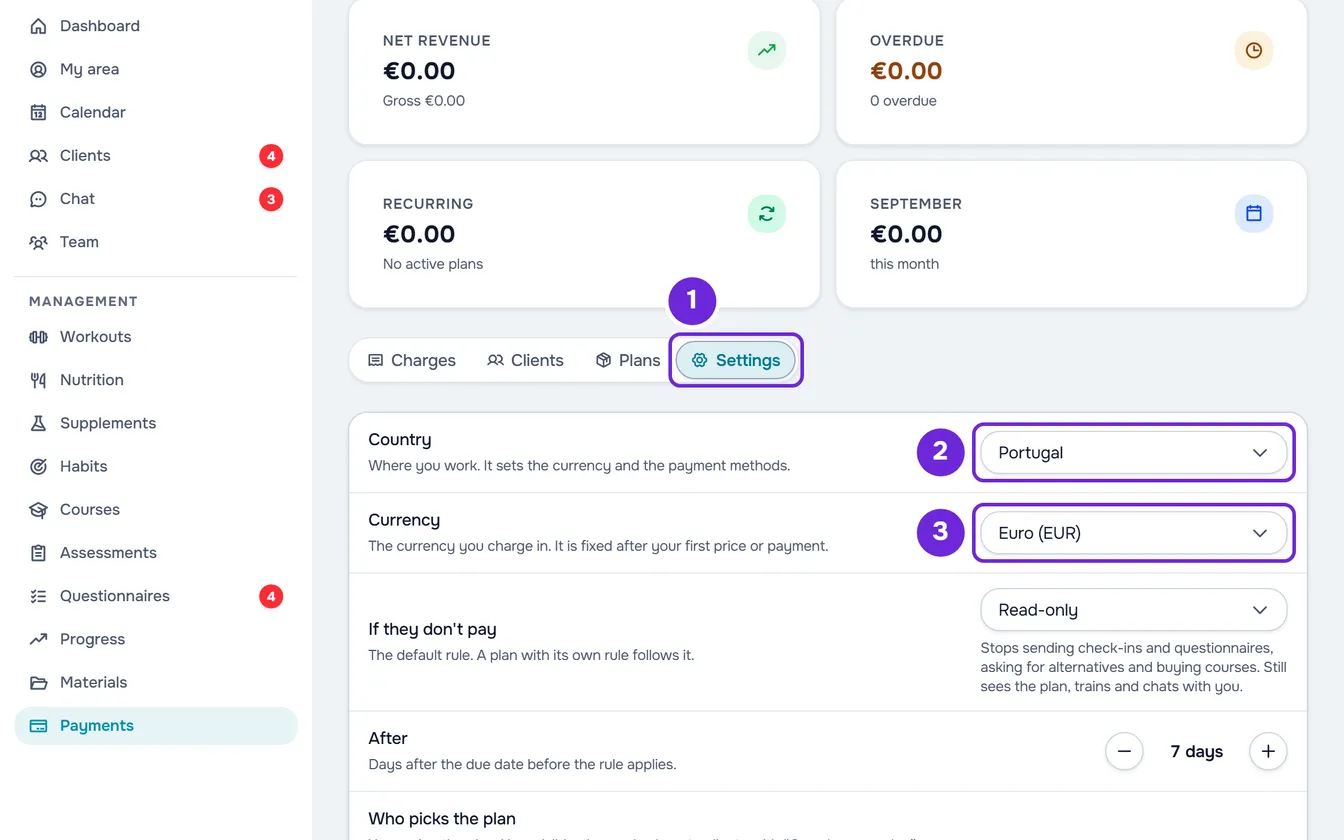
- In the side menu, in the Management section, select Payments.
- Select the Settings 1 tab. The country and currency are the first two rows of the list.
- In the Country 2 row, open the list and select the country where you work. To find it, type part of the name in “Search country”. The choice is saved right away and, if the currency can still change, it becomes the country's currency.
- Optional: to charge in another currency, open the list in the Currency 3 row and select the currency. Most used holds the euro, the British pound, the US dollar, the Brazilian real and the Swiss franc; the rest are under Others. In “Search currency”, you can type the name or the code, for example USD.
The two rows show the chosen country and currency, with no button to save. All the prices and charges you create from now on are in that currency, and your clients see the amounts in it.
On a narrow screen, such as a phone's
The settings appear as a list, one row per setting. Select the Country and currency row, which shows the current country and currency. A panel opens with the same Country and Currency fields, each with its hint, and your choices are saved the same way.
What the hints say
Under each field, a hint says what it is for or why it can't change:
| Field | The hint | When it appears |
|---|---|---|
| Country | “Where you work. It sets the currency and the payment methods.” | While the country can change. |
| Country | “It is fixed because online payments are already active.” | Your Stripe account already takes payments or receives payouts. The field is disabled. |
| Currency | “The currency you charge in. It is fixed after your first price or payment.” | While the currency can change. |
| Currency | Says which currency online payments reach you in and that each payment is converted automatically. | While the currency can change, if your Stripe account pays you in another currency. |
| Currency | “It is fixed because you already have prices or payments.” | The workspace already has a price or a payment. The field is disabled. |
The country, the currency and Stripe
When you select Activate online payments, Stripe opens your account in the country chosen in Country. The country also decides the payment methods: MB Way and Multibanco are only available to accounts in Portugal. See Choose your clients' online payment methods.
If you have never changed the country or the currency in these settings and you have no prices or payments yet, the currency becomes the one your Stripe account pays you in when you connect Stripe. After any choice of yours, the currency doesn't change by itself.
The currency you charge in can be different from the one Stripe pays you in: Stripe converts each payment. In the Under review, Verification pending and Active statuses, the Receive online payments card shows the Stripe account's country and the currency you get paid in.
Change the country after opening the Stripe account
While the Stripe account neither takes payments nor receives payouts, the Country row still accepts another country and, if the currency can change, switches the currency to that country's. When the card shows Action needed, Continue on Stripe then opens a new account in the chosen country, and you go through the Stripe steps again. Once the account takes payments or receives payouts, the country is fixed.
Common problems
The country or the currency is disabled
The hint under the field says why. “It is fixed because online payments are already active.”: your Stripe account already takes payments or receives payouts, and a Stripe account doesn't change country. “It is fixed because you already have prices or payments.”: the workspace already has money recorded, and the currency stays fixed so that all amounts are in the same currency. Archiving or cancelling the prices and payments doesn't free the currency.
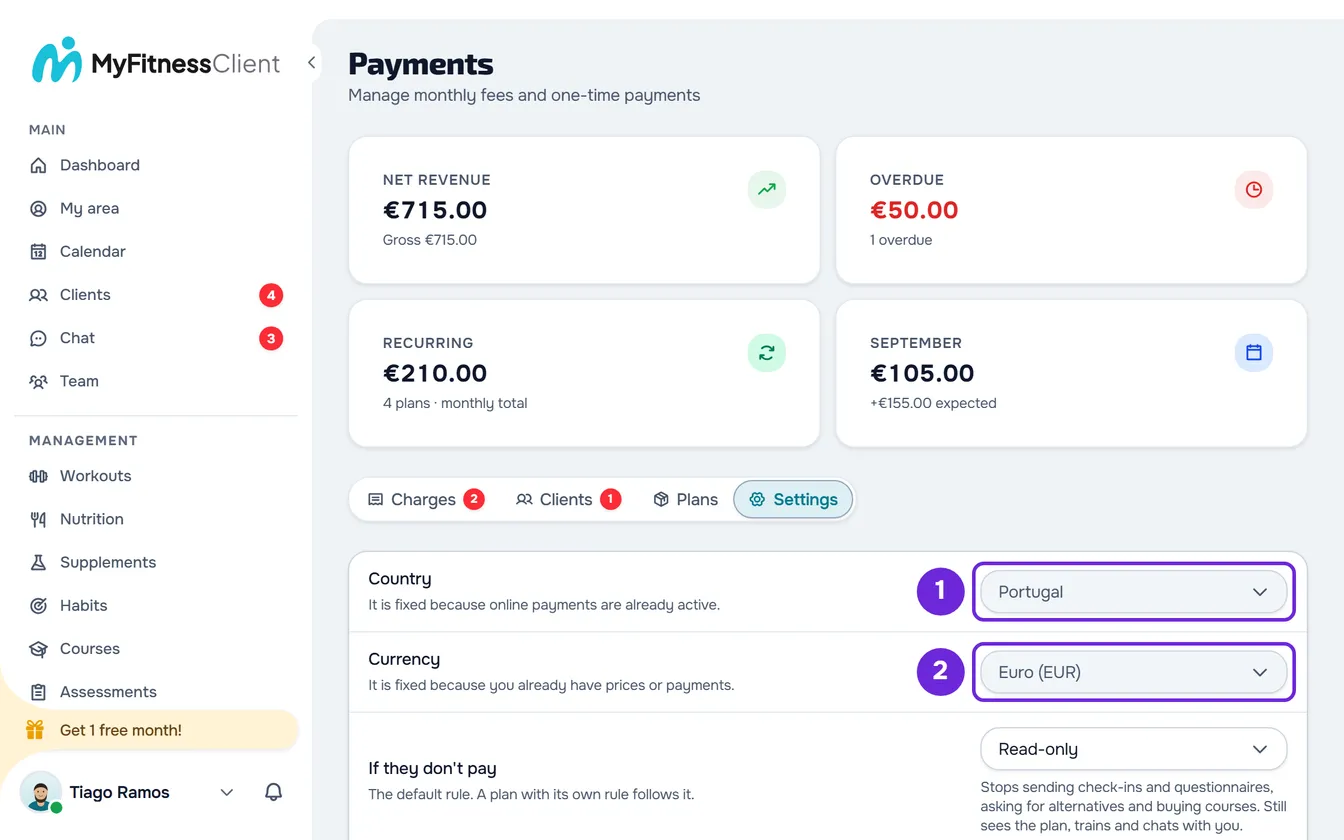
MyFitnessClient has no way to change a fixed field. If Stripe pays you in another currency, you don't need to change the currency you charge in: Stripe converts each payment.
“You have more active clients than your plan allows. Choose which to keep or upgrade your plan.”
This appears when you change the country or the currency with more active clients than your account's plan allows. While that lasts, these two settings don't change. Connecting Stripe and choosing the payment methods keep working. To fix it, see You have more active clients than your plan allows.
“Payments in this currency cannot be made online.”
This happens with the five currencies that have three decimal places: BHD, JOD, KWD, OMR and TND. These currencies only work for the payments you record manually. Your clients don't see Pay now, and anything paid online, such as switching a monthly fee to automatic payment, is refused with this message. To get paid online, choose another currency while the currency can still change.
“Couldn't load the currency.”
This appears in place of the Country and Currency rows when reading them fails. Select Try again. If a choice isn't saved, the field goes back to the previous value and a notice with the reason appears: choose again. If the field became fixed in the meantime, there is no notice: the field's hint then says why. The limit is 10 changes per minute.
If that didn't solve it, contact support with the message you see and the time you tried: see Contact Support and create a request.
Questions
Can I have prices in two currencies?
No. Each workspace has a single currency, and all prices, charges and sales are in it.
Which countries and currencies can I choose?
There are 45 countries, the countries where Stripe opens your account, and 138 currencies. In currencies without cents, such as the Japanese yen (JPY) or the South Korean won (KRW), amounts are whole numbers. The limits for each amount are in Create a one-off charge for a client.
Do my clients see the amounts in their own currency?
No. Clients see the amounts in the currency you charge in.