
Interactive tutorial
Opens in the app and needs you to be signed in.
The editor is a meal plan's page. It opens when you select a plan in Nutrition, on the Meal Plans tab, and right after you create a plan. This is where you build the meals, the foods and the goals. The page has no button to save: what you change on the page saves right away, and dialogs save when you select Save. Undo reverses some of the changes to meals while the page is open.
What's in the editor
From top to bottom, the page shows:
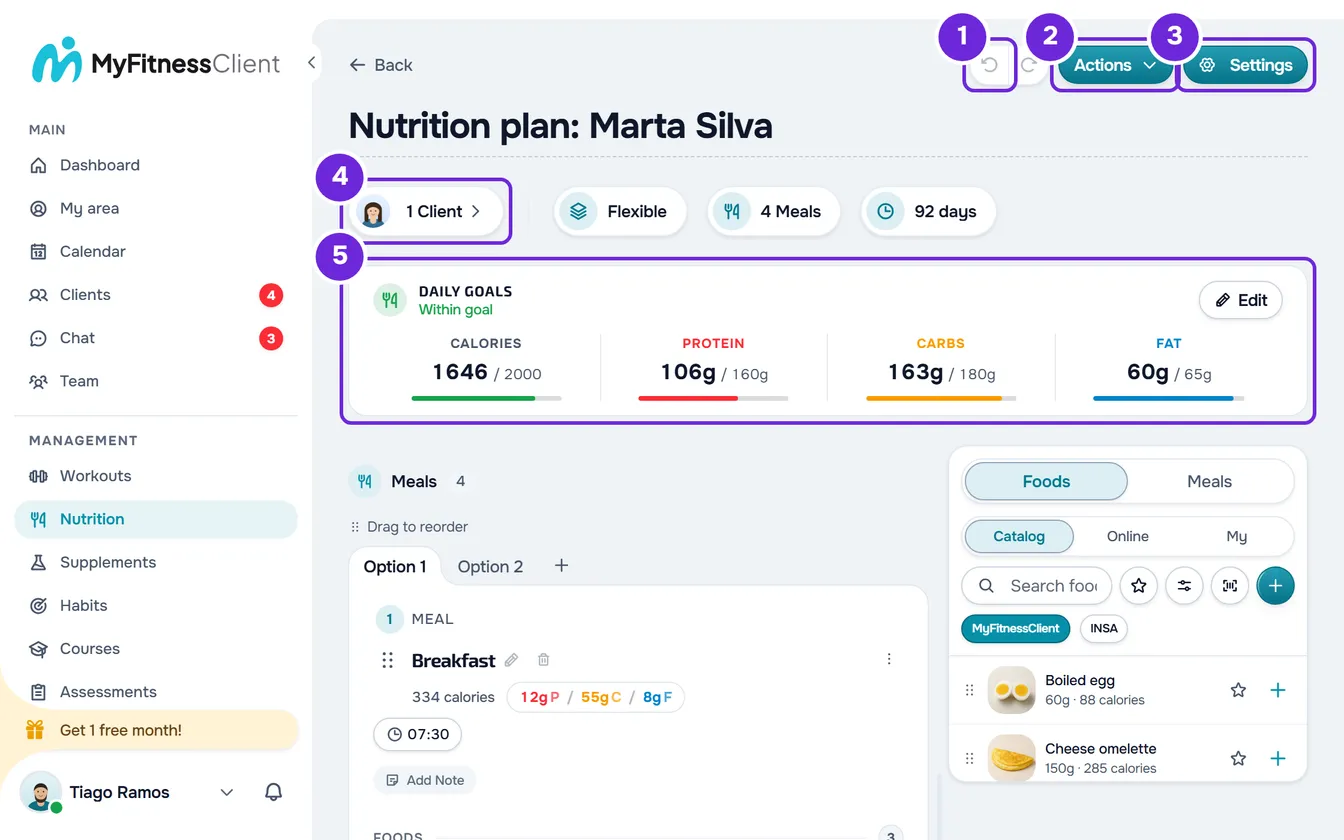
| Element | What it does |
|---|---|
| Back | Goes back to the screen you came from. If you opened the plan from a direct link, for example from a notification, it takes you to the list of plans. |
| Undo and Redo | The two buttons with arrows. They reverse and restore changes to meals, as explained in “Undo and Redo”. |
| Actions | Opens a menu with Export PDF and Shopping list. It only appears when the plan has at least one meal. |
| Settings | Opens the dialog with the plan's name, cover, description, tags, private note, mode and duration. On a phone it shows only the icon. |
| Plan name | The page title is a text field: type over it to change the name. |
| Clients chip | Shows how many clients have the plan or, with none, Assign to Client. Opens the dialog to assign the plan and manage its clients. |
| Mode chip | Shows Flexible, Weekly or Calendar, and Sequential on older plans. Opens Change Distribution Mode. |
| Meals chip | Shows the number of meals. Opens the list of all the plan's meals, with the number of items, the calories, the time and, in modes with days, the day. Select a meal to open and edit it. |
| Duration chip | In Calendar mode it shows the plan's days. In the other modes it shows the duration in days, Fixed dates or No end. Opens Change plan duration. |
| Daily Goals | The card with the meals' calories and macros next to the plan's goals. Edit opens the goals dialog. In Calendar mode, with a day selected, the card is called “Goals for day N” and shows that day. |
| Meals | The plan's meals and the foods in each one. In Weekly and Sequential modes they appear by day, in tabs. In Calendar mode they appear in a grid of days. |
| Side panel | The foods and meals from the library, for you to add to the plan. It appears when the browser window is at least 1024 px wide, and never in Calendar mode. |
When the goals card scrolls off the screen, a strip with the calories and macros appears in the top bar. Select the strip to go back to the card.
Each dialog has its own article: Assign a meal plan to one or more clients, Meal plan modes: Flexible, Weekly and Calendar, Change a meal plan's name, cover and duration, Set a plan's daily calorie and macro goals and Build a plan with the food and meal side panel.
What saves on its own
- The plan name saves when you leave the field or press Enter. It can't be empty and accepts up to 100 characters. If the save is rejected, a warning appears and the name goes back to what was saved.
- A meal's note saves half a second after you stop typing.
- Changes to meals and foods save as soon as you make them: creating, editing, moving, duplicating and deleting, and also each meal's name and time.
- The Settings, Daily Goals, Change plan duration and Edit Food dialogs only save when you select Save. If you close one of them with unsaved changes, the dialog asks what to do with them.
There's nothing to save at the end. If a save fails, an error warning appears and the editor goes back to showing what was saved.
Undo and Redo
Undo reverses a change to meals and Redo restores it. Both save right away. If the save is refused, a message appears, the plan stays as it is saved and the step stays in the history. The editor keeps up to 50 steps, and only while the page is open: if you leave or reload the page, the history starts over empty. This editor has no keyboard shortcut for undo: use the buttons.
These go into the history:
- creating, deleting and reordering meals;
- importing meals from the library;
- adding, editing and removing foods, reordering them within a meal and moving them to another meal;
- in Calendar mode, dragging, duplicating and changing the time of a meal in the grid.
Everything else saves, but can't be undone with these buttons. For example: duplicating a meal or changing its time outside the Calendar grid, a meal's name and note, meal options, the plan name, the settings, the goals, the clients, the mode, the duration and the tags.
The history is cleared, and both buttons stay disabled until the next change, when:
- you paste something into the plan (Copy and paste meals, supplements, questions and lessons);
- you create, delete or reorder a meal's options, or change the foods in an option;
- you change the plan's mode or save the Settings;
- in Calendar mode, you copy, clear or remove days, swap weeks, turn periods on or off, or shorten the plan's duration.
The buttons are also disabled while there's nothing to undo or redo, while an Undo is saving and while you have a copy that can be pasted into this plan. In that last case, the meals chip is disabled too: select Done on the copy bar to use them again.
Open the plan view-only
In a team workspace, a member with the Nutrition > View permission and without Edit opens the plan read-only:
- the name appears as text, with the sentence “You can only view this. To make changes, ask whoever manages the team for edit permission.”;
- there's no Settings, Undo or Redo;
- the chips only show information and don't open dialogs, and the clients chip only appears if the plan already has clients;
- the goals and meals appear in a read-only view, without the side panel;
- Actions is still available when the plan has meals.
Without permission to view nutrition, the page doesn't open. See “No permission to access” and menu items missing for a member.
Common problems
Undo is grayed out
You haven't made any change that goes into the history since you opened the page, the history was cleared after you pasted, changed options, days or the mode, or saved the Settings, or you have a copy waiting to be pasted into this plan. Make the next change to the meals or select Done on the copy bar.
The Actions button doesn't appear
The plan doesn't have any meals yet. Add at least one: see Add and organize the meals in a meal plan.
The plan name went back to what it was
The name was empty or longer than 100 characters, and the save was rejected. Type a name with 1 to 100 characters and leave the field.
A change disappeared and an error warning appeared
The save failed and the editor went back to what was saved. Check your internet connection and repeat the change. If the warning mentions the client limit, see You have more active clients than your plan allows.
If that didn't solve it, contact support with the plan name, what you were doing and the text of the warning: see Contact Support and create a request.
Questions
Is the plan saved if I leave the page?
Yes. Each change saves right away, and only the dialogs with Save wait for that button. What you lose when you leave is the Undo history.
Can I go back to an old version of the plan?
No. The plan doesn't keep versions: you only have the last Undo steps, while the page is open. Before a big change, duplicate the plan to keep a copy, as in Duplicate a meal plan.
Does the client see the changes right away?
They see them the next time their Nutrition loads the plan, with no notice. Since everything saves right away, a client who already has the plan can see a change you're still making. See What the client sees and gets from the meal plan.
Where are the shopping list and the plan's PDF?
Under the Actions button, when the plan has meals. See Create the shopping list for a meal plan and Export the meal plan as a PDF or as text.