
These notices appear in a banner at the top of every dashboard page. The banner only appears in your own workspace: your team members don't see it, and the payment is sorted out in your account. You see one banner at a time, the most urgent one, in the order shown in “The banners at the top of the dashboard”.
“Your payment failed.”
This red banner appears when Stripe can't charge your subscription, for example with a card that has expired or was declined by the bank. In Settings > Subscription, the plan card shows the Past Due status.
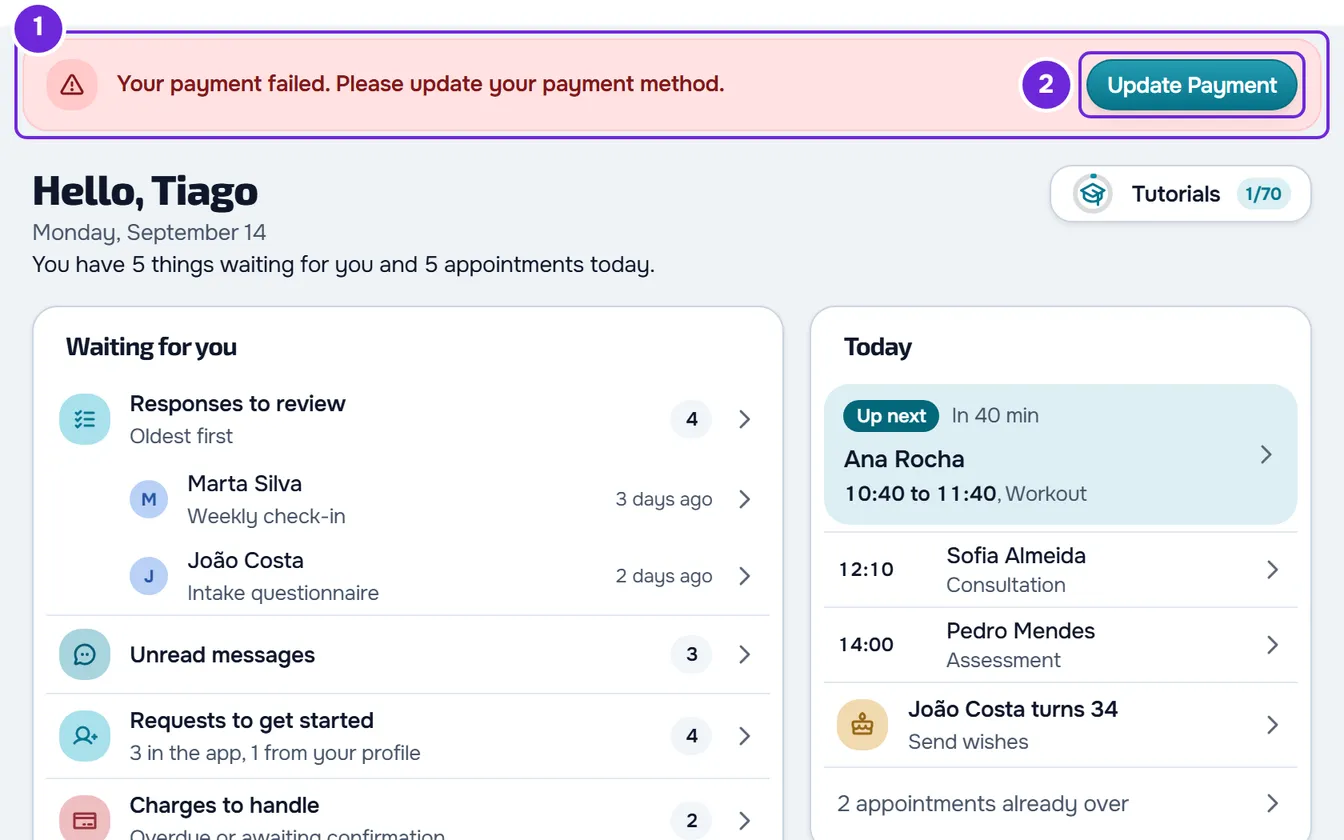
You have 7 days from the first failure to sort it out. During those days, your plan keeps working as before.
In Settings > Subscription, on the Invoices tab, the invoice for that charge stays Open, under the Pending filter, while Stripe tries again. It only changes to Failed if Stripe stops trying and marks it as uncollectible.
To sort out the payment:
- In the red banner 1, select Update Payment 2. Stripe's billing portal opens.
- In the portal, update your payment method, for example with a new card.
- Go back to MyFitnessClient from the portal. Your Subscription opens.
When Stripe manages to charge, the banner disappears and the plan card no longer shows Past Due. The change can take a few minutes to show. You also reach the same portal with Manage Billing, on the plan card in Subscription.
What you get during the 7 days
- In the bell, “Payment failed”, with the sentence “We couldn't charge your subscription. Update your payment method.”. One arrives per invoice; if you read it and the charge fails again, another one arrives.
- An email with the day by which you need to update your payment method. If the charge fails again on the last day, another email arrives to say so. The failed payment emails arrive even if you've turned off notification emails.
- The day before the deadline, around 09:00 your time, “Last day to keep your plan”, with the sentence “Tomorrow your account moves to the Free plan.”. It arrives in the bell and, with notification emails turned on, by email too.
At the end of the 7 days
If the payment doesn't go through, 7 days after the first failure the account moves to the Free plan and you get a notice saying so. Nothing is deleted. The red banner goes away and the features the Free plan doesn't include are locked. If you have more active clients than the Free plan allows, the account is frozen until you choose who stays active: see You have more active clients than your plan allows.
If the payment goes through later, you get your plan back as it was. To update your card after the deadline, select Manage Billing on the plan card in Subscription. If you get the “Your account moved to the Free plan” email, its “Restore my plan” button opens that same Subscription.
“Payment needs approval”: your bank asks for 3D Secure
Some banks ask for an extra confirmation, 3D Secure, before they let your subscription be charged. When Stripe needs that confirmation, you get “Payment needs approval” in the bell, with the sentence “Approve your subscription payment.”. One arrives per invoice as long as you haven't read it, and it opens Subscription. If the sentence is “Approve your app payment.”, the payment waiting for approval is the one for the My app add-on, not for your plan; that notice also opens Subscription.
To approve the payment, in Settings > Subscription, select Manage Billing on the plan card and follow what Stripe asks you in the portal. Until you approve it, the charge isn't made. If the subscription moves to Past Due, the red failed payment banner appears and the same 7 days apply.
“There's an open dispute on your subscription. Contact us to resolve it.”
This red banner appears when your bank disputes a subscription payment, for example after you tell the bank you don't recognize the charge. During the dispute, your plan keeps working.
In the banner, select Contact Support. MyFitnessClient Support opens, where you create a request: see Contact Support and create a request. Give the date and amount of the disputed payment and whether you recognize it.
The banner goes away on its own when the dispute closes without the payment being returned. If the bank gives you the money back, the banner stays.
“You are on the Free plan”
On the Free plan, this banner invites you to change plans. It says that Nutrition, questionnaires, materials and online payments open with the cheapest paid plan, and how much it costs per month. The button, which says “See” and the name of that plan, opens the Change Plan tab in Subscription.
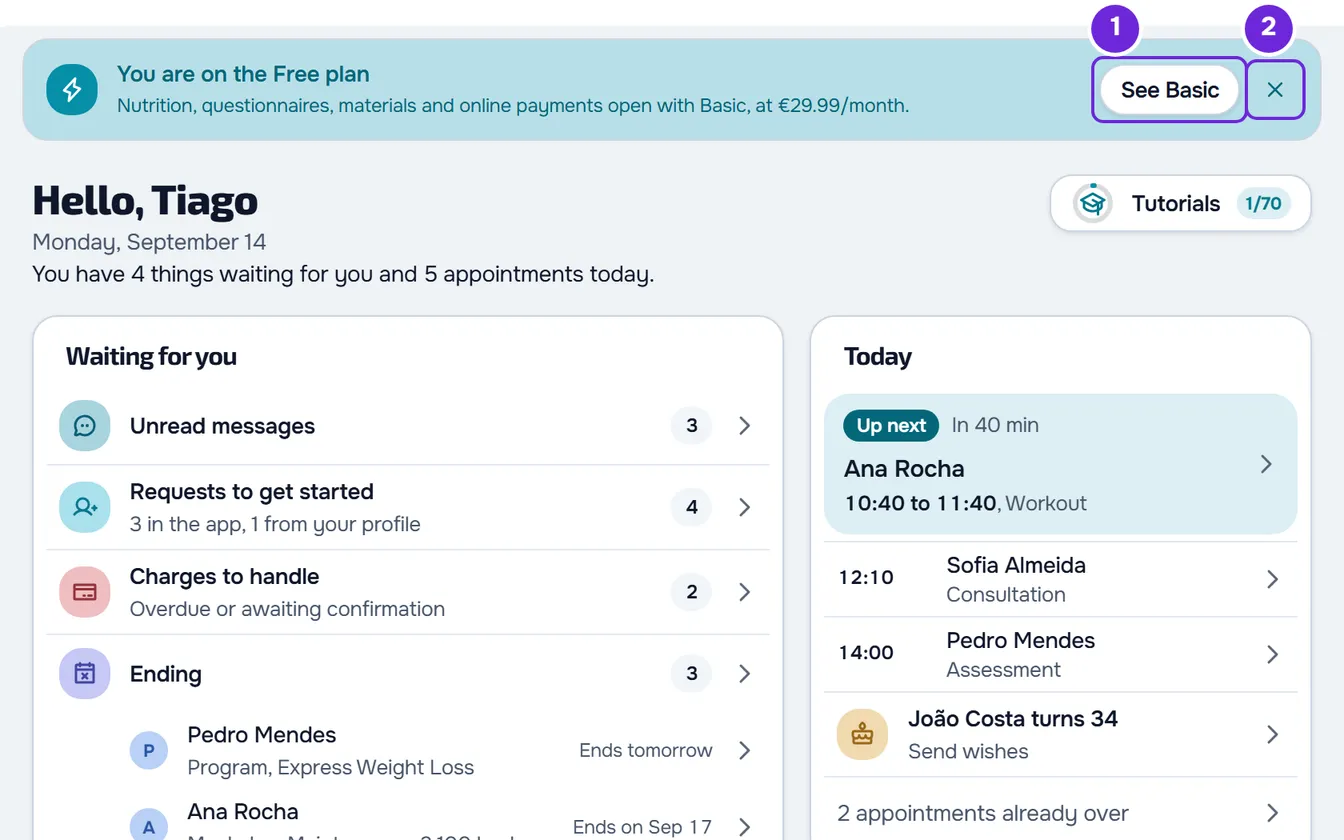
To hide the banner, select the X next to the button, labeled “Stay on Free”. It stays hidden for 7 days, only in this browser: in another browser or on another device it keeps appearing, and it comes back after the 7 days. When you move to a paid plan, it disappears.
The banners at the top of the dashboard
There are five banners about your plan and subscription. When more than one applies, you only see the first one in this table:
| Banner | Color | Button | What it opens |
|---|---|---|---|
| Too many clients for your plan, or blocked clients | Amber | Choose clients, or “See” and the name of the plan that lets you work with all of them again | A window to choose who stays active or change plans |
| “There's an open dispute on your subscription. Contact us to resolve it.” | Red | Contact Support | Support |
| “Your payment failed.” | Red | Update Payment | Stripe's billing portal |
| More space used by the account's files than your plan allows | Red | Manage Storage | Materials |
| “You are on the Free plan” | The dashboard's main color | “See” and the name of the cheapest paid plan | The Change Plan tab |
For the clients banner, see You have more active clients than your plan allows. For the Materials one, see “Storage limit exceeded”: how to free up space.
Common problems
“Could not open the billing portal.”
Appears when Update Payment can't open the Stripe portal. Wait a moment and select it again, or use Manage Billing in Settings > Subscription. If it keeps happening, contact support.
I updated my card and the banner is still there
The banner only goes away when Stripe manages to charge, and the change can take a few minutes to show. Reload the page later. If the banner is still there the next day, contact support.
The “Payment failed” notice mentions your app
If the sentence is “We couldn't charge your app. Update your payment method.”, the missing payment is the one for the My app add-on, not for your plan: your plan stays the same and the red banner doesn't appear. In Settings > Subscription, on the add-on's row, select Update card.
Questions
Do the 7 days start over when Stripe tries again?
No. They count from the first failure and don't start over with the following attempts. They only start again with a new failure, after a payment that went through.
Do I lose clients or data?
No. Nothing is deleted during the 7 days or when the account moves to the Free plan. If the account is frozen because you have too many clients for the Free plan, no client is deleted: you choose who stays active, or you go back to a paid plan.
If this did not solve it
Contact support and include:
- your account's email;
- which banner or notice you see and since which day;
- the amount and date of the payment in question;
- a screenshot of the banner.
Never send your card details.