
At the top of the Payments page, four cards sum up your clients' money. In the list on the Charges tab, each charge has a status, which says where the payment stands, and a type, which says where it comes from. A red number counts the charges waiting for you. Together, they tell you how much you have received, how much is overdue and what to handle first, without opening each charge.
In a team workspace, a member needs the View permission for Payments to open the page and to see the red number.
The four totals at the top
The cards sit at the top of every tab on the page, in this order.
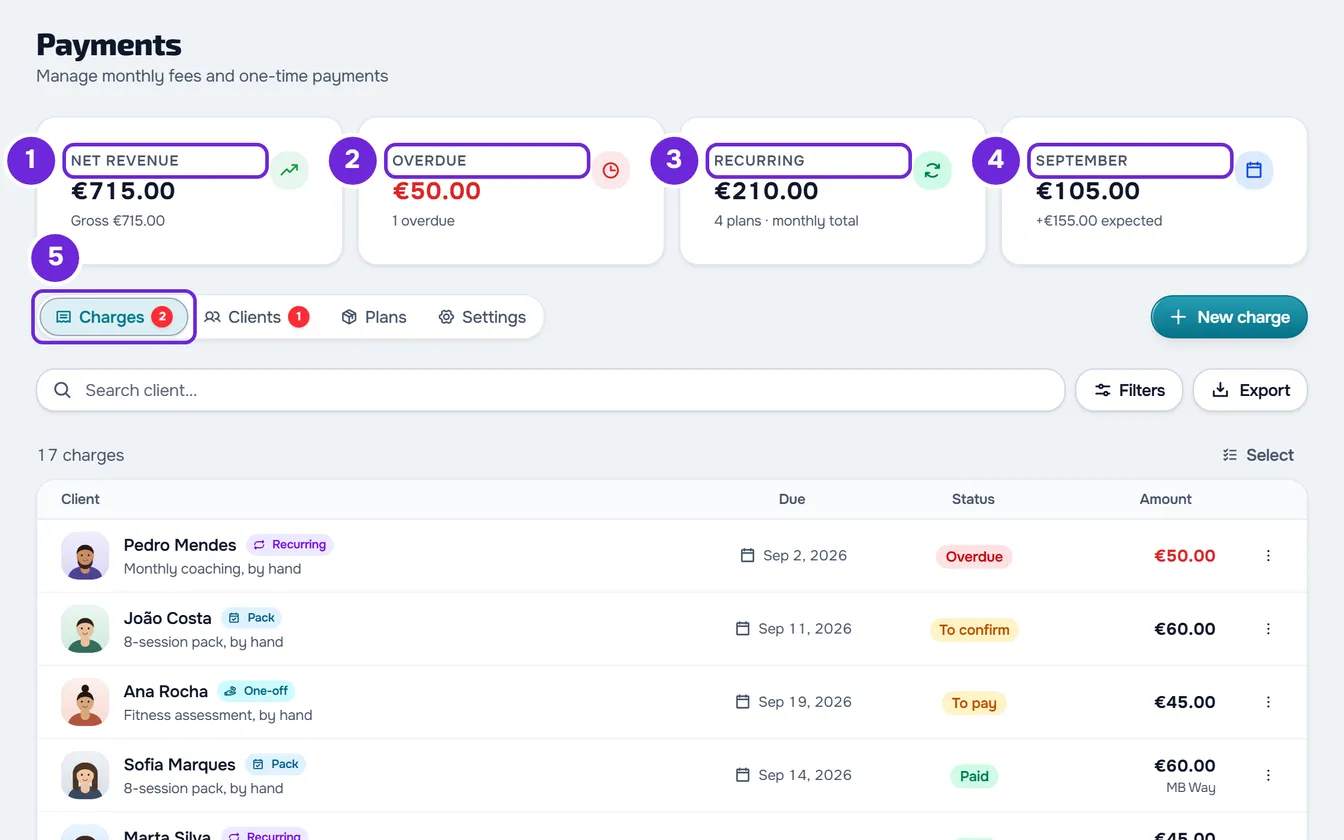
| Card | What it shows | The line under it |
|---|---|---|
| Net revenue | What you have received since the beginning, not just this month. A charge paid by hand counts at the charge amount; one paid online counts at what was left after Stripe fees, refunds and disputes. What automatic subscriptions charge and course sales are left out of this total. | Gross, the same money before fees and refunds. |
| Overdue | The sum of the charges past their due date that have not been paid yet. The figure turns red when there is at least one. Charges in To confirm, even past due, are left out, and so are the overdue lines of automatic subscriptions, whose payment failed. | How many charges are overdue, for example “2 overdue”. |
| Recurring | The monthly value of the plans that repeat: active, unpaused monthly fees paid by hand, plus automatic subscriptions that are active, waiting for the first charge or with a failed payment. A plan with another cycle, weekly or yearly for example, counts as its equivalent for one month, and a monthly fee paid by hand that switched to automatic payment counts only once. Selecting the card opens the Clients tab. | How many plans go into the sum, for example “4 plans · monthly total”, or No active plans. It says Incomplete figure when not all automatic subscriptions could be read: the figure may be too low. |
| The current month, written out, for example “October” | What you received this month, counted like Net revenue, by the day it was paid. | “+€120.00 expected”, with the value of the open charges due this month. If there are none, “this month”. Automatic subscriptions are already inside the month’s figure. |
How the totals behave
- They are always in your workspace's currency, the same as all charges.
- They update on their own after each change you make on the page, such as creating a charge, marking it as paid or deleting it.
- A figure that could not be read never shows as 0. If the totals do not load, Net revenue, Overdue and the month card show “-” with Figure unavailable under it, and “We could not load the totals.” appears with the Try again button. The Recurring card is read separately and shows “-” when it cannot read the monthly fees paid by hand.
- If you are a team member and only work with the clients assigned to you, Net revenue, Overdue, Recurring, the month card and the red number count only those clients.
- If you turned on Hide money values in your account settings, the figures appear blurred. Select a figure to see it; select it again, or reload the page, to hide it again.
The red number of charges to handle
The red number counts the charges waiting for you to act: Overdue ones and To confirm ones, where the client says they have already paid and you still have to confirm. It appears on the Payments item in the side menu and on the Charges tab, always with the same number, and does not appear when there are none.
- It does not count To pay charges that are not due yet, nor the Overdue lines of automatic subscriptions, which have no actions in the list, nor course sales.
- It goes up when a charge passes its due date without being paid and when a client marks as paid a charge that was not due yet. If the charge was already overdue, the number does not change: it keeps counting, now as To confirm. When a client marks a charge as paid, whoever can confirm the payment gets the “Payment to confirm” notification.
- It goes down when you mark the charge as paid, confirm the payment, cancel the charge or delete it. If you reject the client's request, the charge goes back to To pay and leaves the number; if it was already past due, it goes back to Overdue and keeps counting.
- If reading the number fails, the previous number stays, not zero.
By default, the Charges list shows overdue charges first, from oldest to newest, then the ones to confirm. To see only the ones the number counts, in Filters > Status, choose To handle. To resolve them, see Mark a charge as paid and Confirm or reject a client's “I've paid”.
The number next to the Clients tab is a different one: it counts the clients who are overdue, not the charges.
Charge statuses
The status appears as a badge in the Status column of the list and, on a narrow screen such as a phone's, on each charge's card.
| Status | What it means |
|---|---|
| To pay | Open and within the deadline, up to and including the due date. Amber badge. |
| Overdue | The due date has passed and the charge has not been paid. Nobody needs to change the status: on the day after the due date, a charge still to pay starts showing like this. Red badge and red amount. |
| To confirm | The client marked the charge as paid and you still have to confirm or reject it. Amber badge. |
| Paid | Paid by hand or online. The list also shows how it was paid, for example “MB Way” or “Online”. Green badge. |
| Cancelled | Voided: it no longer counts as to pay and does not go into the totals. It stays in the list, with the amount struck through. Gray badge. |
| Refunded | An online payment returned in full to the client. With a partial refund, the charge stays Paid. Amount struck through and gray badge. |
| To return | A charge for a package to join that you recorded as paid by hand, when the client's request ended without them joining: you declined or blocked the request, they cancelled it or started with another professional. As the payment did not go through Stripe, MyFitnessClient cannot return it: you have to return the money yourself. Red badge in place of Paid. |
On the client's side, To pay shows as “Pending” and To confirm as “Awaiting confirmation”.
While a charge is To confirm, the If they don't pay rule still treats it as unpaid: if the client was restricted for not paying, they stay restricted until you confirm. See Choose what happens when a client does not pay.
A charge paid online has no Edit: the amounts come from Stripe and cannot be changed by hand. For refunds and disputes, see Refunds and disputes for online payments. For invitations where the client pays a package to join, see Require a package payment before a client joins.
Who changes the status, and how
- To pay or Overdue becomes Paid with Mark as paid, in the charge's menu: the owner or a member with the Mark paid and assign plans permission.
- Only the client puts a charge in To confirm, when they mark it as paid. While you have not decided, they can unmark it and it goes back to To pay, or to Overdue if it is already past due.
- To confirm becomes Paid, or goes back to To pay (to Overdue, if it is already past due), with Review request, when you confirm or reject: the owner or a member with the same permission.
- A charge to pay, overdue or to confirm becomes Cancelled with Cancel charge, only by the owner.
- In Edit > Status, only the owner changes a charge to pay or overdue to Paid or Cancelled, and one paid by hand back to To pay, when possible, or to Cancelled. See Undo a payment marked by mistake (back to To pay).
- A cancelled charge no longer changes status.
Charge types
The type says where the charge comes from. It appears as a badge with its own color and icon next to the client's name (on a narrow screen, next to the status badge), and the Type filter uses the same names.
| Type | Color | Where it comes from |
|---|---|---|
| One-off | Cyan | A charge you created with New charge, for an amount you charge once. |
| Recurring | Violet | A charge from a plan that repeats: each cycle of a monthly fee paid by hand and each payment of an automatic subscription, including the first payment of a monthly plan. The Overdue line of an automatic subscription whose payment failed is also of this type. |
| Pack | Light blue | The charge for a one-time payment plan, with days of access. |
| Course | Pink | The purchase of a course or a payment of a course subscription. It is view-only: it has no actions, and selecting the row opens the receipt, when there is one. |
Under the client's name, the list says what was charged and ends in “automatic”, when the payment is online, or in “by hand”, in other cases. Type colors are never the status colors, and the same colors mark monthly fees and packs on the Plans tab and on the client's plan card.
To give a monthly fee or a pack to a client, see Give a client a recurring plan or a pack. If a monthly fee's charge did not appear on the expected day, see Common charge problems and how to fix them.
Questions
Why does a charge show as Overdue if nobody touched it?
Because the Overdue status is worked out from the due date: on the day after, a charge that is still unpaid starts showing like this. To give the client more time, the workspace owner changes the due date in Edit: see Edit a charge: amount, due date, status and notes.
Why don't the red number and the Overdue total match?
They measure different things. The red number counts overdue charges and charges to confirm; the Overdue total only adds up the amount of the overdue ones, without the ones to confirm. Neither counts the overdue lines of automatic subscriptions, which the list shows when the automatic payment fails.
Can I remove the To return mark?
Yes, if you are the workspace owner. First, return the money to the client by whatever means you prefer. Then, in the charge's menu, select Edit, choose Cancelled under Status and save. The mark disappears and the charge leaves Net revenue.
Is Net revenue only for this month?
No. It is everything you have received since the beginning. What you received this month is on the fourth card, with the month's name.