
Before you start
- In a team workspace, you need the Nutrition > Edit permission. Without it, the plan opens read-only and the clients chip does not open.
- The Manage clients view shows only the clients who already have the plan. To give it to more clients, see Assign a meal plan to one or more clients.
- If, in the team, you only have access to the clients assigned to you, the list shows only those.
Interactive tutorial
Opens in the app and needs you to be signed in.
Steps
To reach the actions for a client in the plan:
- In the side menu, select Nutrition.
- In the Meal Plans tab, open the plan.
- In the plan header, select the chip with the number of clients, for example “3 clients”. The Assign to clients window opens.
- At the top of the window, select the row that says how many clients the plan is already assigned to, with See dates or remove under it. Manage clients opens, with each client's name and their dates in the plan: both dates, “From” with the start, “Until” with the end, or “No dates”.
- Optional: in Search clients..., type the name the client has in the list (their nickname, if you gave them one), or filter by tags.
- On the client's row, choose the action: the Edit dates 1 pencil or, in the ⋮ menu 2, Create a separate plan for this client 3 or Remove client from plan 4. A right-click on the row opens the same menu.
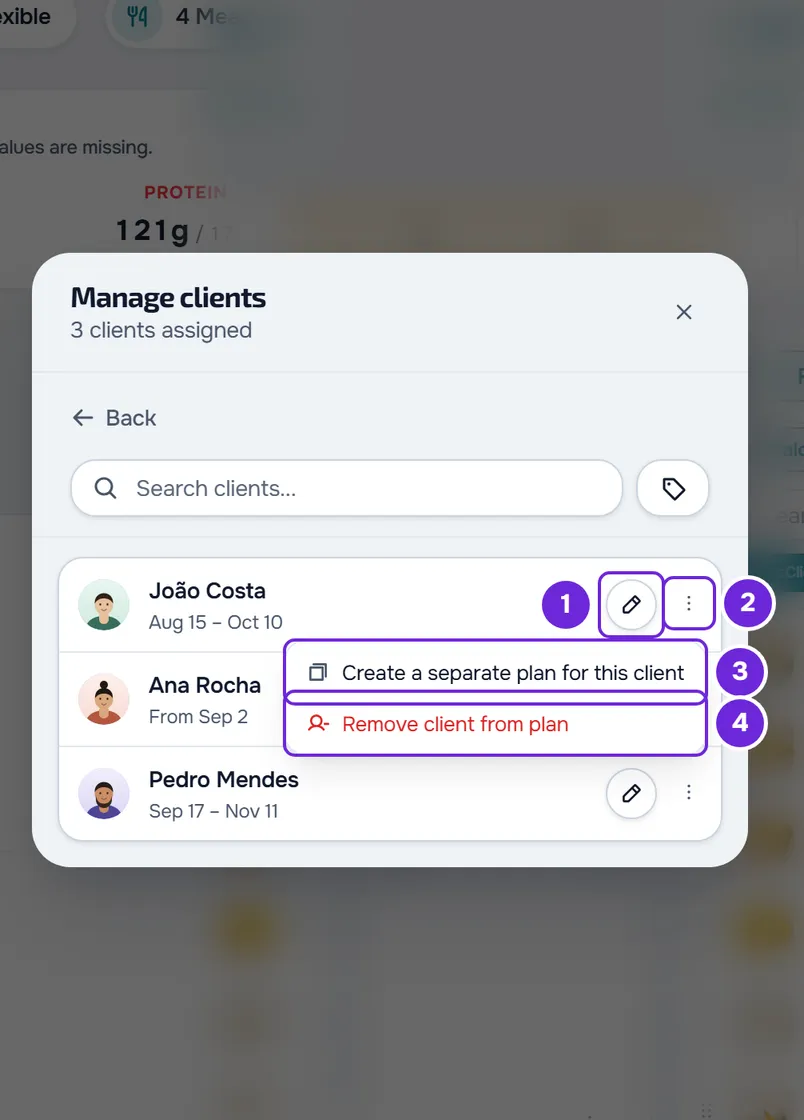
Each action opens its own step or confirmation, explained in the following sections.
Change a client's dates
The dates say when the client sees the plan. The change applies only to them: the plan and the other clients stay as they are.
Select the Edit dates pencil or the client's name. The dates step opens, with “Edit access dates” under the name and the current dates in the Access dates card.
- Start: the calendar does not let you choose days before today. A start that has already passed stays as it is until you change it. Outside Calendar mode, the field's X clears the start and the field then says “Right away”.
- End: it is optional. The field's X clears it and the field then says “No end”: the plan has no deadline. If you choose a start after the end, the end is cleared so you can choose another one.
- The Automatic repetition card says what happens between the two dates, for example how many times the client repeats the plan.
Select Confirm. “Dates updated” appears and the client's row shows the new dates. The client is not notified. If the client was still on another meal plan, you also see, for example, “The client left the plan “Cut”: they can only have one active meal plan.”. Cancel goes back to the list without saving. On a computer, if you close the window with unsaved dates, “Save before leaving?” appears, with Discard and Save and leave.
Create a separate plan for a client
Use it to change the plan for one client only, without touching the others who have it. The option only exists when the plan has more than one client.
In the row's ⋮ menu, select Create a separate plan for this client. The “Create separate plan?” confirmation says who the copy is for. Select Create copy. “Separate plan created” appears and the copy opens, ready to edit.
- The copy has the plan's name, a hyphen and the client's name, for example “Cutting - Ana Silva”. It is always the real name, never the nickname, because the client sees the plan's name.
- It includes the meals with their foods, notes and times, the substitutions, the meal options, the daily targets, the targets adjusted by period, the mode and the duration. It does not include the plan's cover or icon, its tags or its private note.
- The client leaves the original plan and stays only in the copy, with the same dates and at the same point in the plan. The other clients stay in the original, which does not change.
- The meals the client has already logged move to the copy. The client now sees the copy, with the new name, and is not notified.
- The client's restricted mode carries over to the copy as it was.
To copy the plan without taking any client off it, see Duplicate a meal plan. In the client's profile, this same copy is called Create personal copy: see Assign a meal plan to a client from their profile.
Remove a client from the plan
In the row's ⋮ menu, select Remove client from plan. The “Remove from plan” confirmation asks, for example, “Remove Ana Silva from this meal plan? What they already logged stays.”. Select Remove.
“Client removed” appears. The plan stays in your meal plans, the client stays in your client list and the meals they have already logged are kept. The client stops seeing the plan and is not notified. When the last client leaves, the window goes back to choosing clients.
Common problems
The ⋮ menu does not have Create a separate plan for this client
The option only appears when the plan has more than one client and that client's coaching is open. If the client is the only one in the plan, edit the plan itself: the changes reach only them.
“This client's coaching is closed. Reactivate them to make changes.”
It appears on the row of a client who is neither active nor scheduled. That row has no dates pencil and no separate plan: you can only remove the client from the plan. To change the dates, reactivate the client first.
The clients chip does not open
In a team workspace, the plan opened read-only because you do not have the Nutrition > Edit permission. Ask the team owner for it. See “No permission to access” and menu items missing for a member.
The end disappeared when I changed the start
You chose a start after the end. The end is cleared so that the period is never impossible: choose another end before you select Confirm.
If this did not solve it, contact support with the plan's name, the client's name and the exact message that appeared.
Questions
Does the client lose their meal logs when they leave the plan?
No. When you remove the client, the logs are kept. With the separate plan, they move to the copy.
Can I give a client a plan again after it has ended?
Yes. In Manage clients, select Edit dates on their row and choose a new start and end. The client sees the plan again within the new dates, without being notified.
Can I change the plan for one client only without touching the others?
Yes, with the separate plan. A change to the original plan reaches every client who has it.