
In Calendar mode, the meal plan is a sequence of days, from Day 1 to the last, arranged in weeks of seven. Each day has its own meals. The client starts on Day 1 on the assignment's start date and, after the last day, goes back to Day 1.
Before you start
- The plan must be in Calendar mode. Choose it when you create the plan, as in Create a meal plan, or change the mode of an existing plan, as in Meal plan modes: Flexible, Weekly and Calendar. A plan created in Calendar mode starts with 7 days.
- In a team workspace, you need the Nutrition > Edit permission. Without it, the plan opens view-only.
- In this mode, the editor has no side panel of foods and meals. Library meals come in through the Add Meal window.
Steps
To build a plan in Calendar mode:
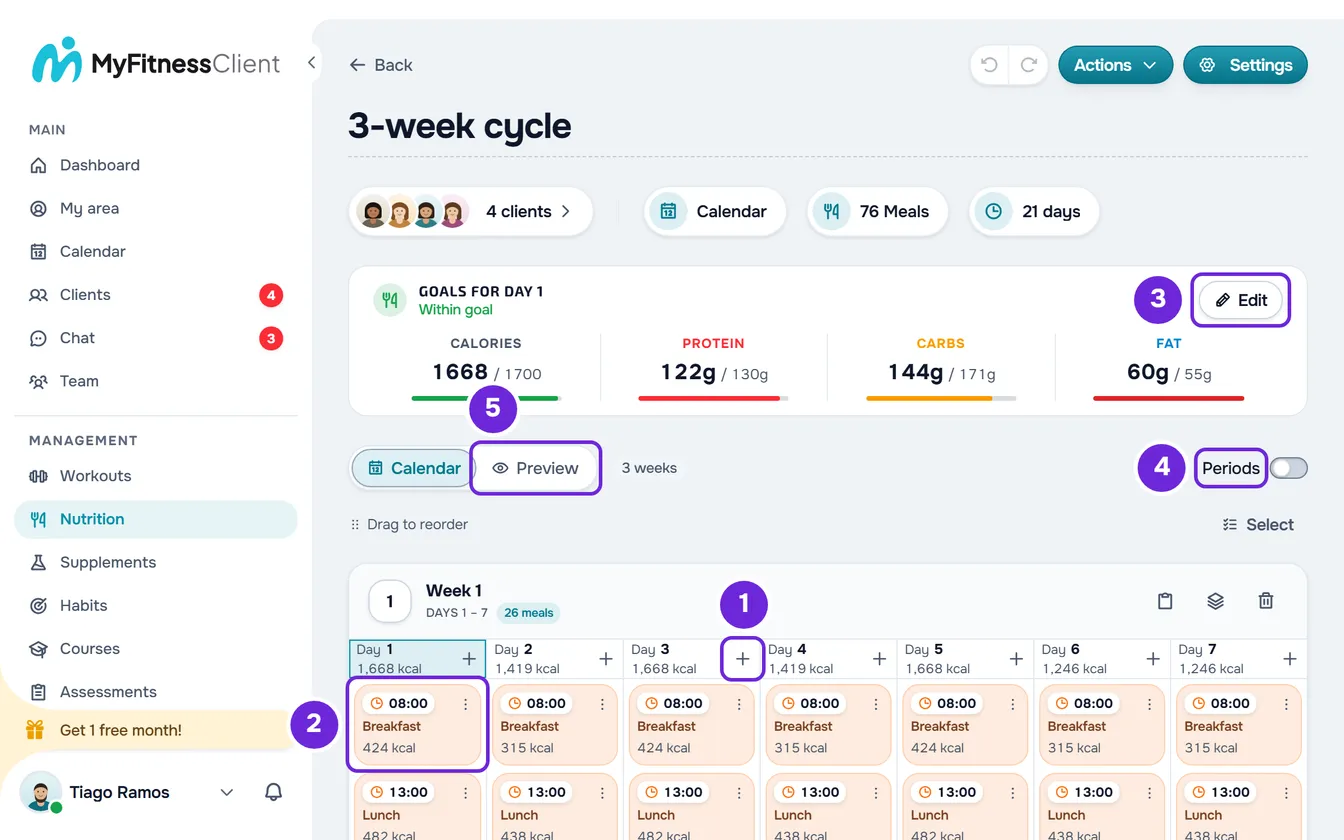
- In Nutrition, on the Meal Plans tab (Plans on a phone), select the plan. Under the name, the mode chip says Calendar and the grid shows one card per week, with the days numbered.
- To put a meal on a day, select the + next to the day's number 1, or an empty cell of that day. The Add Meal window opens.
- In Library, choose a ready-made meal; or, in Custom, type the name of a new meal. Select Add. The details are in Add and organize the meals in a meal plan.
- Select the meal in the grid 2 to open its window and add the foods, as in Add, edit and remove foods in a meal.
- Optional: to see a day's goals, select that day's number. The goals card is then called “Goals for day” followed by the number; select Edit 3 on the card to adjust them, as in Set a plan's daily calorie and macro goals.
- To make the plan longer, select Add week, which adds 7 days, or Add day, which adds 1. The new days go at the end and the plan's duration increases.
- Optional: to repeat a week, select the Duplicate week button in its header (the name shows when you hover the pointer over it), or the same option when you right-click the header. The copy goes into a new week, at the end of the plan, and a notice such as “The plan is now 21 days” appears.
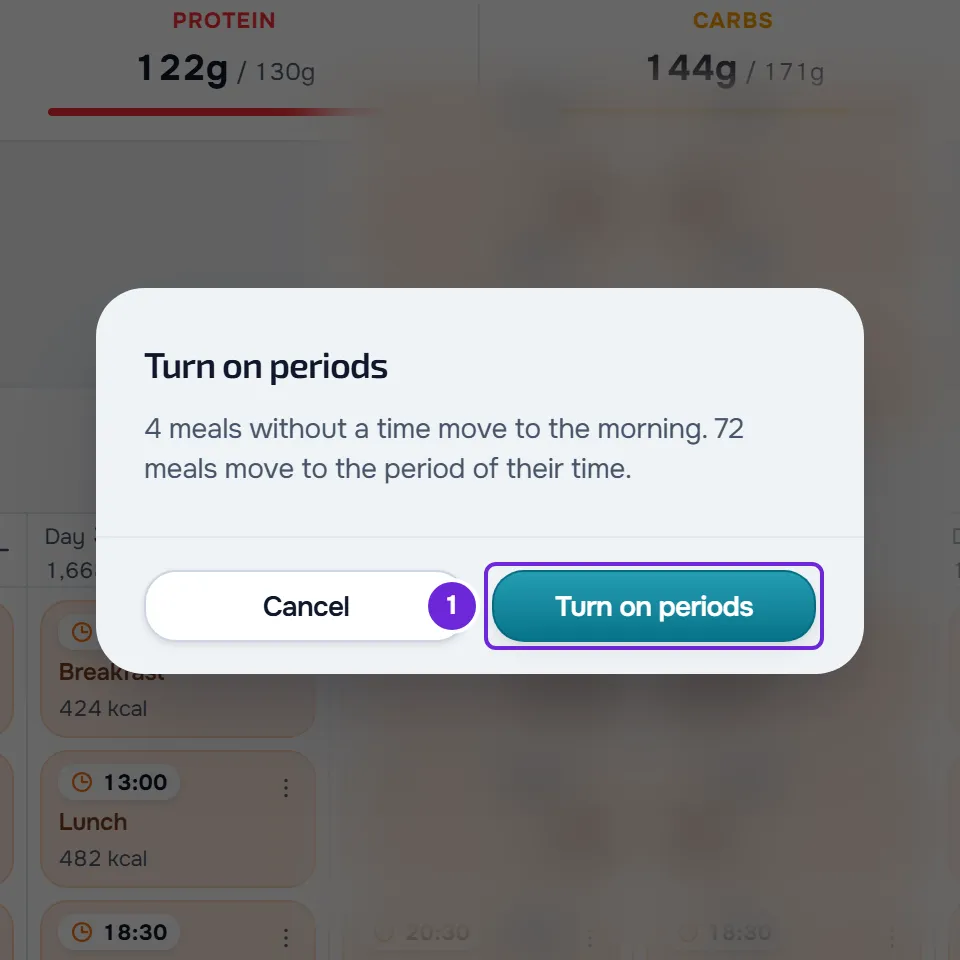
- Optional: turn on Periods to split each day into Morning, Afternoon and Evening. If the Turn on periods window appears, confirm with Turn on periods 1.
- Optional: select the Preview 5 tab to see the plan on a client's real dates.
The meals stay on the days where you put them, each with its calories, and each day's calories appear under its number. Everything saves right away. If a food has no calories, the day's total doesn't appear: see Meal plan totals are missing or do not add up to the calories.
Each meal in the grid
Selecting a meal opens its window, with the name, time, notes and foods. The meal's ⋮ menu, or a right-click on it, has:
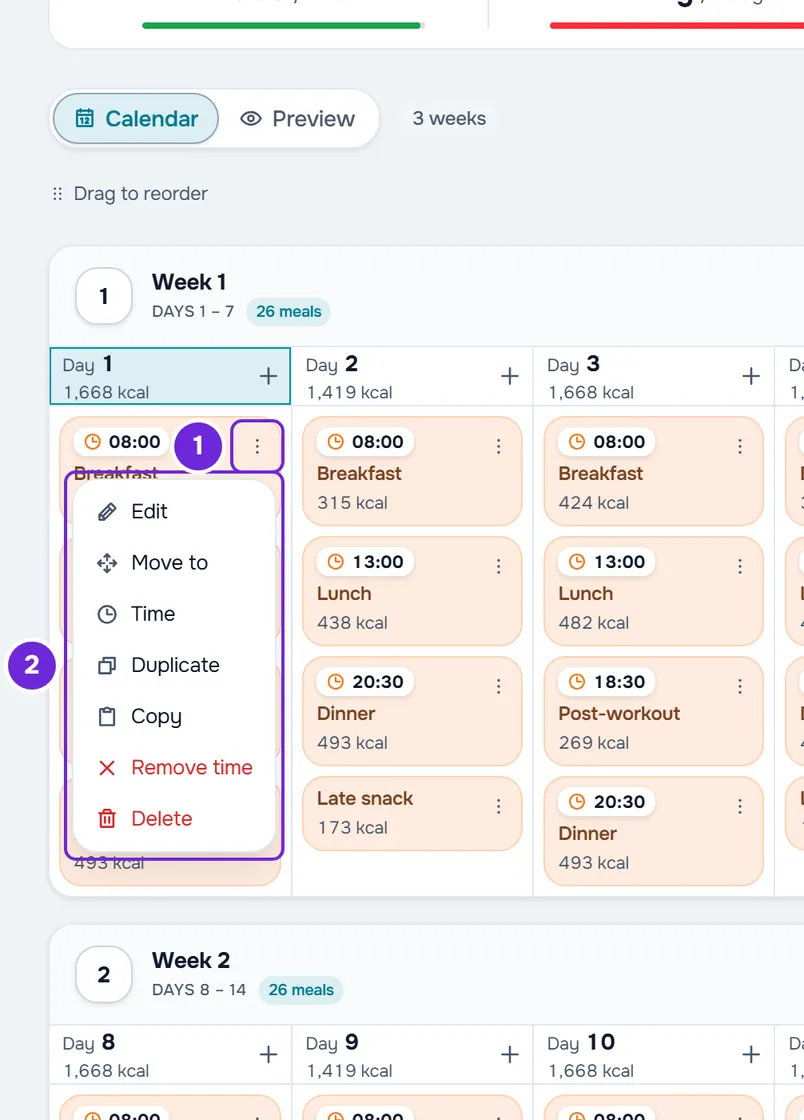
- Edit: opens the same window.
- Move to: shows the plan's days as numbers. Choose the target day and, with periods on, the period, and confirm with the move button.
- Time: choose the time and select Save. With periods on, the meal moves to that time's period; with them off, it stays an all-day meal and a notice says so.
- Duplicate: creates a copy on the same day, with no time and “(Copy)” at the end of the name.
- Copy: keeps the meal so you can paste it on another day or in another plan.
- Remove time: removes the time. It only appears when the meal has a time.
- Delete: asks for confirmation and deletes the meal.
To move a meal to another day, drag it to that day: “Meal moved.” appears. Within the same day, dragging changes the order of the meals with no time; meals with a time always stay sorted by time. On a phone, the days appear one under the other and, to drag, press and hold the meal until it lifts.
Weeks and days
Each week's header shows the week number and the days it has. The header buttons, which also appear when you right-click the header, are Copy week, Duplicate week and, with more than one week, Remove week.
- Duplicate week pastes that week's days into a new week, at the end of the plan, with each day's meals, times and adjusted goals. If the last week has fewer than 7 days, the missing days are created, empty, before the copy.
- Remove week asks, for example, “Remove Week 2?” and, if the week has meals, says how many will be deleted. That week's days leave the plan and the following ones move back.
- To move a week to another place, drag it: on a computer, by the handle that appears in the middle of the card's top edge when you hover the pointer over it; on a phone, by the header. The week stays where you drop it and the ones in between move one position. Only the meals change week: the adjusted goals stay with the day numbers.
- To remove a single day, hover the pointer over the day's number and select the − that appears on the top edge; on a phone, it's the red − on the day's row. An empty day is removed right away; a day with meals asks first, for example “Remove Day 3?”. The following days move back. The plan always keeps at least 1 day.
Select several days
Select Select and choose the days by their number. With Shift, you choose at once all the days between the last one you chose and this one; Select all chooses the whole plan and Cancel exits. The bar that appears at the bottom of the screen has three actions; on a phone, they're under Options.
- Copy copies the days, so you can paste them starting at another day of this plan or into another plan in Calendar mode. See Copy and paste meals, supplements, questions and lessons; if the Paste button doesn't appear, see The “Paste” button doesn't appear or pasting is refused.
- Clear deletes the days' meals; the days and the goals stay. If the days have meals, it asks for confirmation and says how many will be deleted, for example “3 meals will be deleted. The days stay.”.
- Remove days deletes the meals and takes the days out of the plan; the following days move back, with their goals. It always asks for confirmation and, if the days have meals, says how many will be deleted.
Periods of the day
With Periods on, each day is split into Morning (05:00 to 12:00), Afternoon (12:00 to 18:00) and Evening (18:00 to 05:00). An All day row only appears in a week that still has all-day meals.
- When you turn them on, meals with no time move to the morning and meals with a time move to that time's period. When you turn them off, all meals become all-day meals and keep their time. When any meal changes, the confirmation says how many, for example “2 meals without a time move to the morning.”.
- With periods on, the + next to the day's number opens the Add Meal window with a choice of Morning, Afternoon and Evening; on a phone, each period has its own +. An empty cell adds to its own period. A custom meal with a time goes into that time's period.
- Dragging a meal with a time to a period other than that time's period removes its time. Dropping it on All day keeps the time.
See the plan on a client's dates
The Preview tab shows the plan on a calendar with real dates, with the cycle repeating the way the client receives it. The pill that begins with “Starts” chooses the start day, marked Start; each time the cycle starts over, the day gets the “Day 1” tag. If the plan has clients, the list next to the pill lets you choose a client, to use their dates, or Custom dates; with a single client, it opens on that client's dates. Selecting a meal opens it. To go back to the grid, select the Calendar tab.
Limits
- The plan goes up to 365 days. Add week, Add day or extending the plan beyond that shows “Duration can be up to 365 days.”.
- Duplicating a week beyond Day 365 is refused with “Invalid data. Check the fields.”. Pasting days that go past Day 365, from this plan or another, shows “Duration can be up to 365 days.” and pastes nothing.
- Copy takes up to 70 days at a time: with more days chosen, Copy refuses right away with “You can copy up to 70 days at a time.”. Each paste takes up to 500 meals; a larger one is refused with “Invalid data. Check the fields.”.
- If the plan has meals beyond the last day, for example from an old plan, a banner such as “4 meals after day 28” appears, with a button to extend the plan to the last day with meals and Remove, which deletes them after you confirm.
Common problems
“Time removed (period changed).”
You moved or pasted a meal with a time into a period that isn't that time's period, and the meal lost its time. If the meal stayed in the same period but the time didn't match it, the notice is “Time removed (it didn't match the period).”. To give it a time again, use Time in the ⋮ menu: the meal moves to that time's period.
“The days are still saving. Try moving it again in a moment.”
You moved a meal while an earlier calendar change (to the days, the weeks, the periods, or a duplicated meal) was still saving, and the meal went back to its place. Wait a moment and move it again.
I can't change the order of a day's meals
“Items with a time stay sorted by time (earliest on top). Only items without a time, or with the same time, can be reordered.” appears. Meals with a time follow their time. To change the order, change the time in Time or remove it with Remove time.
I can't find the foods side panel
In Calendar mode, the editor has no side panel, even on a wide screen: the grid needs the width for the seven days. To add a meal from the library, select the day's + and the Library tab of the Add Meal window; for the foods, select the meal.
If that didn't solve it, contact support with the plan's name, the day and the exact message that appeared.
Questions
On which day does the plan start for the client?
On the start date you choose when you assign the plan: that day is Day 1, whatever the day of the week. See Assign a meal plan to one or more clients.
What happens after the last day?
The client goes back to Day 1 and the plan repeats until the assignment's end date, if there is one. For a longer cycle, add days or weeks.
Do the changes reach clients who already have the plan?
Yes. The plan saves right away and is the same for all the clients you assigned it to. Adding or removing days changes their cycle; the assignments' start and end dates don't change. A client you detached from the plan has their own copy, which doesn't change.