
You open My area from the side menu of the dashboard. Find what you see on screen in the table and go to the section for that case, which has the cause and the fix. My area only exists on the website: in the mobile app, a professional sees a different notice, explained in “This app is exclusively for clients”: what to do as a professional.
Which case is yours
| What you see | Cause | What to do |
|---|---|---|
| A page with the title “The platform is for you too.”, without the My area title or the tabs. | Your plan does not include My area. | Move to a plan that includes it. See “The introduction page appears instead of My area”. |
| The “Our services seem to be down” card. | The website could not read your plan. | Wait or select Try now. |
| The My area tabs and, in place of the content of one of them, the introduction page of a module. | Your plan includes My area, but not the module of that tab. | Move to a plan that includes the module. See “A tab shows the introduction of a module”. |
| When you save, the amber notice “You have more active clients than your plan allows. Choose which to keep or upgrade your plan.” | The account is frozen, because you have more active clients than the plan allows. | Choose which clients stay active or upgrade your plan. |
| The banner “Some data is currently unavailable. Everything that loaded remains visible.” or an error card with the Try again button. | A read failed, because of a connection or server failure. | Select Try again. |
| After you save, an error notice, for example “Too many requests. Wait a moment.” | You went over the limit of saves per minute, or the request did not reach the server. | Wait up to a minute and repeat the action. |
The introduction page appears instead of My area
The page takes the place of the whole area. It shows the title “The platform is for you too.”, a main button and the View plans button.
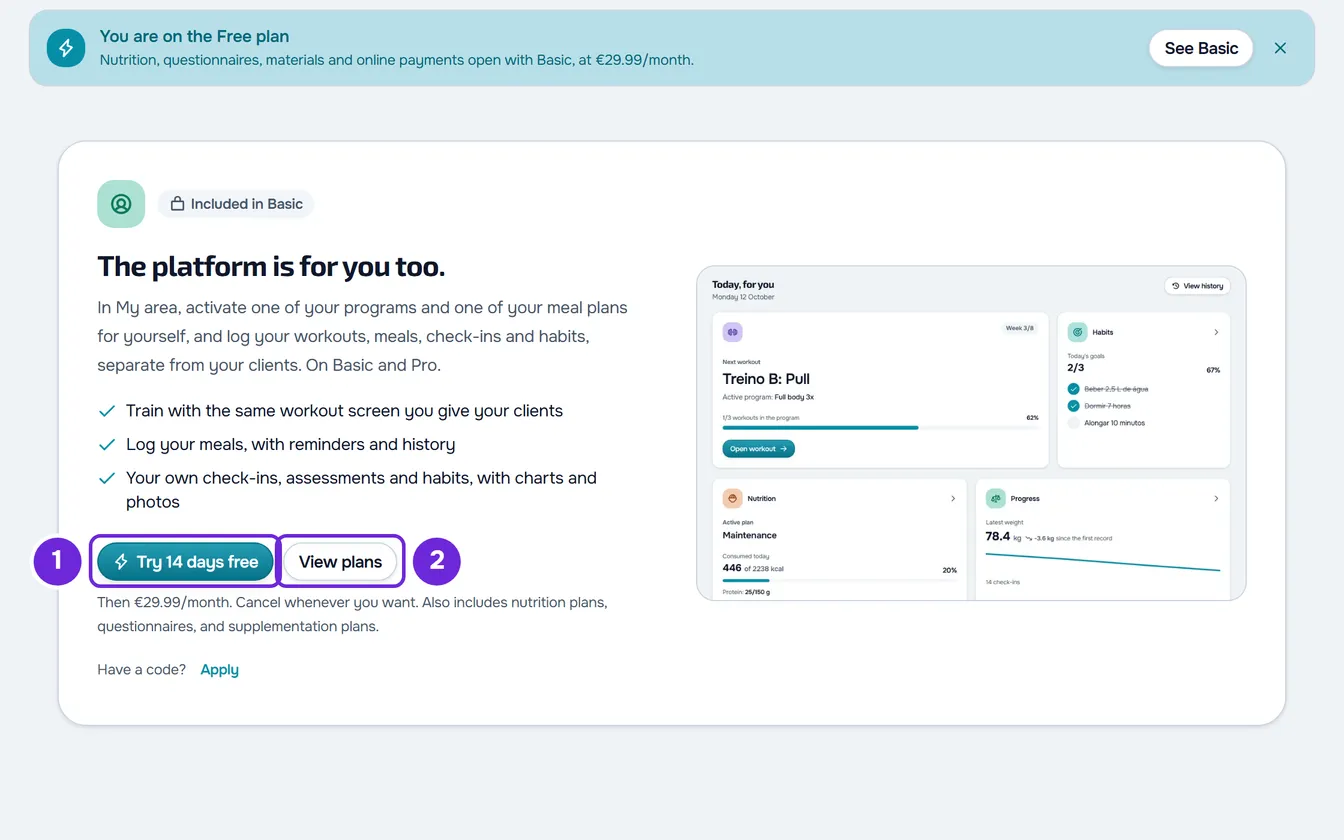
It appears when your plan does not include My area. Your own plan is always the one that counts, even with a team selected in the dashboard: a member does not inherit My area from the team owner's plan. To check what your plan includes, open Settings > Subscription: in Included features, My area is called “Personal area”. The list only shows what the plan includes: if “Personal area” is not there, your plan does not include it.
To open My area, move to a plan that includes it:
- The main button takes you to the monthly checkout for the cheapest plan that includes My area. It says “Try”, with the number of free days, when that plan has a trial period and you have never had a paid plan, not even as a trial or a gift. In the other cases, it says “Upgrade to”, with the plan name.
- View plans opens the plan comparison, in Settings > Subscription. If the list of plans does not load, the page shows only this button.
With the new plan active, My area opens with its title and the six tabs. The dashboard reads your plan when it loads: if you changed plan in another browser tab, reload the page. The payment steps are in Upgrade your plan and pay for your subscription. About these pages, see Feature locked by your plan: what it means.
“Our services seem to be down”
The website could not read your plan, because of a connection or server failure. Without knowing the plan, it shows neither My area nor the introduction page. The card says “We're trying to reconnect. This page will load automatically as soon as the connection is back.”
The website retries by itself, at intervals of 3 to 30 seconds, and immediately when the connection is back or when you return to this browser tab. To avoid waiting, select Try now. See also “Our services seem to be down” and section under maintenance.
A tab shows the introduction of a module
The My area title and the tabs stay visible, but in place of the tab's content you see the introduction page of a module, with a main button and the View plans button. The other tabs keep working. In Overview, the card of that module shows up empty.
It appears when your plan includes My area, but not the module that tab uses:
| Tab or page | Module, with the name it has in Included features |
|---|---|
| Workouts and History | “Workout builder” |
| Nutrition | “Nutrition plans” |
| Habits | “Habit tracking” |
| Progress | “Physical assessments” |
| The health questionnaire form, which opens from Progress | “Health questionnaires” |
The health questionnaire form is a detail page, without the My area title or the tabs: on it, the introduction page appears by itself.
To open the tab, move to a plan that includes the module: the main button of the page takes you to the monthly checkout for the cheapest plan that includes it. If you have a custom plan, contact support first. To learn more, see Required plan, limits and addresses for My area.
“You have more active clients than your plan allows. Choose which to keep or upgrade your plan.”
The amber notice appears when you save something in My area, for example a workout, a meal, a habit, a check-in or the activation of a program. The pages still open and show your data.
The cause is the frozen account: you have more active clients than your plan allows and, while that is the case, the server refuses every save in My area. It is your account that counts, not the team's: when the frozen account belongs to the owner of a team you are a member of, My area keeps saving.
To fix it, choose which clients stay active or upgrade your plan. The steps are in You have more active clients than your plan allows. Then repeat the save: what was refused was not stored on the server.
A tab does not load its data
A read failed, because of a connection or server failure. What you see depends on where you are:
- In Overview, the banner “Some data is currently unavailable. Everything that loaded remains visible.” and, on the cards with no data, “Temporarily unavailable”. The Try again button reloads the whole Overview.
- In the other tabs, when there is nothing to show, an error card with the Try again button. The title changes with the tab and with the cause, for example “We could not load this information”, “Service temporarily unavailable” or “You are offline”.
- In the window where you choose the program or the meal plan, the card “Your content could not be loaded.”, also with Try again.
- With data already on screen, only a notice line, with no button. What already loaded stays: reload the page to try again.
If the card shows a button with the word “Reference” and a code, select it to copy the error reference and send it to support. See also “We could not load this information” and other error cards and “You are offline”: what to do on the web.
A save fails
When a save fails, an error notice appears. My area does not keep saves to send them later: you have to repeat the action.
- “Too many requests. Wait a moment.”: you went over the limit of saves per minute for the group of that action, which is 30 or 60 depending on the group. Wait up to a minute and repeat. The limits of each group are in Required plan, limits and addresses for My area.
- “Connection error.”: the request did not reach the server. Check your internet connection and repeat.
- Only “Try again”, or a sentence such as “Your personal area could not be updated.”: the notice does not say the cause. Repeat the action and, if it fails again, reload the page.
Not every notice says the cause. When you mark a meal as eaten, for example, the error notice always says “Try again”, even when you went over the limit per minute.
The workout you are doing is the exception: it is saved in this browser with every change, even without a connection. For problems during a workout, see Common problems during a workout and how to fix them.
If this did not solve it
Reload the page. If it continues, contact support and send:
- your account email and the plan you are on, which you see in Settings > Subscription;
- the My area tab you were on and what you tried to do;
- the exact text of the notice or the card and, if the card shows it, the error reference;
- the day and the time it happened.