
Before you start
- In a team workspace, you need the Nutrition > Edit permission. Without it, the plan editor opens view-only and doesn't show the Settings button.
- The client sees the plan's name and description: in the plan PDF, under “Notes from your professional”, and in the app, in the plan text they share. The cover, or the icon and color, identifies the plan in your meal plan lists; the client doesn't see it. Tags and Private note have a padlock next to the label: the client doesn't see them.
- Each client's dates aren't in Settings: you choose them when you assign the plan, as in Assign a meal plan to one or more clients.
Interactive tutorial
Opens in the app and needs you to be signed in.
Steps
To change a meal plan's settings:
- In Nutrition, on the Meal Plans tab (Plans on a phone), select the plan. The plan editor opens.
- Select Settings. On a phone, the button shows only the gear icon.
- In Plan name 1, enter the name, up to 100 characters. The name is required.
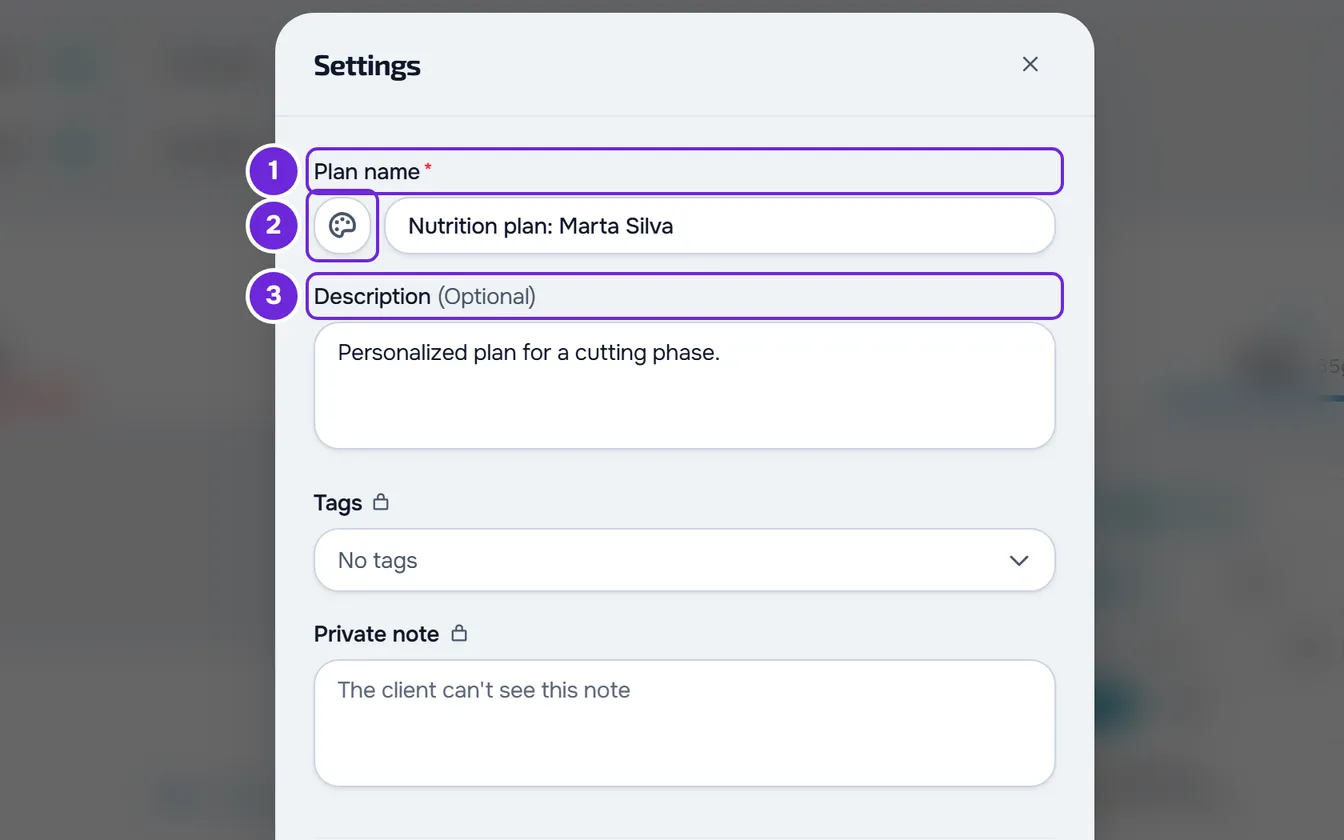
- Optional: select the square next to the name (Appearance 2). In Icon & color, choose a color and an icon; or, in Image, select Upload cover and choose an image up to 2 GB.
- Optional: in Description 3, enter up to 2000 characters.
- Optional: in Tags, choose the plan's tags, up to 50. To create a new one, type its name in the menu's search and select the create option.
- Optional: in Private note, enter a note just for you and your team, up to 2000 characters.
- Optional: in Distribution Mode 1, choose another mode.
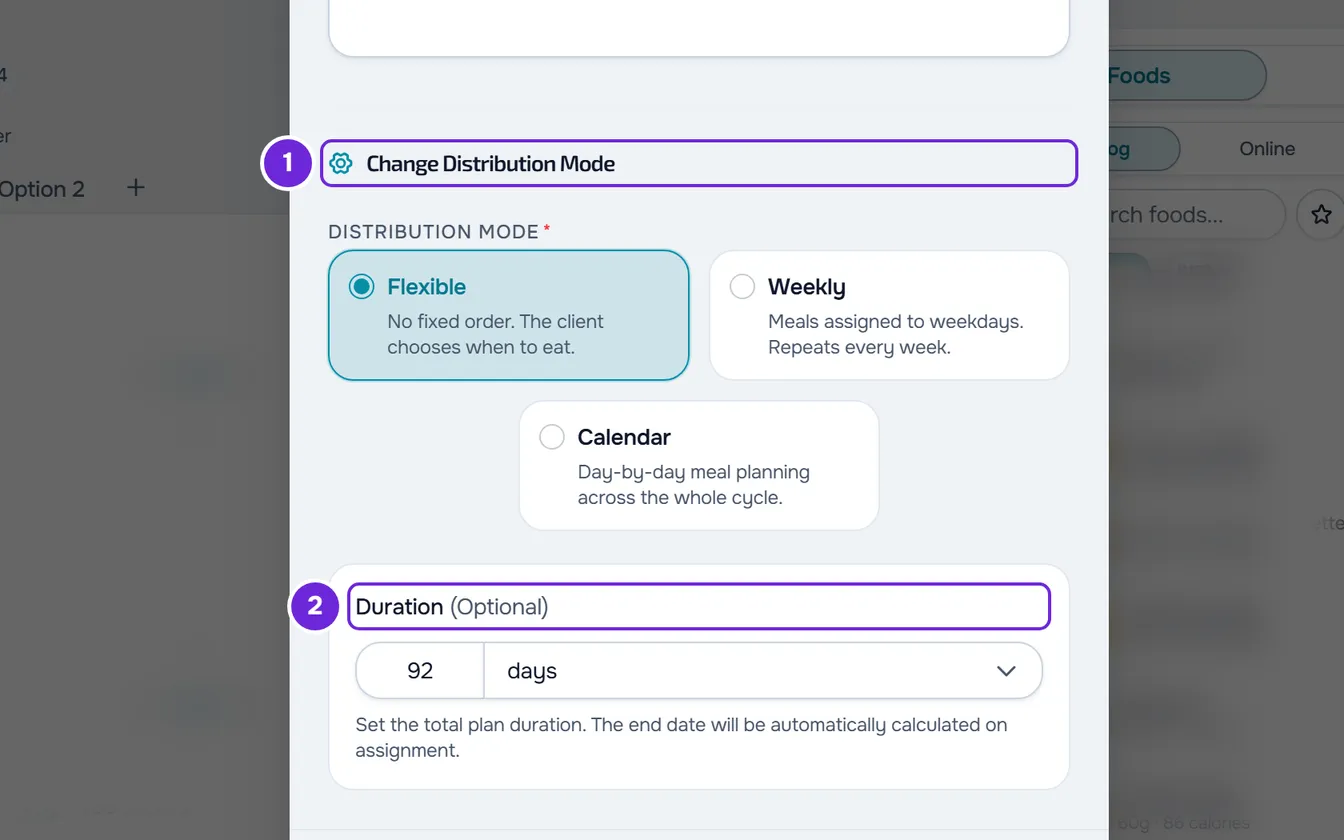
- Optional: in Duration 2, enter the duration and choose days or weeks. In a Calendar plan, the duration is required.
- Select Save.
The window closes and the editor shows the new name and, in the chips under it, the mode and the duration. The cover only stays on the plan after you save.
With meals in the plan, when you choose another mode, the window shows what happens to them before you save; changing mode doesn't delete meals. If the plan has per-period goals and the change removes them, the window warns: “Changing the mode will remove per-period goals. The base goal stays.” The rules are in Meal plan modes: Flexible, Weekly and Calendar.
If you close the window with changes, “Save before leaving?” appears. Discard closes without saving and Save and leave saves, as long as the name and the duration are valid.
Change only the duration
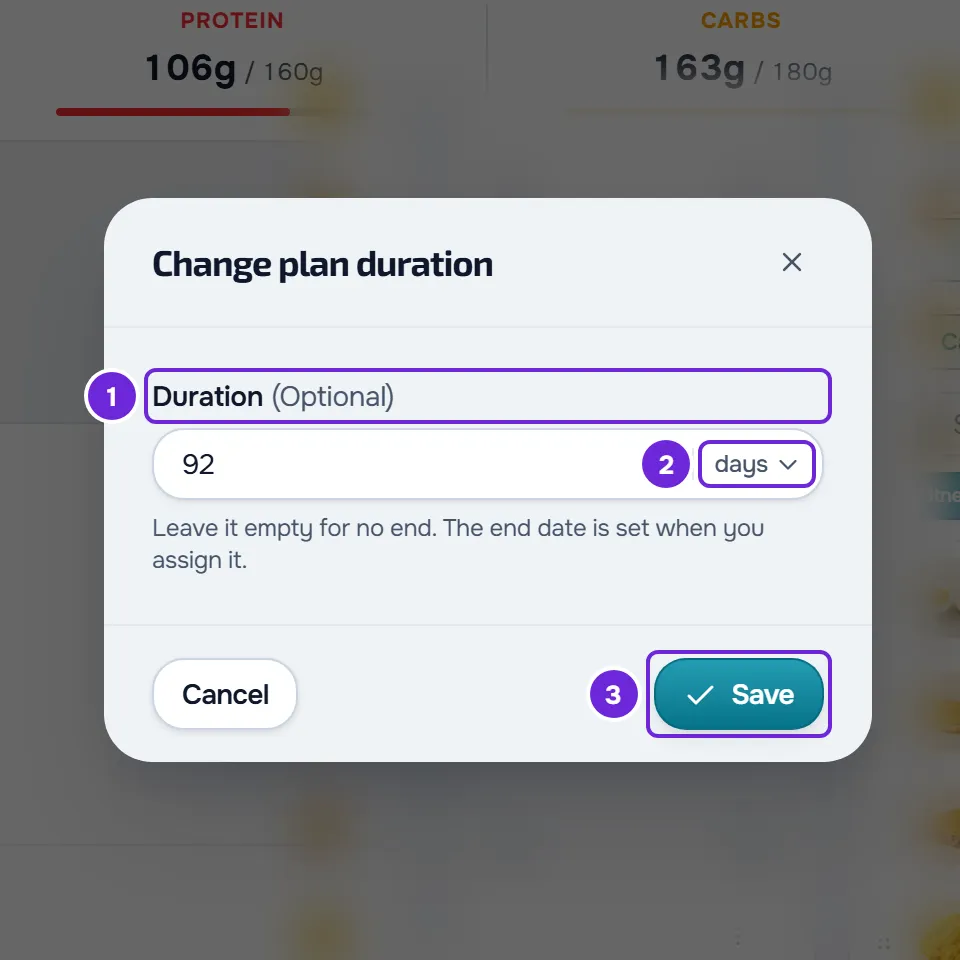
In the editor, the duration chip, under the plan name, shows the duration in days or No end; in a Calendar plan, it shows the days in the grid. Select the chip to open the Change plan duration window, enter the number in Duration, choose days or weeks in the same field and select Save. If the duration is a whole number of weeks, the window opens in weeks. Outside Calendar mode, an empty field leaves the plan with no end.
How the duration is counted
- It goes from 1 to 365 days. In weeks, MyFitnessClient saves the days, rounded: 4.5 weeks are 32 days.
- When you assign the plan to a client, the suggested end date counts the duration from the start day, including that day: 28 days starting on March 1 end on March 28. Changing the duration doesn't change the dates of clients who already have the plan.
- In a Calendar plan, the duration is also the number of days in the grid and the client's cycle: when the cycle ends, the client goes back to day 1. So changing it changes what clients get on each day. If you choose Calendar in Settings with the duration empty, the field changes to 7 days.
- Shortening a Calendar plan removes the last days. If those days have meals, the Remove days confirmation opens with how many are lost, for example “Days 22 to 28 have 5 meals.”, and the days are only removed after you select Remove days. With no meals on those days, they're removed right away.
- In Settings, when you shorten a Calendar plan, everything else saves first. If you cancel the confirmation, the other changes stay and the plan keeps the duration it had.
Common problems
The Save button is disabled
The name is empty or the duration isn't valid. In Settings, under the duration field, “Duration must be a valid number greater than 0.” (0 or days with decimals) or “Duration can be up to 365 days.” appears. In a Calendar plan, the duration can't be empty. In the chip's window, the 365-day message only appears when you save. Fix the field and save again.
I don't see the Settings button
Without the Nutrition > Edit permission, the editor shows “You can only view this. To make changes, ask whoever manages the team for edit permission.” and doesn't show the button; the chips under the name are visible but don't open anything. Ask whoever manages the team for the permission. See “No permission to access” and menu items missing for a member.
The cover doesn't upload
The cover must be an image up to 2 GB; a larger one gives “Image exceeds the 2 GB maximum”. The cover counts toward storage: with “You have reached your plan storage limit.” or, in a team workspace, “The team's file storage is full. We've let the team owner know.”, see “Storage limit exceeded”: how to free up space. With “The file upload stopped partway. Check your connection and try again.”, check your internet connection and upload the image again.
If this didn't solve it, contact support with the plan name, what you wanted to change and the exact message that appeared.
Questions
Do clients who already have the plan see the new name?
Yes. The plan is the same for all the clients you assigned it to, so the name and the description change for everyone when you save. A client you split off from the plan has their own copy, which doesn't change.
Can I change the name without opening Settings?
Yes. Type in the name at the top of the editor: it saves when you leave the field or press Enter. See The meal plan editor: autosave and Undo.
What is the duration for in a Flexible or Weekly plan?
It suggests the end date when you assign the plan to a client. With no duration, the chip shows No end and the assignment starts with no end date.
Where do I change the dates of a client who already has the plan?
In the plan's client management, not in Settings. See Change dates, split off or remove a client from a meal plan.