
In a meal plan's editor, the Daily Goals card adds up the calories, protein, carbs and fat of the meals of the day you are viewing and compares them with that day's goal. Under the title, a line gives the status of the day against the goal. In a plan in Calendar mode, the card is called “Goals for day” followed by the day's number, for example “Goals for day 3”. In this article, it is called the goals card. Each meal's card shows the same four values, for that meal's foods only.
Which case is yours
Find what you see on the screen in the table. The numbers in the macros warning are an example: the screen shows yours.
| What you see | Cause | What to do |
|---|---|---|
| “Totals are unavailable because nutrition values are missing.” on the goals card, in place of the status | The day has a goal and at least one of the day's foods has no calories. | Fill in that food's calories. |
| “-” in place of a total, on the goals card or on a meal's card | At least one of the foods being added up does not have that value. | Fill in the missing value on that food. |
| “Macros total 2080 kcal, but the target is 2000 kcal. Difference: +80 kcal.” | In the goals, the grams of protein, carbs and fat give a number of calories that differs from the calorie goal by more than 10 kcal. | Adjust the grams or the calories. It is only a warning: the goals are still saved. |
| “No meals” on the goals card, on a day that has meals | The day's foods add up to 0 calories, or the day's goal has grams and no calories. | Add foods to the meals, or enter the calorie goal. |
| “<1” on a food | The food has that value, but less than 1 kcal or 1 g in the chosen quantity. | Nothing. It is not an error. |
| The total does not match the sum you worked out | Each food is rounded to a whole number before it goes into the sum. | Nothing. The section on the sum explains why. |
“Totals are unavailable because nutrition values are missing.” or “-” in a total
MyFitnessClient only shows the total of a value when every food being added up has that value. If one of them is missing it, the total becomes “-”, so that a wrong sum is not shown. Each of the four values is handled separately:
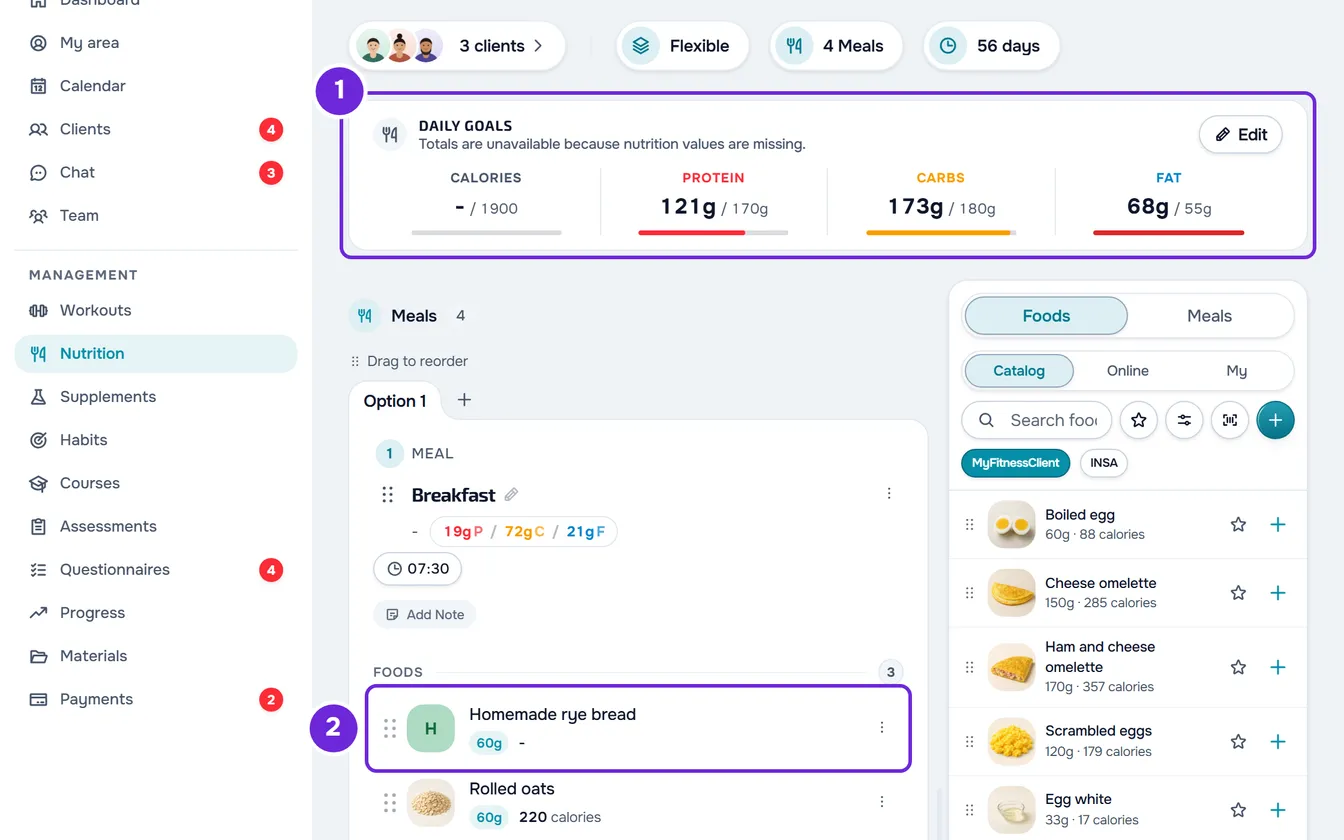
- When a food is missing its calories, the goals card shows “-” for the calories. If the day has a goal, the sentence “Totals are unavailable because nutrition values are missing.” appears in place of the card's status. That food's row shows “-” instead of the calories. In Calendar mode, the calories of that day and of that meal no longer appear in the grid.
- When the protein, the carbs or the fat is missing, only that value becomes “-”, on the goals card and on the meal's card. The card's status stays the same, because it depends only on the calories.
A food in the plan can end up without one of these values, for example:
- The field was left empty in the Edit Food window. An empty field is an unknown value, which is different from 0.
- The value, for the food's quantity, is less than 0.005 kcal or 0.005 g. MyFitnessClient saves it as unknown, so as not to save a 0 that would be false.
- The meal was copied from another plan or from the meal library with the food already missing that value.
To fix it, you need to be able to edit the plan. A team member without the permission to edit in Nutrition sees the plan as read-only, without the Edit button.
To fill in the missing value:
- Open the meal plan and the day where the “-” appears.
- Find the meal whose card shows “-”. In Calendar mode, select each of the day's meals in the grid to open its card.
- In that meal, select a food to open its details. The food that is missing a value shows “-” for that value. When the calories are missing, the “-” also appears on the food's row 2.
- In the details of the food that is missing the value, select Edit. The Edit Food window opens.
- Under the Nutrition per heading, fill in the fields that are empty among Calories, Protein, Carbs and Fat. The heading shows the quantity the values refer to: 100 g, 100 ml or the food's quantity. If the food does not have that nutrient, enter 0.
- Select Save.
The total appears again when every food being added up has the value. If the “-” is still there, another food has no value: repeat the steps.
You can also open the Edit Food window from the food's ⋮ menu or by right-clicking the food's row. When editing:
- In the Edit Food window, an empty field shows a 0 as an example. It is not a saved value: until you enter a number, the value stays unknown.
- If the “-” is still on the same food after you save, the value you entered gives less than 0.005 for that food's quantity. In that case, enter 0 in the field.
- If the food has substitutions, saving opens the “The substitutions no longer match the main food” window, so that you can recalculate their quantities. See Add substitutions for a food in the plan.
“Macros total … kcal, but the target is … kcal. Difference: … kcal.”
This warning appears in the Daily Goals window, under the Macro Distribution bar. It compares two numbers you entered in the goals: the calorie goal and the calories that the grams of the three macros give. The calculation uses 4 kcal per gram of protein, 4 kcal per gram of carbs and 9 kcal per gram of fat. It does not use the plan's foods.
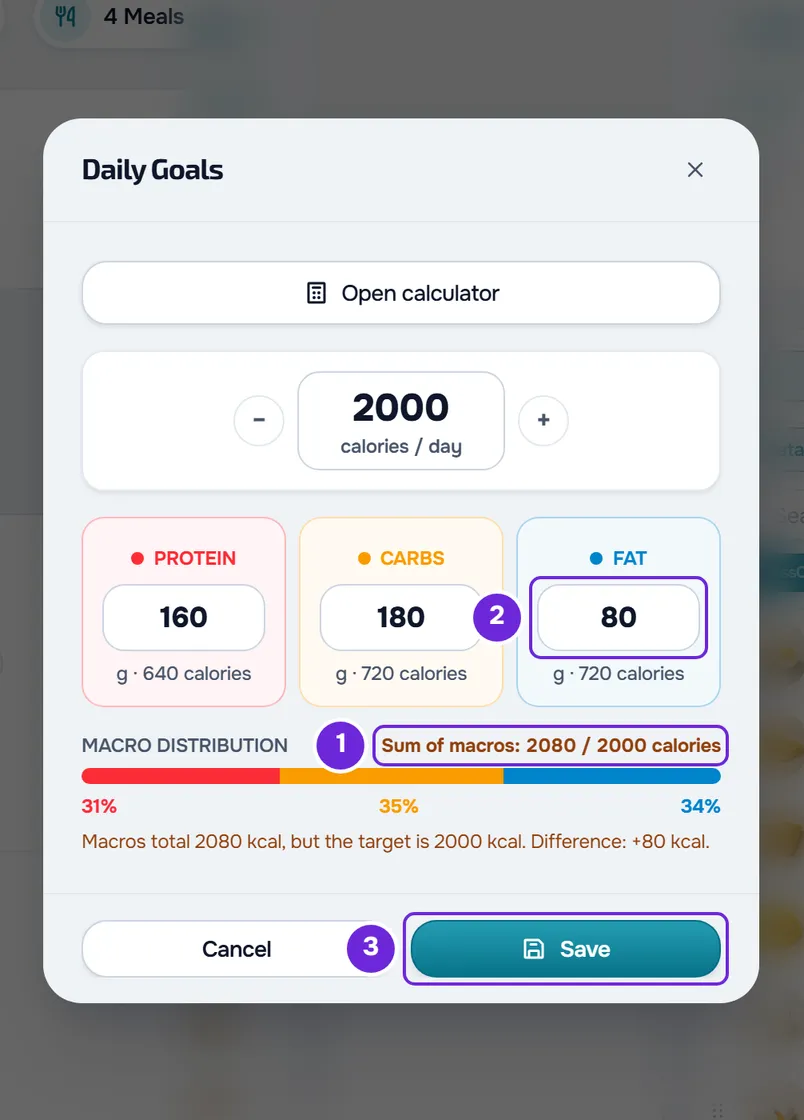
The warning appears when the calorie goal is greater than 0 and the difference is more than 10 kcal. For example, 160 g of protein, 180 g of carbs and 80 g of fat give 640 + 720 + 720 = 2080 kcal. With a goal of 2000 kcal, the warning says “Macros total 2080 kcal, but the target is 2000 kcal. Difference: +80 kcal.”. The difference has a “+” when the macros give more calories than the goal and a “-” when they give fewer.
It is only a warning: you can save the goals as they are. To adjust them:
- On the Daily Goals card, select Edit.
- Read the Sum of macros 1 line, which shows the sum of the macros and the calorie goal. Under each macro's field, you see the calories those grams give.
- Change the calorie goal or the grams of a macro 2 until the difference is 10 kcal or less. The warning disappears.
- Select Save 3.
In a plan in Weekly or Calendar mode, the window opens with This day chosen in Apply goal to. What you save applies only to the day you are viewing, and the other days keep the goal they had. To change the week or the whole plan at once, see Set a plan's daily calorie and macro goals.
To work out the calories and the grams from the client's data, use the calculator in the same window. See Calculate a client's calories and macros with the calculator.
“No meals” on a day that has meals
On a day with a goal, the card's status is “No meals” when the day's calories add up to 0: the day has no meals, the meals have no foods or the foods have 0 calories. It also appears when the day's goal has grams of protein, carbs or fat and no calories. Add foods to the meals, or enter the calorie goal. When the day has no goal at all, the status is “No goal set”.
“<1” and “-” on a food
- “<1” means the food has that value, but less than 1 kcal or 1 g in the chosen quantity. In the sum, it counts as 0 or as 1, depending on the rounding.
- “-” means the value is unknown. In the plan editor, an unknown value appears as “-”, not as 0.
- In a food's details, a “-” for sugar, salt, fiber, saturated fat or potassium does not change the totals. The totals only add up the calories, protein, carbs and fat.
- A “-” on a substitution does not change the totals either, as they only add up the main foods of each meal.
Why the total does not match your sum
- The values appear as whole numbers, and each food is rounded to a whole number before it goes into the sum. A meal's total is the sum of the whole-number values of its foods, and the day's total is the sum of all the day's foods. For example, three foods with 10.4 g of protein count as 10 g each and add up to 30 g. The sum of the values with decimals would be 31.2 g.
- The calories are those of each food, as they are saved on it. They are not calculated from the macros, so the calorie total may not match 4 kcal per gram of protein and carbs and 9 kcal per gram of fat.
- In a plan with different days, the goals card adds up only the day you are viewing, not the whole plan.
- In a meal with options, the goals card adds up the option that is open. Switching option changes the card's totals, without changing the plan.
Your client sees the totals with the same rounding rule, on the website and in the latest version of the app. See What the client sees and gets from the meal plan.
If this did not solve it
Contact support with the plan's name, the day, the name of the meal and of the food that show “-” and a screenshot of the card or of the warning.