
Every client you assign a plan to shares the same plan: whatever you change in it later reaches all of them right away. Each client has only one of your supplement plans at a time.
Before you start
- In a team, you need the Supplements permission with Edit. Without it, the plan opens read-only and you cannot assign, change dates or remove clients. You also need the Clients permission with View, without which the client list does not load. More in “No permission to access” and menu items missing for a member.
- A team member with Client access set to Specific clients only sees and only assigns the clients assigned to them.
- You can only assign to clients whose coaching is active or scheduled. Archived clients and clients whose access has ended do not appear in the list.
- If you do not have the plan yet, create it first: Create a supplement plan for your clients.
Steps
To assign a plan to one or more clients:
- In the side menu, select Supplements.
- On the Supplement plans tab, select the plan.
- Under the plan's title, select the clients chip. It says Assign to Client when no one has the plan, or the number of clients when someone already has it. The Assign to clients window opens.
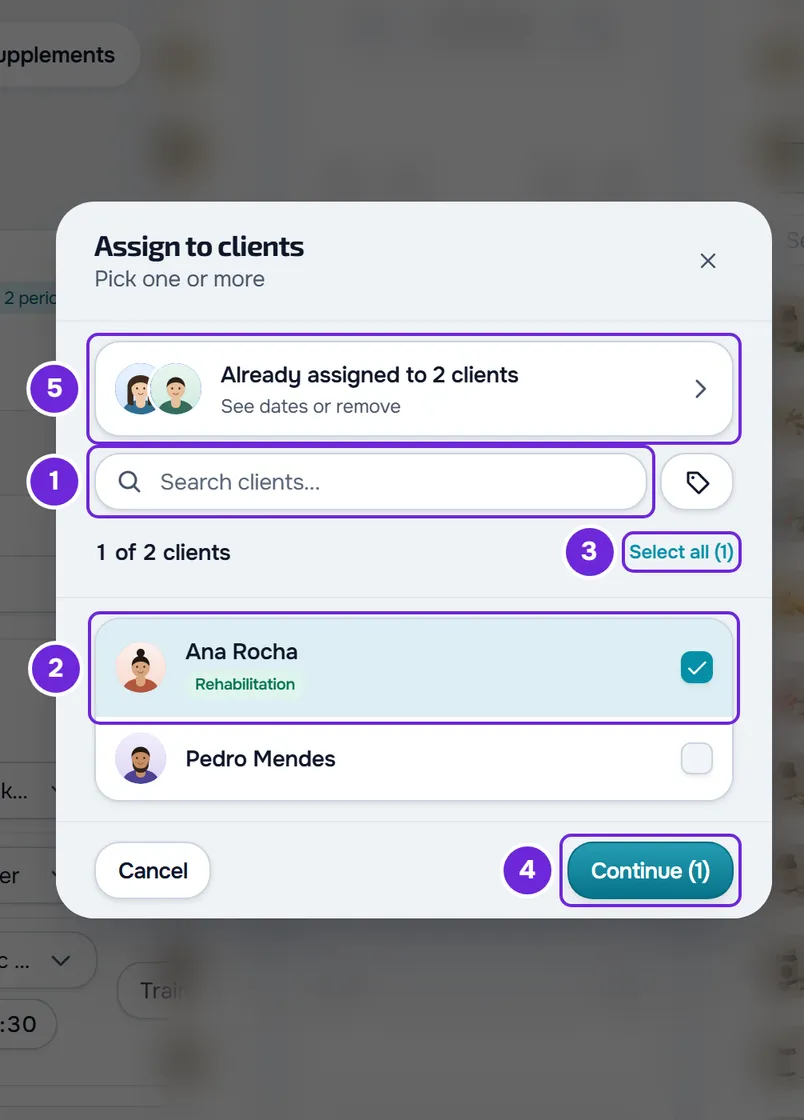
- Optional: to find clients, type a name, a nickname or an email in the search 1, or filter by tags.
- Select each client 2 you want to give the plan to, or select Select all 3 to mark all the ones in view. The “N of M clients” line shows how many you chose. You can assign to up to 500 clients at a time; with more, “Invalid data. Check the fields.” appears when you confirm and nothing is saved.
- Select Continue 4. The button shows how many clients you chose, for example “Continue (2)”.
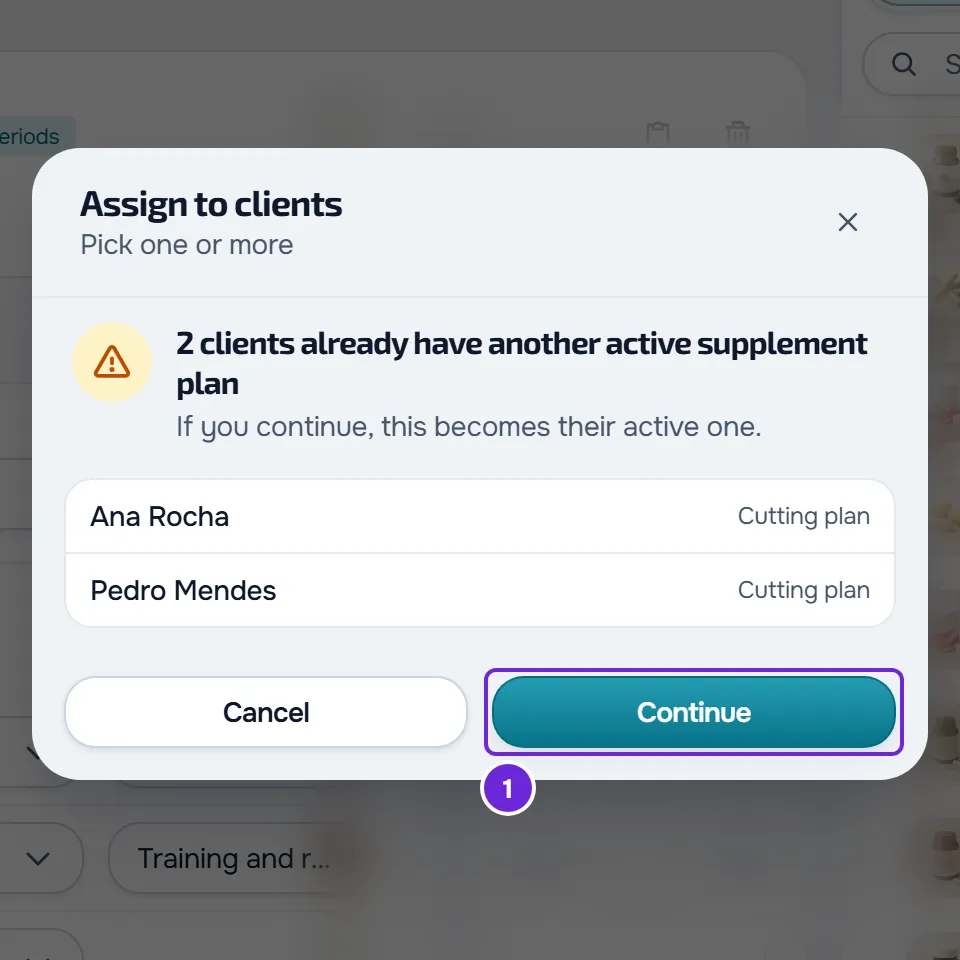
- If any chosen client already has another of your supplement plans, a warning appears: Active Supplement Plan, when you chose a single client, or the list of clients who already have another plan, with each one's plan, when you chose several. Select Continue 1 for the new plan to replace the one they had.
- In the dates step, on the Access dates card, choose the Start 1 day in the calendar. It is set to today, or to the day access opens when you assign to a single scheduled client.
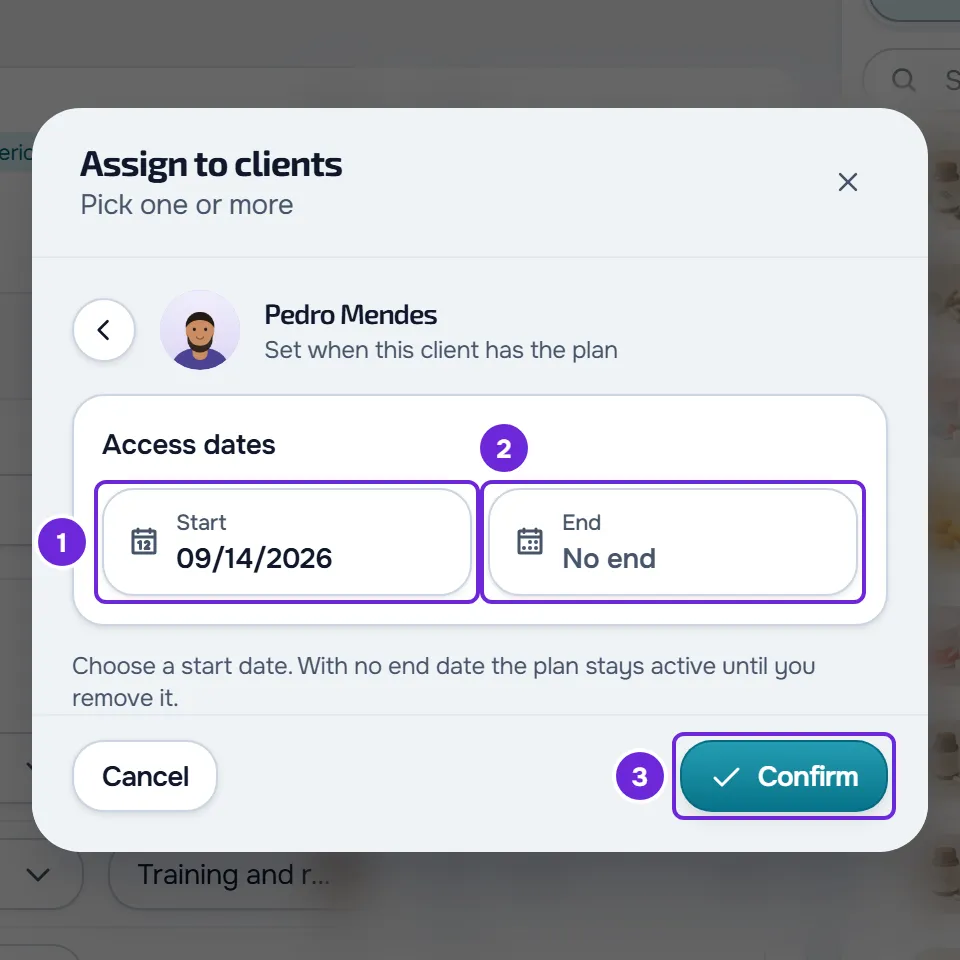
- Optional: choose the End 2 day. When empty, the field says No end and the client has the plan until you remove it.
- Select Confirm 3. With several clients, the same dates apply to all of them and the button shows how many there are, for example “Confirm (3)”.
The message “3 assigned” appears or, if a client was left out, “3 assigned, 1 skipped”. The window returns to the list: the new clients move to the “Already assigned to N clients” line and the chip under the title shows how many clients have the plan.
What happens when you assign
- The new plan replaces the supplement plan the client had with you. The old plan is not deleted and the doses the client already logged stay in the history.
- The client sees the plan on the Supplements page from the Start day and stops seeing it after the End day. The Start day is day 1 of the plan.
- A client with active coaching who did not have this plan yet receives the notification “New supplement plan”, with the plan's name and your name (in a team, the owner's name). The notification always stays in the notification bell; the push to the phone is only sent if the client has push notifications and Supplement reminders turned on.
- There is no notification when you change the dates of someone who already has the plan, when the client is scheduled, or when the client's recurring plan or pack with you does not include Supplements. In that last case, the client does not see the plan either.
The client's side is in Mark your supplement doses for the day and Turn supplement reminders on or off. What a client's recurring plan or pack includes is in Create recurring plans and packs for clients.
Change the dates or remove a client
In the Assign to clients window, select the “Already assigned to N clients” line. The Manage clients view opens, with each client's dates, for example “From Sep 14” or “No dates”, and the plan day the client is on today, for example “day 12”.
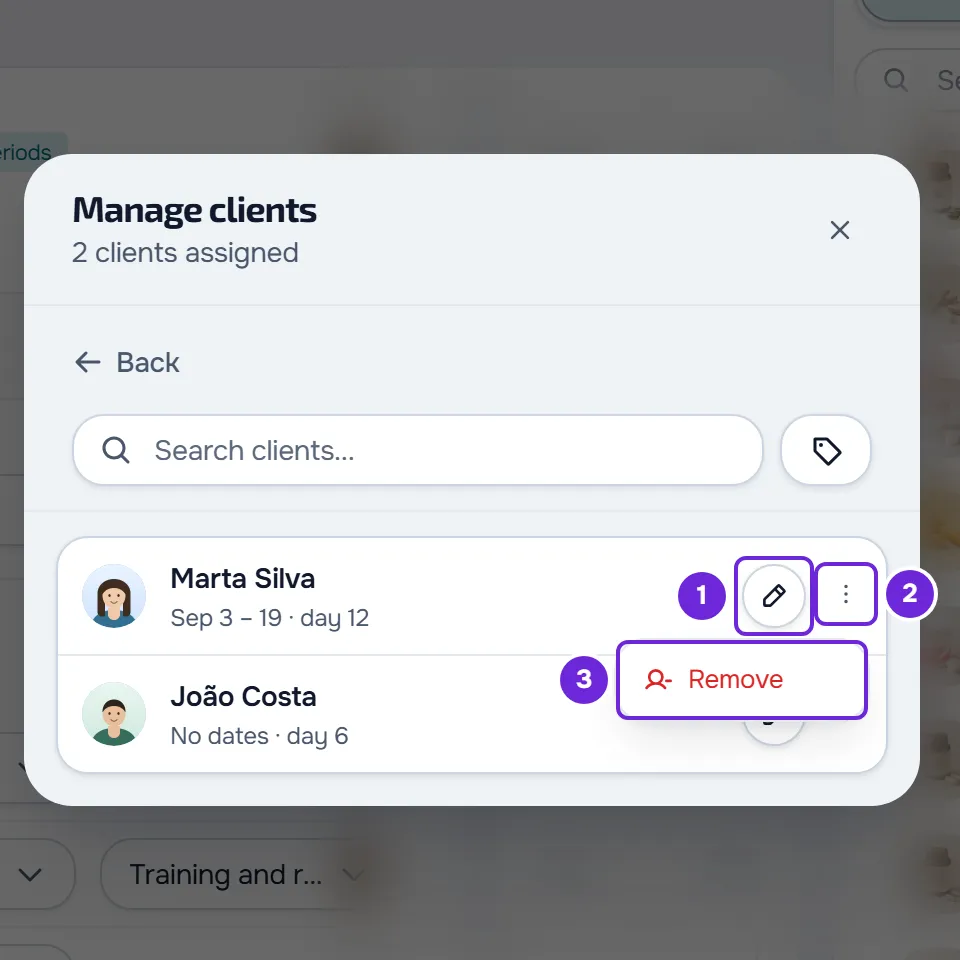
- To change the dates, select the client's name or the Edit dates pencil. The same dates step opens, already filled in: change the Start or the End and select Confirm.
- To remove the plan from a client, select ⋮ on their row, or right-click the row, and choose Remove. Confirm with Remove. The message “Client removed” appears.
The client stops seeing the plan right away, and the doses they already logged stay in the history. Changing the dates does not notify the client. When you remove the last client, the window returns to the list.
Supplements added to a plan already assigned
A supplement you add to a plan that is already running starts on that day for each client who has already started the plan, and not on day 1, which for that client has already passed. For example, a 15-day loading period added when the client is on day 30 runs its 15 days from that day, instead of jumping straight to maintenance.
The plan does not change: the periods keep counting from day 1. A client whose Start has not arrived yet, or who did not have the plan yet when you added the supplement, takes the supplement from their own day 1. When the plan has a single client, the plan preview counts the supplement from the day it was added for that client; with several clients, it shows it from day 1. Periods are explained in Split a supplement into periods: loading and maintenance.
Older plans with an event date
In a plan with periods counted backwards from an event, such as a peak week, the dates step also shows the Event date field. In these plans, the date is required: without it, “Enter the event date: some phases count from it.” appears and nothing is saved. The current builder no longer creates periods like these.
Common problems
The client does not appear in the list
The list only shows clients whose coaching is active or scheduled and who do not have this plan yet. An archived client or one whose access has ended does not appear, and those who already have the plan are in the “Already assigned to N clients” line. A team member with Specific clients only sees the clients assigned to them. To fix it, reactivate the client or ask whoever manages the team to assign the client to you.
The message says some clients were skipped
For example “2 assigned, 1 skipped”. It happens when, between opening the window and confirming, a client's coaching stopped being active or scheduled, or the client stopped being assigned to the team member. Check those clients' status in Clients.
“You have more active clients than your plan allows. Choose which to keep or upgrade your plan.”
The account is frozen: you have more active clients than your account allows. While it stays like this, you cannot assign, change dates or remove clients. See You have more active clients than your plan allows.
The client list does not load
If reading the clients fails, the window shows an error card instead of the list. Select Try again. If that did not fix it, contact support, as explained in Contact Support and create a request, with the plan's name, the time it happened and the Reference the card shows, when it shows one.
Questions
Does assigning make a copy of the plan for each client?
No. All clients share the same plan, so a change reaches all of them right away. To adapt the plan for one client only, open their profile, Supplements tab, and select Edit Plan. When the plan has more than one client, choose Create personal copy.
Can I assign to a scheduled client?
Yes. The plan never starts before the day the client's access opens, even if you choose an earlier Start. The client does not receive the “New supplement plan” notification at the moment you assign.
Can I set the Start to a past date?
Yes, there is no minimum date. The plan days count from the Start: with the Start 10 days ago, the client is on day 11 today.
Can a client have two of my supplement plans at the same time?
No. Assigning another plan replaces the one the client had with you.
Can I assign from the client's profile?
Yes, when the client does not have one of your supplement plans yet. See Assign a supplement plan from a client's profile.