
Before you start
- What you change in a food applies only to that meal, on that day. The meal plan does not change: on the other days, the meal keeps the plan's foods.
- On a day that has passed, first select Edit this day and confirm with Edit day. See Review and fix past nutrition days.
- Each swap, edit or deletion is a save. The Nutrition tab of My area accepts up to 30 saves per minute, counted together with the others, such as marking a meal as eaten. See Required plan, limits and addresses for My area.
- If a save fails, because of that limit or because there is no connection, swapping shows “Could not replace the food” and editing or deleting a food shows “Try again”. Wait a minute and repeat. If it keeps happening, see My area does not open, does not load or does not let you save.
Steps
To swap a food for an equivalent one:
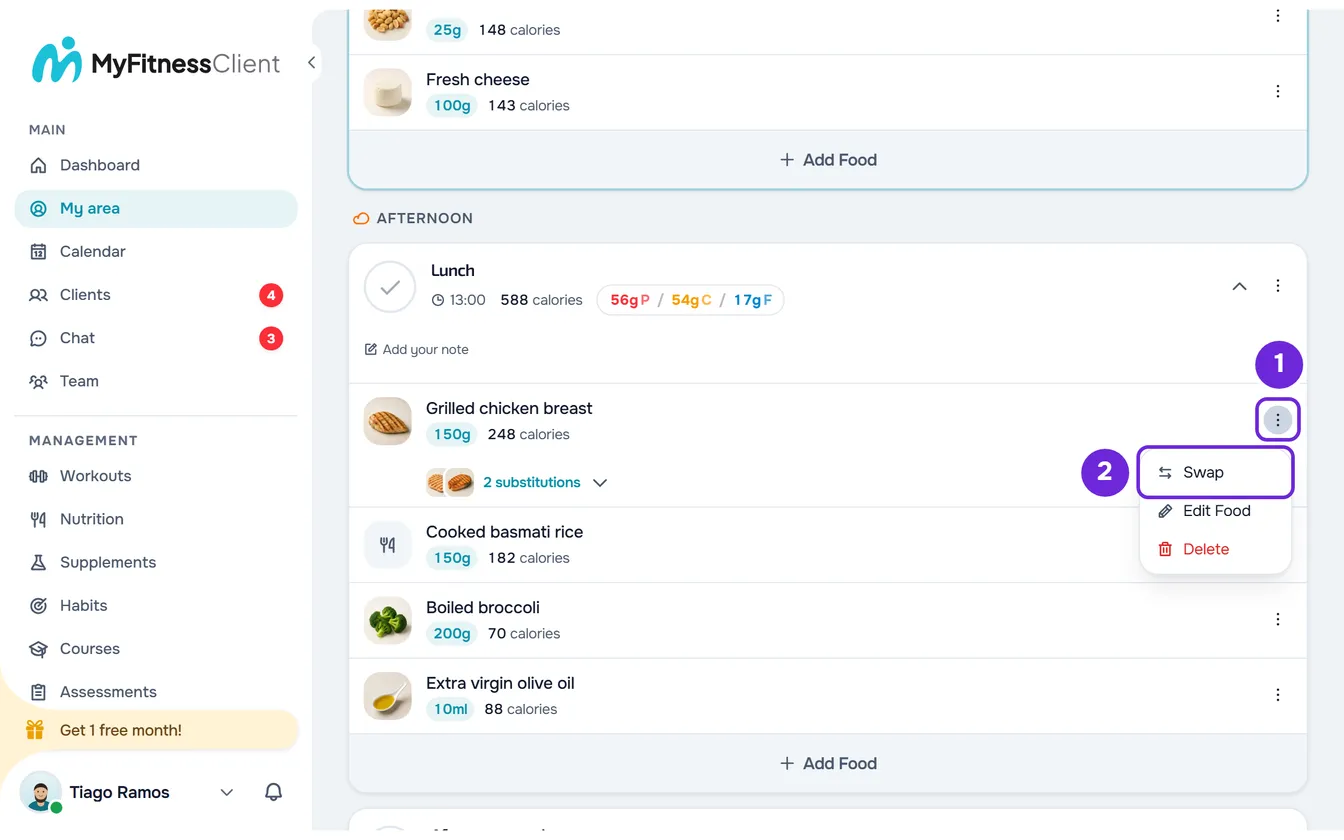
- In the side menu, select My area and open the Nutrition tab.
- On the top card, choose the day with the arrows or with the date picker and find the meal. A meal marked as eaten appears collapsed: select its name to open it.
- On the food's row, open the ⋮ menu 1 and select Swap 2. A right-click anywhere on the row opens the same menu. The Swap food window opens.
- Optional: under Match 1, choose what the new food keeps. Calories is selected by default. Protein, Carbs and Fat keep that macro, and you can choose more than one.
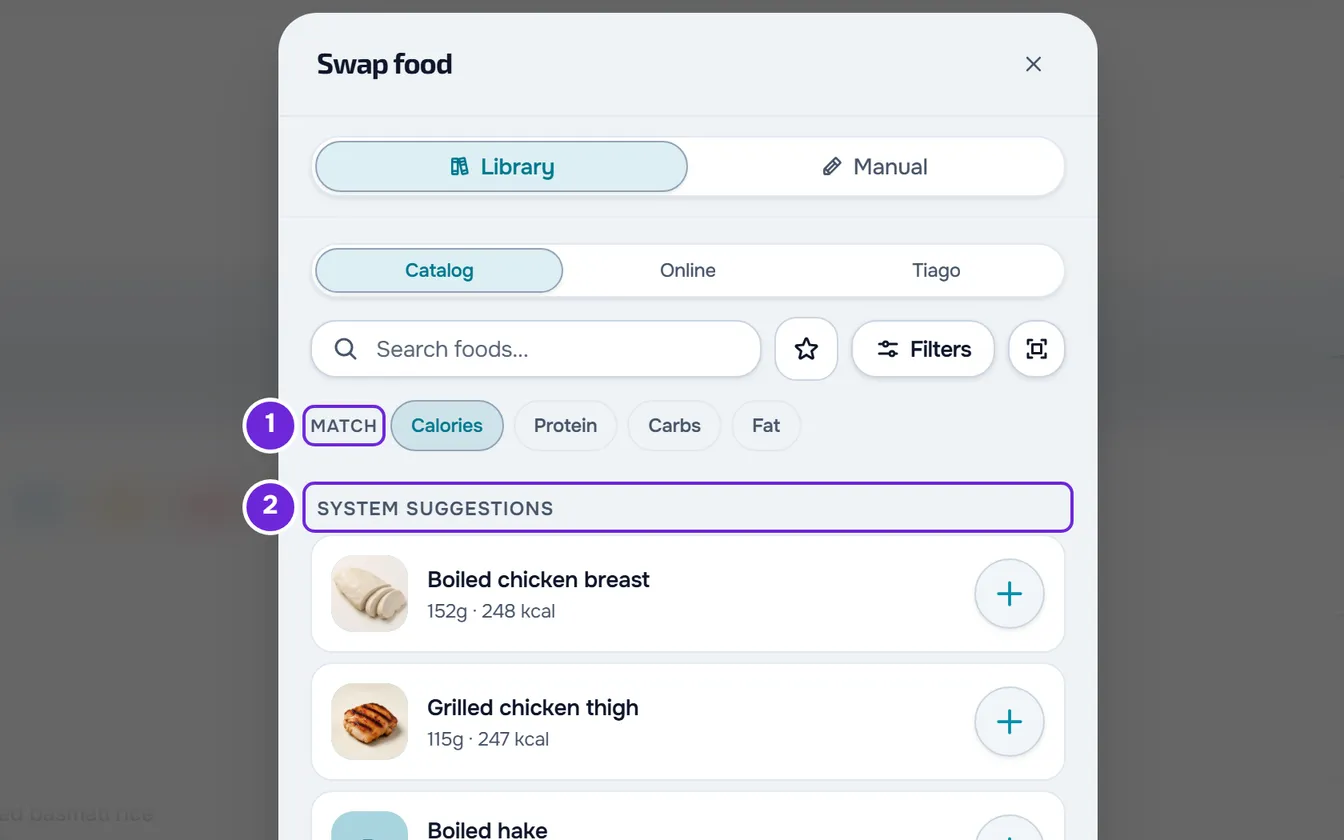
- Select a food under System suggestions 2, or type its name in Search foods... and select a result. The food's details open, with the equivalent quantity.
- Optional: in the details of a search result, change the quantity or the unit.
- Select Replace.
The window closes, the “Food replaced” notice appears and the new food takes the old one's place, with the quantity from the details. To swap without opening the details, select the + button next to a suggestion.
The Swap food window also opens from Replace with another food, in the details that appear when you select the food, and from Search for another food, at the end of the plan's list of substitutions.
What the suggestions and the search show
- The System suggestions are up to 12 foods similar to the one going out, each in the quantity that keeps what you chose under Match. Each suggestion has up to 3 green tags, for example “Matched on Protein” or “40 fewer kcal”. See How substitution suggestions are chosen.
- With one or more macros chosen under Match and no suggestions, “No equivalent swaps for this filter: this food may not have that macro. Try another, or use search.” appears.
- The foods in the list show the quantity with the same calories as the one going out, for example “91g ≈ 180 kcal”. Match only changes the suggestions. While you type in the search, Match and the suggestions are hidden.
- In the Manual tab, you type a food you cannot find. When you type the calories, Equivalent quantity shows the quantity that goes into the meal. Replace only becomes available with the name, the calories (more than 0), the protein, the carbs and the fat. That food is not saved in your food library.
Use a substitution from the plan
When the meal plan has substitutions for a food, a row with thumbnails and their number appears under it, for example “2 substitutions”. To give substitutions to a food in the plan, see Add substitutions for a food in the plan.
- Select that row. The list opens with Swap for, and each substitution shows its quantity and calories.
- Select a substitution to see its details and select Replace. It goes in with the quantity the plan sets.
- To adjust it before using it, select Edit in the details, change what you need and select Save. “Substitution updated for this day” appears. Then open it again and select Replace.
- After the swap, the other substitutions stay under the new food, and the food that went out does not join the list. To go back to the plan's foods, select Restore meal in the meal's ⋮ menu. See Log your meals for the day.
Edit a food
To correct a food's quantity or values, open the ⋮ menu on its row, or right-click the row, and select Edit Food. You can also select the food and, in the details that open, select Edit Food.
- In the Edit Food window, change the Name (up to 100 characters), the Quantity (up to 10,000) or the Unit. A new quantity recalculates the calories and macros in the same proportion. A new unit converts the quantity and keeps the same portion.
- If the unit is not g, ml, kg, l or mg, confirm how much one unit weighs in the field that appears, for example “How much is 1 slice?”. One of those units chosen under All starts with that field empty, and Save only becomes active once you fill it in.
- The nutritional values appear for the meal's quantity. When the Nutrition per heading has a menu, you can switch them to 100 g or 100 ml, and what you already typed is converted.
- Select Save. The “Food updated” notice appears and the row shows the new quantity and calories.
- A quantity of 0 is not saved: type a quantity greater than zero. If you close the window with unsaved changes, “Save before leaving?” appears.
Delete a food
On the food's row, open the ⋮ menu or right-click the row, and select Delete. The Delete Food window asks, for example, “Are you sure you want to delete “Rice”?”. Confirm with Delete: the “Food deleted” notice appears and the food leaves the meal on that day.
Deleting the last food leaves the meal empty, with “No foods”, but the meal stays on the day. To remove the whole meal, use Delete meal in the meal's ⋮ menu.
On a touchscreen, you can also swipe the food's row to the left. Two icon-only buttons appear: the arrows, in amber, open the Swap food window, and the trash can, in red, opens the confirmation to delete it. With a mouse the gesture does not exist, and it also does not work while the food's list of substitutions is open.
Common problems
The food's ⋮ menu does not appear
The open day has passed and is read-only: the food has neither a menu nor the substitutions row, and its details have no buttons. Select Edit this day and confirm with Edit day. While a save is in progress, the menu options are disabled for a moment.
“The meal changed in the meantime. Try again.”
The food changed between opening the window and confirming, and nothing was saved. The same message appears when swapping, editing and deleting. Close the window, open the food again and repeat.
“This food has no valid calorie value, so an equivalent substitution cannot be calculated.”
The food you want to swap has no calories, or has 0. Without them there is no equivalent quantity, and each food in the list says “Equivalence unavailable”. Close the window, correct the calories with Edit Food and open the swap again. For a substitution from the plan, the same case shows “Não foi possível calcular uma quantidade caloricamente equivalente.” That message also appears when the substitution does not have complete calories, protein, carbs and fat: choose another one or complete it with Edit in its details.
No suggestions appear
The System suggestions only appear for a food with calories, protein, carbs and fat filled in, and they are hidden while you type in the search. After 60 suggestion requests in one minute, the list stays empty until the minute is over: each time you open the window and each choice under Match request the suggestions again. When no food is similar enough, the list is also empty: use the search.