
This happens when you open the shopping list of a meal plan, or change the days or the meals of the list, and an error card or an empty card appears instead of the foods, or when foods you had ticked off show up unticked again. The list is the same for the professional, in the plan, and for the client, in Nutrition, on the website and in the app. What is said here about the app applies to the latest version of the app. To open and set up the list, see Create the shopping list for a meal plan.
“Failed to load shopping list.”
On the website, a card appears in place of the list, with the title “Failed to load shopping list.”, a line under it with the reason and the Try again button. That line tells you the cause.
| Line under the title | Cause | What to do |
|---|---|---|
| “Wait a moment before trying again.” | You asked for too many lists in a short time, by changing the days or the meals many times in a row. The server accepts, per account, 20 lists per minute and 2 being prepared at the same time. | Wait a minute without touching the days or the meals and select Try again. |
| “Check Wi-Fi or mobile data and try again when the connection returns.” | The request did not reach the server, almost always because there is no internet connection. | When the connection is back, select Try again. |
| A line that starts with “We are restoring the service.” | The server failed while preparing the list. | Wait a few minutes and select Try again. |
| “This content may have been removed or may no longer be available.” | You are a professional and the plan was deleted, or it does not belong to the workspace you are in now. | Reload the page and check, in Nutrition, that the plan exists in that workspace. |
| “Your account does not have permission to view this content.” | You are a member of a team and no longer have permission to see Nutrition in that workspace. | Talk to the team owner. |
| “This isn't part of your plan. Talk to your professional.” | You are a client and Nutrition is no longer part of your coaching. | Talk to your professional. |
| “A temporary failure occurred. Your data was not changed.” | Another failure, for example a request that took too long. | Select Try again. |
In the app, the error screen says “Could not load.”, or a sentence with the reason, and has the Try again button. Without a connection, when the server fails or when the request is refused because there were too many in a row, the app shows the list it had already stored for the same days and the same meals. If it has none and there is no connection, it says “No internet connection” and tries again on its own when the connection returns.
To load the list again:
- On the error card, select Try again.
- If the error comes back, wait a minute without changing the days or the meals and select Try again once more.
- If the error continues, close the list and open it again in Actions > Shopping list. On the website, reload the page before you open it.
Try again requests the list for the same days. On the website, closing the list starts everything over: when you open it, it goes back to 7 days and to all the meals. The ticks are kept.
Before showing the error, the website and the app repeat the request on their own when the cause is that you have 2 lists still being prepared: up to 3 times, 1 second apart, with the previous list still in view.
These notices also appear on other pages: see Server temporarily unavailable or too many requests in a row. If you are a client and Nutrition is no longer part of your coaching, see “Not in your plan”: a section of the app has disappeared.
“No meals on these days.” or the list does not change
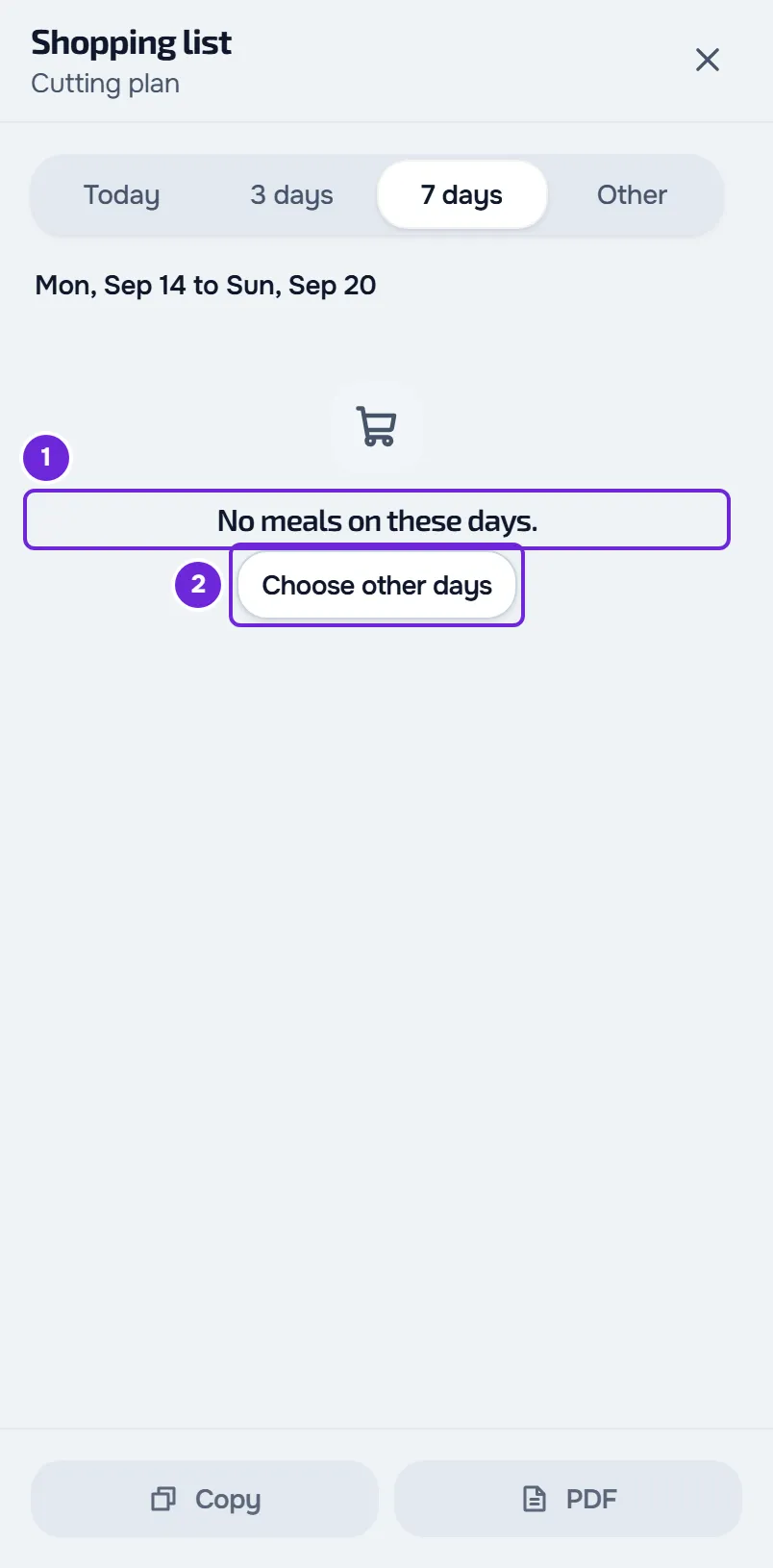
The “No meals on these days.” card appears when there is nothing to buy on the days you asked for. It has the Choose other days button, which opens Other. On the website, the button does not appear when you are already in Other. In the app, when you are already in Other, the button opens the First day picker.
| What you see | Cause | What to do |
|---|---|---|
| “No meals on these days.” | You are a client and the days you asked for come before the start of your dates in the plan. The list only counts the days inside those dates. | Select Choose other days and choose days from the start of your plan onwards. |
| “No meals on these days.” | The plan has no foods on those days. In a Weekly or Calendar plan, only the meals of the days you asked for count. In the professional's list, the days count from day 1 of the plan, which in a Weekly plan is Monday. | Ask for more days, for example 7. If meals or foods are missing from the plan, the professional is the one who adds them. |
| “No meals on these days.”, after you chose meals in Meals | The meals you chose have no foods on the days you asked for. | On the website, in Meals, select All meals. In the app, in Meals, select the meals you had removed again. |
| “Choose 1 to 31 days.” in red, and the list does not change | You are a professional, you are in Other and the value of Plan days is not a whole number from 1 to 31. The website does not ask for a new list and the previous one stays on the screen. | Type a whole number from 1 to 31. The new list is requested 0.6 seconds after your last keystroke. |
| “No foods in this plan yet.” on the website. In the app, “No meals on these days.” | You are a client and you stopped having an active meal plan after you opened the screen: the professional removed you from the plan or your dates ended. | Close the list and refresh the Nutrition screen to see the current state. |
Shopping list is missing from the menu
- Professional, in the plan: the Actions button only exists when the plan has at least one meal. It also does not exist while you are creating the plan, before you select Create.
- Client, on the website: with no meal plan assigned, the Actions menu has no Shopping list. With a plan that has no meals, the Actions button does not appear.
- Client, in the app: with no meal plan assigned, the Actions menu has no Shopping list. On a phone, the Actions menu opens from the button with three dots.
The Meals field does not appear
The Meals field only appears when the days you asked for serve more than one meal. Meals with the same name count as one. With only one, there is nothing to choose.
The ticks on the list disappeared
A tick is a food you tick off on the list, which then moves down to “Already have (N)”. Ticks are stored in the browser, on the website, or on the phone, in the app, per account and per plan. They never go to the server: they do not move from one device to another or from the website to the app, and the professional does not see the client's ticks. A lost tick cannot be recovered.
| Cause | What happens |
|---|---|
| You signed out. | On the website and in the app, the ticks of that account are deleted. In the app, the same happens when you are signed out of the account without asking for it. |
| Another account signed in on the same browser. | The ticks of the previous account are deleted. Those of the account that signs in stay. |
| You cleared the browser data, or you use a private window or a browser that blocks storage. | The ticks are lost or are never stored. |
| You opened the list on another device or in another browser, or moved from the website to the app. | Each one has its own ticks. |
| The professional changed the name or the unit of the food in the plan. | The line is recognized by its name and its unit, so it becomes a new line, without a tick. Changing the days, the meals or only the quantity keeps the tick. |
| You selected Clear ticks. | All the ticks of that plan are undone. |
| You now have a different meal plan. | Ticks belong to each plan and the new plan starts with none. In the app, only those of the last plan where you ticked something off stay stored. |
| You are a professional and you opened the list in a plan, in Nutrition, and the list of your own plan, in My area. | They are two lists with separate ticks, even if the plan is the same. |
To take the list with you without depending on the ticks, use Copy or PDF. The copied text lists the ticked-off foods separately, under “Already have (N)”. The PDF, which only exists on the website, comes out without ticks, with empty boxes for you to tick by hand. See Copy the shopping list or save it as a PDF and Aisles, ticks and alternatives in the shopping list.
Shopping list limits
| Limit | Value | When you reach it |
|---|---|---|
| Days in a list | 1 to 31 | The website and the app do not let you ask for more. For the client, the list also never goes past the end of the plan. |
| Meals chosen in a request | 100 | The request is refused and the list shows an error. |
| Lists requested per minute | 20 | Further requests fail until that minute ends. |
| Lists being prepared at the same time | 2 | The next request is refused. The website and the app wait 1 second and repeat it on their own, up to 3 times. A request refused by this limit does not count towards the 20 per minute. |
The last two limits apply per account: they count the website and the app together and, for the professional, the list of a plan and the one in My area. The professional and the client each have their own.
Each time you open the list, each change of days or meals and each Try again is a request. On the website, going back to days you have already asked for since you opened the list does not make a new request. To save requests, the list is only requested 0.6 seconds after the last meal you select and, in the professional's list, after the last keystroke in Plan days.
If this did not solve it
If you are a client and the list appears empty, first confirm the dates and the meals of your plan with your professional. If the problem continues, write to the MyFitnessClient team through the contact shown in the Help Center and send:
- the name of the meal plan;
- the days and the meals you chose in the list;
- the exact message you see, with the line under the title;
- on the website, the code from the “Reference” button on the error card, when it appears (selecting the button copies the code);
- the approximate time;
- whether it happened on the website or in the app, and in which browser or on which phone.