
When it happens
MyFitnessClient on the web needs a network to load and save. When the browser loses the network, the notice “You are offline” appears at the bottom of the screen, full width; on a wide screen, such as a computer's, in the bottom-right corner, on top of the pill of a workout in progress. The notice appears on the pages of your account, in the professional's dashboard and in the client area, and never on the site's public pages, such as the home page.
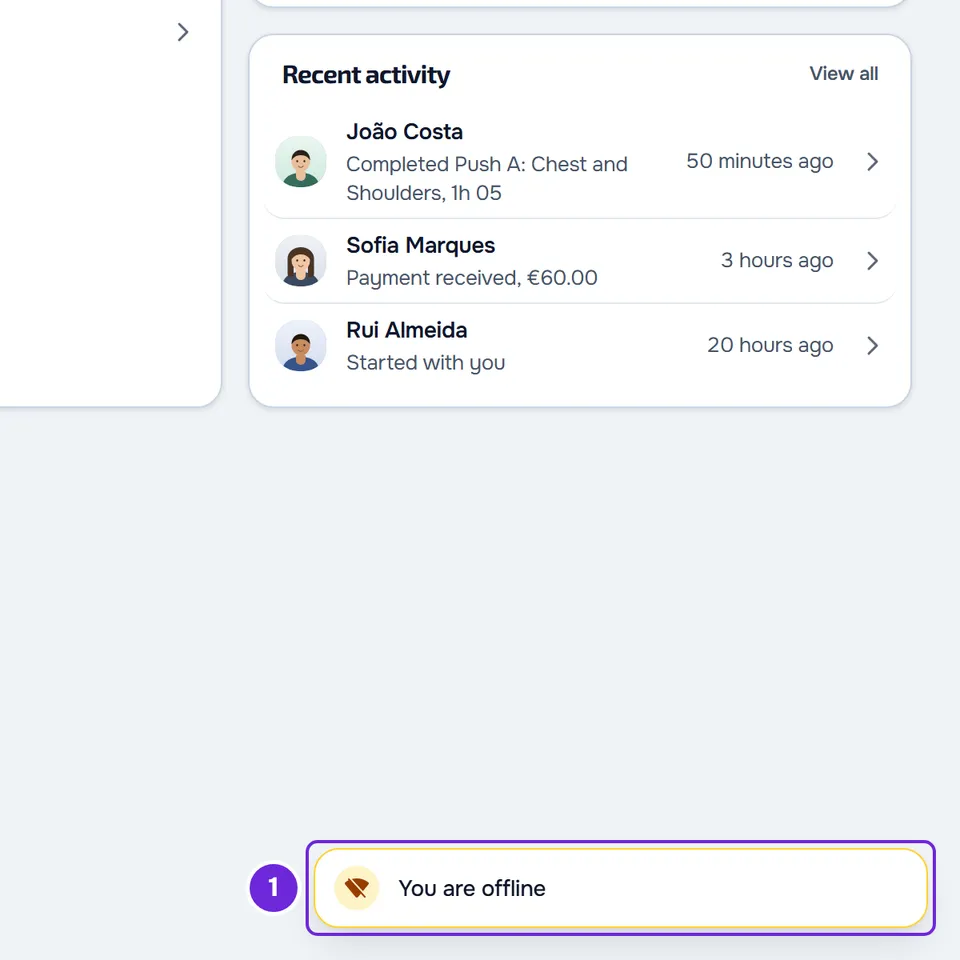
The notice follows what the browser reports about the network. On a Wi-Fi network that is connected but has no internet access, the browser may consider itself online and the notice does not appear: instead, you may see “The response is taking longer than usual” or an error on the page.
What each notice means
Three notices about the connection appear in the same place:
| Notice | When it appears | When it goes away |
|---|---|---|
| “You are offline” | The browser lost the network. | When the network comes back. It has no close button. |
| “Connection restored” | The network came back after the “You are offline” notice. | After 3 seconds. If a request is still waiting after more than 12 seconds, it gives way to “The response is taking longer than usual”. |
| “The response is taking longer than usual” | A page or an action has been waiting for the server for more than 12 seconds, because the network is slow or the server is busy. File uploads do not count. It does not appear while the “You are offline” notice is on the screen. | When all the requests that were waiting finish. The X on the notice closes it, and it does not appear again for 30 seconds. |
When the page itself shows an error card in place of the content, the connection notice does not appear, so the same problem is not reported twice. For those cards, see “We could not load this information” and other error cards.
Steps
To use MyFitnessClient on the web again:
- Check that airplane mode is off and that Wi-Fi or mobile data is on.
- If the Wi-Fi asks for a sign-in page, as in a hotel or a gym, complete it in the browser or switch to mobile data.
- Wait for the “Connection restored” notice, which appears for 3 seconds when the network comes back.
- If you see “The response is taking longer than usual”, wait for the request to finish before you repeat the action.
- If part of the page shows an error card, reload the page.
- If you see the “No connection” page, select Try Again.
With the network back, pages load and save again. Check whether what you saved without a network was kept and, if it wasn't, do it again.
If the network works on other sites and the page shows a message from the server, see Server temporarily unavailable or too many requests in a row.
The “No connection” page
In a browser where you have already opened MyFitnessClient to sign in to your account, when a whole page opens without a network, for example when you type an address, reload or open the installed app, MyFitnessClient tries to load it twice, with a short pause between attempts, and waits up to 10 seconds for each one. If both fail, it shows the “No connection” page, with the sentence “Check your network and try again.” and the Try Again button, which loads the page again. In a browser where you have never opened MyFitnessClient, the browser's own error page appears.
The “No connection” page appears in the language of the site you were using, including the name of the browser tab; if that language isn't known, it uses the browser's language or Portuguese.
What the web keeps offline
The web has no offline mode. Without a network, the only thing it has stored is the “No connection” page: the screens and your data always come from the network. Without a network, the web does not load workouts, plans or messages and does not save changes to your account. What is already on the screen stays visible, but it does not update.
- A workout in progress is the exception: each change is stored in this browser and, when the network comes back, the copy of the workout in progress is sent to your account again. To finish the workout and save it, you need a network.
- In Nutrition, if you mark a meal as eaten without a network, it is not saved and the “Try again” notice appears. When the network is back, reload the page and check whether the meal was marked.
- The chat starts checking for new messages again by itself when the network comes back. If it does not update, see The chat doesn't update by itself or messages arrive late.
To use it without a network
If you're a client, the store app keeps a few days on your phone and works without internet for workouts, nutrition, habits, supplements and check-in, and what you log without a network is sent automatically when there is a connection. See The app says “Offline” or takes a long time to load. If you're a professional, you always use the web, including in the installed app, and you need a network: the store app is for clients only.
Questions
Can I close the “You are offline” notice?
No. It has no close button and goes away by itself when the network comes back.
Why do I see “The response is taking longer than usual” when I have internet?
A request has had no response for more than 12 seconds: the network is slow or the server is busy. The notice goes away when all the requests that were waiting finish.
A Dashboard page says “Our services seem to be down”
It appears when the Dashboard can't read your plan, for example when the server is down or the network is cut off. MyFitnessClient tries again by itself and the page opens when the connection is back. See “Our services seem to be down” and section under maintenance.
If this did not solve it
If you're a professional, contact support. If you're a client, write to the MyFitnessClient team through the contact shown at the end of the Help Center home page. Include:
- the exact text of the notice or the page;
- the time it appeared;
- the device and the browser, and whether you use the installed app;
- whether other sites open on the same network.