
Before you start
- Closing deletes your professional account and your data, not only the subscription. You do it on the website, in the professional dashboard.
- You need your account password. If you only sign in with Google or Apple and never set one, set it first: see Change or set your account password. Alternatively, write to [email protected] from your account's email, with the subject “Delete account”. The request is handled within one month, and your identity is confirmed before anything is deleted.
- The window for closing your account does not make a copy of your data. If you want to take your data and your clients' data with you, request it first: see Request an export of your data and your clients' data.
Steps
To close your account:
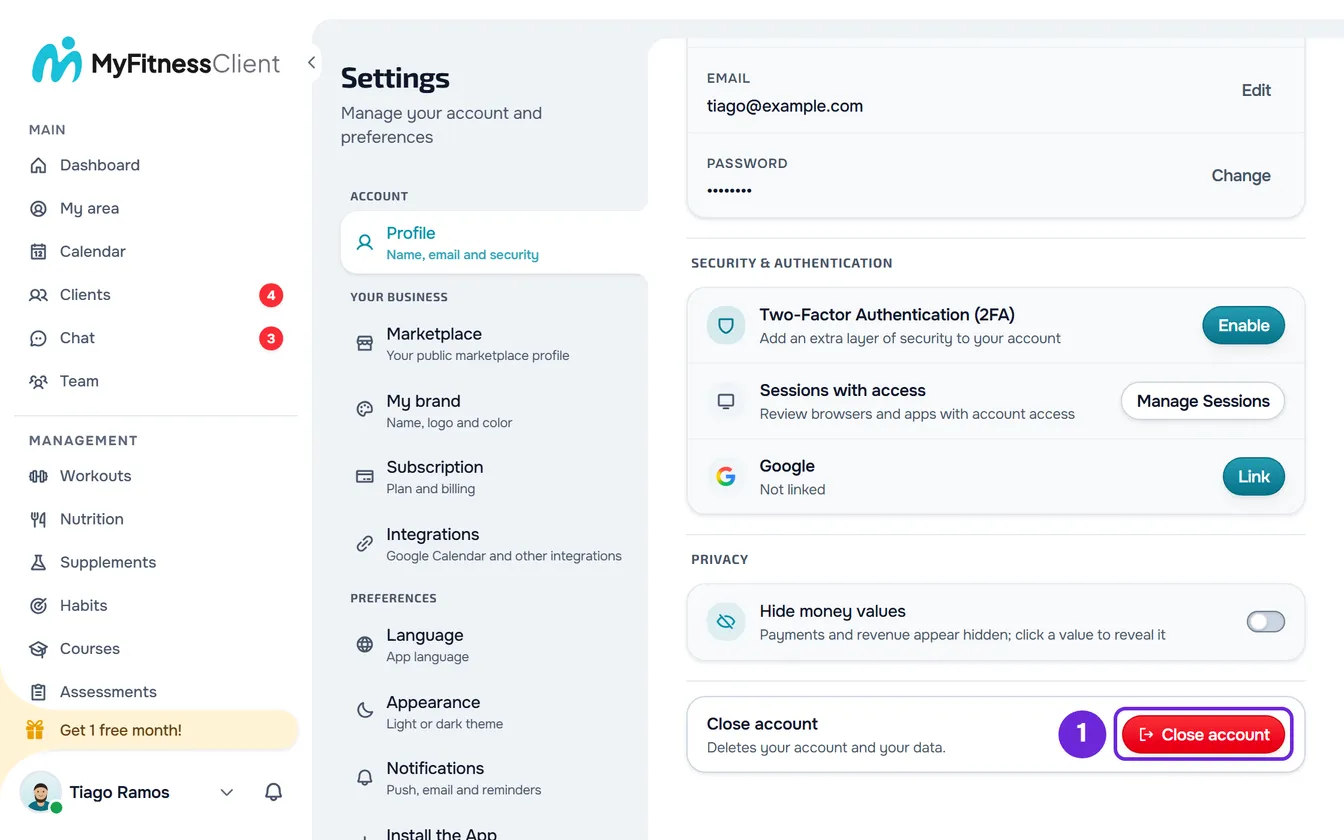
- On a computer, select your photo and your name at the bottom of the side menu, then Settings. On a phone, open the menu and select Settings at the bottom of the menu.
- If Settings did not open on Profile, select Profile.
- In the last section of Profile, on the Close account row, select the red Close account 1 button. The Close the account window opens and first reads what is still ongoing in your account.
- Read how the account closes. If the window starts with “You still have clients with paid days.”, the account will be closing and the text gives the date it closes. If not, the account closes now.
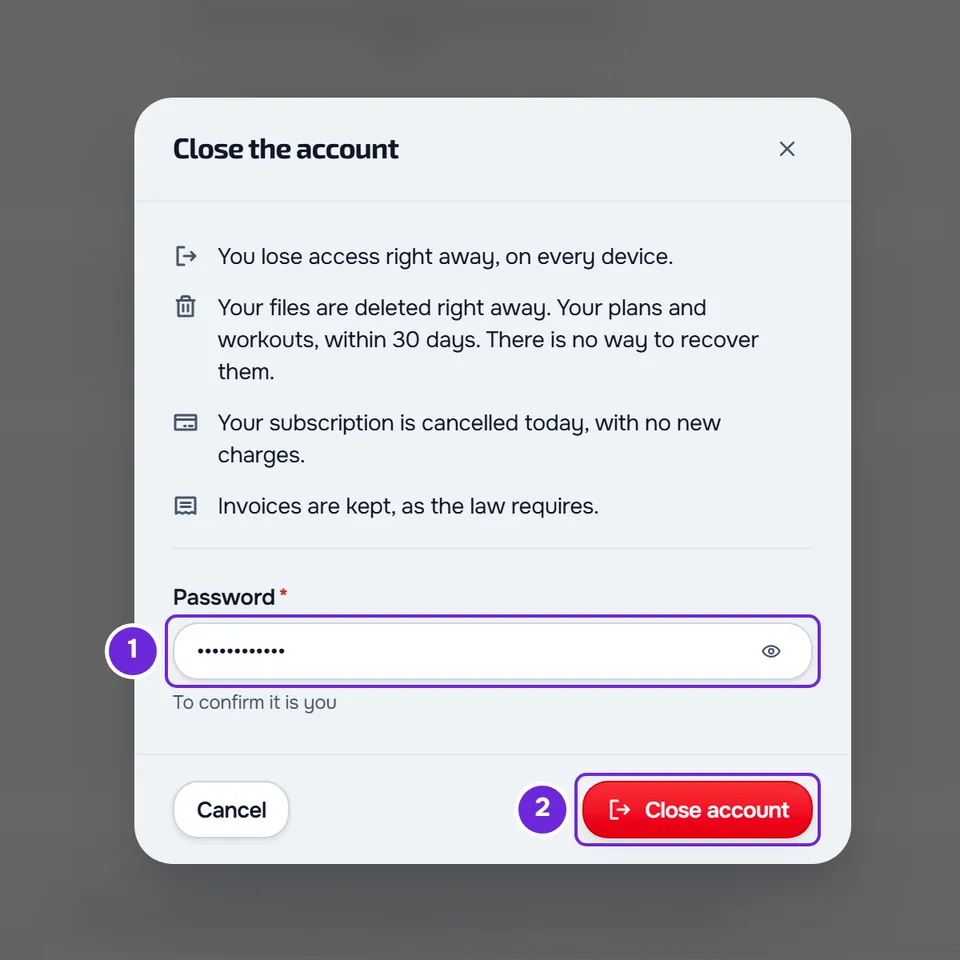
- If the window shows the list of what is still ongoing, check each line and what happens to it.
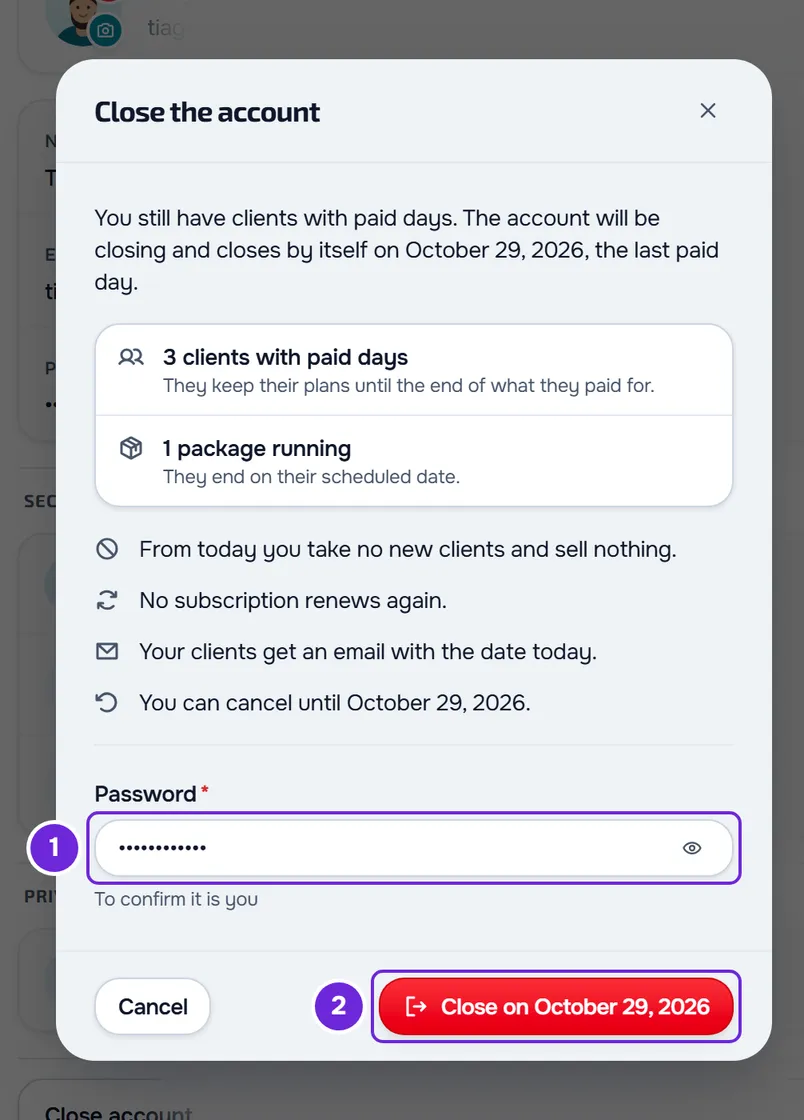
- In Password 1, type your account password.
- Select the red button at the bottom of the window: Close account or, when the account will be closing, the “Close on” button followed by the date 2. The button only becomes active once the window has finished reading and you have typed your password.
If the account closes now, you are signed out and the website takes you to the home page. Otherwise, the “The account closes on” notice appears with the date, and the Profile row changes to “Your account closes on” with the date, “Your clients keep what they paid for until then.” and the Cancel closure button.
Closes now or will be closing
You don't choose: the window decides based on what is ongoing. If any client has paid days ahead, in a plan or a package, the account does not close right away, so nobody loses what they paid for.
| What | Closes now | Will be closing |
|---|---|---|
| When it happens | No client has paid days ahead. | At least one client has paid days ahead. The account closes by itself after the last paid day, at most 3 months after the request. |
| Your access | You lose access right away, on every device. | You keep using the account and coaching your clients until it closes. |
| Your data | Files are deleted right away; plans and workouts, within 30 days. Invoices are kept. | They are deleted when the account closes, in the same way. |
| Your MyFitnessClient subscription | It is cancelled today, with no new charges. | It continues until the account closes and is cancelled at that moment. |
| Your clients | Active clients with their own account get an email saying you closed your account. The records they logged stay in their account. | Today they get a notification and an email with the last day. When the account closes, they get the closure email. |
| Sales and new clients | They end with the account. | From today you take no new clients and sell nothing, no client subscription renews again, and your public profile leaves the marketplace. |
| Cancelling the closure | Not possible. | You can cancel until the scheduled date. |
The date the window shows is the account's last day: the account works until the end of that day and then closes by itself. To cancel before then, see Cancel your account closure.
What the window lists
Before the sentences about what happens, the window shows what is still ongoing in your account, only with the lines that apply:
- Clients with paid days: they keep their plans until the end of what they paid for. If the 3-month maximum cuts that period short, they keep them until the account closes.
- Packages running: they end on their scheduled date.
- Courses with buyers: they stay available to buyers until the date the line shows.
- Amount still to collect: what clients still owe you. With the account closing, you can collect it until it closes. If the account closes now, you can no longer collect it in the app.
- Team with members: the members of your team lose access when the account closes.
- Join requests paid outside the app: each request with the client's name and the amount.
Common problems
“The password is not right.”
The password you typed is not your account's. Type it again, paying attention to capital letters. Up to 5 attempts per minute are accepted. If you don't remember it, see Reset a forgotten password.
“First set a password in the Password row above so you can close the account.”
Your account has no password, because you only sign in with Google or Apple. Close the window and, in Profile, on the Password row, set one: see Change or set your account password. Then repeat the steps.
“The closure changed in the meantime. Review it again before confirming.”
Between opening the window and confirming, what is ongoing changed: for example, a client paid for more days or a package ended. The account was not closed. The window updates to show how and when the account now closes, and your password stays filled in: read the update and select the red button again.
“Could not load. Try again.”
The window could not read what is ongoing, and the close button stays inactive. Check your internet connection, select Cancel and open the window again with Close account. If that didn't solve it, contact support with your account's email and the approximate time: see Contact Support and create a request.
Questions
Can I change my mind after closing?
If the account is closing, yes, until the scheduled date: see Cancel your account closure. If the account closed right away, no: deleted data can't be recovered.
I only want to stop paying. Do I have to close my account?
No. Cancel your subscription and your account continues, with your clients and your data: see Cancel your subscription and understand what happens next.
Do my clients lose their data?
Their records stay: the workouts, nutrition, measurements and check-ins they logged remain in their account. Your plans, assessments and messages are no longer available to them, and the photos and files they sent you are deleted.
What is kept after the account closes?
Invoices are kept, as the law requires. The full list of what is deleted and what is kept, and for how long, is in Data deleted and data kept on account deletion.