
Before you start
- Only the account owner sees the preview button. A team member, in the owner's workspace, does not see it.
- The Test Student must exist. It is created with the example data of a new account. If you removed that data, you get it back when you start the tutorial See the client app, which asks “Create example data?”.
- You can open the preview up to 10 times per hour.
Interactive tutorial
Opens in the app and needs you to be signed in.
Steps
To open the client app as the Test Student:
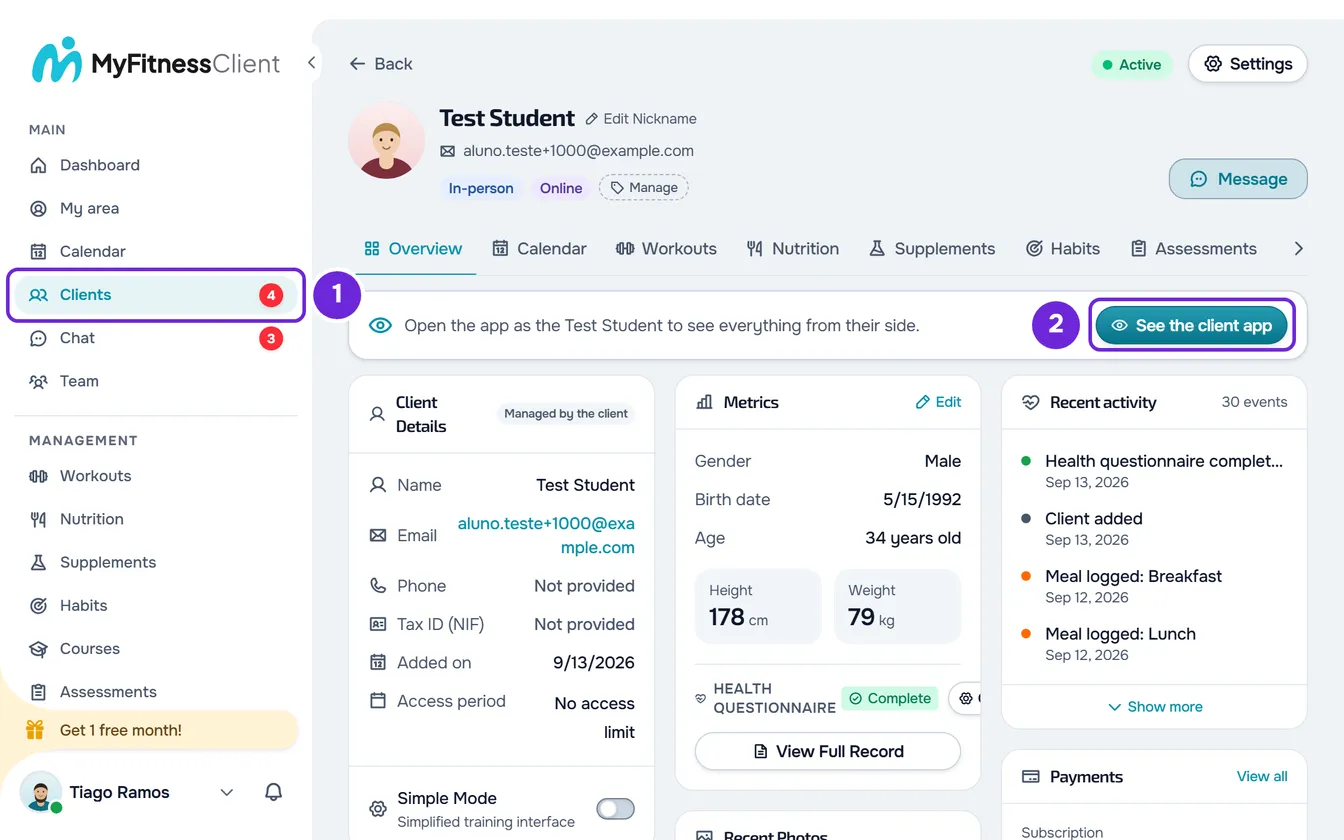
- In the sidebar, select Clients 1.
- In the list, select the Test Student. Their profile opens.
- In the profile, on the card that starts with “Open the app as the Test Student”, select See the client app 2. The client app opens in a new tab or, if the browser does not allow new tabs, in the same window.
- To finish, on the banner “You're viewing the app as the Test Student”, select Exit 1.
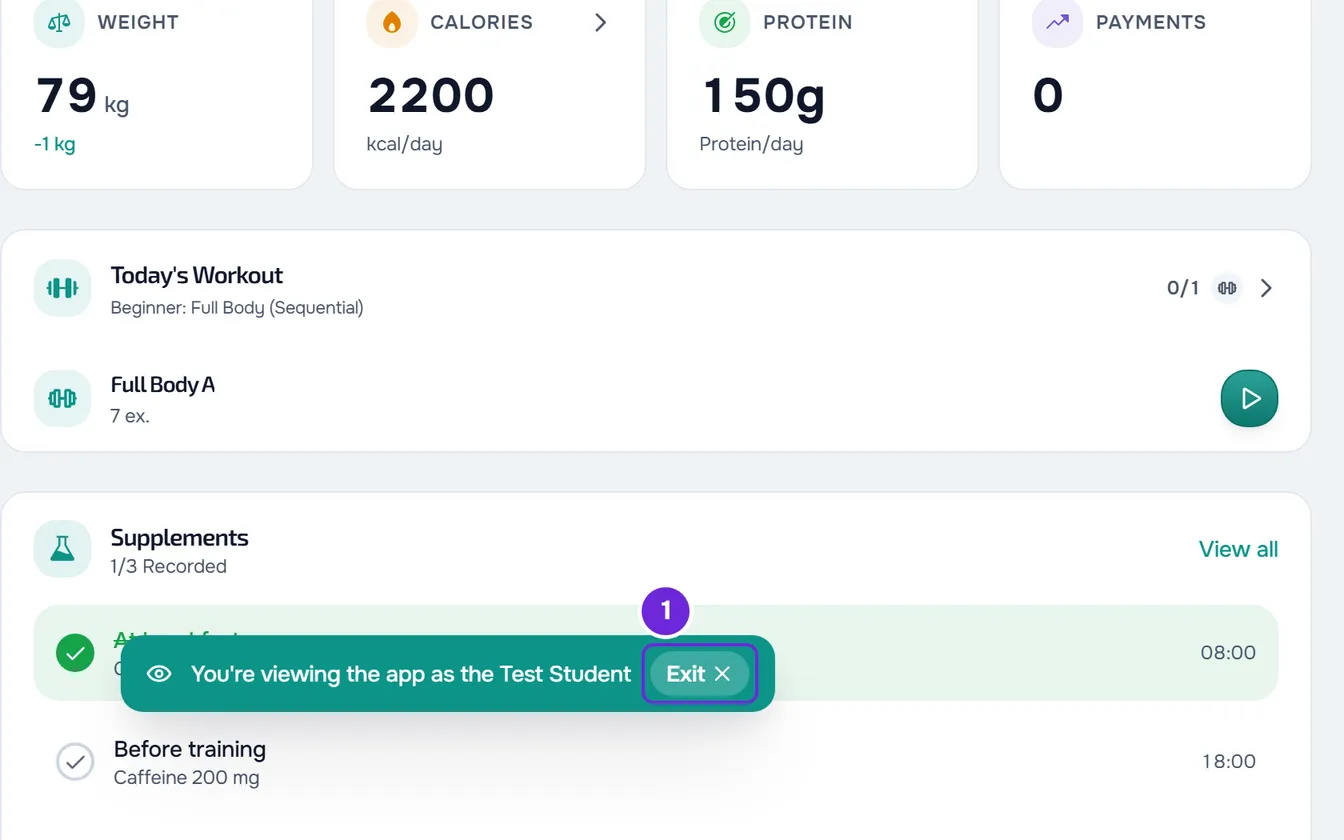
The preview ends and you go back to the dashboard.
What happens in the preview
- You use the app the way the client uses it, with the Test Student's workouts, nutrition and logs.
- Whatever you do is saved in the Test Student's data, as if they had done it. It is example data and goes away when you remove the example data.
- Your professional session stays open in the dashboard, and the dashboard theme does not change.
- The client welcome tour starts on its own every time you open the preview, and the progress of the client tutorials is not saved.
- Unlike with a real client, automatic questionnaires do not open on their own.
When the preview ends
Each preview lasts 15 minutes. After that, the app shows the “The preview has ended” screen, with two options:
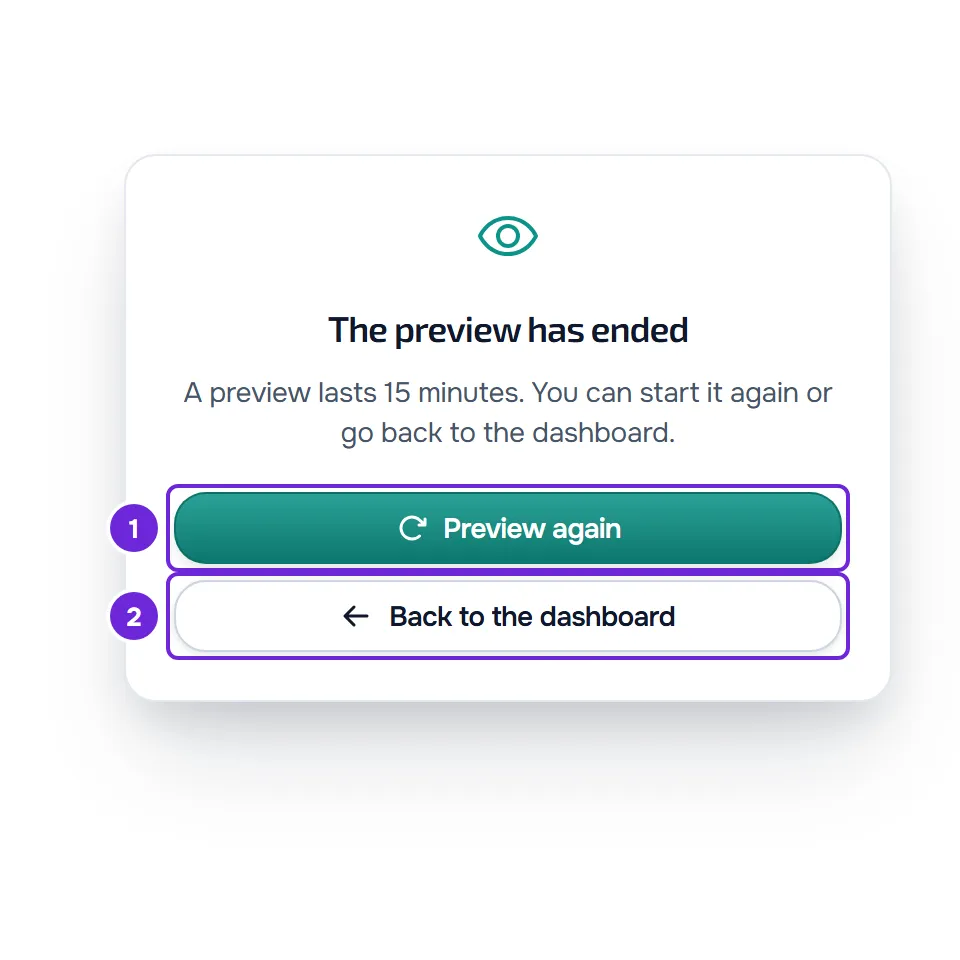
- Preview again opens another 15 minutes in the same tab and counts toward the limit of 10 per hour.
- Back to the dashboard closes the preview tab or, if the app opened in the same window, takes you to the dashboard.
Selecting Exit in one tab ends the preview in every tab of the same browser: the others show the same screen on the next action.
Common problems
“Could not open the preview.”
The message is the same for every cause: you reached the limit of 10 previews per hour, the Test Student no longer exists, or the connection to the server failed. If you opened many in a row, wait up to an hour. Otherwise, reload the Test Student's profile and try again. If that did not solve it, contact support with the time you tried and the browser you use.
The See the client app button does not appear
The button only appears on the Test Student's profile, and only to the account owner. It disappears when you remove the example data; in a newly created account, it may take a few seconds to appear. Open the Test Student's profile with your owner account or recreate the example data with the tutorial See the client app.
“Preview again” does nothing
The request for a new preview failed, for example because you reached 10 per hour. The screen stays the same and the button becomes available again. Select Back to the dashboard and, later, open the preview from the Test Student's profile.
The app opened in the same window
This happens when the browser does not allow a new tab to open, for example because it blocks new windows. The preview works the same way, and Exit takes you back to the dashboard.