
When you select Create or Save in a food's form, MyFitnessClient checks the values before storing them. If one doesn't pass, the food isn't saved, the form stays open with what you typed, and a red message appears at the end of the form, under the nutrition values. Messages that come from the server also appear in a notification. The same happens when you close the form and choose Save and leave, which stays disabled while Name is empty.
Fix it and save again
To find the message and save the food:
- In the New Food or Edit Food form, scroll to the end and read the red message 1.
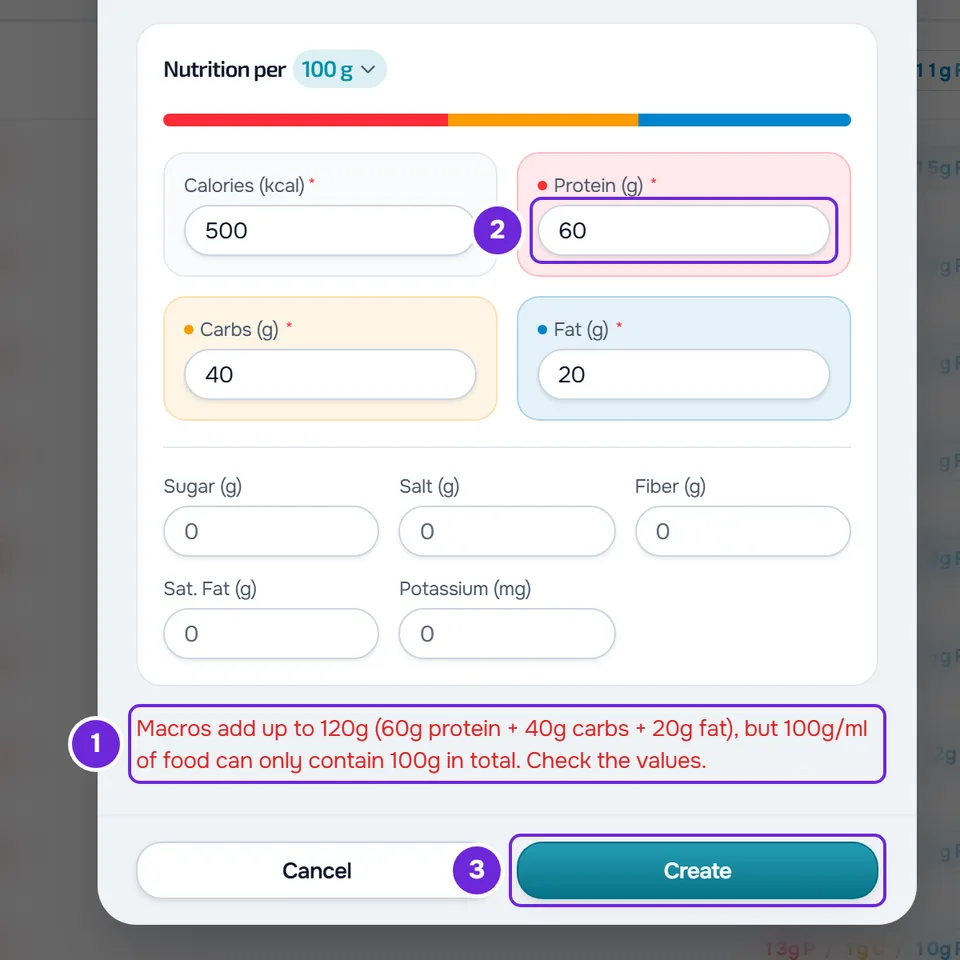
- Find the message in the tables that follow and fix the field it points to 2.
- Select Create 3 for a new food, or Save for a food you're editing.
The form closes, the screen switches to My foods and “Food created” or “Food updated” appears. If another message appears, fix it the same way.
Form messages
The form checks the fields in this order and shows only the first message. The numbers in the messages are examples: the screen shows your values.
| Message | When it appears | What to do |
|---|---|---|
| A browser message, next to the Name field | Name is empty. | Type the food's name. |
| “Field required” | Name only has spaces. | Type the food's name. |
| “Fill in the 4 required fields: calories, protein, carbs and fat (0 is allowed).” | One of the four values with an asterisk is missing, or the field only has the decimal point. It also happens with products from the online search that come without one of these values. | Type the value from the label. If the food doesn't have that nutrient, type 0. |
| “Error” | An optional value (sugar, salt, fiber, saturated fat or potassium) only has the decimal point, with no digits. | Complete the number or clear the field. An empty optional field is left with no declared value. |
| “Set how much 1 c.sopa is (in g or ml).” | The Unit is a measure such as tablespoon, dose or slice, and the “How much is 1 …?” field is empty or 0. The message shows the unit's short name, for example “un” for unit. | Type how much one unit weighs or measures, in g or ml, for example 1 egg = 60 g or 1 cup = 250 ml. |
| “Nutritional values cannot be negative.” | A value is negative. The fields don't let you type the minus sign, so this only happens with values that were already filled in. | Fix the value. |
| “1,500 kcal per 100g/ml is impossible: the physical maximum is 900 kcal (pure fat). Check that your values really are per 100g/ml.” | Calories are over 900 per 100 g or 100 ml. | On the label, copy the per 100 g or 100 ml column and the value in kcal, not in kJ. |
| “Protein: 120 is impossible. The maximum is 100g per 100g/ml of food.” | Per 100 g or 100 ml, protein, carbs, fat, saturated fat, fiber or sugar are over 100 g, salt is over 50 g or potassium is over 10,000 mg. The message starts with the value's name; for salt, it shows “Salt (g)”. | Check the value on the label. Potassium is entered in mg. |
| “Macros add up to 120g (60g protein + 40g carbs + 20g fat), but 100g/ml of food can only contain 100g in total. Check the values.” | Protein, carbs and fat add up to more than 100.5 g per 100 g or 100 ml. | Check the three values on the label. |
| “Saturated fat (12g) cannot be higher than total fat (10g).” | Saturated fat is higher than fat. | Fix one of the two values: saturated fat is part of fat. |
| “Sugar (30g) is part of the carbs, so it cannot be higher than them (20g).” | Sugar is higher than carbs. | Fix one of the two values. |
| “20g of protein and 10g of fat yield at least ~170 kcal, but you entered only 100 kcal. Raise the calories or lower these macros.” | Calories are under 90% of the minimum that protein and fat provide (4 kcal per gram of protein and 9 kcal per gram of fat), with a 2 kcal margin. Carbs are left out of this calculation, because some sweeteners have a lot of carbs and almost no calories. | Check the calories, protein and fat on the label. |
When you create a food by hand while building a meal, the messages from “Set how much 1 …” onward are the same. See Add, edit and remove foods in a meal.
Values entered for a quantity
The messages about calories, the maximums and the macro sum use the values per 100 g or 100 ml, which is how the food is saved. If you changed the Nutrition per heading to the form's quantity, for example “31 g (quantity)”, the form converts your numbers to 100 g or 100 ml before checking them, and the message shows the converted values. With a small quantity, the conversion magnifies any mistake: 30 g of protein in 25 g of food gives 120 g per 100 g.
To see the numbers that are checked and saved, select the quantity in the heading and choose 100 g or 100 ml: the values switch to per 100. The messages about saturated fat, sugar and the calorie minimum compare the numbers as you typed them.
Server messages
When the form passes its checks, the food goes to the server. If the server doesn't store it, the message appears at the end of the form and in a notification.
| Message | Cause | What to do |
|---|---|---|
| “Invalid data. Check the fields.” | The server refused a value. It happens with a one-letter Name: the form accepts it, but the server asks for at least 2 characters. It also happens with a Brand longer than 100 characters brought in from the online search. | Fix the name or the brand and save again. |
| “You don't have permission to do this in this team.” | You're in a team's workspace and don't have the permission to create in Nutrition. | Ask the team owner for that permission. |
| “You have more active clients than your plan allows. Choose which to keep or upgrade your plan.” | Your account, or the team you're working in, has more active clients than the plan allows. While that's the case, you can't create, edit or delete foods. | Choose which clients stay active or upgrade your plan. In a team, the team owner sorts it out. |
| “Not found.” | You were editing a food that was deleted in the meantime, in another tab or by another person on the team. | Close the form and reload the page. If you still need the food, create it again. |
| “Server error.” | The server failed to save. | Wait a moment and save again. |
| “Connection error.” or “The request took too long.” | The internet connection failed, or the request took more than 45 seconds. | Check your connection and save again. For a new food, check afterwards in My foods that it wasn't saved twice. |
For the client limit, see You have more active clients than your plan allows. For a member's permissions, see “No permission to access” and menu items missing for a member.
The message “Error uploading image” appears in the same place when the photo doesn't finish uploading, for example with no connection or no storage space. The food is still not saved: try again or save it without a photo. See Can't upload or attach a file.
If this did not solve it
Contact support with the food's name, the unit, the values you typed (and whether they were per 100 g or for the quantity) and the exact message that appeared.